Saving and Loading Mixer Wheels
After you have finished creating the wheels on each page, if you want to reuse the same wheels in the future, you can save them as a Mixer Layout file (*.ccMixerLayout) and load it into ActorMIXER’s Editing Mode at any time.
Note that you can perform this action in both ActorMIXER and ActorMIXER Pro versions. For ActorMIXER Pro version, you can even pack custom wheels into a package.
Saving Mixer Wheels
- Open the ActorMIXER panel.
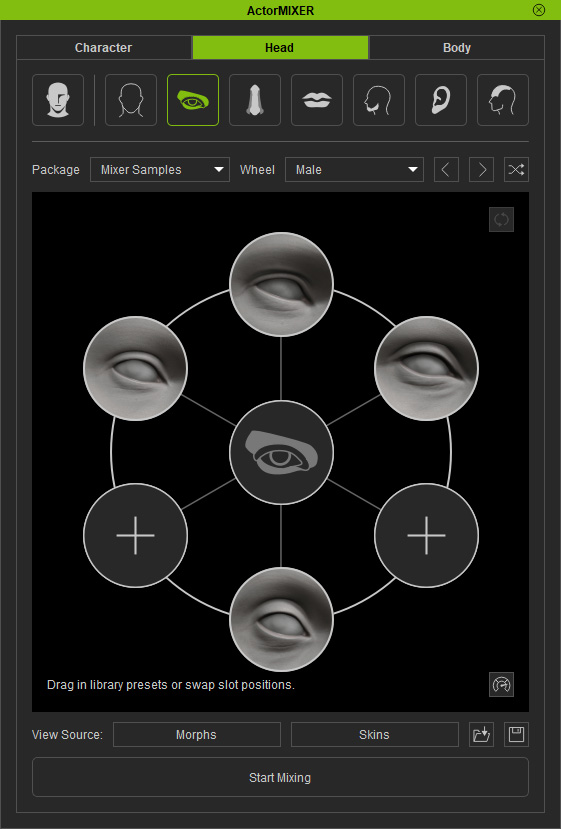
- Customize a wheel in any one of the part tabs, in this case, the Head > Eyes.
 Note:
Note:You can optionally edit the wheel target:
- Repositioning: Drag and drop a target to another empty target.
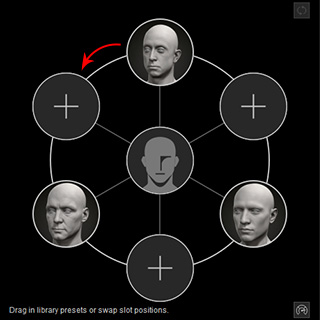
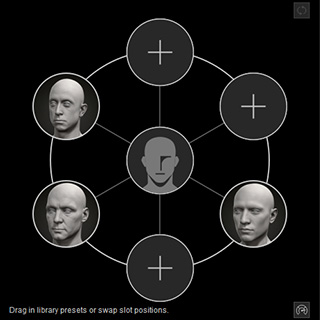
Before
After
- Swapping: Drag and drop a target to another target containing data.
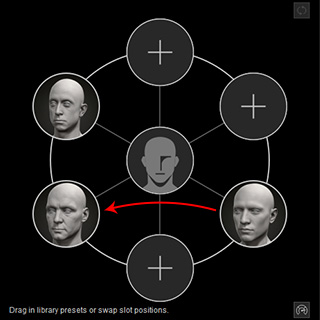
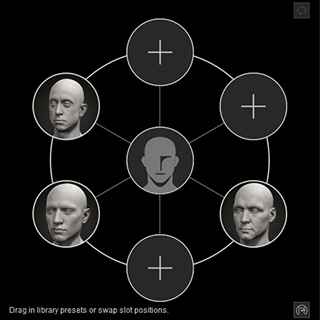
Before
After
- Right-click on a target: You can right-click on any of the target to display the context menu.
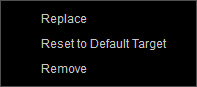
- Replace: Replaces the current target preset with a loaded one (*.ccMixerPreset).
- Reset to Default Target: Resets the target to original status.
- Remove: Removes the preset off the target.
- Repositioning: Drag and drop a target to another empty target.
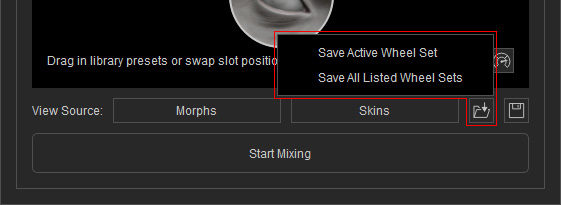
- Click the Save Wheel Set button and choose Save Active Wheel Set command from the menu.
- Name the wheel and click the Save button to save it as a Mixer Layout file (*.ccMixerLayout).
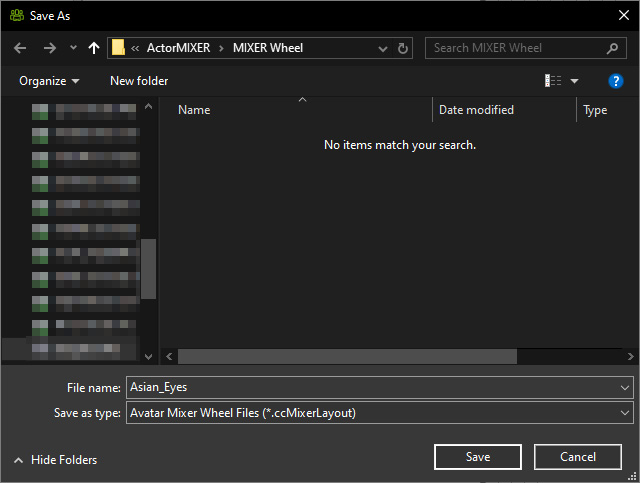
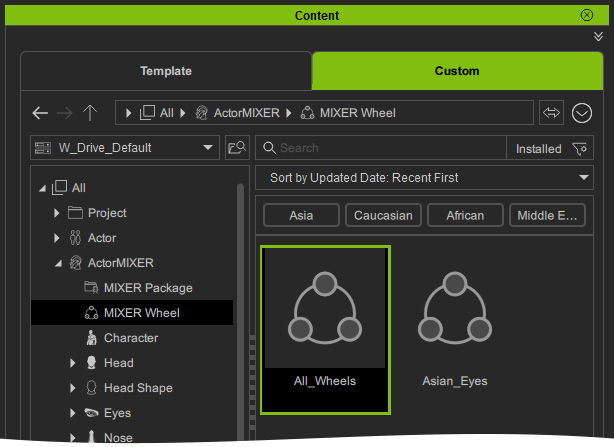
- By default, the path for saving the custom wheels is C:\Reallusion\Reallusion Custom\ActorMIXER\MIXER Wheel. You can thus find the new Mixer Layout in the Custom > ActorMIXER > MIXER Wheel library.
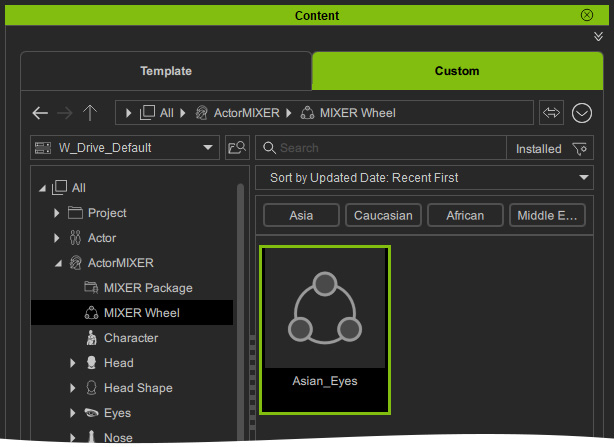
Note that this layout file only saves the currently activated wheel.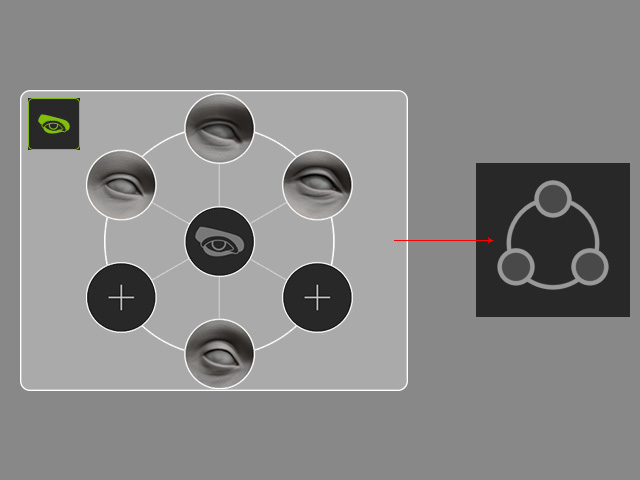
- Follow the same steps to edit the other tab's wheels, including the ones under the Character, Head and Body.
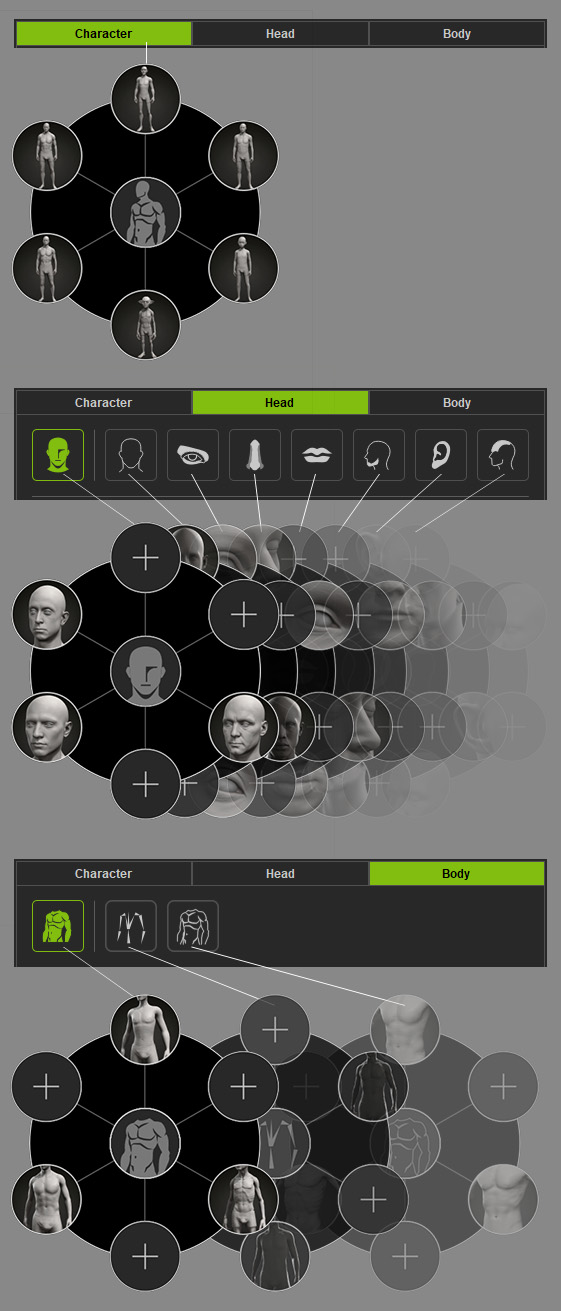
- Click the Save Wheel Set button and choose Save All Listed Wheel Set command from the menu.
- Name the wheel and click the Save button to save it as a Mixer Layout file (*.ccMixerLayout).
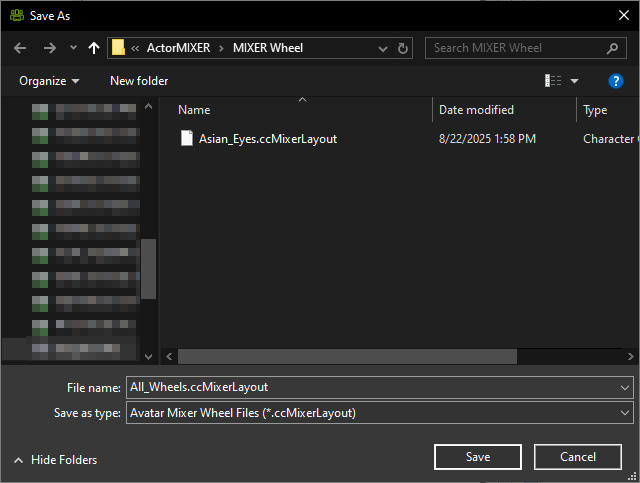
- By default, the path for saving the custom wheels is C:\Reallusion\Reallusion Custom\ActorMIXER\MIXER Wheel as well. You can thus find the new Mixer Layout in the Custom > ActorMIXER > MIXER Wheel library.
Note that this layout file saves all wheels.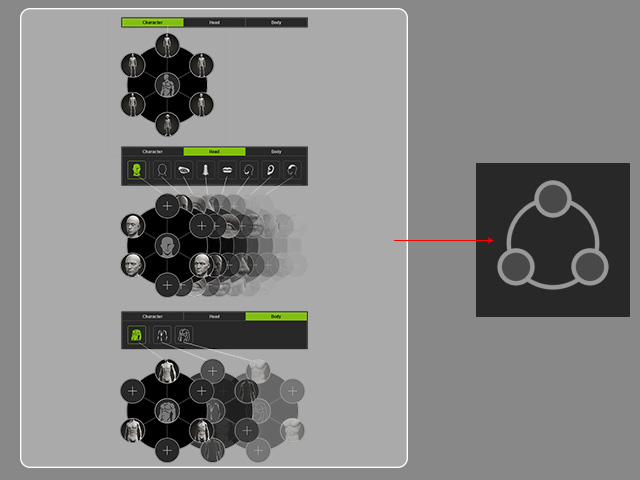
Loading Mixer Wheels
ActorMIXER, by default, provides embedded wheels for all parts. However, whenever you want to use custom wheels previously saved, you can load them back to replace the current active wheel, or all wheels.
- Open the ActorMIXER panel.
- Load the previously saved wheel set in *.ccMixerLayout format.
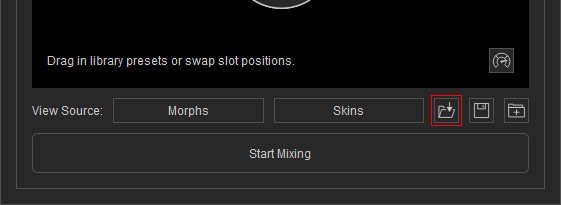
- By Load Wheel Set button:
- Drag and drop: You can drag and drop the layout from the Content Manager to ActorMIXER panel.
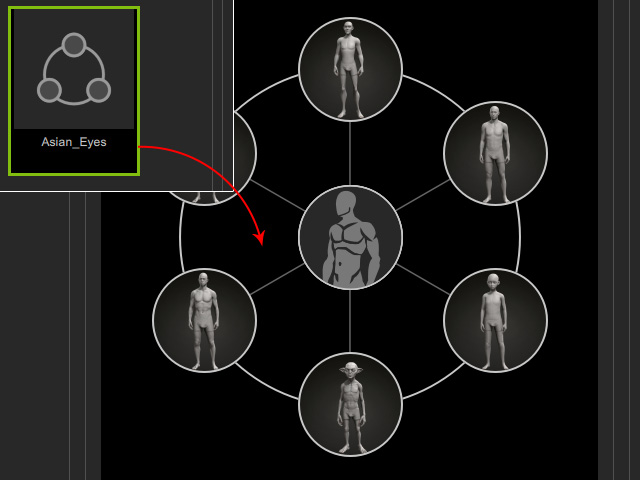
If the file is composed of single wheel set, then ActorMIXER will automatically switch to the wheel set and show the replacing result.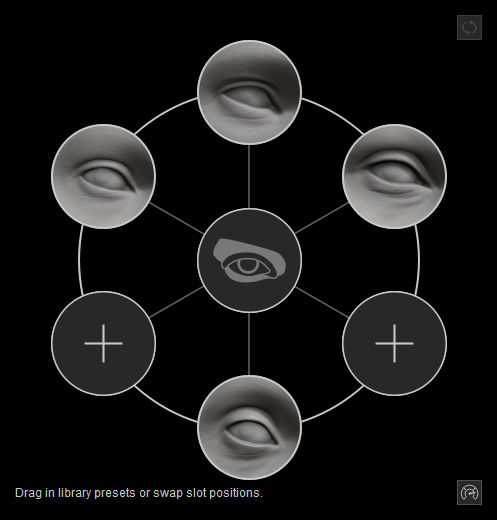
- By Load Wheel Set button:
