Exporting Characters from iClone or Character Creator
Reallusion standard characters can be exported with motions in FBX format and then imported into Unreal where the iClone and Character Creator Auto Setup plugin is installed. Follow the instructions below to export the character correctly so it can be fully used in Unreal 5 or later versions.
Export Character from iClone
- Select a character in iClone.
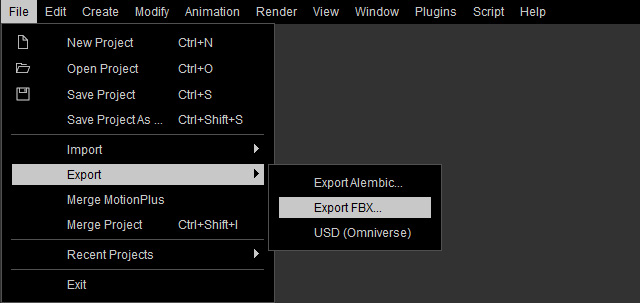
- Execute the File > Export > Export FBX... command.
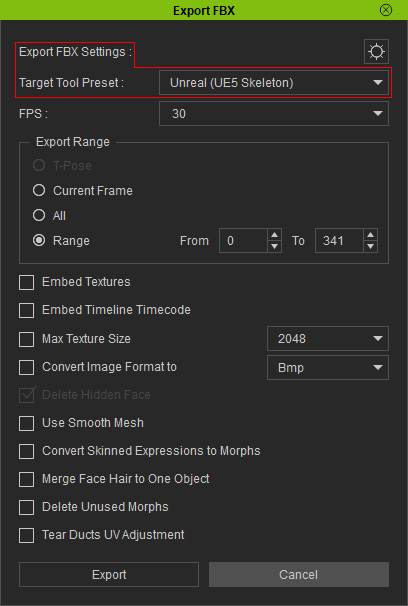
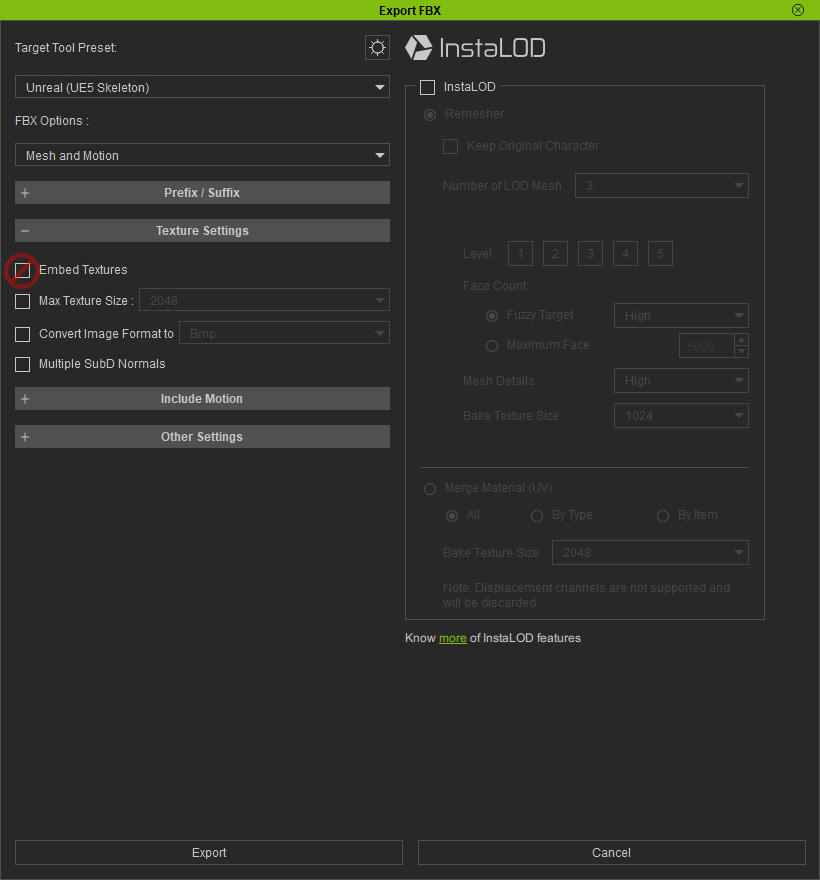
- Set the Target Tool Preset to Unreal (UE5 Skeleton) or Unreal (UE4 Skeleton) accordingly.
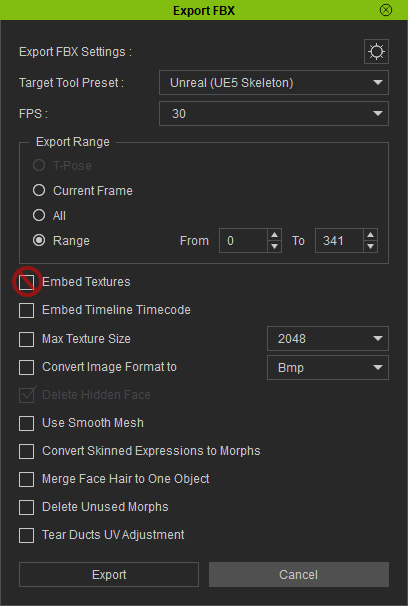
- Make sure the Embed Textures is Deactivated.
- Click the Export button to output the character into a custom folder.
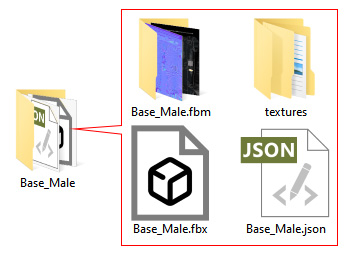
- *.fbm folder: This folder contains all Base Color (Diffuse) and Normal textures of each material.
- texture folder: This folder contains the rest of the textures.
- *.json file: This file record the settings that can not be stored in an FBX file, such as Shader Type, Two-sided checkbox, Diffuse Color, Ambient Color, Specular Color, Opacity, Self Illumination and the Strength, Path, UV Offset / Tiling for each material.
Export Character from Character Creator
- Create an animated Avatar in Character Creator.
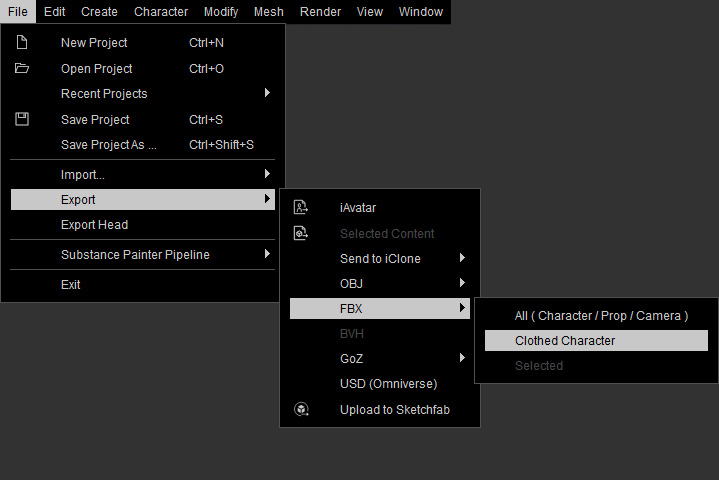
- Execute the File > Export > FBX (Clothed Character) command.
- Set the Target Tool Preset to Unreal (UE5 Skeleton) and the FBX Options to Mesh and Motion for exporting the character along with its motions simultaneously.
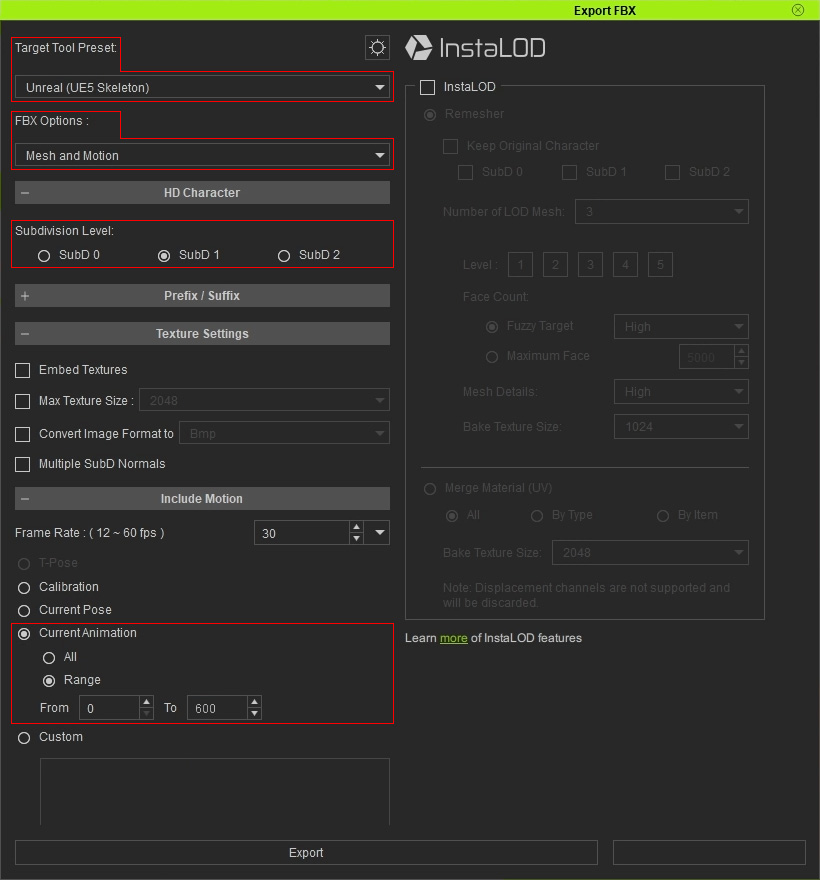
- If you adjust the settings that are not compatible with Unreal profile, then the character imported into Unreal Engine can have unexpected issues.
- Target Tool Preset: Choose Unreal (UE5 Skeleton) or Unreal (UE4 Skeleton) in accordance with your need from the drop-down list.
- FBX Options: Choose Mesh and Motion if you want to include the motion in the FBX file.
- Subdivision Level: Level 0 or 1 are highly recommended. Level 2 can significantly impact overall performance.
- Current Animation: Determines the export range of the motion.
- Make sure Embed Textures is Deactivated.
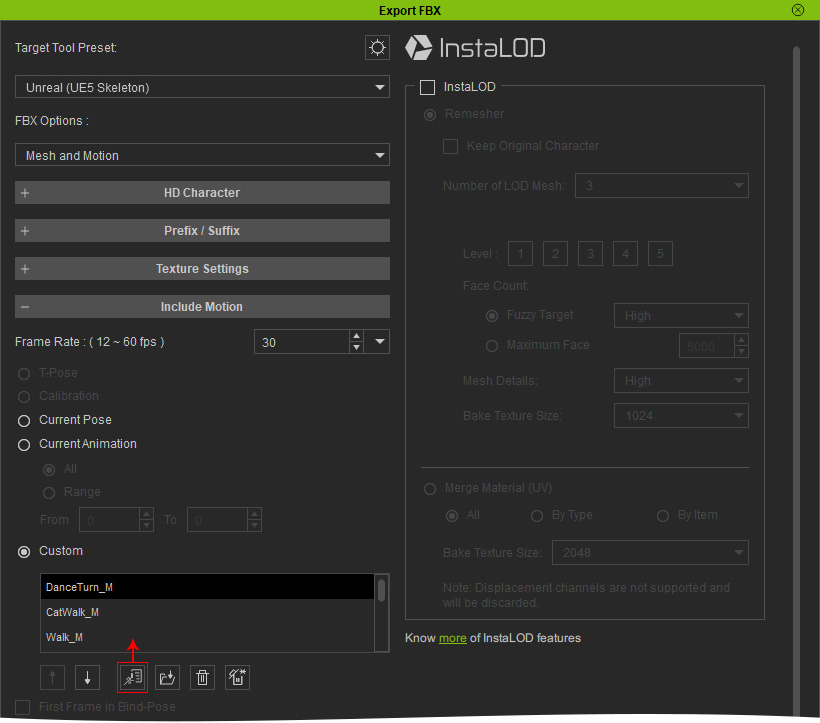
- Choose the radio button to include motions in the FBX file. In this case, select Custom and click the Load Perform button to include the motions embedded in the character.
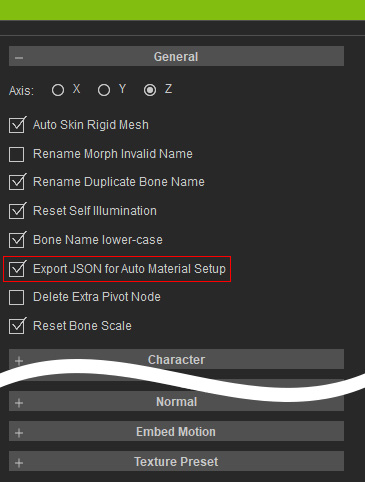
- In the Export FBX Advanced Settings panel, the Export JSON for Auto Material Setup is by default activated; if not, then activate it.
- For additional settings, refer to the User Interface for Exporting FBX section of the Character Creator online manual.
- Click the Export button to output the character into a custom folder.
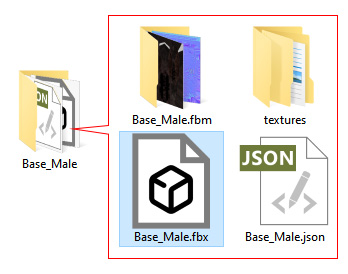
- *.fbm folder: This folder contains all Base Color (Diffuse) and Normal textures of each material.
- texture folder: This folder contains the rest of the textures.
- *.json file: This file record the settings that can not be stored in an FBX file, such as Shader Type, Two-sided checkbox, Diffuse Color, Ambient Color, Specular Color, Opacity, Self Illumination and the Strength, Path, UV Offset / Tiling for each material.
