Data Structure for Imported Characters
After an FBX format character is imported, its associated data will be well organized and distributed into different folders.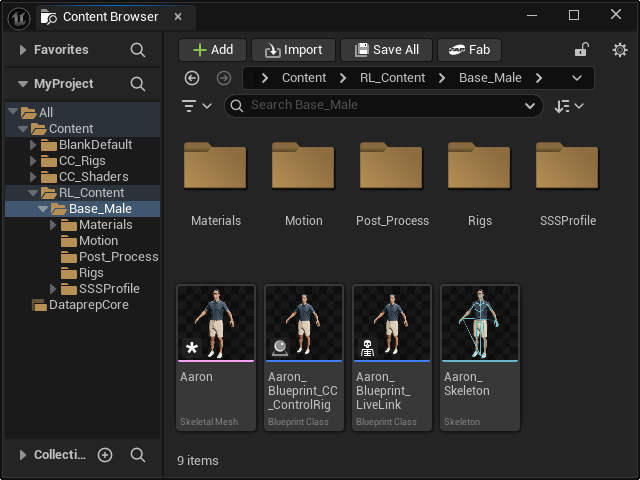
Folders
 Materials
- All textures will be connected to a material ball.
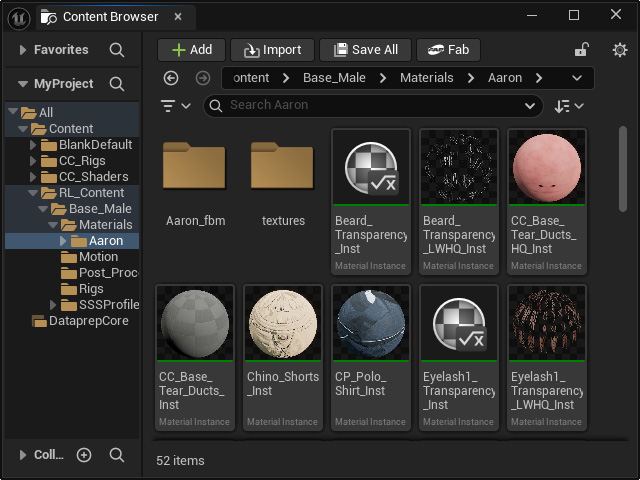
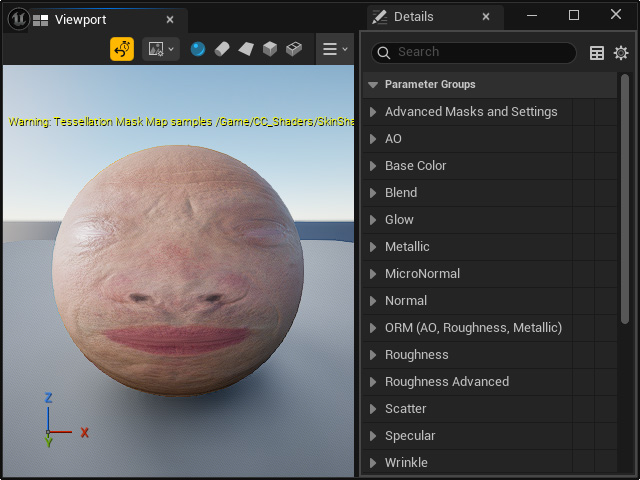
- Double-clicking on either of the material ball will reveal multiple parameters that can be adjusted.
Motion
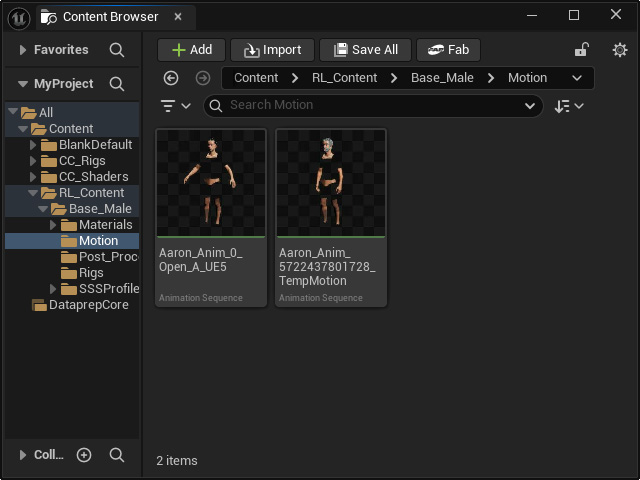
- The animation sequence will be imported along with the motion files.
- All Morph data is also included.
Rigs
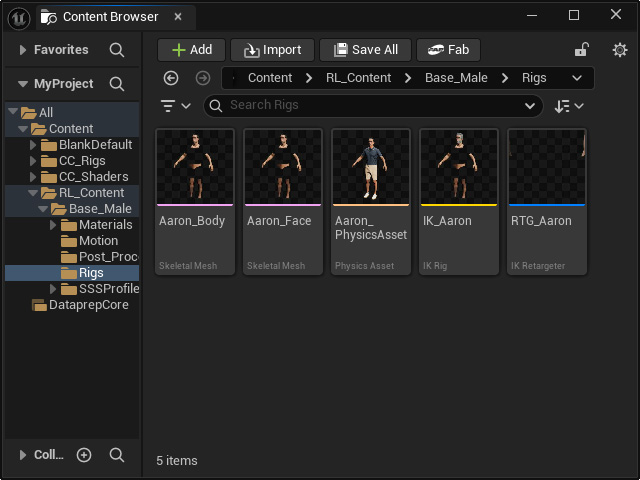
- The skeletal mesh will be separated into face and body, according to the Unreal control rig specifications.
- The IK Retargeter is also applied.
Files
Skeletal Mesh
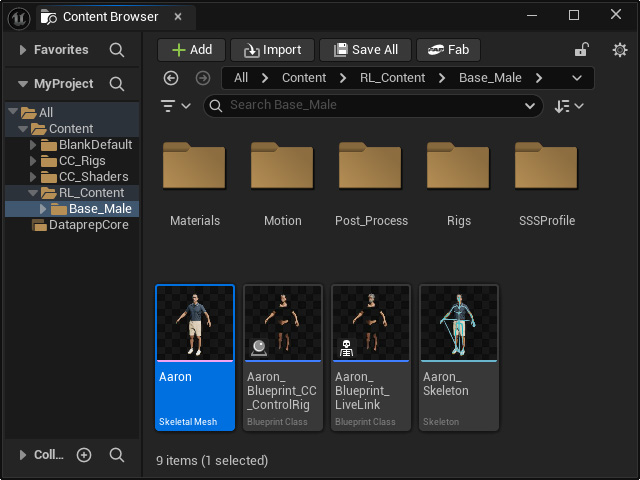
- You can apply it to the scene for creating animations, or open it for previewing animations and expressions.
- Drag and drop the Skeletal Mesh into the Scene.
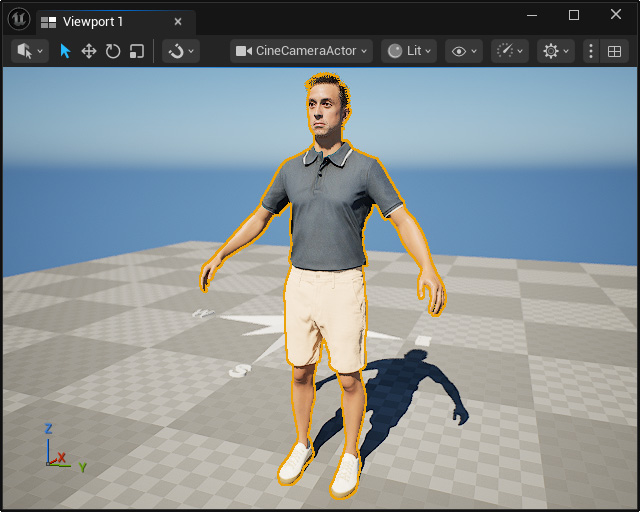
- In the Details panel, set the Animation Mode in the Animation section to Use Animation Asset.
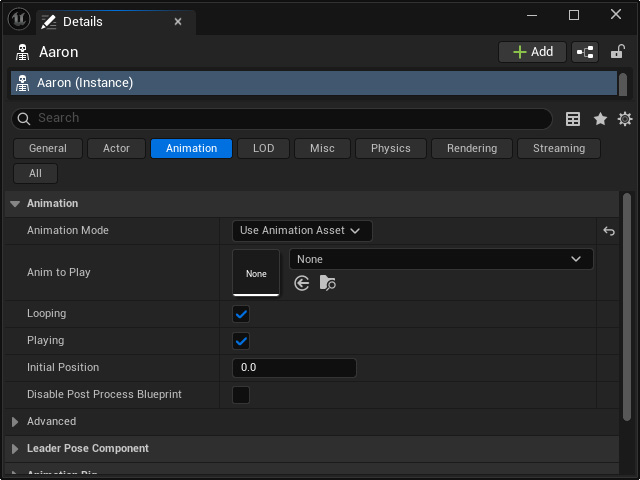
- Select the imported motion from the Anim to Play drop-down list.
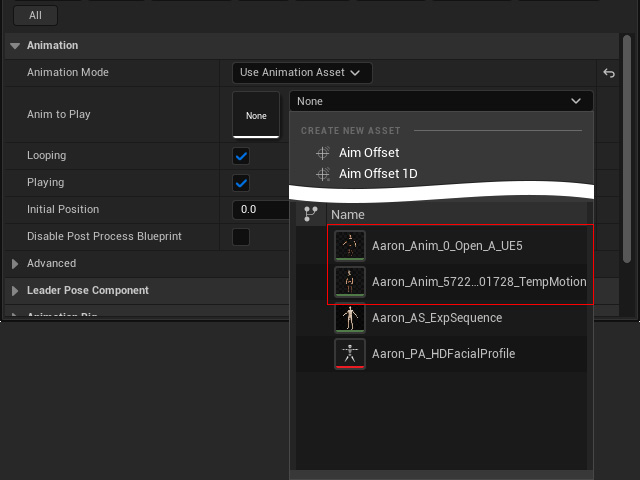
- Click the "Simulate this level in the active level editor viewport" button to start the animation.
- Drag and drop the Skeletal Mesh into the Scene.
Blue Print Class
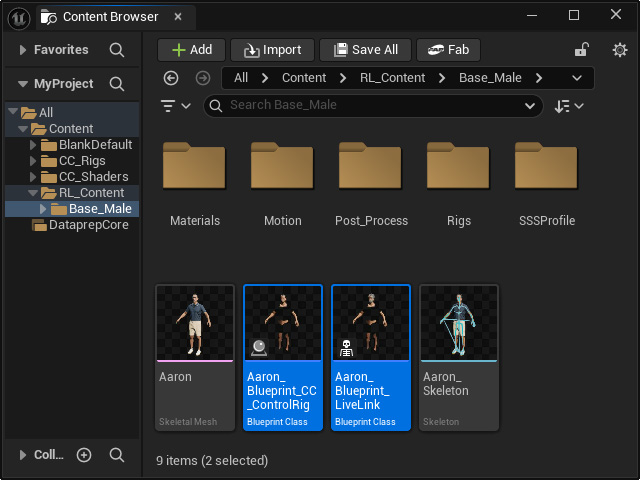
- The Auto Setup (All-in-One) will automatically create Control Rig and Live Link blueprints.
