Manually Removing Previous Version of Auto Setup Plugin
To ensure the Auto Setup All-in-One plugin works correctly, you must manually remove the previous version of the Auto Setup plugin along with its related shader files.
Manually Removing by Folder
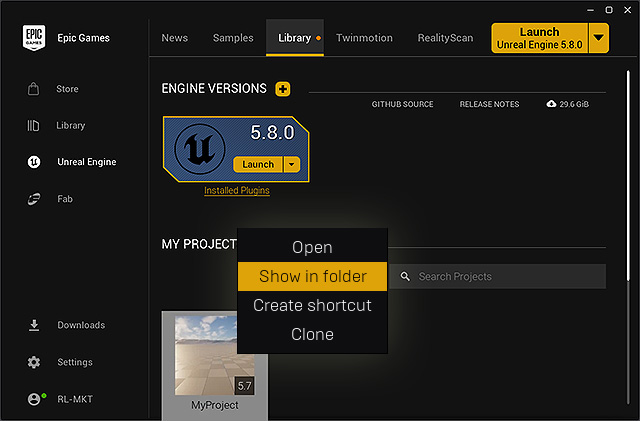
- Open the Epic Games Launcher, switch to the Library tab, then right-click the project from which you want to remove the previous Auto Setup plugin and select the Show in folder command to locate the project directory.
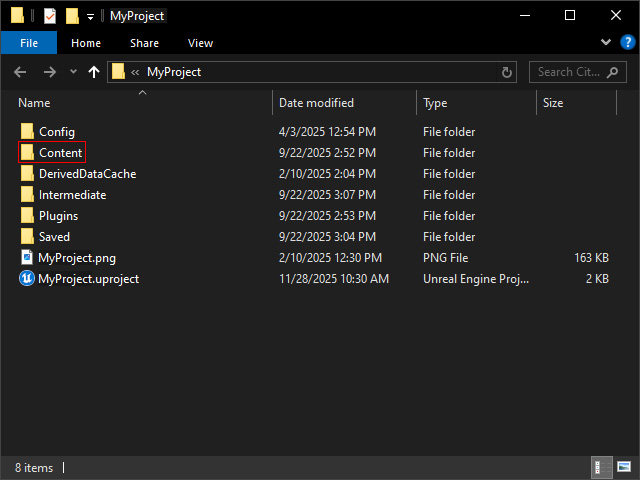
- You will find the Content folder. Open it.
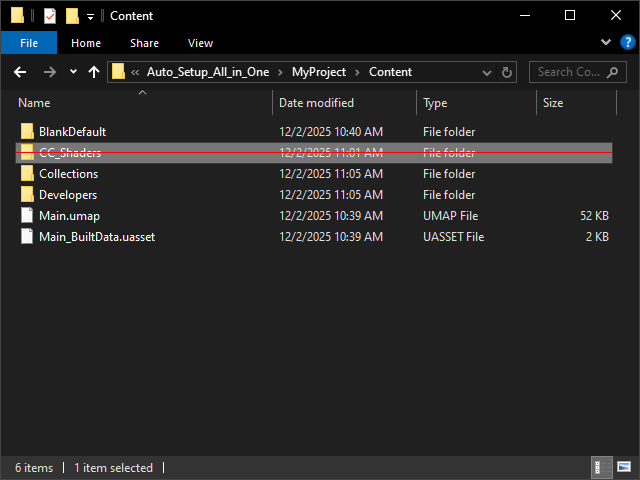
- In the Content Folder, remove the CC_Shaders folder.
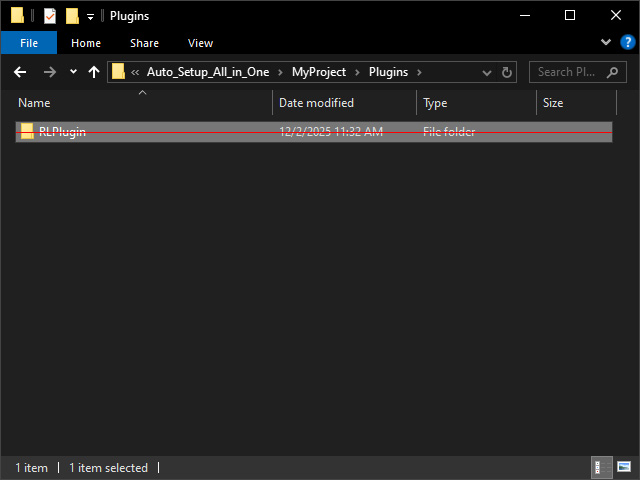
- Go back up one level, you will find the Plugins folder.
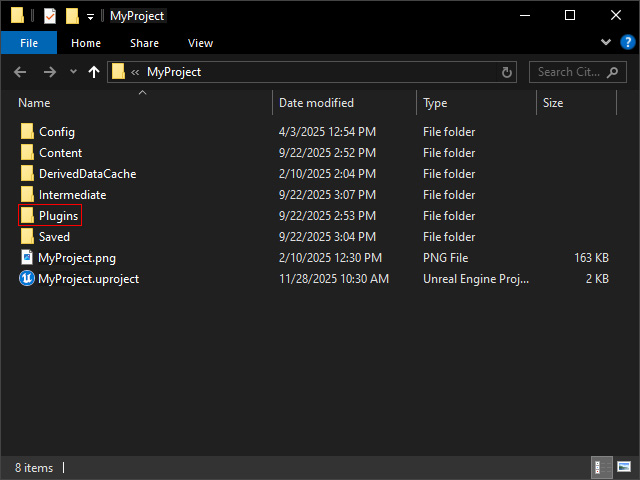
- Open the Plugins folder and remove the RLPlugin folders.
Manually Removing by Epic Game Launcher
In addition to the previous method, you can also remove CC UE Control Rig and iClone Unreal Live Link plugins install to UE 5.5 to 5.7 by the Epic Game Launcher.
- Open the Epic Game Launcher and switch to the Library page.
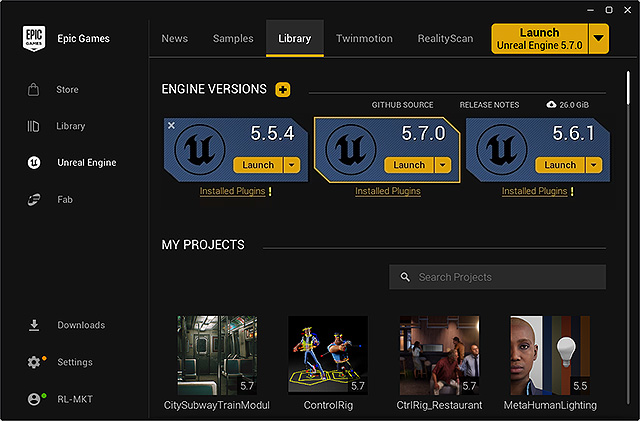
- Click the Installed Plugins ! link under the engine card.
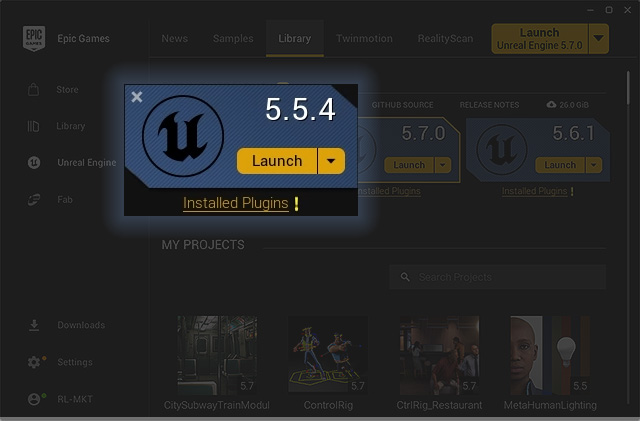
You will see the plugin list.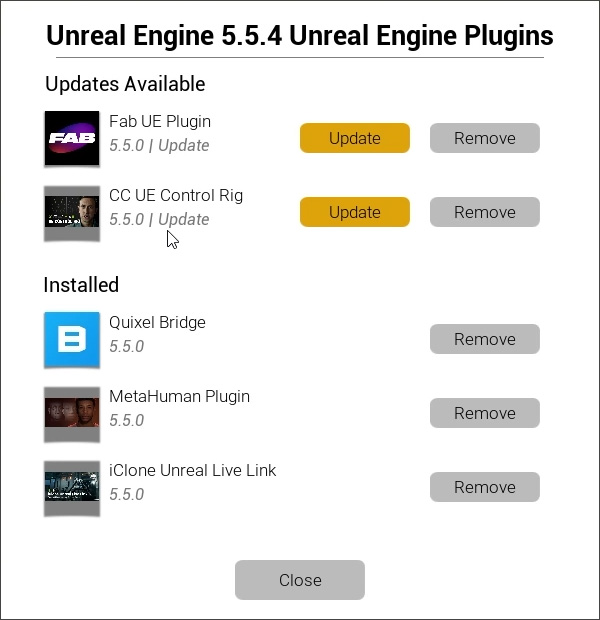
- Click the Remove buttons next to the CC UE Control Rig and iClone Unreal Live Link items.
- Click the Close button when these two plugins are removed.
