Editing facial expressions using the Face Rig control panel
- After importing your character model into 3ds Max with the CC Auto Setup plugin, select your character’s base body then go to the Face Rig section to start posing your character's expressions using the control panel.
The Face Rig only supports CC3+ characters with the CC4 Extended Facial Profile and actorSCAN/actorBUILD characters with the CC4 Standard Facial Profile.
.png)
 Note:
Note:To speed up the facial expressions posing process deactivating the wrinkle system in Material > Wrinkle section.

- Click and drag on one of the control sliders to activate the facial morphs.


Click and drag a slider to trigger a facial morph.
The associated part will contract.
- After creating the facial expression, go to Material > Wrinkle and click Enable Wrinkle to add wrinkle details to your character’s facial expression.

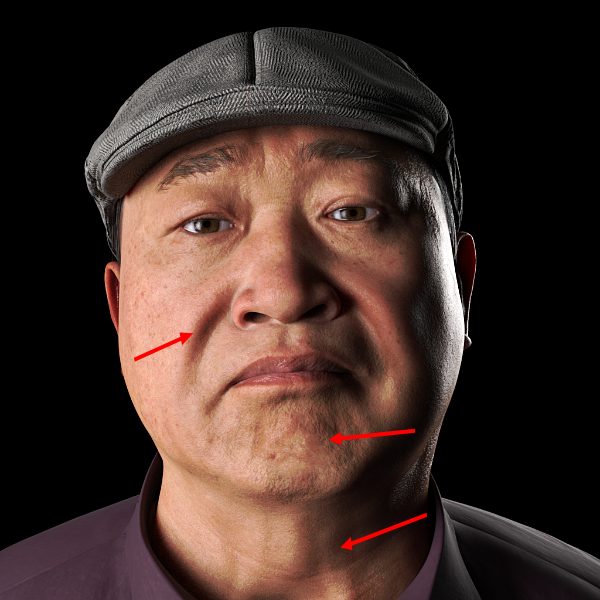
Before and after enabling facial wrinkles for your character.
