Setting Layer Keys for Props
In the Changing the Layer Order of Sprites section, you are allowed to set the initial layer order for sprites in a prop. However, you may set layer keys in different time frames.
-
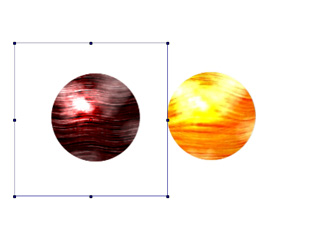
Use the Composer to create a composite prop with multiple sprites (In this example, yellow planet and red planet).
-
Switch back to the Stage Mode.
Click the
 Prop Key Editor button to set sprite animations for the red planet. Since the initial layer order
is set in the Composer, you can not make it move to the back of the yellow planet.
Prop Key Editor button to set sprite animations for the red planet. Since the initial layer order
is set in the Composer, you can not make it move to the back of the yellow planet.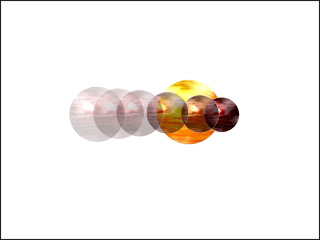
-
Open the Layer Editor by clicking the
 Layer Editor button.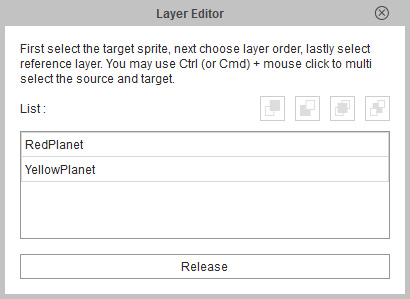
-
Select the objects in the list (you may hold the Ctrl key for selecting
multiple objects).
-
Click the Send to Back button.
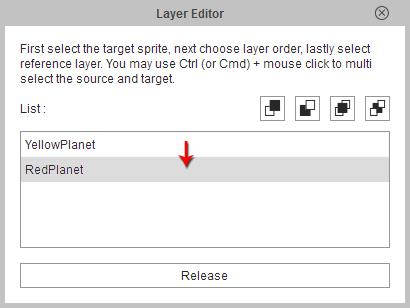
 Note:
Note: Send to Front: Send selected objects one
layer above target ones.
Send to Front: Send selected objects one
layer above target ones.
 Send to Back: Send selected objects one
layer below target ones.
Send to Back: Send selected objects one
layer below target ones.
 Move to Top: Send selected objects to the top layer.
 Move to Bottom: Send selected objects to the bottom layer.
-
Click on the target objects above which you want to move (you may hold
the Ctrl key to select multiple target objects).
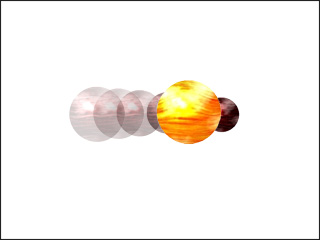
- Go to another time frame where you need the layer order to be reset.
-
Click the
 Release Key button to remove the effect of the key. The initial layer order will now be retrieved.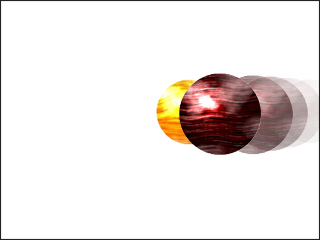
-
Play the project to see the result.
Note:
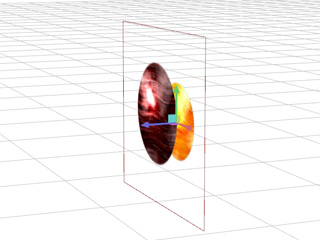
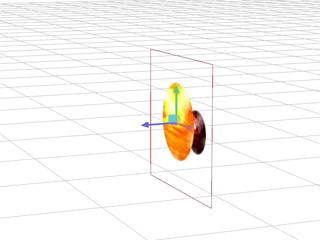
If you observe this composite prop in the 3D viewer, you will see that the animation plays on a flat board.