Using Custom Atmosphere Template
In addition to apply the embedded Atmosphere templates, you are allowed to apply the atmosphere template from iClone.
Applying Atmosphere Template from iClone
-
Create a character.
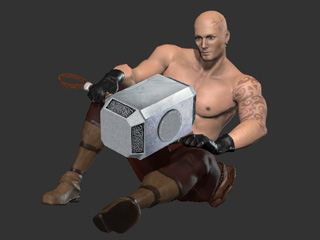
-
Open iClone and switch the Content Manager to Atmosphere library.
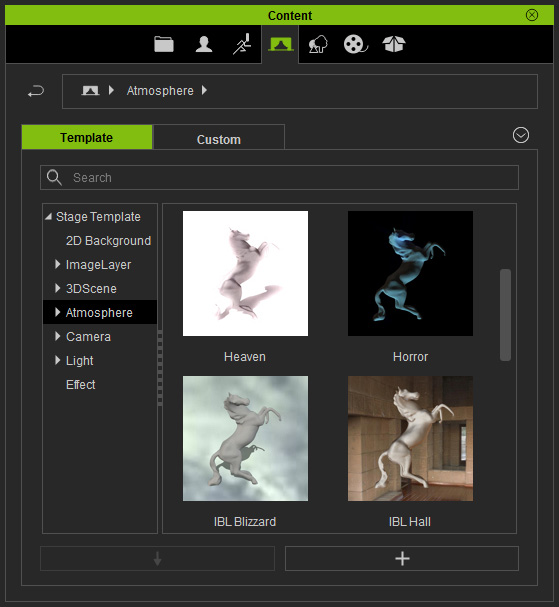
-
Drag and drop the desired template from the library in to the working area of Character Creator.
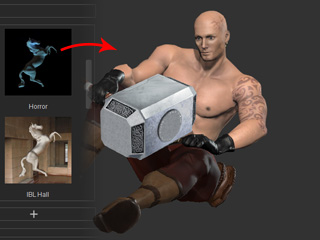
The atmosphere in the project will be changed to the applied one.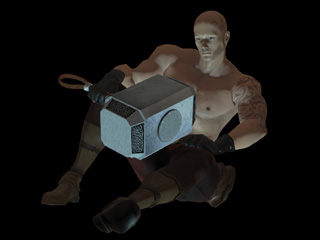
Effects Available in Atmosphere Template
An atmosphere template includes the effects listed below:
- Sky:
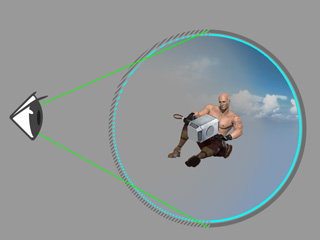
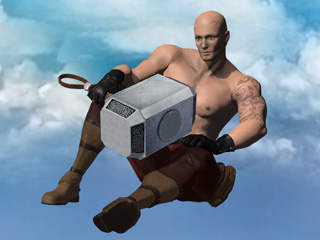
A sky is actually a sphere with sky image mapped onto the inner surface of itself. The normal direction is to the center,
which allows you to see through the surface close to the view to observe the inside of the sphere.
- Ambient Light:
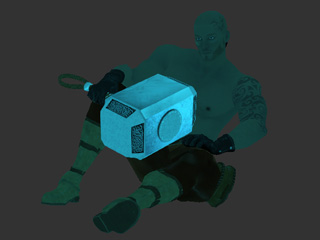
The Ambient Light is the light for giving an overall tone to the whole scene in Character Creator.
Changing the color of the ambient light allows you to create atmosphere.
- Ambient Occlusion:
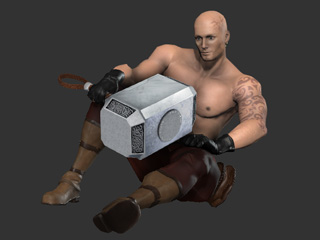
Ambient Occlusion is a shading method in iClone Character
Creator, which enhances the scene with spatial sensation. By
increasing the edge shadows with simulating the attenuation of light due
to occlusion, Ambient Occlusion simply attempts to approximate the way light radiates in real life, especially off what are normally considered non-reflective surfaces.
- Fog:
The fog effect surrounds your scene with fog to create color of depth so that every 3D object in the scene is blended and blurred with the color you have defined. Thus the fog effect is created.
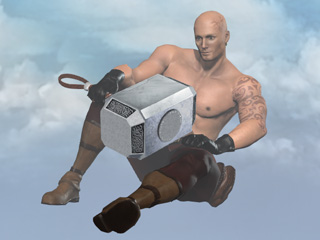
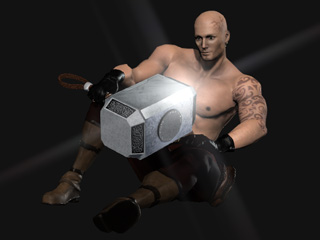
- HDR:
The HDR (High Dynamic Range) effect accurately represents the wide range of intensity levels found in real life
(high
contrast scenes) as result from direct sunlight and shadows.
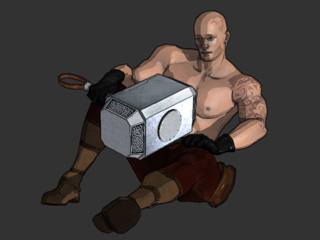
- Toon Shader:
This feature traces the color of every object (Sky and Textures on objects are excluded), and converts them into
cartoon styles in order to create a flat-looking 3D image with a cartoonish look.
 Note:
Note:See also:
