Creating Light with Custom Shape
The lights in Character Creator can be given custom shape mask by loading a greyscale image.
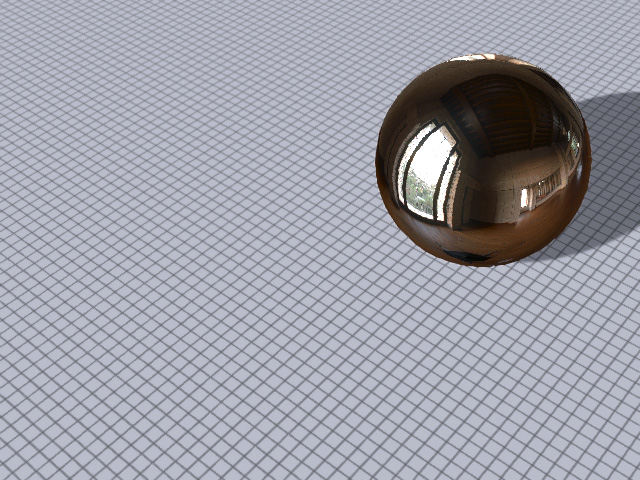
- Create a project.
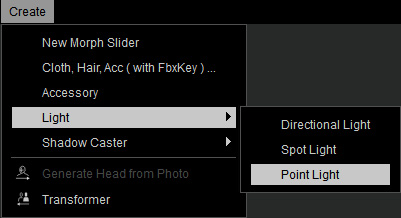
- Create a point light by executing the Create > Light > Point Light command.
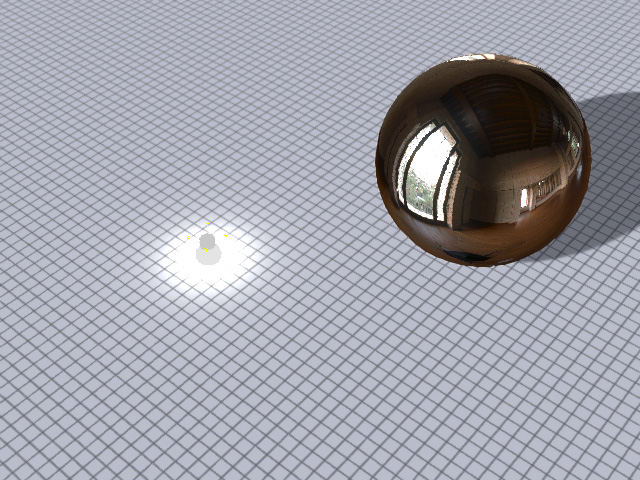
- Adjust the position of the point light.
 Note:
Note:Refer to the Shadow Option for more information about the Bias and Soft Shadow.
- Make sure the light is selected and go to the Light section in the Modify panel. Change the Shape drop-down list to Rectangle.
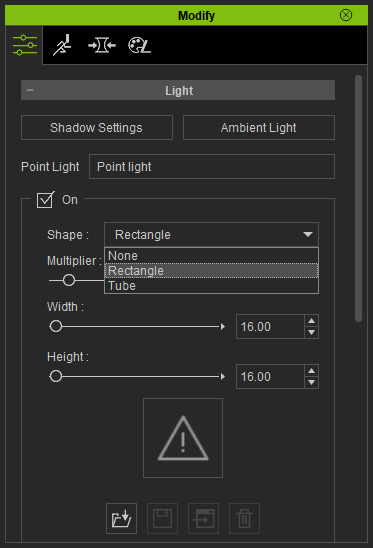
The shape of the light shows.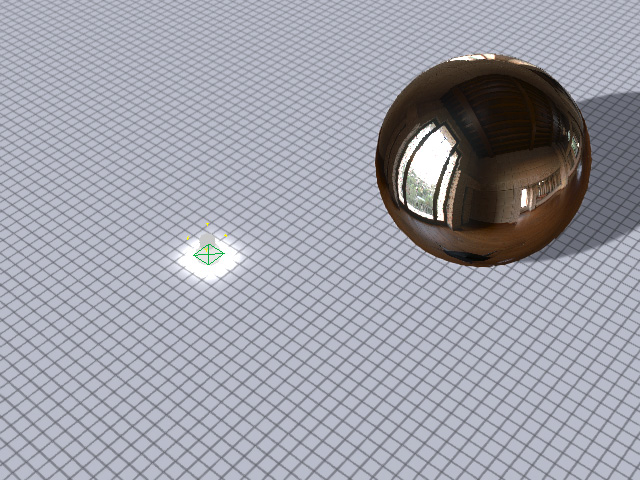
- Drag the Width and Height sliders to determine the desired size of the rectangle.
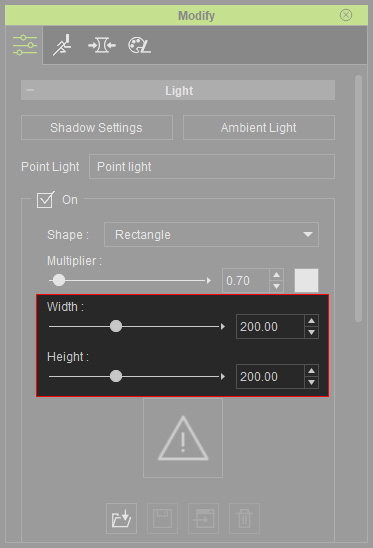
You will see the rectangle light casting on the floor.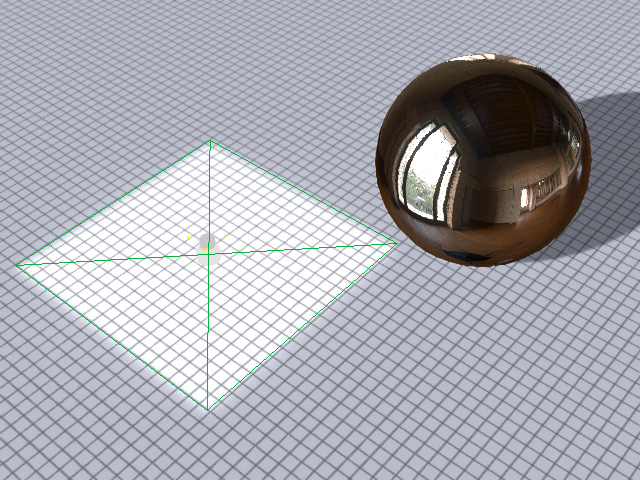
- Prepare a greyscale image and load it into the channel under the size sliders.
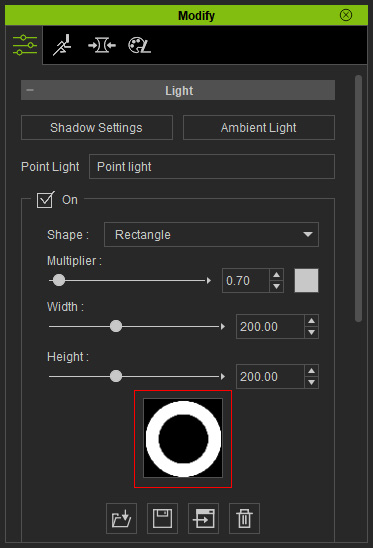
- The rectangle will be cut off by the image.
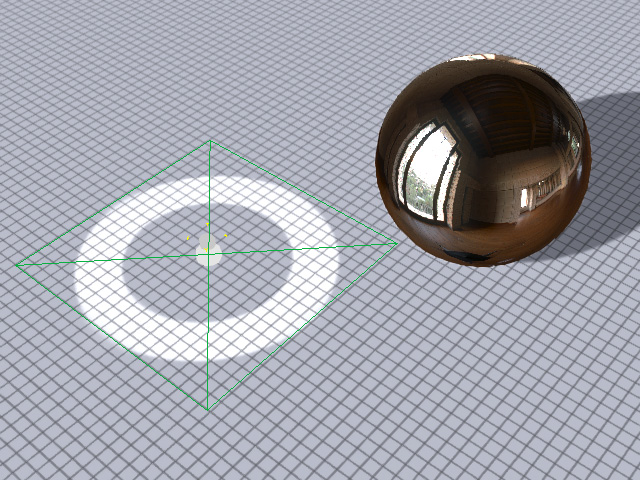
* Note that the black area casts no light while the white area does. - Relocate the light, you can then have a light with shape that emits light evenly.
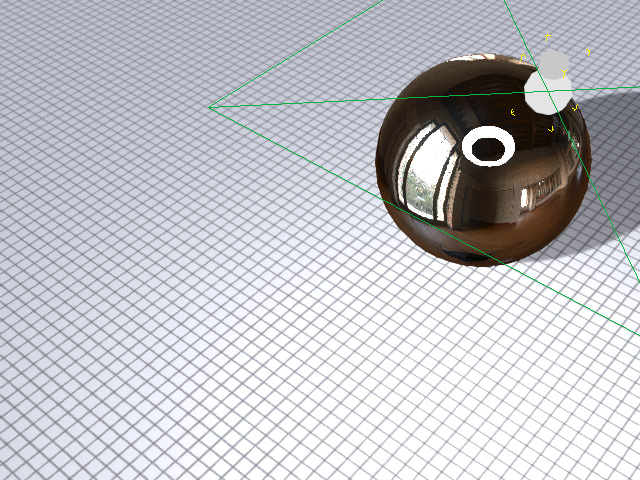
Hide the point light and you can still see the light shape from the reflection on the surface of the metal ball.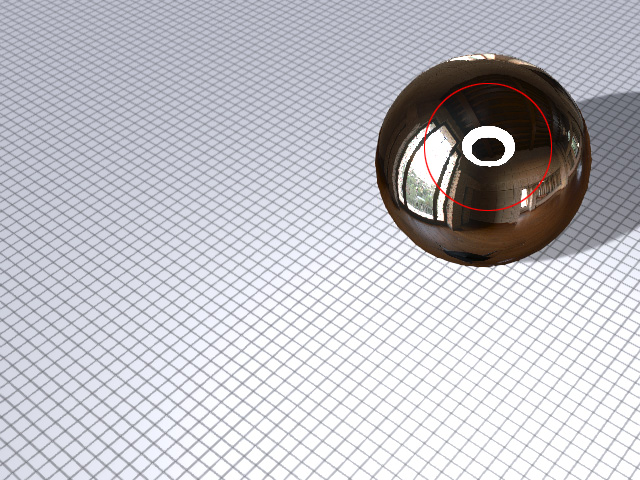
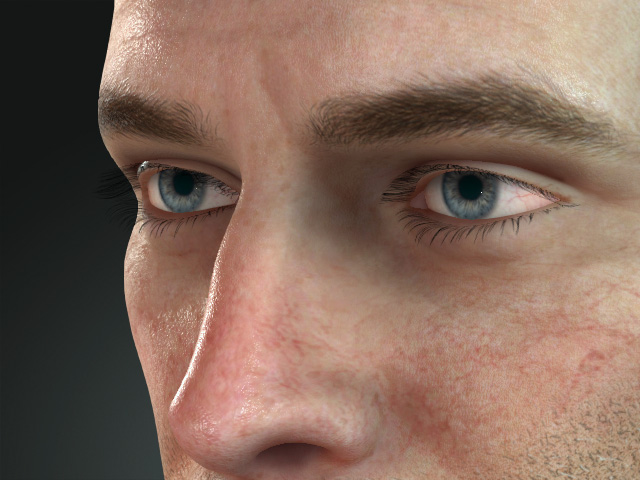
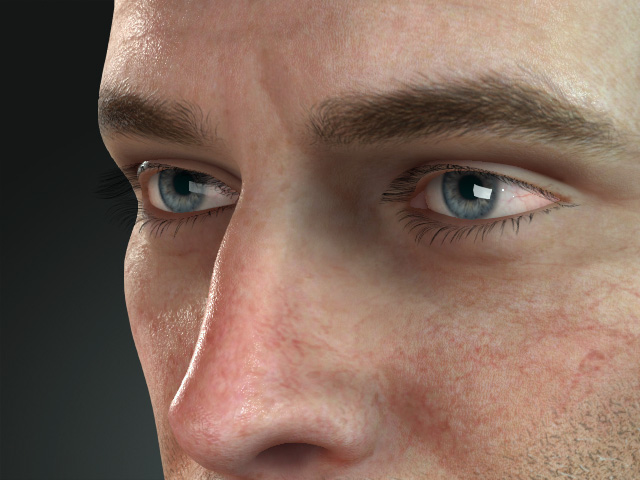
This feature breaths life into the character by adding reflection shapes to the eyes.
|
|
|
Without light reflection in the eyes |
With light reflection in the eyes |
