Shadows and Transparent Props or Accessories
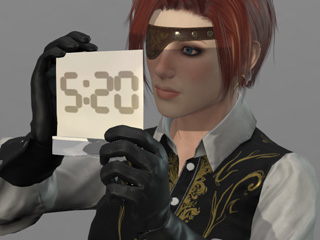
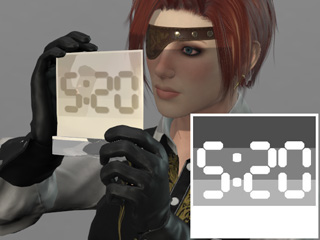
The shadows for accessories with Opacity map can be individually set in the Modify panel. If the opacity texture is grayscale, then you can decide the look of the shadow according to the object's Opacity image.
|
|
|
Accessory without Opacity texture. |
Accessory applied with a grayscale opacity texture. The shadow does not change with the transparency levels of the accessory. |
Character Creator provides Alpha Threshold and Shadow
Threshold settings for adjusting the shadows
of accessories with opacity maps.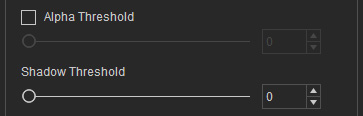
Shadow Threshold and Shadows
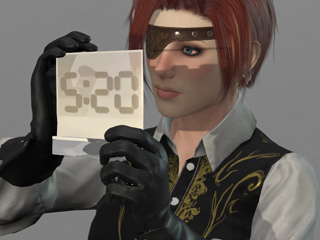
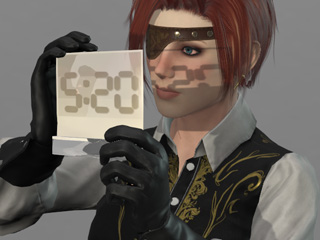
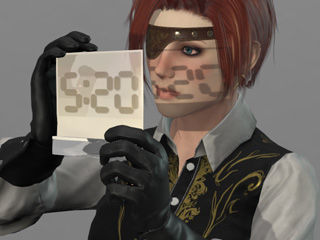
The Shadow Threshold deals with only the shadow of the accessory mapped with Opacity texture. The pixels in the opacity texture will be detected if their grayscale values fall within the threshold or not. The part of the surface mapped with the pixels will thus be shown or hidden. The higher the threshold is, the fewer shadows are cast. Please note that this method does not alter the appearance of the prop.
|
|
|
|
Shadow Threshold = 30 |
Shadow Threshold = 50 |
Shadow Threshold = 70 |
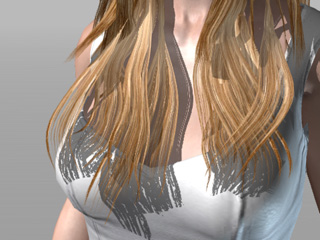
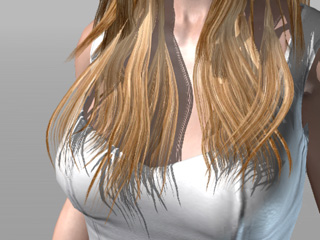
In addition to the accessories with Opacity map, by adjusting the value of Shadow Threshold, you can make the shadow of the hair more exquisite without doing any modification to the hair.
|
|
|
Shadow Threshold = 1 |
Shadow Threshold = 60 |
Alpha Threshold and Shadows
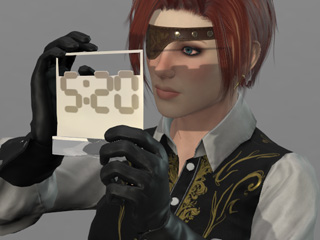
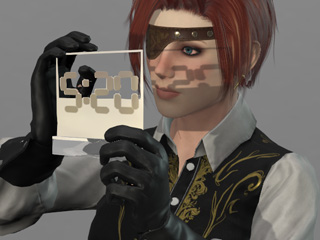
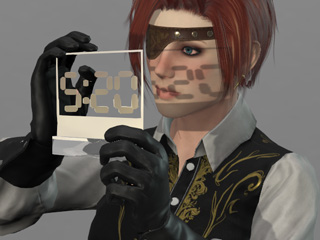
Alpha Threshold turns the opacity texture into binary format to change the appearance of the accessory and its shadow. Any part of the object mapping with pixels that are within the Alpha Threshold will be displayed, the rest will disappear.
|
|
|
|
Alpha Threshold = 30 |
Alpha Threshold = 50 |
Alpha Threshold = 70 |
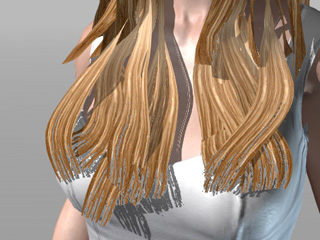
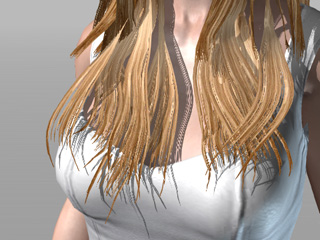
You can also use the Alpha Threshold to trim the hair more finely. The shadow will also be adjusted when the hair is modified.
|
|
|
Alpha Threshold = 0 |
Alpha Threshold = 40 |
