Specular Roughness
The Roughness section can be used to adjust the reflectivity of the surfaces. If you have customized the RGBA Area Mask texture and the advanced settings to adjust the roughness for specific areas.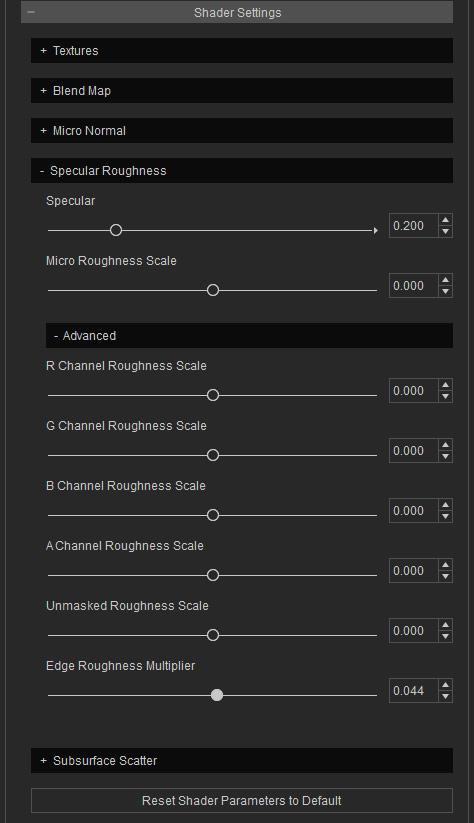
Basic Settings
- Specular: Adjust this slider to determine the object's
surface reflectivity.
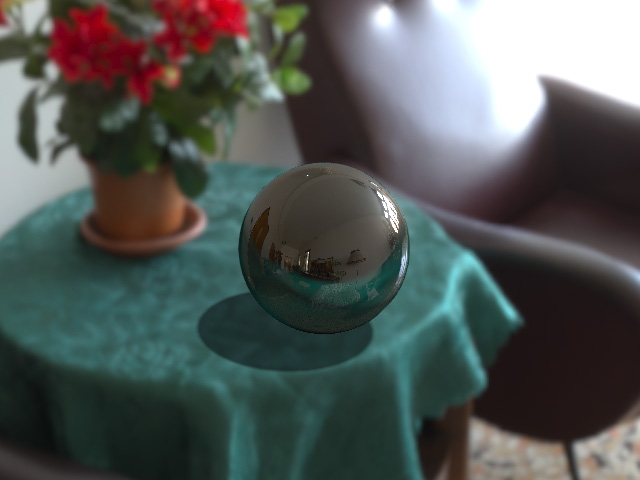
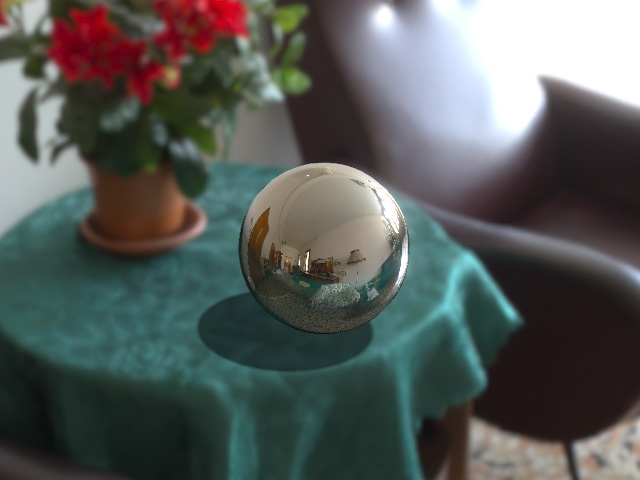
Micro Roughness Scale = 0.200 (Default)
Brightness = 1.000
- Micro Roughness Scale: This setting is used to set the
roughness strength for the surface.
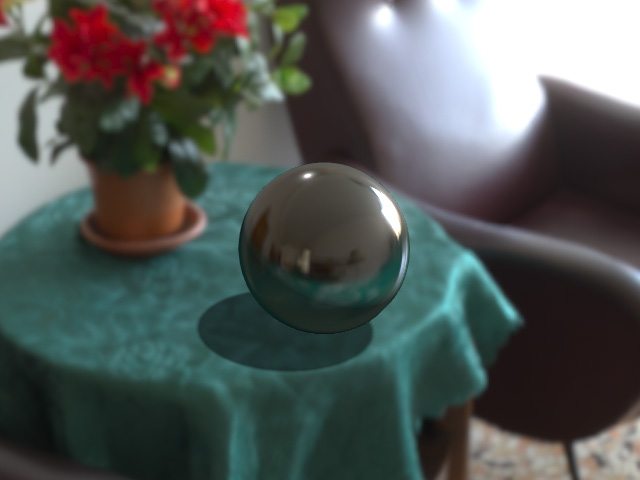
Micro Roughness Scale = 0.000 (Default)
Brightness =0.200
Advanced Settings
- R, G, B, A Channel Roughness Scale: These sliders
can change the strength of roughness defined in the RGBA Area Mask texture.
- Create a new project.
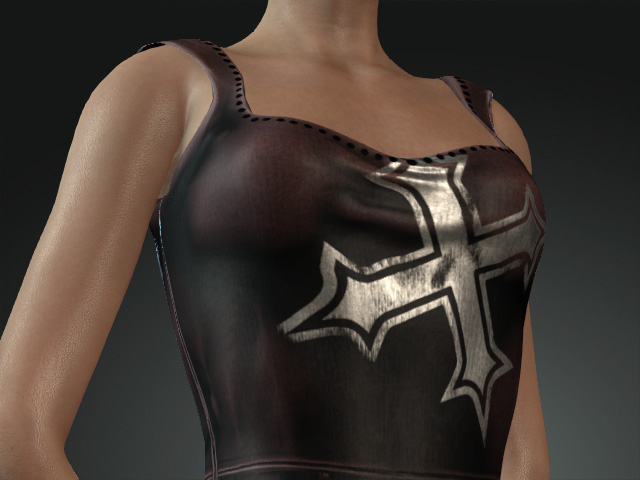
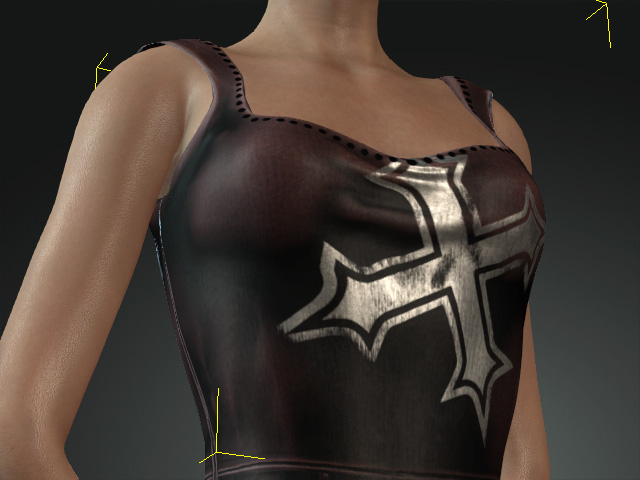
- Select the object (in this case, the camisole).
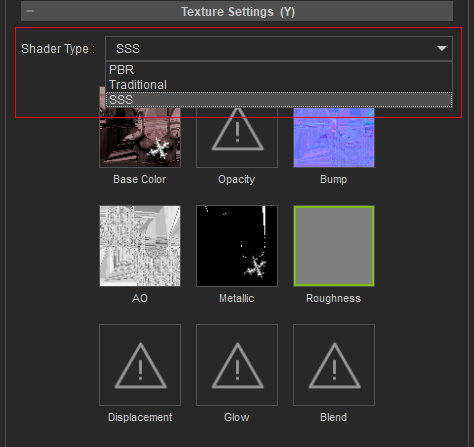
- In the Modify panel, change the object's shader type to SSS in the Texture Settings section.
- Embed and modify the RGBA Area Mask texture in the Texture sub-section under the Shader Settings section.
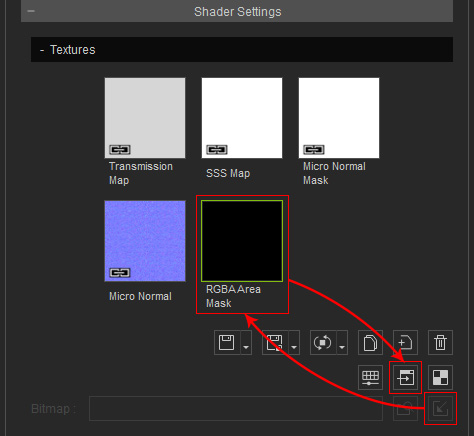
In this case, the cross on the cloth is marked in Red on the texture. - Create an custom image in which only the Red channel is modified to separate the pattern and the fabric of the cloth.
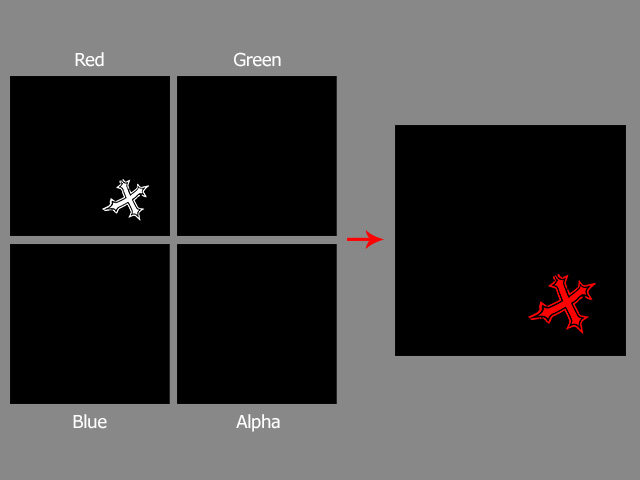
This texture divides the roughness into cloth and pattern areas. - In the Advanced sub-section under the Roughness sub-section in the Shader Settings section, drag the R Channel Roughness Scale slider (-0.400) to determine the roughness of the pattern.
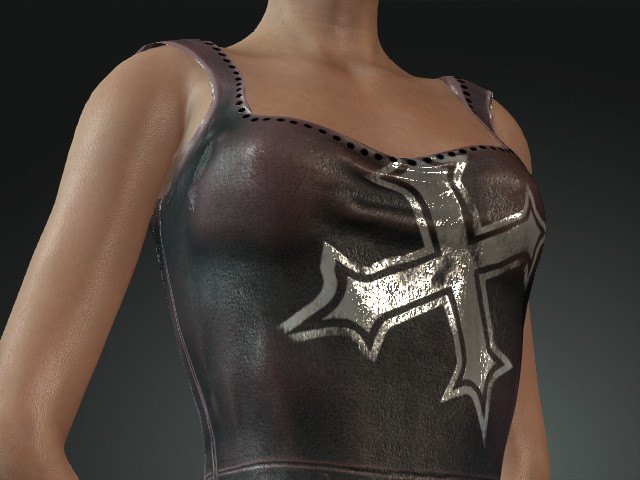
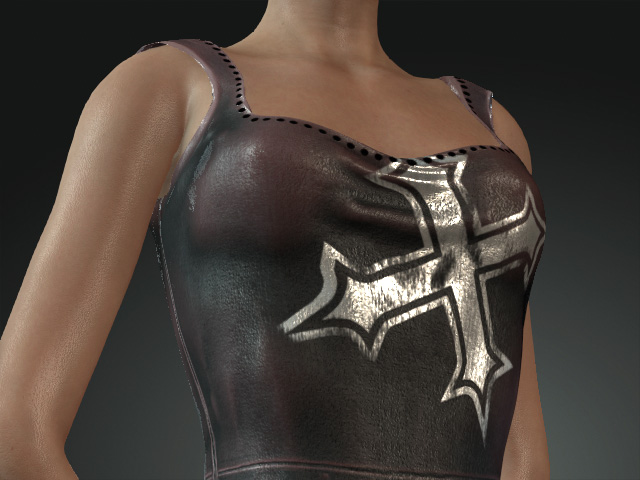
R Channel Roughness Scale = 0.000
R Channel Roughness Scale = 0.350
- Create a new project.
- Unmasked Roughness Scale: This slider can be used to adjust the strength of the roughness on the mesh that are not marked by the RGBA Area Mask texture.
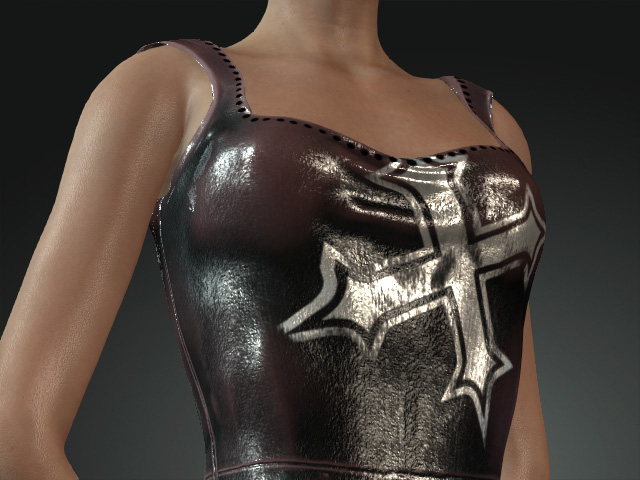
R Channel Roughness Scale = -0.100
R Channel Roughness Scale = -0.400
- Edge Roughness Multiplier: This value can be used to determine the edge reflectivity for the fresnel effect.
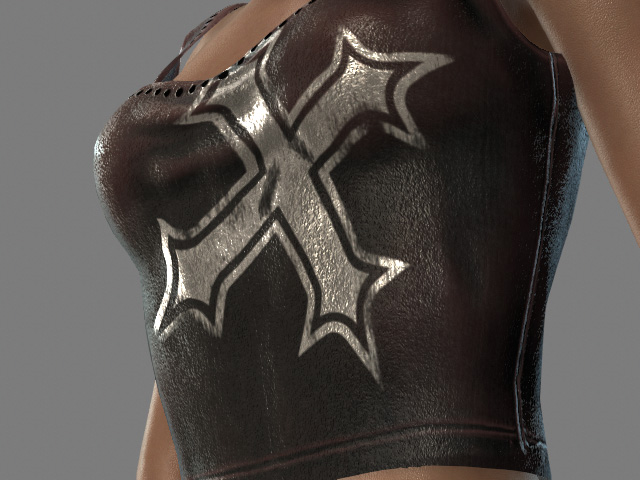
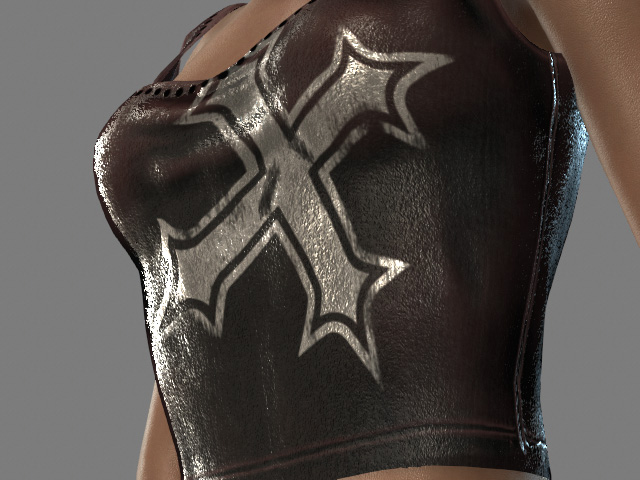
Edge Roughness Multiplier = 0.044 (Default)
Edge Roughness Multiplier = -1.500
