Shortcuts in Panels
|
Content Manager |
Function |
Hotkey |
Notes |
|||||
|
Change View Mode |
Ctrl + 1 |
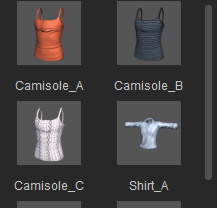
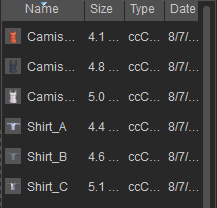
Change the view of the Content Manager to Small Thumbnail, Large Thumbnail or Details modes.
|
||||||
|
Rename |
F2 |
Rename objects in Content Manager. |
||||||
|
Multi-select continuously |
Ctrl + Select |
|||||||
|
Modify Panel |
||||||||
| Action (Scroll to) |
Hotkey |
Notes |
||||||
|
Top Section |
L |
Scroll the Modify panel to the Topmost section. |
||||||
|
Previous Section |
Ctrl + Page Up |
Scroll the Modify panel to the Previous section. |
||||||
|
Next Section |
Ctrl + Page Down |
Scroll the Modify panel to the Next section. |
||||||
|
Bottom Section |
Ctrl + End |
Scroll the Modify panel to the Bottom section. |
||||||
|
Transform Section |
T |
Scroll the Modify panel to the Transform section. |
||||||
|
Texture Settings Section |
Y |
Scroll the Modify panel to the Texture Settings section. |
||||||
|
Tessellation Section |
Ctrl + T |
Scroll the Modify panel to the Tessellation section. |
||||||
|
Expand All Sections |
Ctrl + + |
Expands all sections |
||||||
|
Collapse All Sections |
Ctrl + - |
Collapses all sections |
||||||
|
Modify Panels (Tab Switching) |
Function |
Hotkey |
Notes |
|||||
|
Switch to the Material tab. |
Y |
|||||||
|
Switch to the Appearance tab. |
T |
|||||||
|
Switch to the Morph tab. |
Y |
|||||||
|
Edit Mesh, Skin Weight Editor, Transfer Skin Weight panels >> Vertex, Face and Lateral Partitioning modes >> Select Tool |
||||||||
|
Convert between Vertex and Face |
Ctrl + Click on Vertex or Face Tabs |
Select the faces framed by selected vertices and vice versa. |
||||||
|
Select / Deselect Multiple Vertices / Faces |
Ctrl + Click on Vertex or Face |
Hold the Ctrl key and click on the desired vertex or face to multi-select or multi-deselect them. |
||||||
|
Invert Selection |
Ctrl + Drag a Box on Vertices or Faces |
Hold the Ctrl key and drag a box on meshes to invert the selection. |
||||||
|
Select Multiple Vertices / Faces |
Shift + Click on Vertex or Face |
Hold the Shift key and click on the desired vertex or face to multi-select them. |
||||||
|
Deselect Multiple Vertices / Faces |
Ctrl + Shift + Click on Vertex or Face |
Hold the Ctrl + Shift key and click on the desired vertex or face to multi-deselect them. |
||||||
|
Edit Mesh, Skin Weight Editor panels >> Sculpt and Paint modes >> Brush |
||||||||
|
Push / Pull Brush Switch |
Ctrl |
Hold the Ctrl key to temporarily switch to Push or Pull brush. |
||||||
|
Smooth Brush |
Shift |
Hold the Shift key to temporarily switch to Smooth brush. |
||||||
|
Edit Mesh panel >> Sculpt mode >> Brush |
||||||||
|
Push / Pull Brush Switch |
Ctrl |
Hold the Ctrl key to temporarily switch to Push or Pull brush. |
||||||
|
Smooth Brush |
Shift |
Hold the Shift key to temporarily switch to Smooth brush. |
||||||
|
Skin Weight Editor panel >> Paint and Selection modes >> Bone Selection |
||||||||
|
Rotate Bone Switch |
E |
Press E key to toggle the Rotate Bone mode On / Off. |
||||||
|
Show / Hide Bones |
Ctrl + B |
Press Ctrl + B key to toggle the Bone Display mode On / Off. |
||||||
|
Show / Hide Wireframe |
W |
Press W key to toggle the Wireframe Display mode On / Off. |
||||||
|
Select Previous Bone |
Up arrow key |
Press the Up arrow key to select the previous bone on the bone list view. |
||||||
|
Select Next Bone |
Down arrow key |
Press the Down arrow key to select the next bone on the bone list view. |
||||||