Adding and transferring accessories between Character Creator and Zbrush
You can append additional subtools in ZBrush or add accessories in Character Creator when editing and transferring the character between the two software programs. This allows for the creation of different outfits and styles.
Appending and sending ZBrush subtools to Character Creator
-
Use GoZ to transfer a character from CC to ZBrush. For more information, see here.
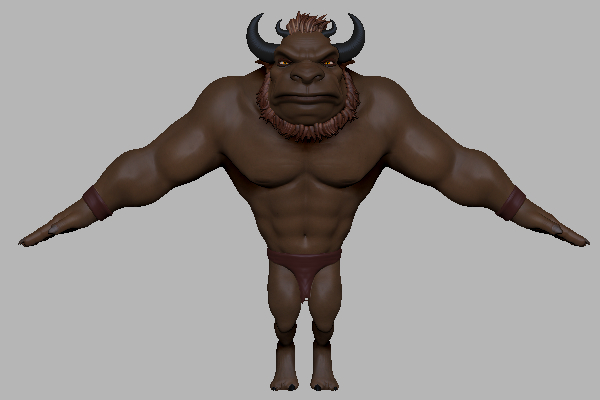
- In ZBrush, append the wanted subtools onto the character. In this example, we will append a hammer.
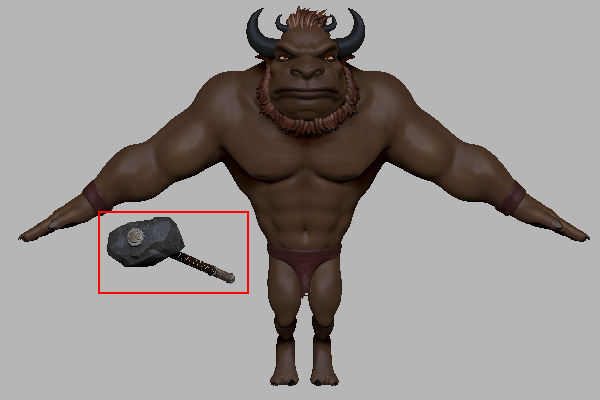
- Move the subtool to where it belongs.
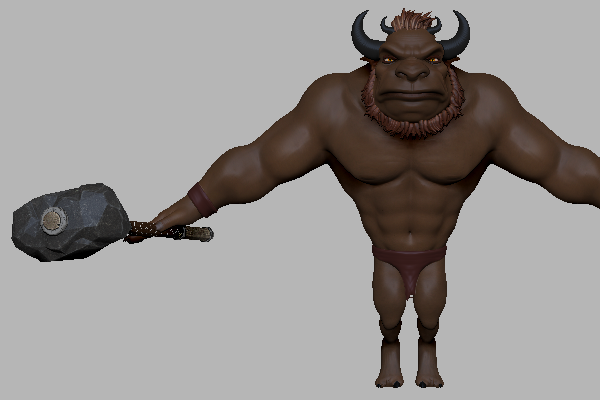
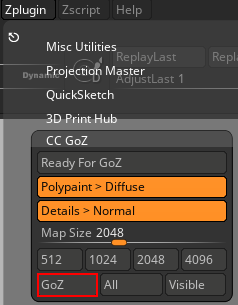
- Make sure the subtool is selected. Perform Zplugin > CC GoZ Plus > GoZ to send it to CC.
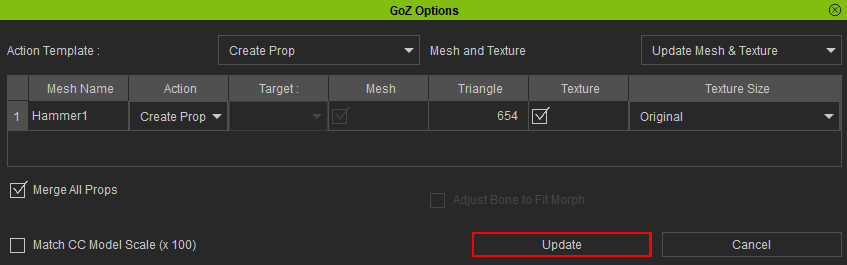
- The GoZ Options panel will appear. Select Action Template > Create Prop and activate Merge All Props.
- Click the Update button to send the subtool to CC.
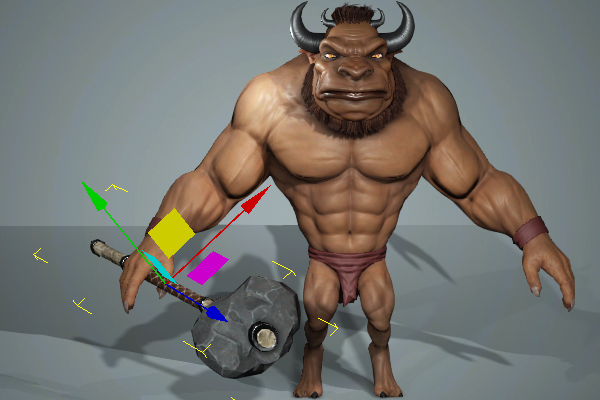
- In Character Creator, move the hammer to the proper location.
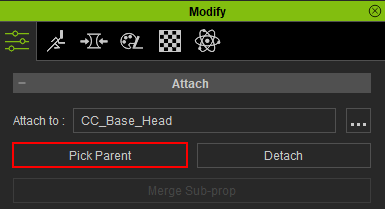
- Click on Modify > Attribute > Attach > Pick Parent to link the hammer to a bone.
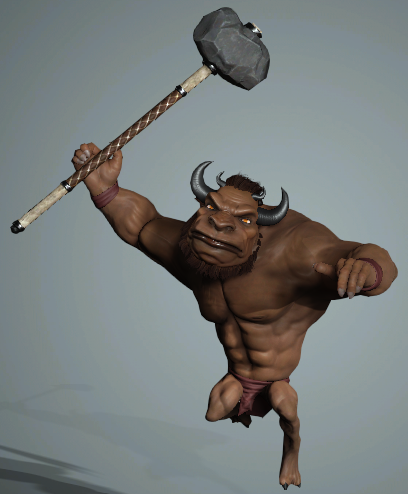
- Apply a pose to check if the hammer is correctly linked.
Adding and sending CC accessories to ZBrush
- In CC add the new accessories you want to your character from the Content Manager.
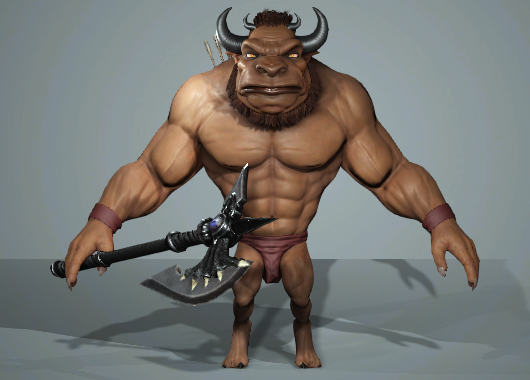
- Hold down the Ctrl key and select the new accessories you want to transfer to ZBrush, then press the GoZ Plus icon
 button in the toolbar.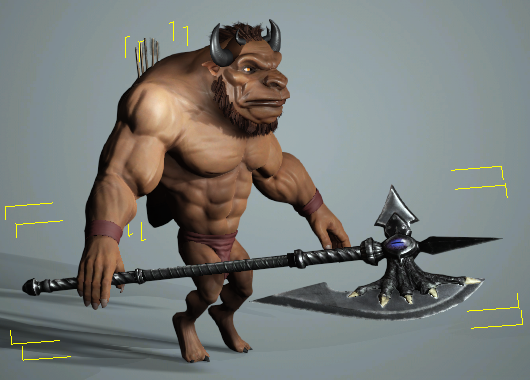
- In the GoZ Settings modal panel, ensure that Template is set to Create. It is recommended to apply the same pose that was used in ZBrush to ensure that the accessories are properly placed in a position that matches the one in ZBrush.
- Click the GoZ button to start the transfer process.
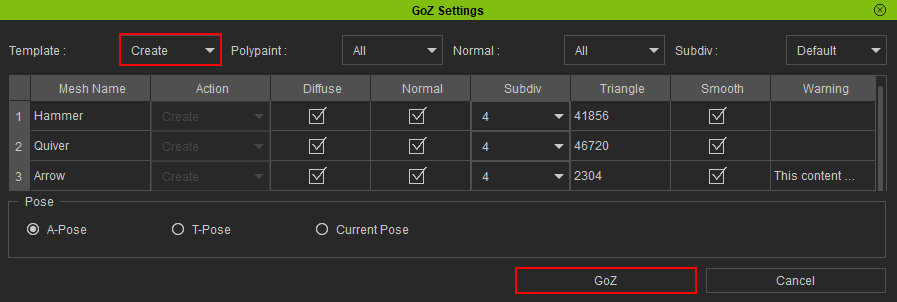
In ZBrush, the new accessory will be added to the model in the corresponding position and orientation.
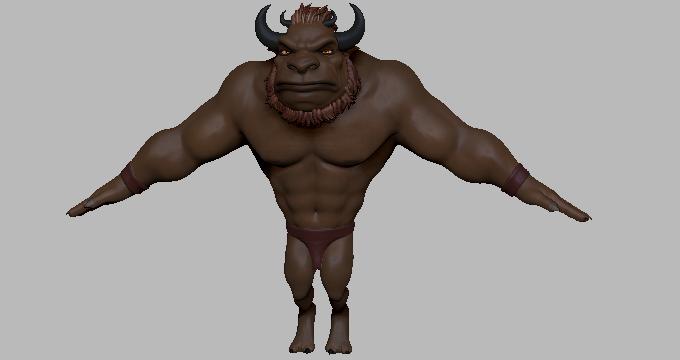 | 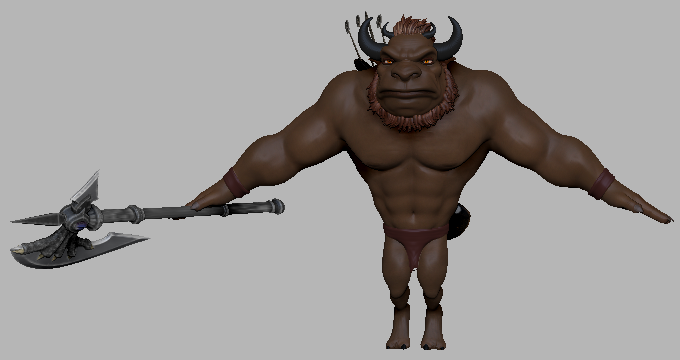 |
Before adding accessories to the ZBrush character. | After adding accessories to the same Zbrush character. |
