Setting Subdiv levels for sculpting and polypainting
This section explains how to transfer your character or object to ZBrush with custom subdivision level settings, and then update it back to Character Creator with enhanced diffuse and normal map details.
- In Character Creator, load a character into the scene.
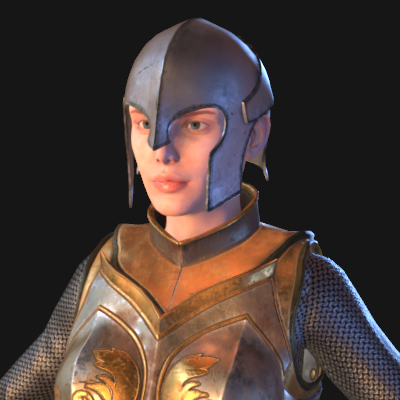
- Select a part of your character. For this demonstration, the helmet will be selected.
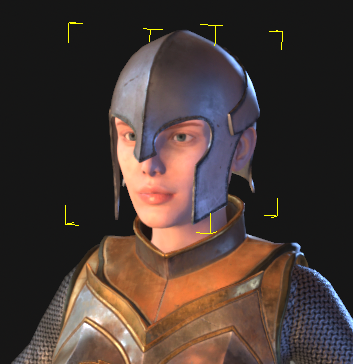
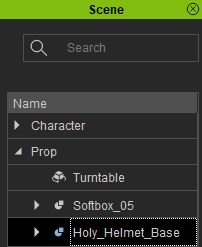
- Click the GoZ Plus icon
 in the top toolbar to open the GoZ Settings modal window.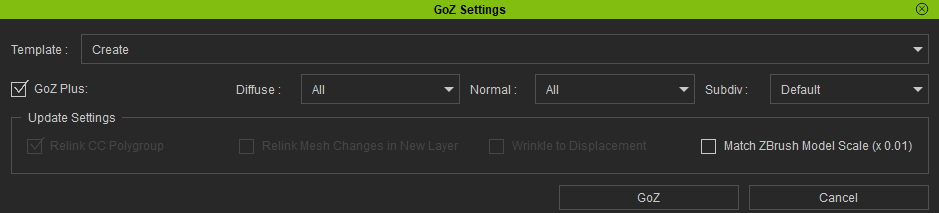
- Ensure that Template is set to Create, as you are sending your model to ZBrush for the first time.

- In the Subdiv column, set the target subdivision level for the helmet.
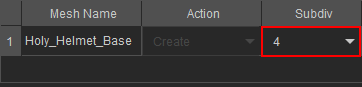
- After you have chosen the Subdiv settings for your helmet, leave the rest of the settings as default and click the Goz button.

- In ZBrush, open the Subtool tab and select the helmet’s subtool, then open the Geometry tab and you will see that the SDiv setting matches the Subdiv settings you selected in the GoZ Settings modal panel in CC.
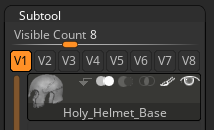
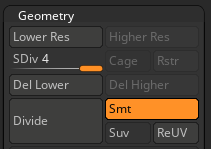
- Use the ZBrush brushes to sculpt and paint the helmet model.
- Once your editing is finalized, navigate to Zplugin > CC GoZ Plus.
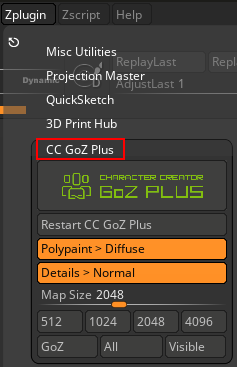
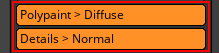
- In the CC GoZ Plus modal panel enable the Details > Normal feature to convert your subtools mesh details into normal maps. And enable the Polypaint > Diffuse feature to convert your subtools polypaint into diffuse maps.
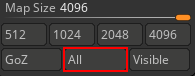
- Select the map size you want your texture maps to be, then click All.
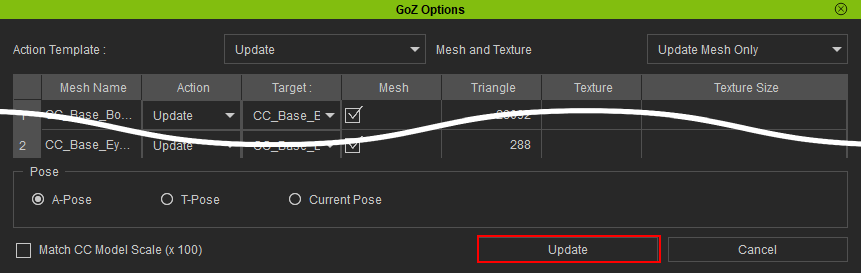
- In CC, the GoZ Options modal window will appear. Leave the default settings intact and click the Update button.
 Note:
Note:
Aim for sufficient Subdiv level for each transferred item. Sending all items in high subdivisions can extend the transfer times by a substantial amount.
The Subdiv level will determine the initial mesh density, resolution quality of the polypaint and mesh details in ZBrush. Learn more about Diffuse and Normal options..png)
Note:
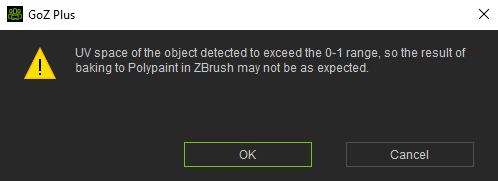
Objects or character models with diffuse maps exceeding the 0-1 UV range can lead to unexpected polypaint outcomes in ZBrush. For a solution to this problem, see here.
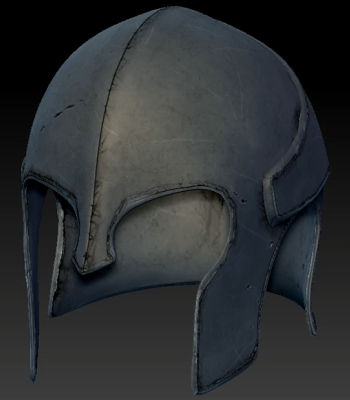
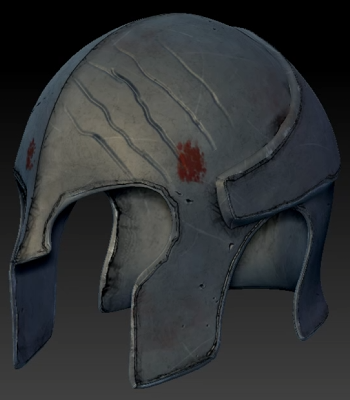
| 
|
Before editing the helmet in ZBrush. | After editing the helmet, new claw marks and blood stains have been added. |
Note:A ZBrush GoZ crash can prevent subsequent transfers with GoZ. In this case, click the Restart CC GoZ Plus button to re-establish a connection between Character Creator and ZBrush.
Note:The map size will dictate the resolution of the updated normal and diffuse maps in CC and the subtool’s subdivision level will determine the quality of the details in both maps.
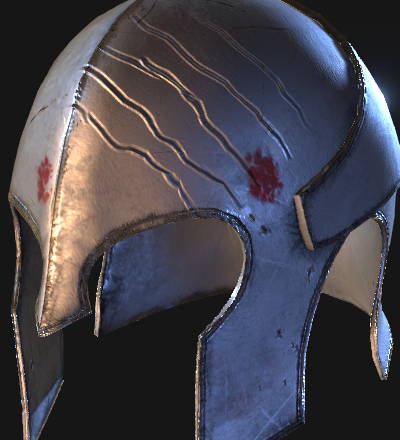
The helmet in CC is successfully updated.
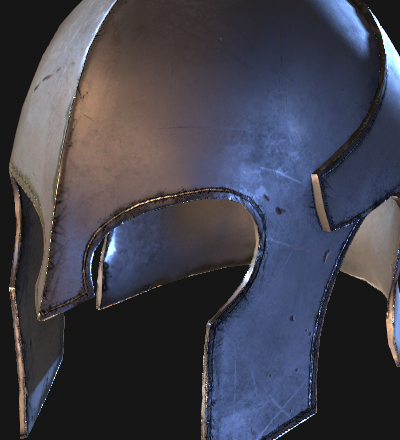
| 
|
The helmet’s default looks in CC before any updates. | Updated diffuse and normal maps are added to the helmet after the update. |
