Transferring hard surfaces from Character Creator to ZBrush
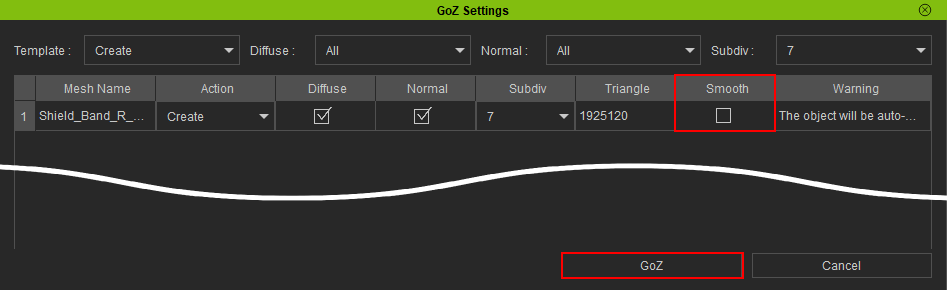
To preserve the sharp edges of your hard surface mesh when transferring to ZBrush, ensure that the Smooth feature is disabled. If left enabled, this feature will smooth out the subdivisions and remove sharp features in the process. Follow the steps below to properly GoZ a hard surface model with sharp edges:
- Open or load a CC model you wish to transfer to ZBrush. For more information on sending your character and other objects to ZBrush, see here.
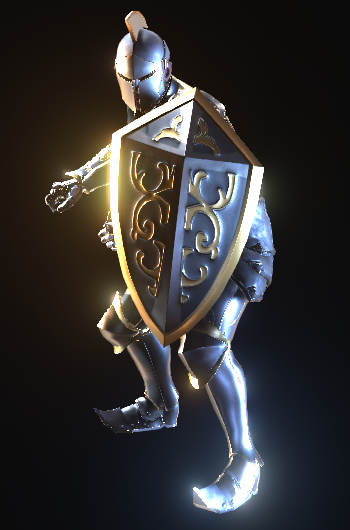
- In this example, the knight shield will be transferred to ZBrush.
- In the GoZ Settings modal window, disable the Smooth feature and keep the remaining settings at their default values.
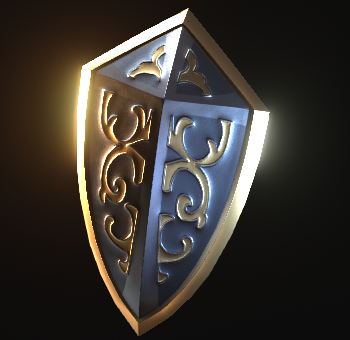
- Notice how the shield keeps its sharp edges in ZBrush.
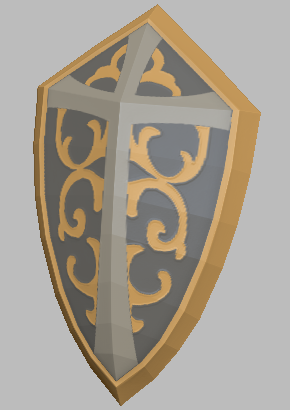
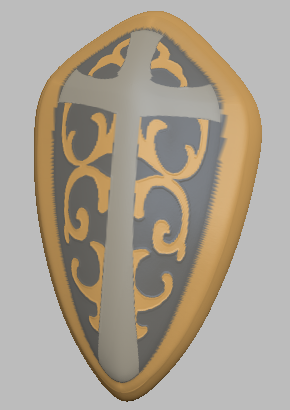
Disabling the Smooth feature keeps the edges sharp and preserves the shield’s original shape.
The same shield with Smooth enabled has its edges rounded, causing it to deviate from its original pointed shape.
Click the GoZ button to start the transfer process.