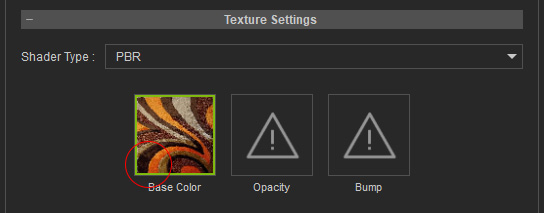
Embedding Textures (New for v. 4.4)
When applying an image to an object's texture channels, external links are used to prevent excessive overhead. Texture images can be embedded later, ensuring consistency when sharing project files.
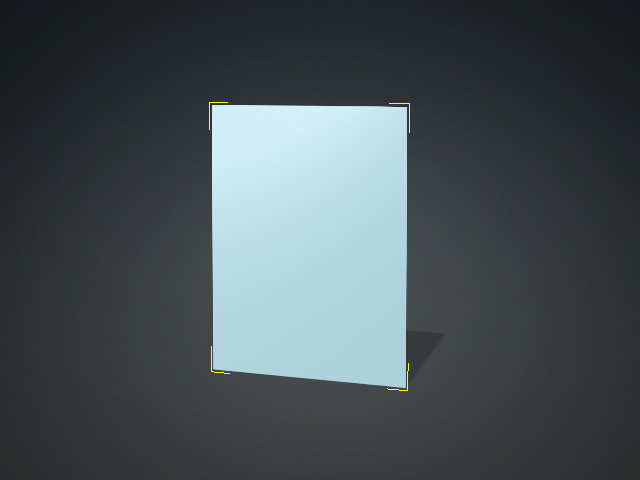
- Add an object to a new project (in this case, a plane).
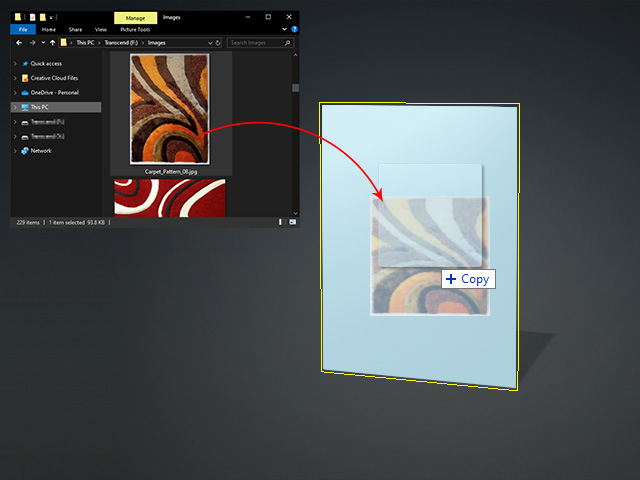
- Drag and drop an image onto the object.
- Select the object and switch to the Material tab in the
Modify panel. Expand the Texture Settings section.
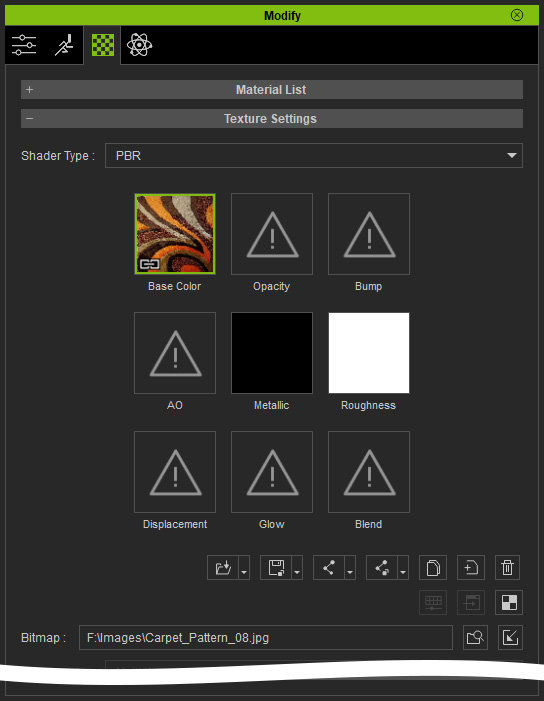
A chain icon overlaying the texture channel implies that it is sourcing an external texture file.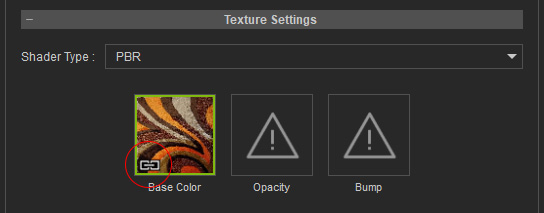
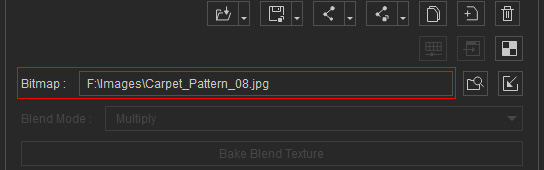
- The path of the external file displays in the Bitmap
field.
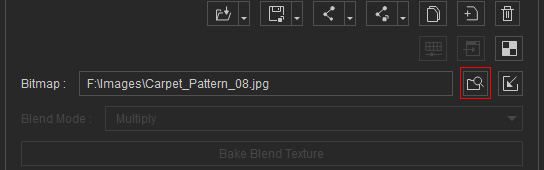
- Click on the Find File button to locate the file.
- Click on the Embed Texture button to embed the image file
into the texture channel.
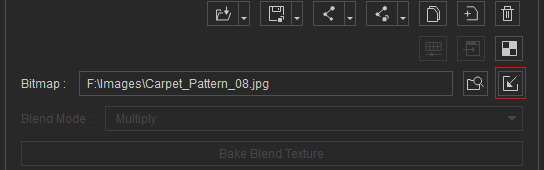
- The chain icon will be removed since the image has been embedded
with the object.