


Setting Values
There are several methods to adjust values for objects in the Modify Panel.
Setting Values in Morphs and Appearance Tabs
- Dragging Sliders -
When there is a slider present in addition to the numerical parameter, you can drag it to adjust the value.
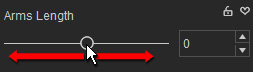
- Clicking Arrow Buttons -
You can use the Up and Down
arrows to increase and decrease a value by one.

- Typing into Numeric Fields -
You can also focus on the numerical field, type desired value and confirm
entry by pressing the Enter key.

 Note:
Note:The knobs of modified sliders will turn solid while the ones untouched will remain hollow.


The hollow knob of the slider yet to be modified.
The solid knob of the slider that has been modified.
Rotation, Transformation and Scale for Hair and Accessories
Utilizing Transform Tools -
If you use the manipulation tools or transform
gizmo to move, rotate,
or resize an object, the values will automatically.
-
Apply a pair of sunglasses to the character
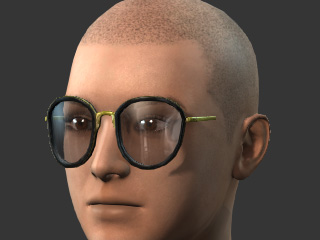
-
Make sure the glasses is selected and switch to the Scale tool and make the glasses wider to fit the size of the head by dragging the handles of the gizmo.
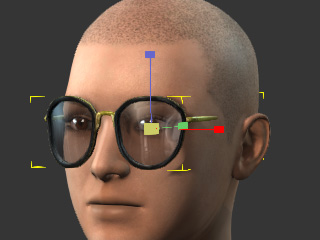
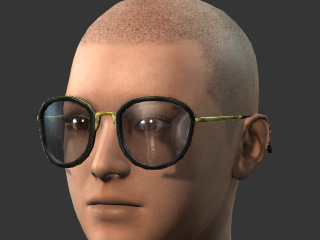
Drag the red handle of the scale gizmo to widen the glasses.
The width of the glasses now fits the head.
-
Switch to the Rotate tool and rotate the glasses by dragging the colored circle of the gizmo.
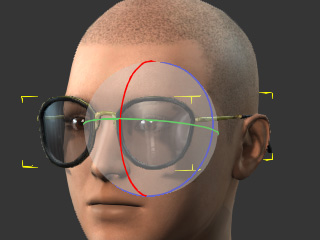
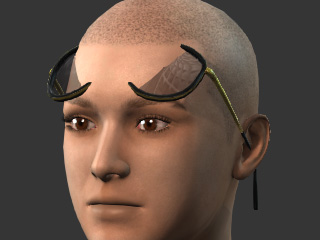
Drag the red axis of the rotation gizmo to rotate the glasses.
Note:Dragging the gray background of the gizmo will freely rotate the object.
-
Switch to the Move tool and move the glasses by dragging the
colored arrow handle of the gizmo.
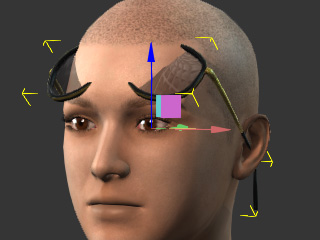
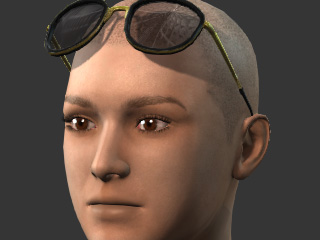
Drag the red blue handle of the arrow of the gizmo to move the glasses up.
Note:Dragging the square between two handles of the adjacent arrows may move the object in the planar fashion according to the perpendicular arrows.
Character's Direct Morphs
In addition to use the sliders or the text fields to morph the facial features or body parts, you are allowed to directly drag on them in the 3D viewer for re-shaping. Dragging along different direction may change the width, depth and length of the highlighted facial features or body parts.
- Facial Features:
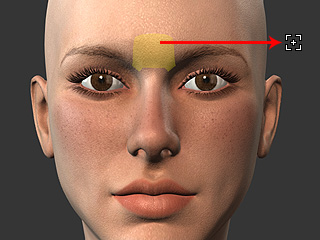
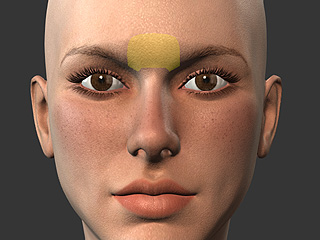
Dragging vertically: Adjusting the width of the facial features
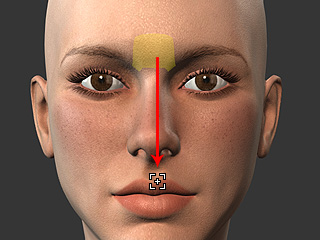
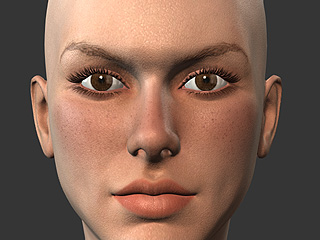
Dragging horizontally: Adjusting the height or length of the facial features
- Body Parts:
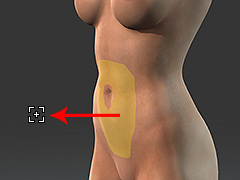
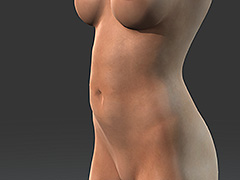
Dragging along the bone direction: Adjusting the length of the body parts.
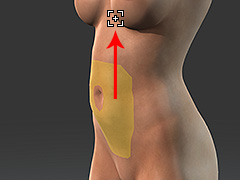
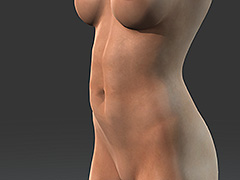
Dragging perpendicularly to the bone: Adjusting the width and depth of the body parts.
