Switching HD Facial Profile
If you want the character to correct issues related to eye closure and mouth movement, or to achieve full compatibility with UE Metahuman, applying the HD Facial Profile will be the best choice.
There are two methods to apply the HD Facial Profile: Applying from Content Manager, Converting from Facial Profile Editor.
Please refer to the Using Corrective Rule Sliders for more information after the character's facial profile is converted to Extended Plus or HD.
Applying from Content Manager
If you don't mind losing the original facial profile settings—or if you intentionally want to replace them with a profile that's fully compatible with MetaHuman—you can directly apply the HD Facial Profile from the Content Manager.
- Distribute a CC3+ character.
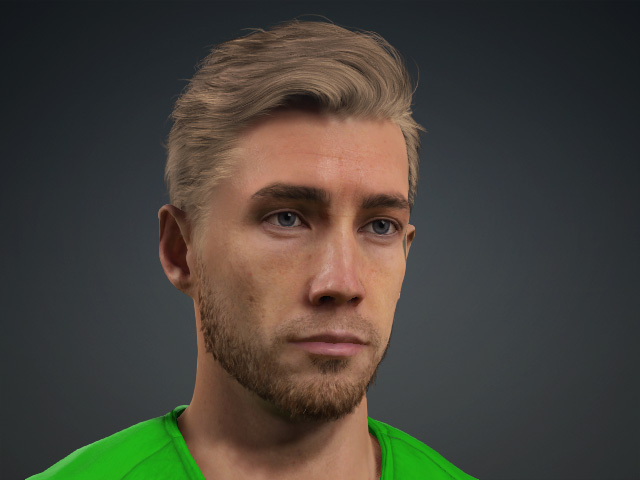
- Open the FacialProfile library in the Content Manager.
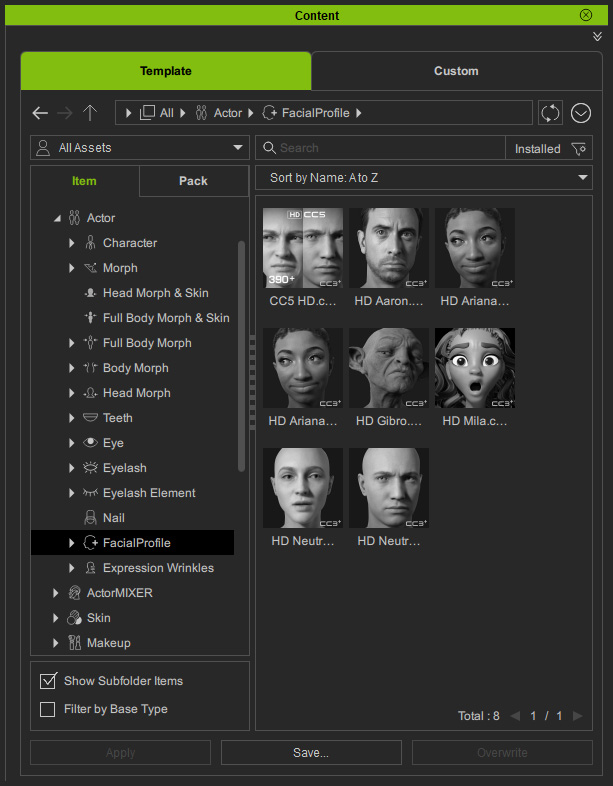
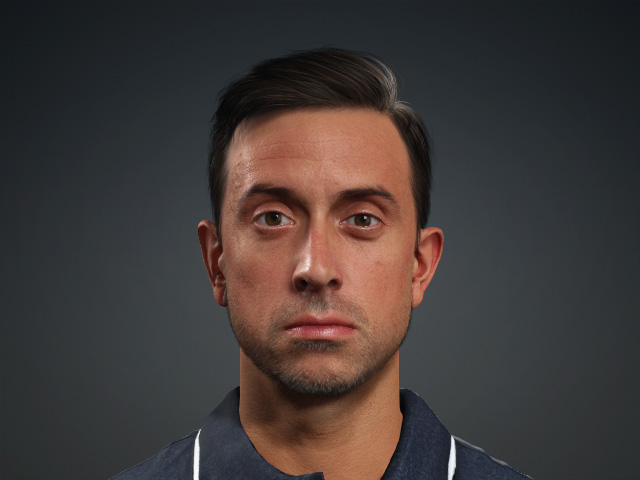
- Apply the HD Facial Profile template from the library. The original facial profile will be replaced.
Converting from Facial Profile Editor
If you want to preserve the original facial profile settings while adding more capabilities to make the character compatible with MetaHuman, you can use the built-in upgrade function in the Facial Profile Editor to perform the conversion.
- Distribute a character.
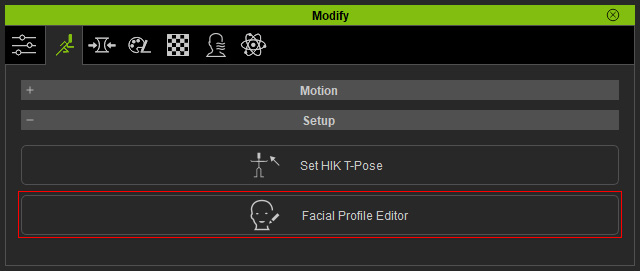
- Click the Facial Profile Editor button in the Motion Pose tab of the Modify panel.
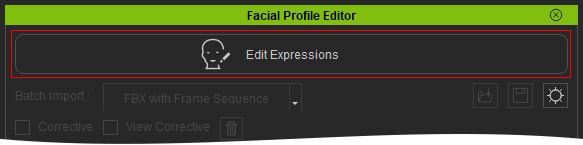
- Click the Edit Expressions button to enable the editor.
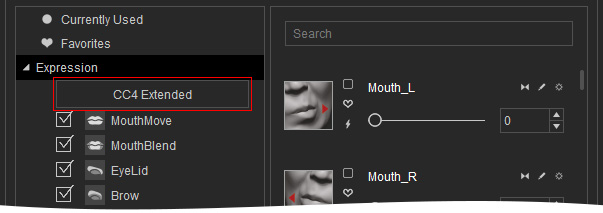
- Click the CC4 Extended button.
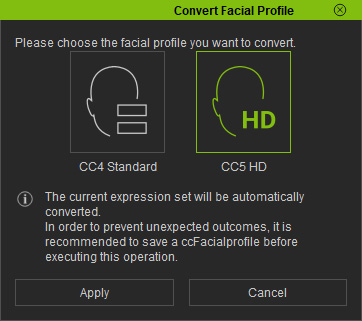
- Choose the CC5 HD facial profile and click the Apply button.
You will be asked if you want to save the current facial profile. Click OK or No accordingly.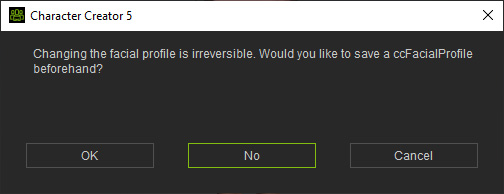
- The original facial profile will be converted to HD Facial Profile.
