Using Face Control Panel
After completing the Face Profile upgrade and various expression corrections, you can install the free Facial Control panel to test the accuracy of facial feature performance. The number of sliders in this panel is identical to MetaHuman, allowing you to create expressions or verify expressions before sending the character to UE.
Installing Facial Control Panel
Click the Install button of the HD Face Control plugin on the Reallusion Hub.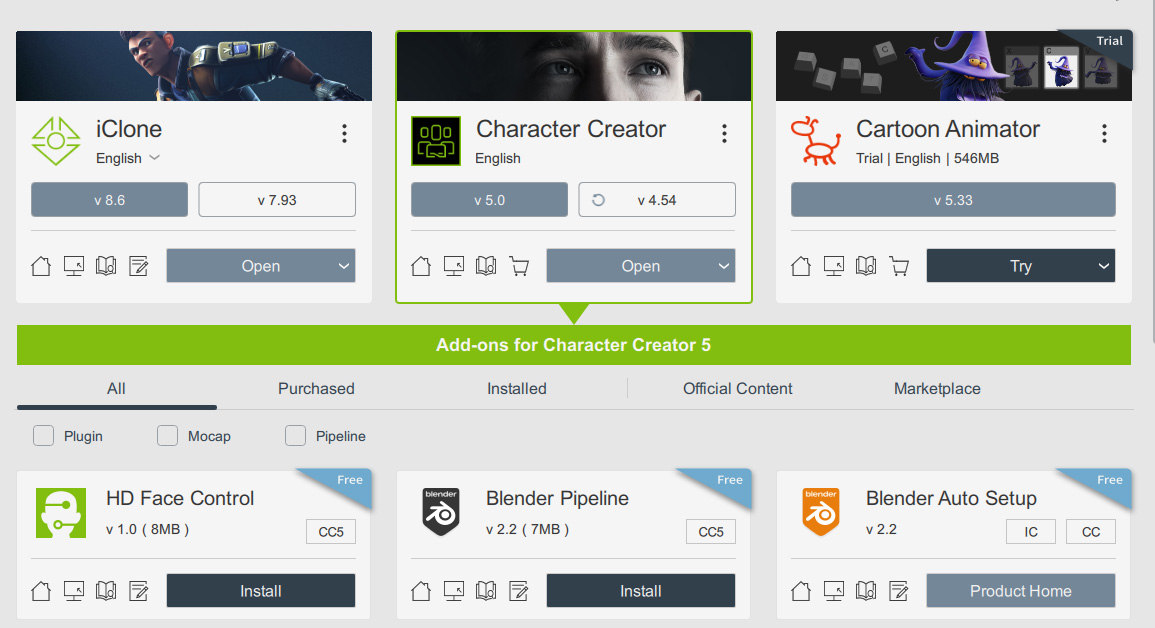
Preparing Your Character
To use the HD Face Control Plugin, make sure your character has CC5 HD Facial Profile applied.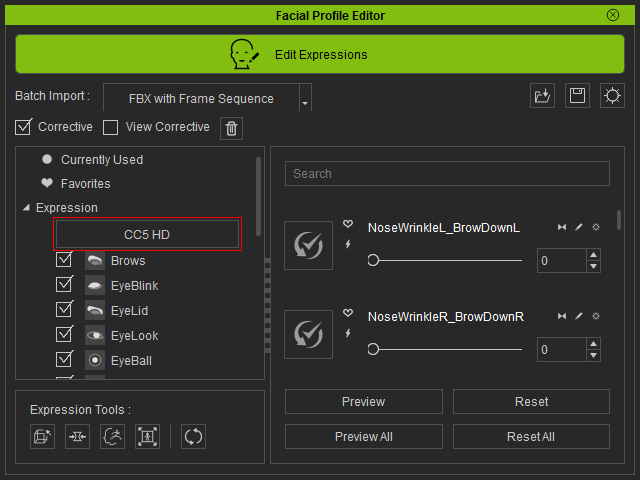
Open Face Control Panel in Character Creator
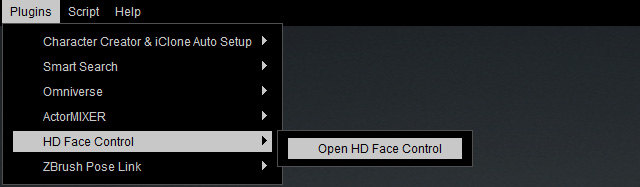
You can open the Face Control panel from Plugins > HD Face Control > Open HD Face Control
The Face Control Panel will appear.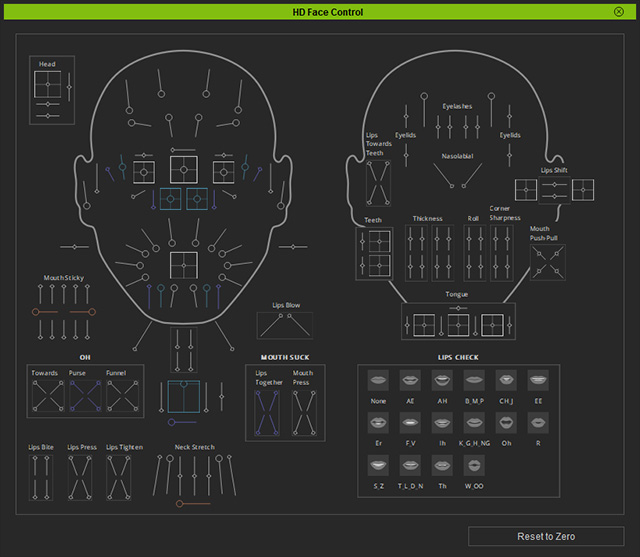
- You can roll your mouse wheel to Zoom in / out the panel.
- Press down the wheel to pan the panel.
- Press Ctrl to select multiple sliders for synchronizingly adjustments.
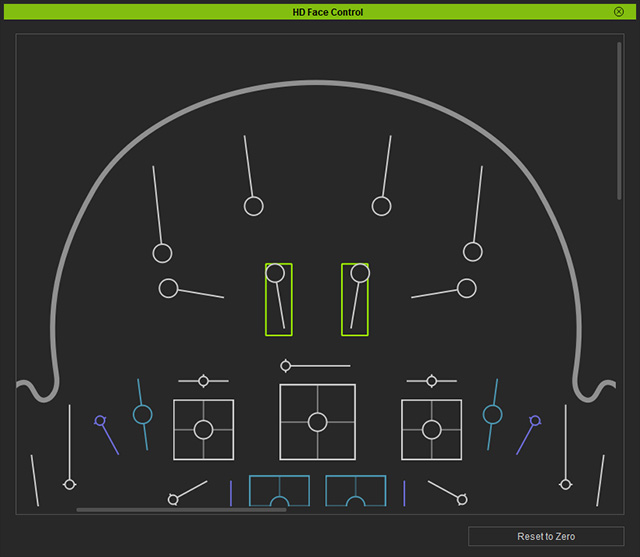
- Double-click on the slider to initialize its value.
- The color codes in for the sliders:
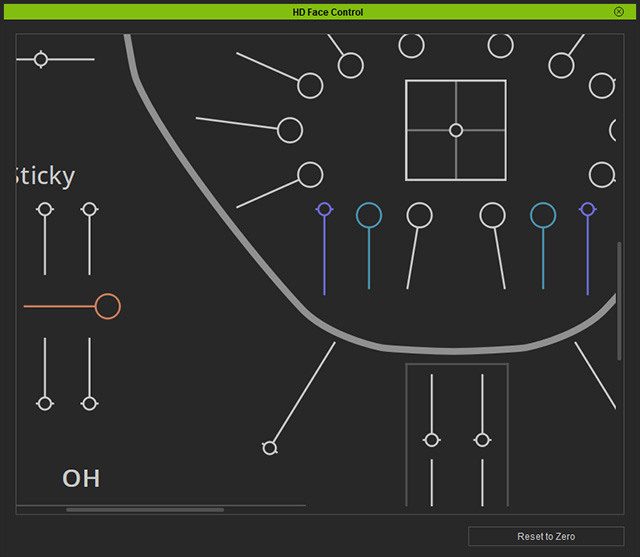
- Blue: Mandatory sliders for limiting the movements of the purple sliders.
- Purple: Only when the blue sliders are not zero can the purple ones become adjustable.
- Orange: Preview specific slider effects, including the sticky lips effect and the swallowing movements of the throat.
Using Facial Control Panel
- Select your character in the scene.
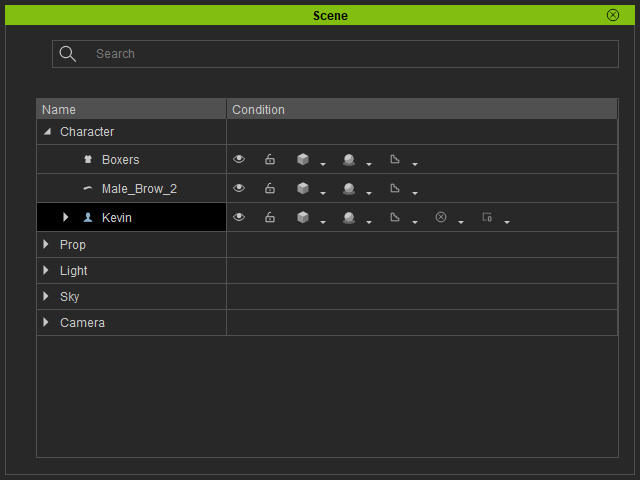
- Simply drag either of the sliders on the panel to create or check out the facial expressions.
