Body-Specific Outfit Design Template (New for v5.2)
In AI Studio, go to Templates > Custom Tools to explore all 6 template tools. Click the Body-Specific Outfit Design template to open it.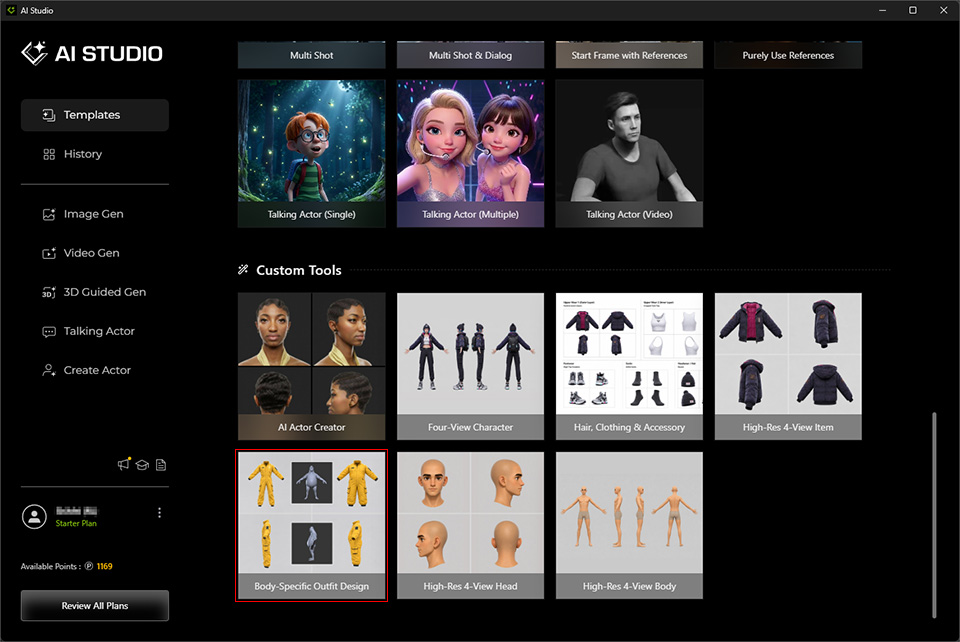
The Body-Specific Outfit Design template adapts items generated by the High-Res 4-View Item template, such as hair, clothing, pants, hats, shoes, and accessories, to fit a specific character's body shape. The resulting high-resolution (3840 × 2160, 4K) four-view images can be used with the corresponding mesh types in AI Mesh Generator, excluding Character.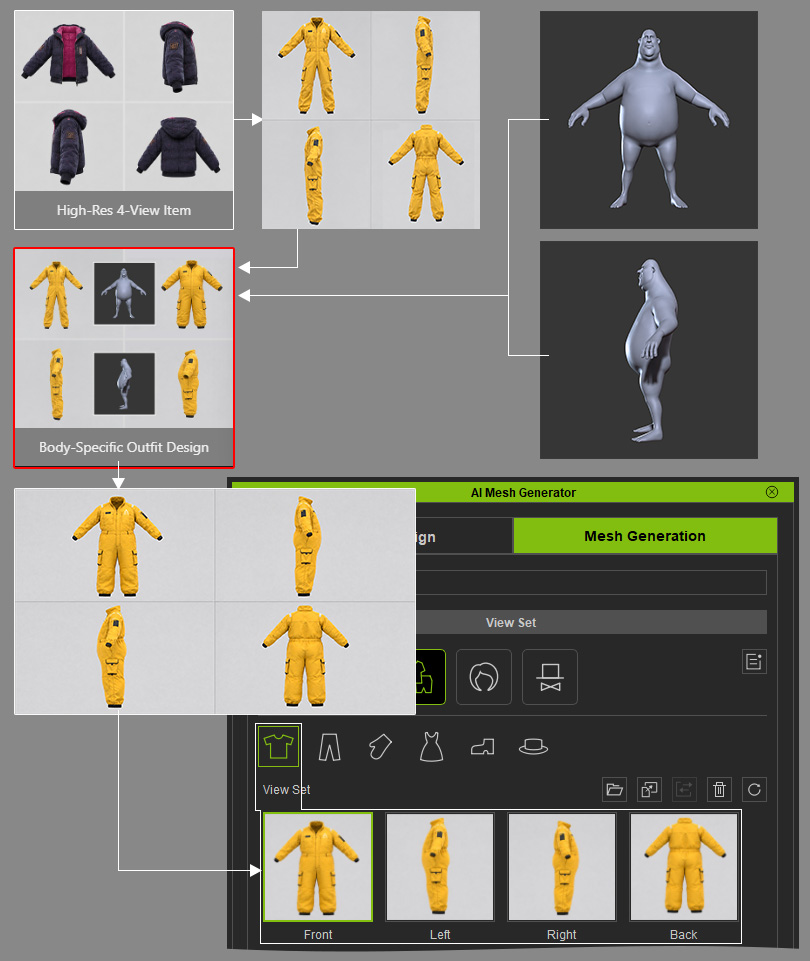
Replace Reference Images
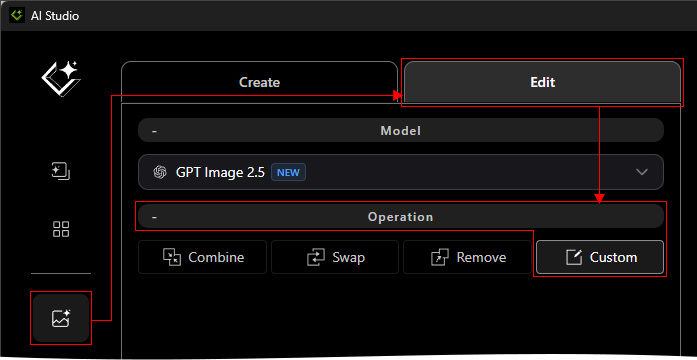
- After the template opens, AI Studio automatically goes to Image Gen > Edit > Custom (under the Operation section).
- Image 1: Use the four-view item image generated by the High-Res 4-View Item template.
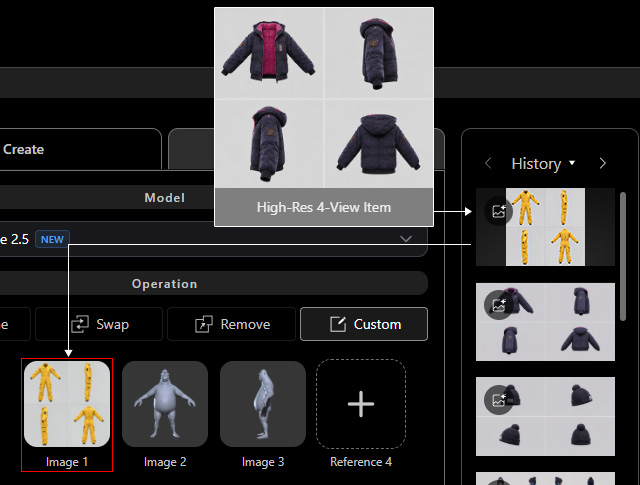
- Image 2: Use a front view of the naked character's gray model generated in Character Creator (CC).
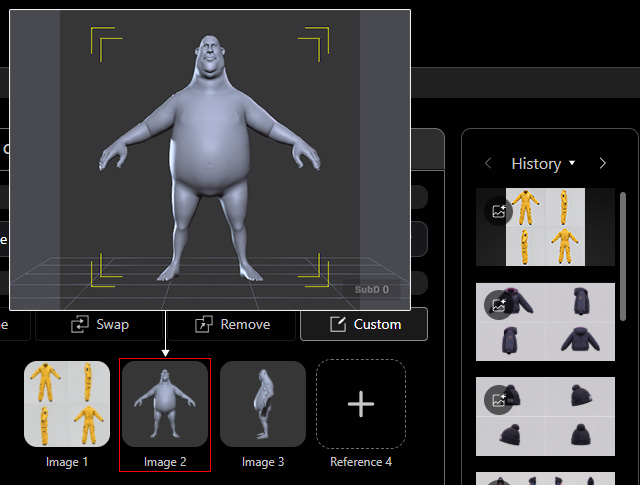
Image 3: Use a side view of the same character.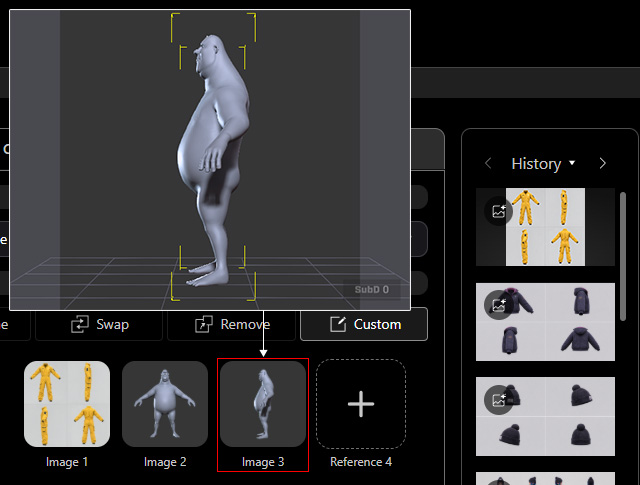
- Apply A-Pose to the character for easier dressing and matching to your screen.
- These images define the character's body shape, including height, build (slim or heavyset), body proportions, and depth. At least one body reference image (Image 2) is required.
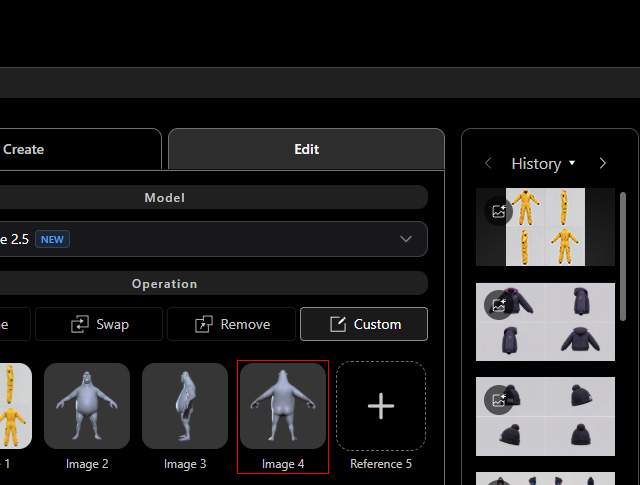
- You can add more images showing different angles to provide additional body-shape references. Ensure the images depict the same character for consistent results.
Update the Prompt
- The prompt is preconfigured. Modify only the image references in the following sentence to match the number of body reference images used, excluding Image 1.
- One reference image:
Use "[ Image 2 ]" strictly as the baseline for character body shape, body type, pose, volume, waist width, and 3D profile depth.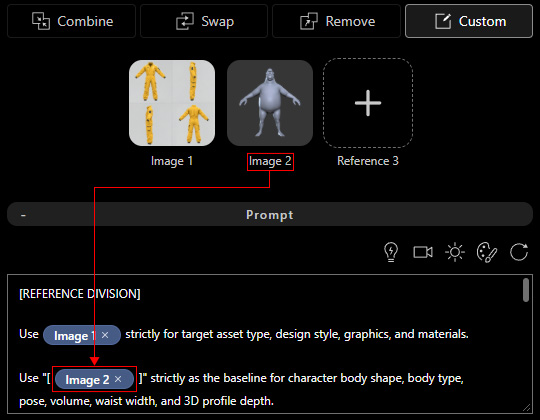
- Two reference images:
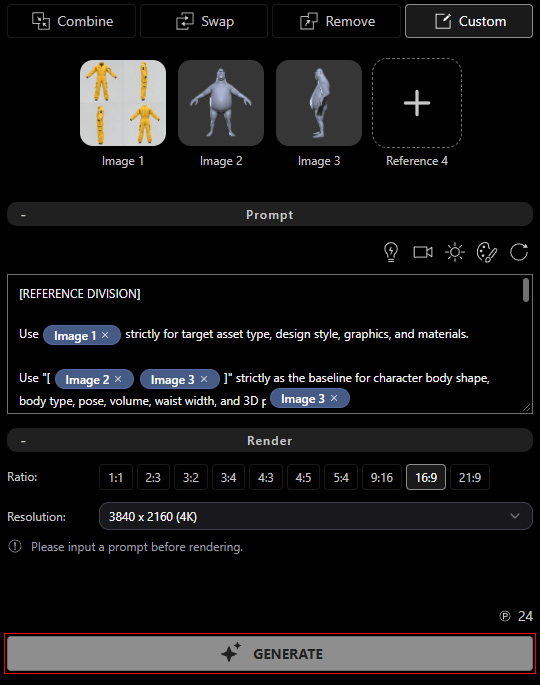
Use "[ Image 2 Image 3 ]" strictly as the baseline for character body shape, body type, pose, volume, waist width, and 3D profile depth.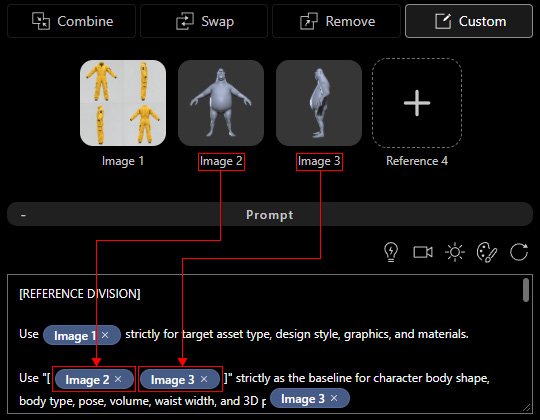
- For additional reference images, include all corresponding image slots using the same format. Do not modify any other part of the prompt.
- One reference image:
- Click GENERATE to create the conformed item four-view image. Generate again if you are not satisfied with the result.
Copy Each View
- Activate the Select tool.
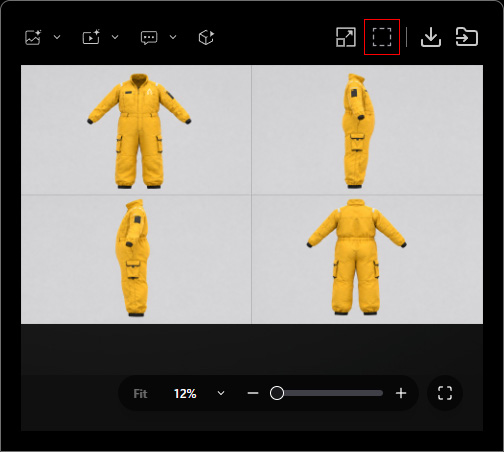
- Select one view from the generated four-view image.
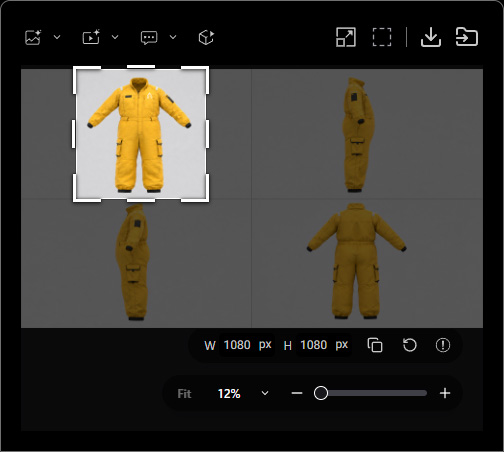
- Click Copy to Clipboard below the selection, or press Ctrl + C, to copy the selected view to the system clipboard.
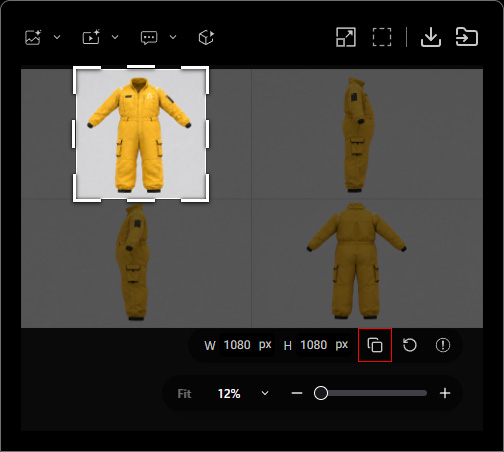
Import Views into AI Mesh Generator
- Open AI Mesh Generator and go to the Mesh Generation page. Enter the Mesh Name.
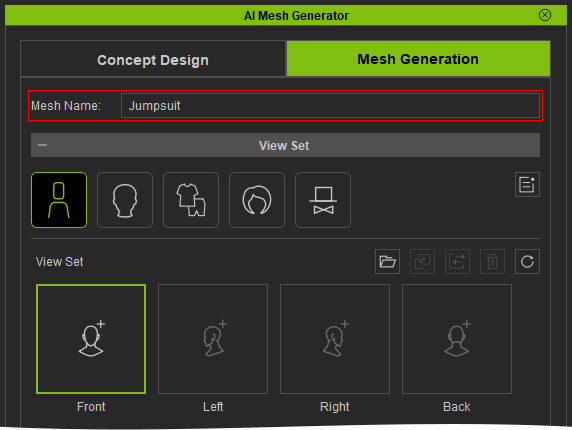
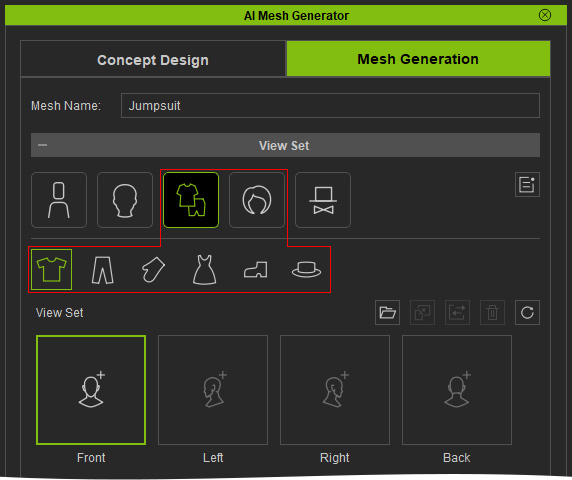
- Make sure that the Mesh Type setting matches the one copied in the AI Studio. In this example, select Clothes > Top / Upper.
- Under View Set, select the slot corresponding to the one in step 8 (Front, Left, Right, or Back).
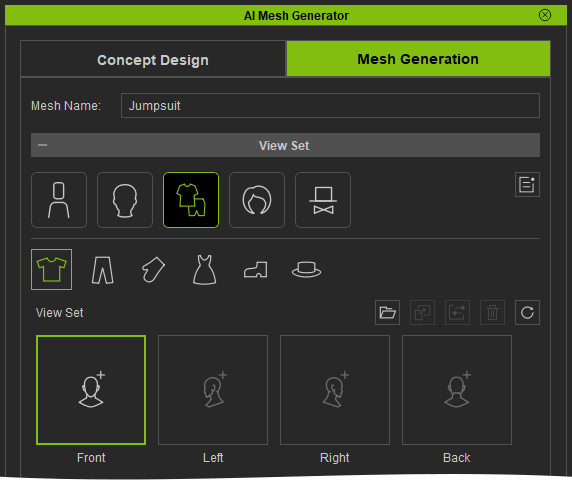
- Click Paste image from clipboard, or press Ctrl + V, to paste the copied view.
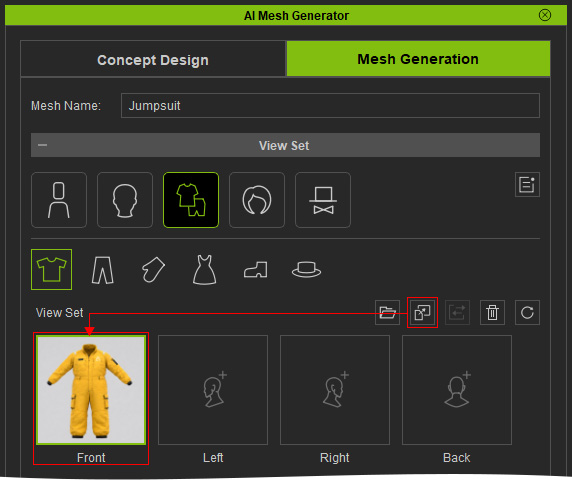
- Repeat for the remaining views. A Front view is required; the other views are optional.
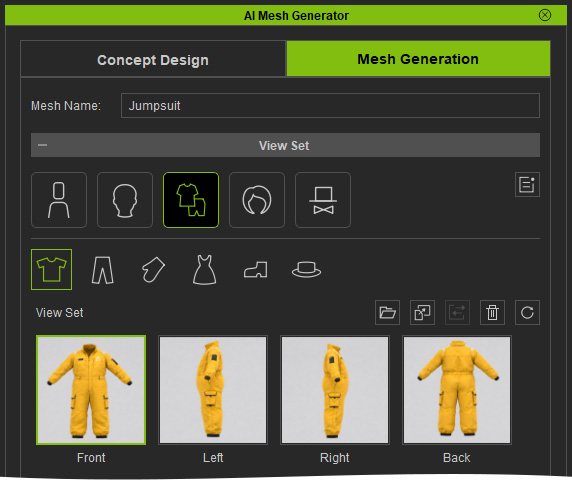
Generate and Fit the Outfit
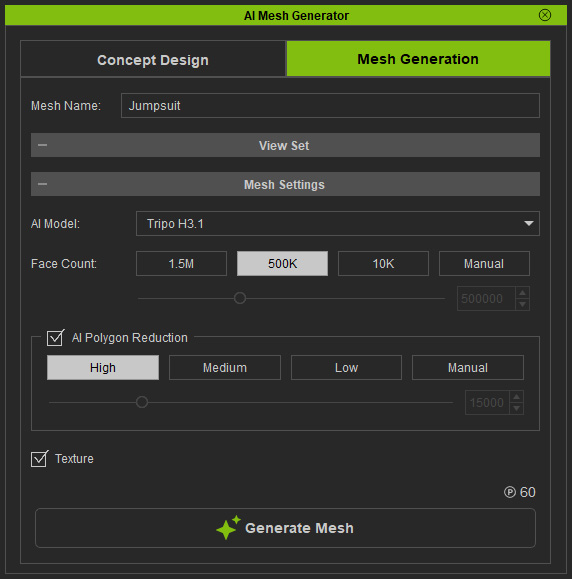
- Configure the mesh settings and generate the 3D mesh. Click the Generate Mesh button.
- In the Task Queue panel, click the Apply button to apply the mesh to the Character Creator stage.
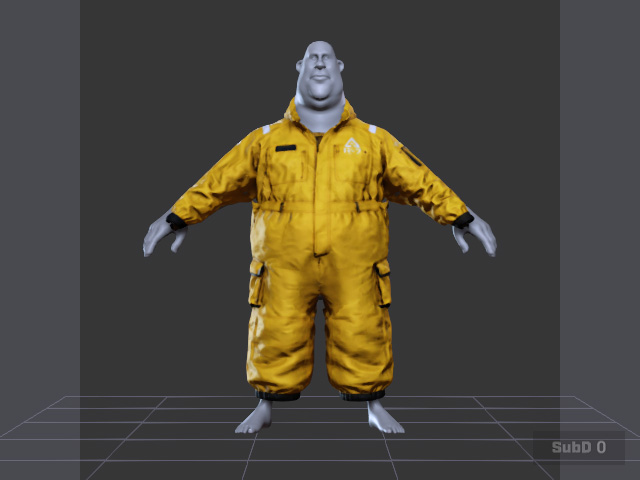
- You can then proceed with the Transfer Skin Weight procedure to convert the 3D mesh into clothing for the character.
