Locating Generated Mesh Files (New for v5.2)
You can locate files generated by Mesh Generation using either of the following methods.
Method 1: Using Task Queue
- Open the Task Queue panel and switch to Mesh Generation.
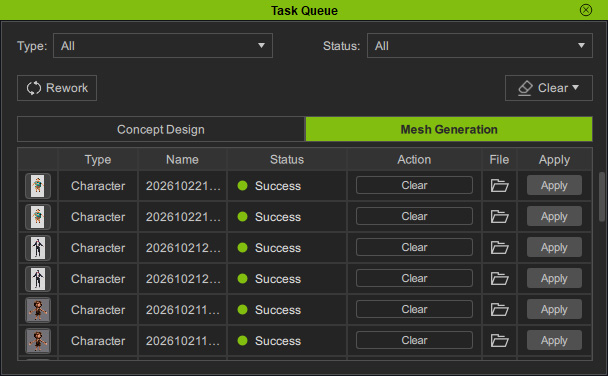
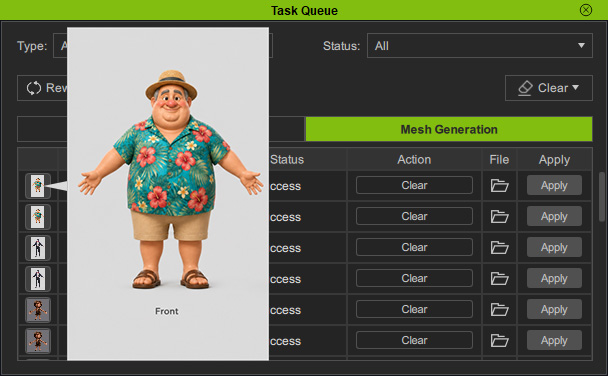
- Hover over a thumbnail to preview the result and identify the desired task.
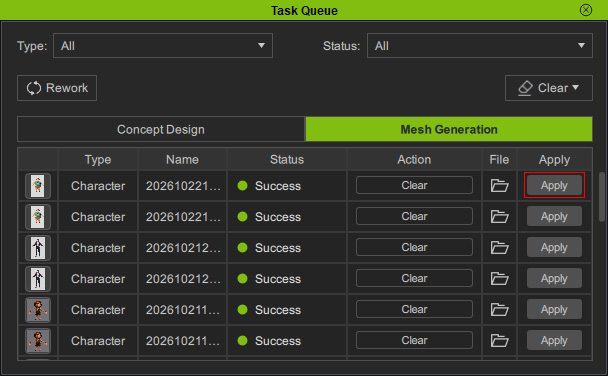
- Click the task's File button to open its folder in the system file browser.
Method 2: Using Content Manager
- Open Content Manager > Custom > Props > AI Mesh > [Mesh Types] > [Numbered + Mesh Name] Folder.
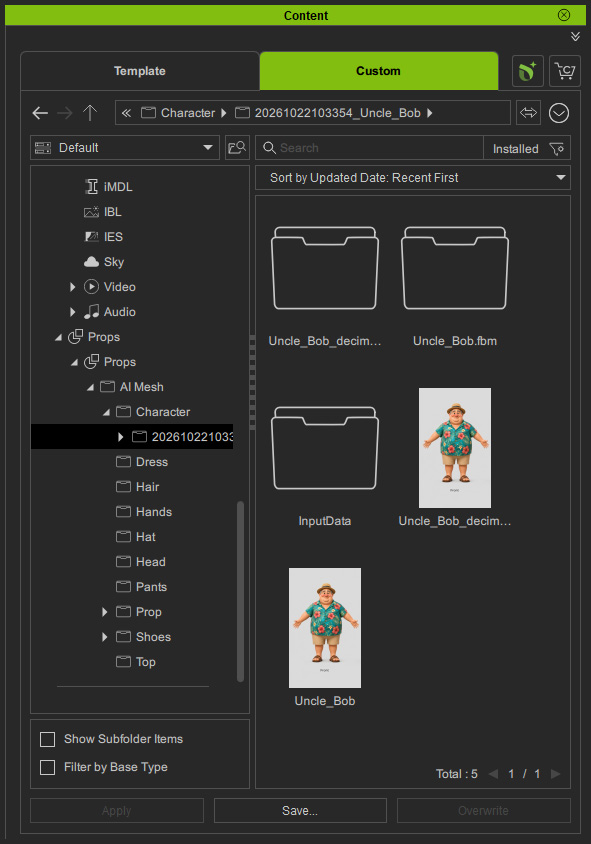
- Open the desired folder to access the generated files.
- Right-click a file and select Find File to locate it in the system file browser.
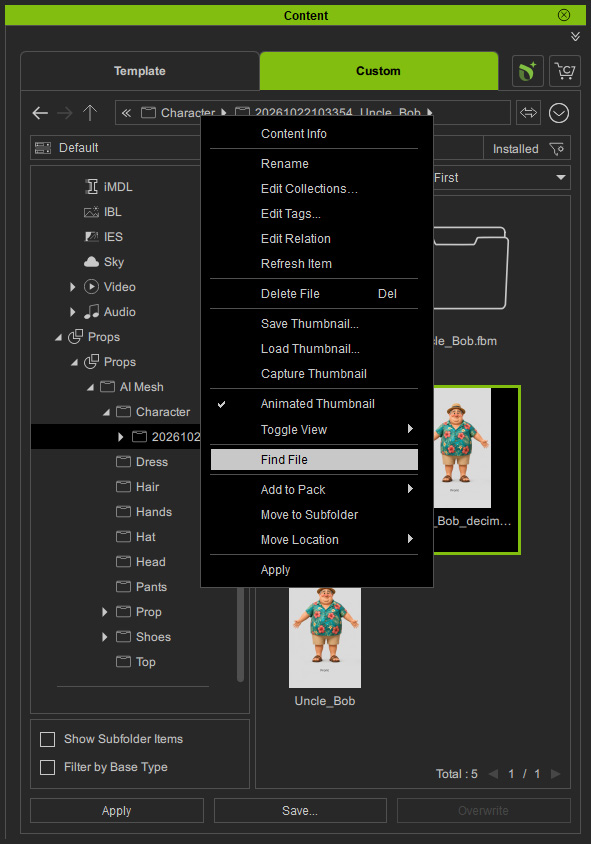
Generated Files
By default, the path is C:\Users\Public\Documents\Reallusion\Reallusion Custom\Props\AI Mesh\[Mesh Type]\[Numbered + Mesh Name] Folder. The folder contains the following files and subfolders: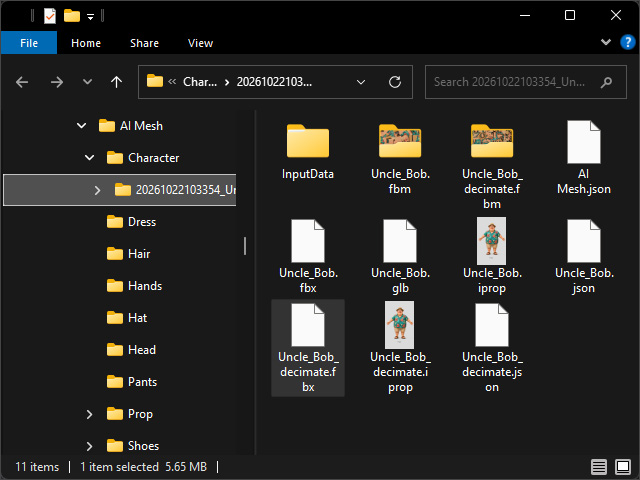
- InputData folder: Contains Dataset folder, including the 4 view images, and Source folder, including all source files.
- .fbm folder(s): Contains texture-related files.
- AI Mesh.json file: Mesh generation project file. It is used for Reworking Mesh Generation Tasks.
- .glb file(s): The original file generated by 3D mesh generation. It may contain defects such as discontinuous faces, so the program performs some processing first..
- .fbx file(s): The processed GLB is exported as an FBX file, then scaled and rotated to prepare it for export as an iProp file..
- .iProp file(s): The finally generated prop asset.
- [Mesh Name].json: FBX texture settings for the [Mesh Name].fbx files.
