Showing / Hiding Body Parts for Editing
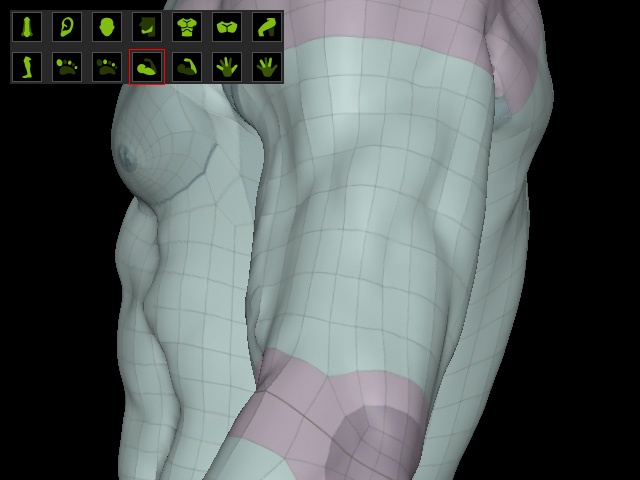
Use the Show / Hide Body Parts options to temporarily hide obstructing body parts, especially the area underarm or between fingers or toes, and access surfaces that are difficult to reach with the Brush tools.
To edit a hidden surface:
- Adjust the camera view to the desired angle for inspecting the character's surface (the underarm and side of the upper body in this example).
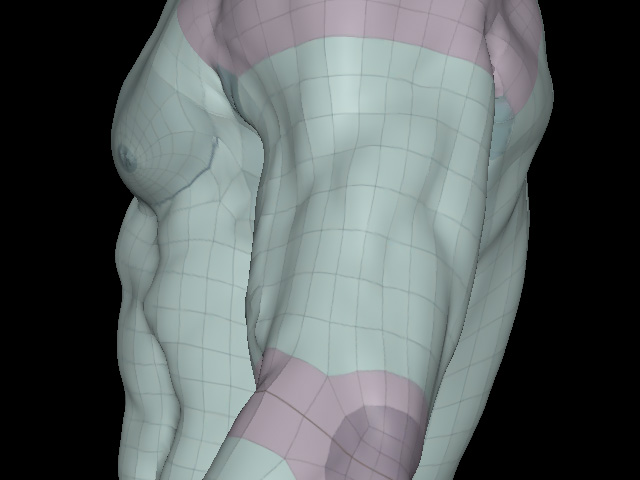
- In the Show / Hide Body Parts panel, identify the body part that is blocking the area you want to edit (Upper arm, in this case).
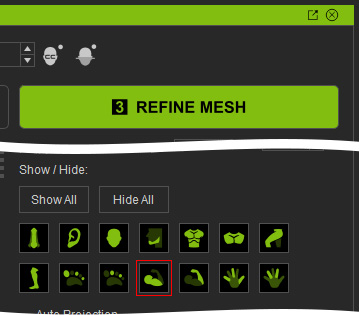
- Click the corresponding mask button to hide the body part.
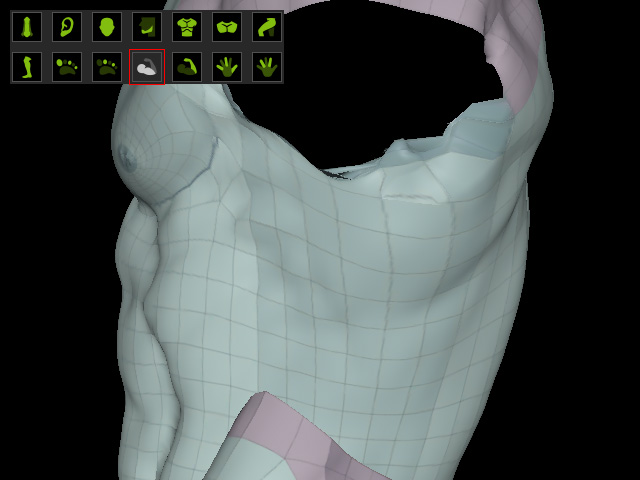
- Use the Brush tools to edit the newly exposed surface.
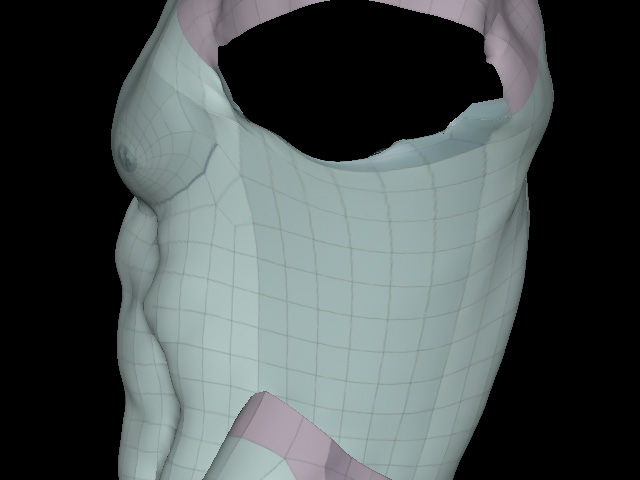
- Click the mask button again to show the hidden body part.
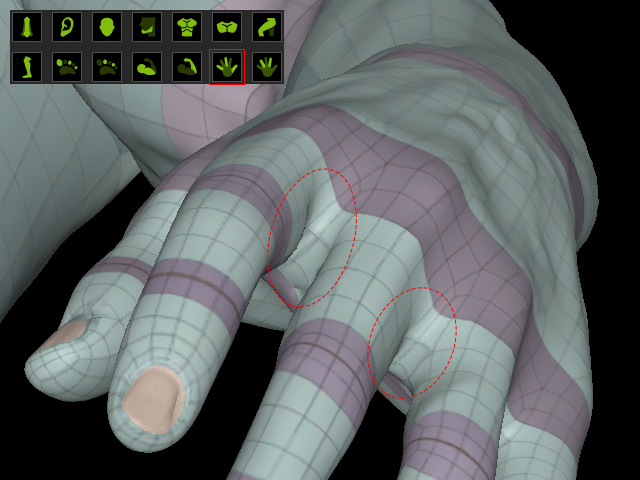
Editing Between Fingers or Toes
- Adjust the camera view to the desired angle for inspecting the character's surface (the webbing between fingers in this example).
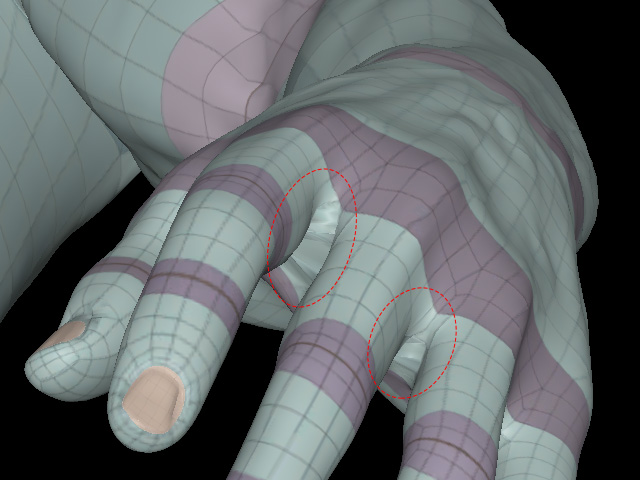
- Click Odd Fingers or Even Fingers to hide alternating fingers and expose the webbings between them.
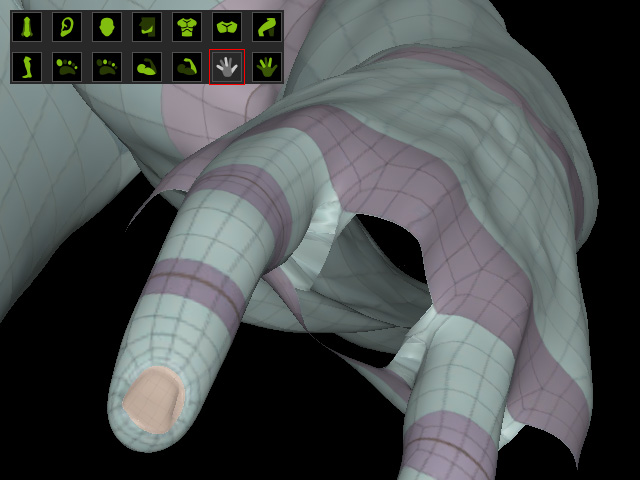
- Use the Brush tools to refine the exposed finger gaps.
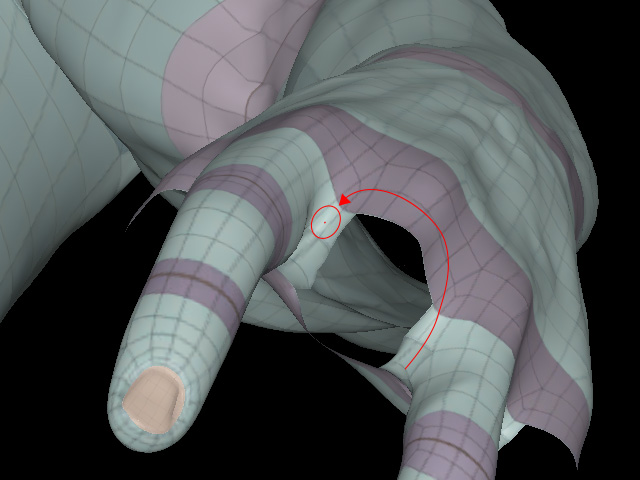
- Show the hidden fingers or toes again to check the result.
 Tip:
Tip:
Use Show All or Hide All to quickly change the visibility of all body parts.
