Sculpting CC5 HD Characters with Surface Brushes
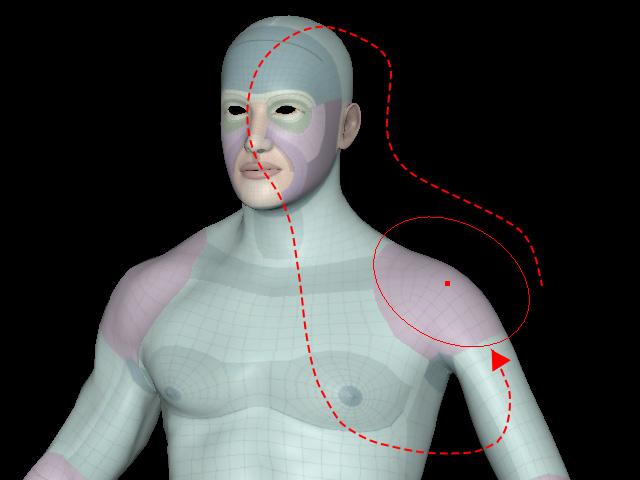
The Refine Mesh step provides five surface brushes—Move, Smooth, Clone, Project, and Erase—for refining the shape of the CC5 HD character to match the imported character model.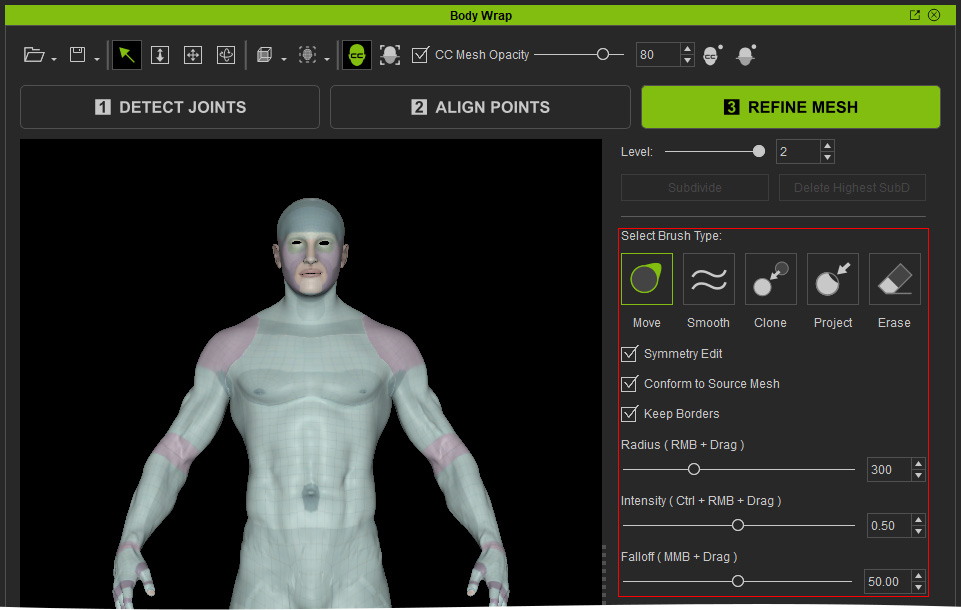
Brush Settings
|
Setting |
Description |
||||
|
Symmetry Edit |
Enables symmetrical editing on both sides of the character. |
||||
|
Keeps the CC5 HD surface conformed to the imported character model while using the Move or Smooth brush. This allows surface adjustments to follow the shape of the source mesh during editing. |
|||||
|
Preserves the borders (eye sockets and mouth) of the edited area when using the Move or Smooth brush, helping prevent the surrounding mesh from being unintentionally affected. |
|||||
|
Radius |
Sets the size of the brush area. A larger radius affects a wider surface area, while a smaller radius allows more precise editing. |
||||
|
Intensity |
Sets the strength of the brush effect. Higher values produce stronger deformation, while lower values produce more subtle changes. |
||||
|
Fall Off |
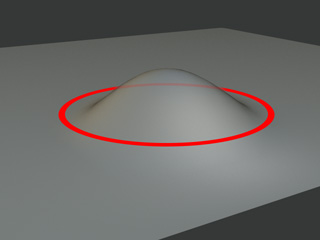
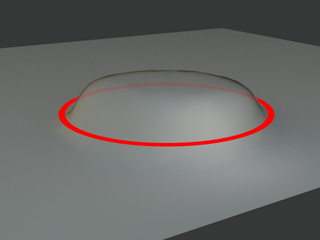
Sets how gradually the brush effect fades toward the edge of the brush area. Lower values produce a sharper edge, while higher values create a softer, feathered edge.
|
Move and Project
The Move and Project brushes can be used together to precisely conform areas of the CC5 HD character that are not fully aligned with the imported character model. After Auto Projection, some areas of the CC5 HD character may remain slightly inside the surface of the imported model.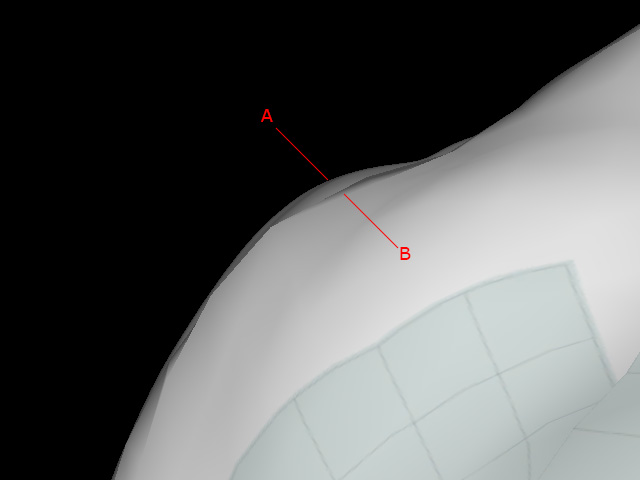
- Imported model mesh
- CC5 HD character mesh
In such cases, using Project brush alone may not fully conform the surface.
- Select the Move brush and push the recessed area outward until the CC5 HD surface extends slightly beyond the corresponding surface of the imported model.
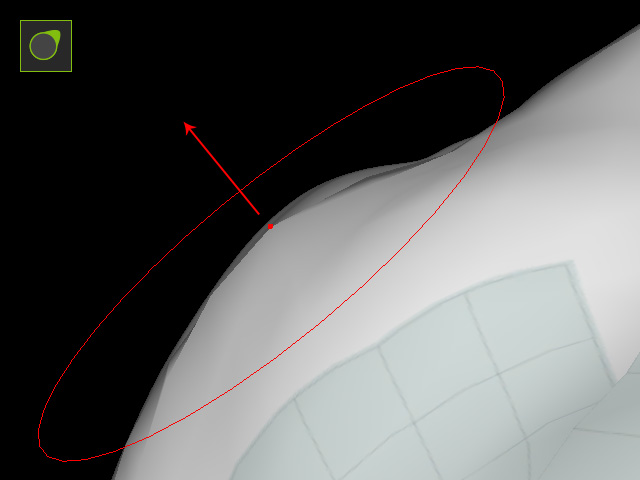
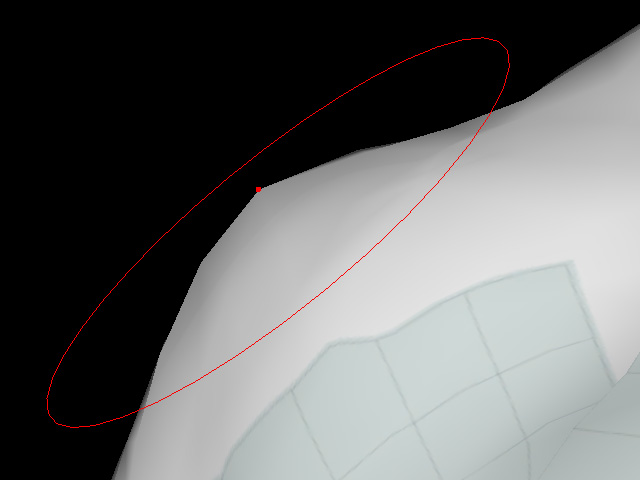
Use Move tool to move the surface outward
Result
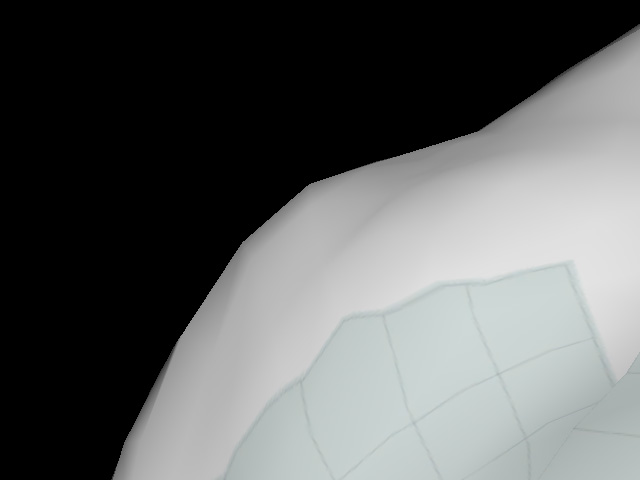
- Switch to the Project brush and brush over the adjusted area to project the imported model's surface onto the CC5 HD character.
** Note: You can increase the Subdivision Level (up to 2) to eliminate overly rigid straight edges.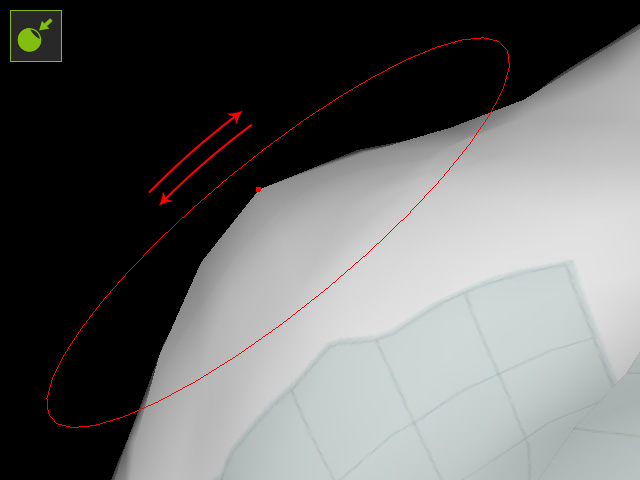
Brush over the extended area
Result
Move Brush (with Conform to Source Mesh)
Project Brush (with Symmetry Edit)
- Continue applying Project brush as needed until the CC5 HD surface closely matches the imported model without being recessed or protruding beyond it.
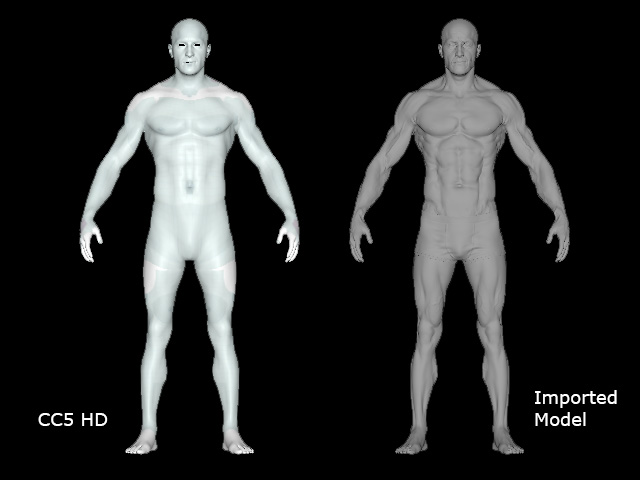
** Note: For information about using Move and Smooth with Conform to Source Mesh, see Using Move and Smooth Brushes with Conform to Source Mesh.
Smooth
The Smooth brush averages the wireframe distribution within the brush area to smooth the CC5 HD character's surface. Use Smooth to soften uneven or irregular areas created during surface editing.
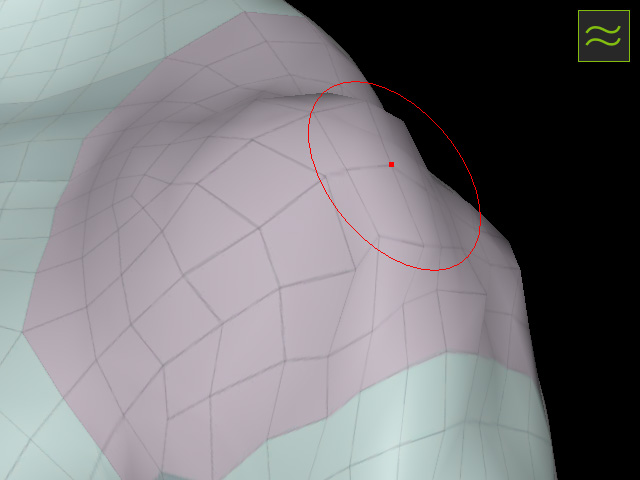
|
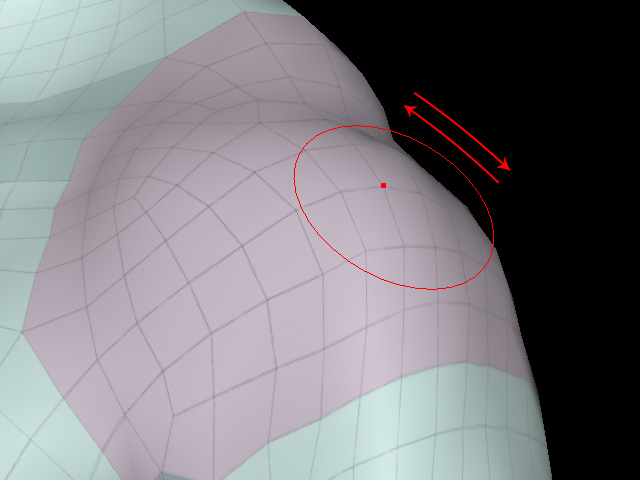
|
|
Before |
After |
For information about using Smooth with Conform to Source Mesh, see Using Move and Smooth Brushes with Conform to Source Mesh.
|
Smooth Brush (with Conform to Source Mesh) |
Clone
The Clone brush restores the CC5 HD character's surface toward its original shape before manual editing was performed in Refine Mesh. Use Clone to recover areas that have been excessively deformed during surface editing.
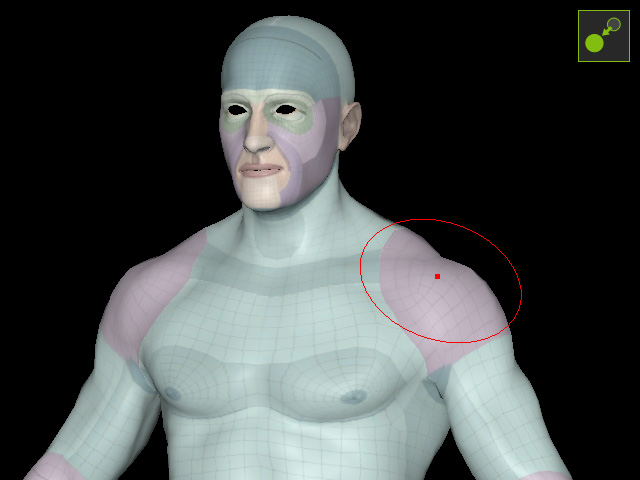
|
|
|
Before |
After |
|
Clone Brush |
Erase
The Erase brush removes surface edits made after entering the Refine Mesh step, restoring the affected area to the original CC5 HD shape. Use Erase to discard unwanted surface modifications and recover the original shape of specific areas.
|
Erase Brush |
