Using Move and Smooth Brushes with Conform to Source Mesh
The Conform to Source Mesh option keeps the CC5 HD character's surface conformed to the surface of the imported character model while editing with the Move and Smooth brushes. This allows you to adjust the vertex positions and topology while maintaining the overall shape of the source model.
Using Move with Conform to Source Mesh
The Move brush moves vertices along the surface of the imported character model without breaking the existing surface conformity.
- Make sure the CC5 HD character's surface is fully conformed to the imported humanoid character model.
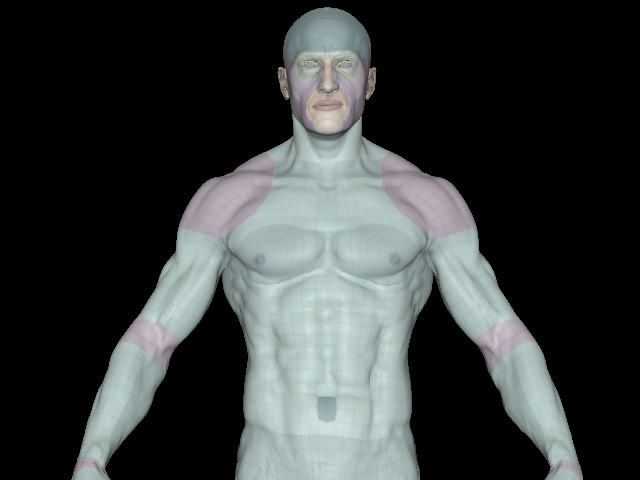
- Select the Move brush and adjust the Radius, Intensity, and Fall Off as needed.
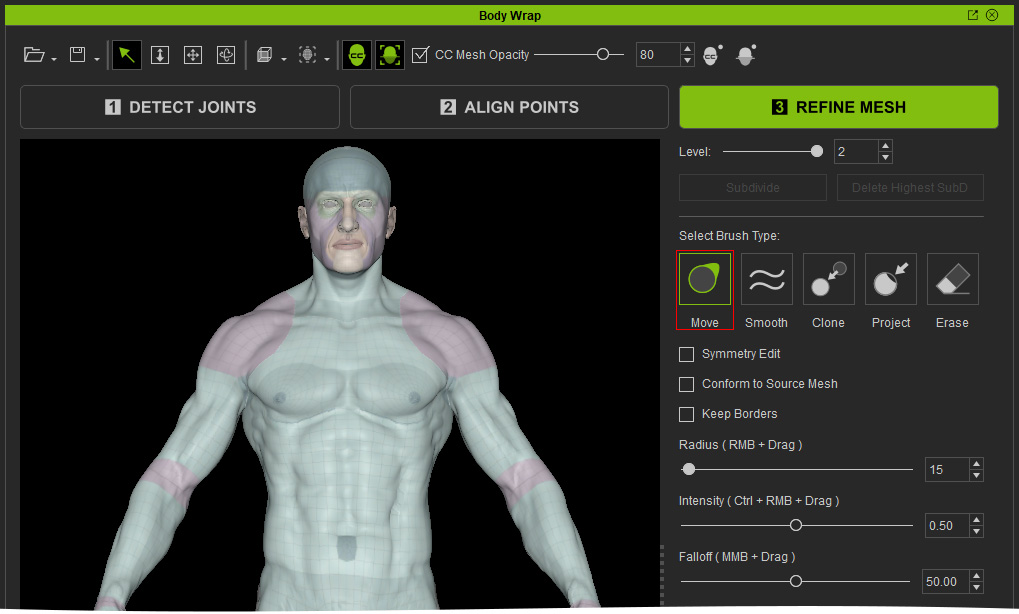
- Enable Conform to Source Mesh in the REFINE MESH step.
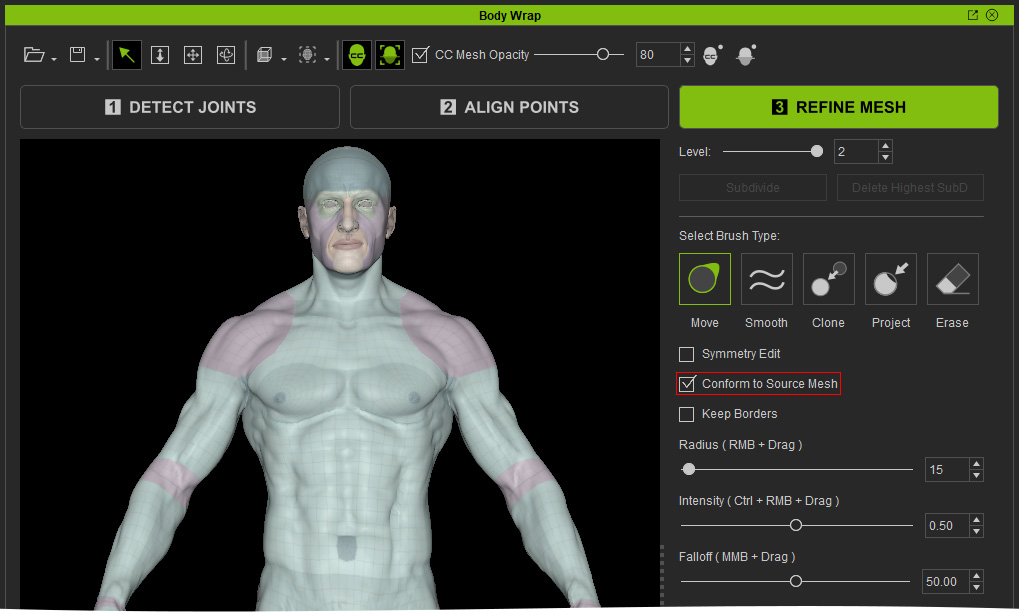
- Brush over the desired area to move the vertices along the surface while keeping them conformed to the imported model.
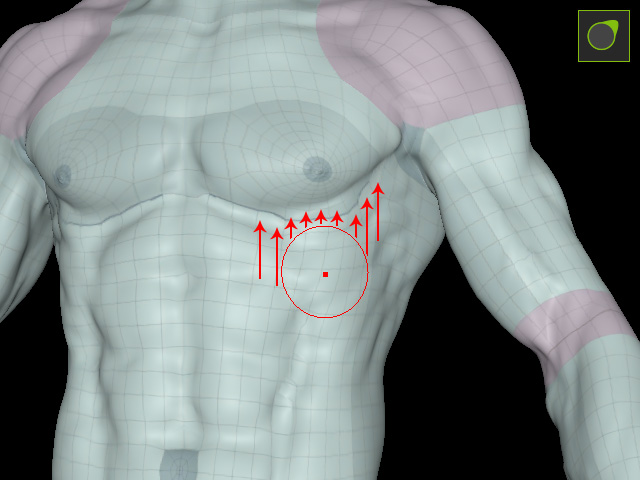
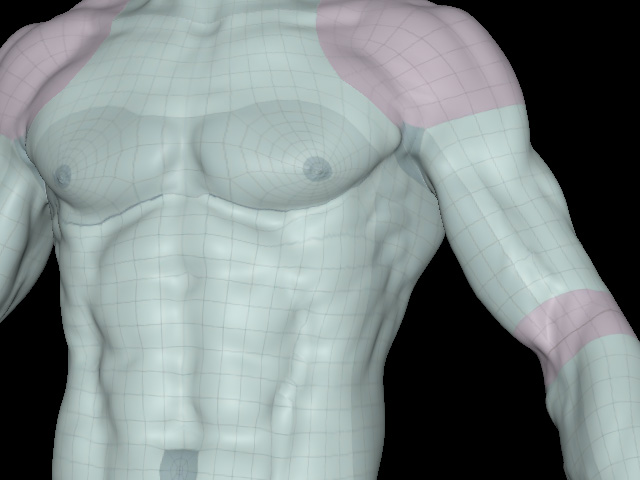
Using Move brush
Result
As you can see the CC5 HD character's surface shape remains unchanged, while the vertices and topology are repositioned along the surface.
Using Smooth with Conform to Source Mesh
The Smooth brush smooths and evenly distributes vertices and topology along the surface of the imported character model without breaking the existing surface conformity.
This method is better suited for correcting the distorted topology caused by using the Move brush and creating cleaner wireframe distribution.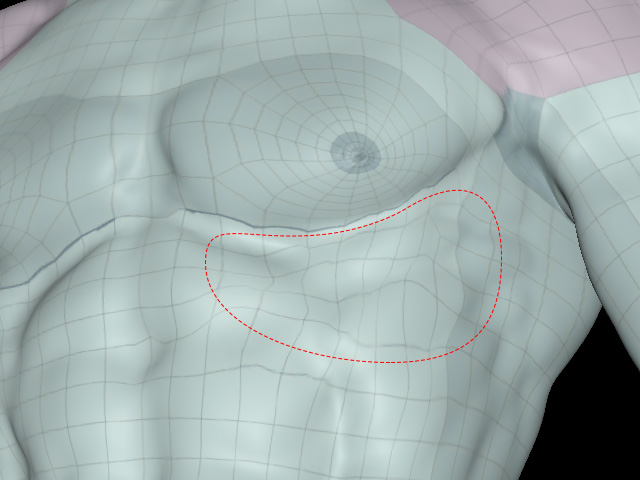
- Select the Smooth brush and adjust the Radius, Intensity, and Fall Off as needed.
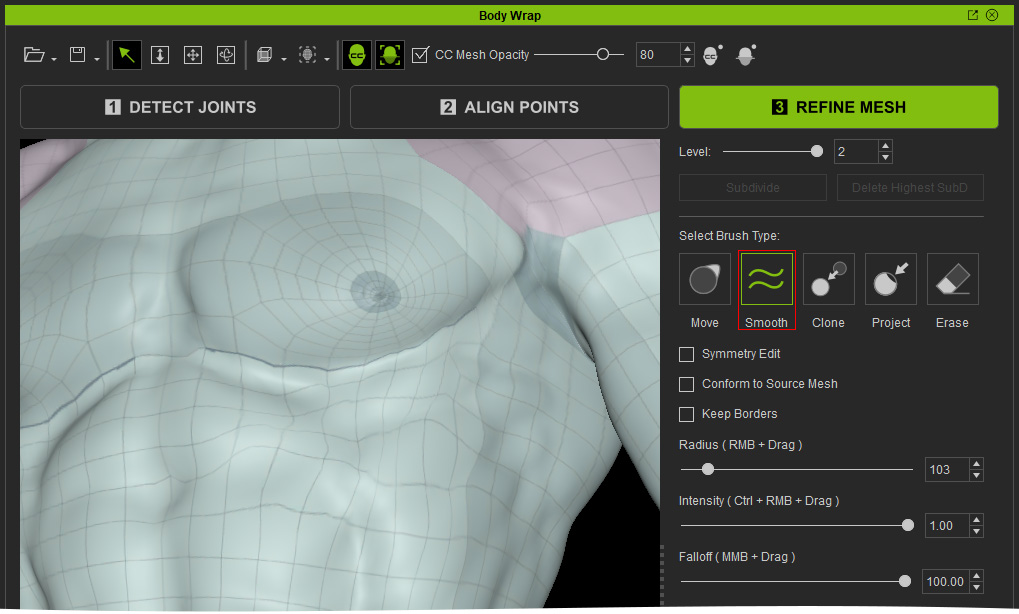
- Enable the Conform to Source Mesh feature.
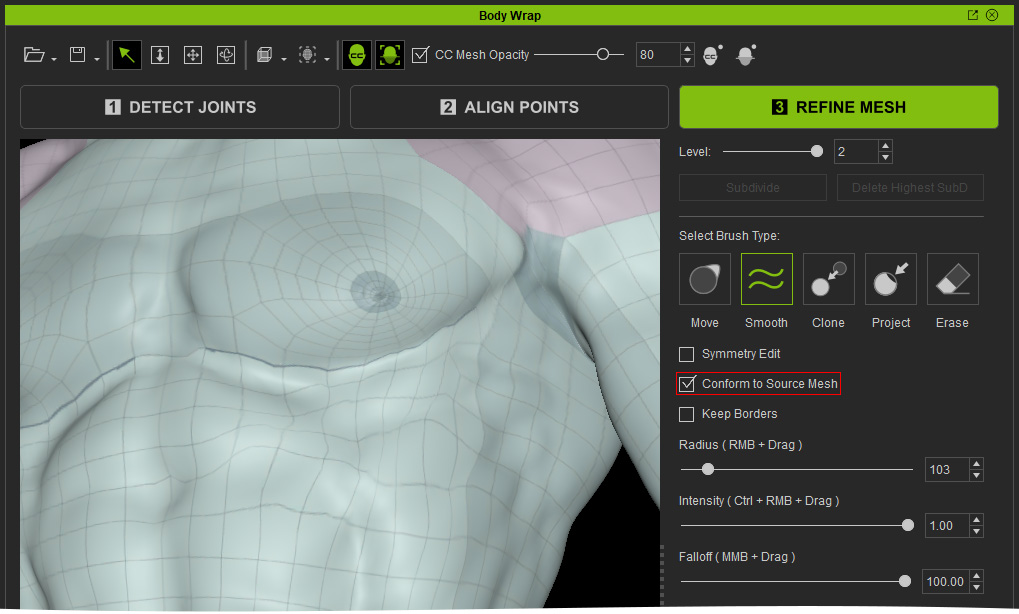
- Brush over the desired area to smooth and even out the vertices and topology while keeping them conformed to the imported model.
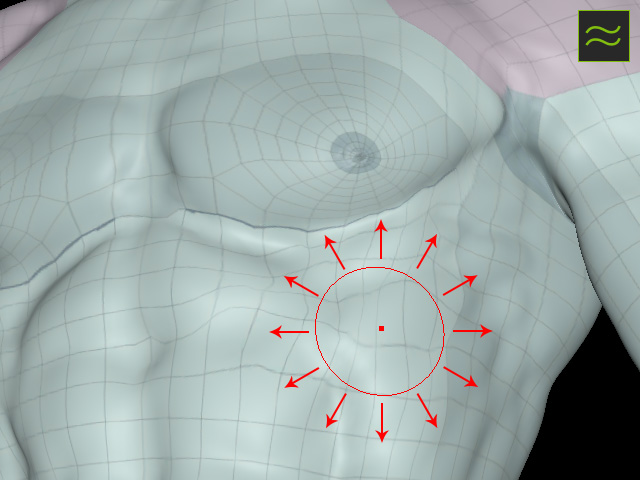
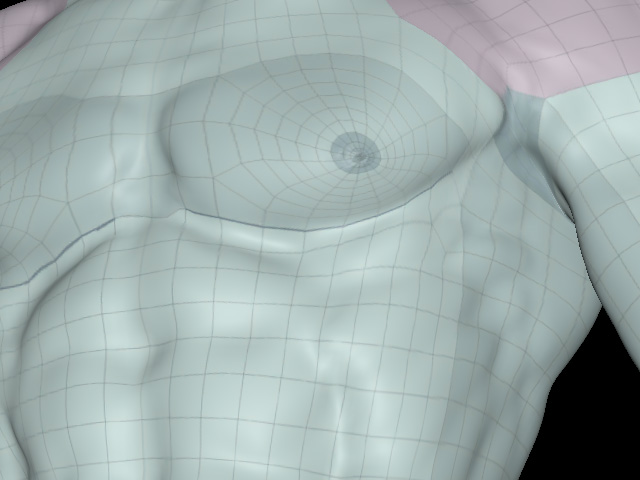
Using Smooth brush
Result
Correcting Surface Gaps with Conform to Source Mesh
In some cases, automatic projection may leave gaps or recessed areas. Use Conform to Source Mesh with the Smooth brush to correct these areas while maintaining surface conformity.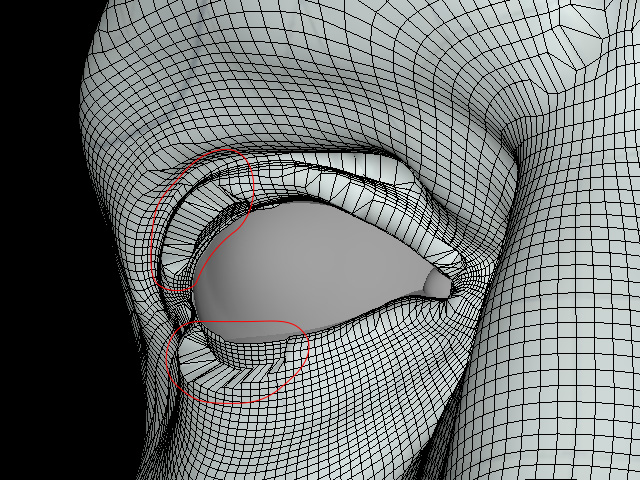
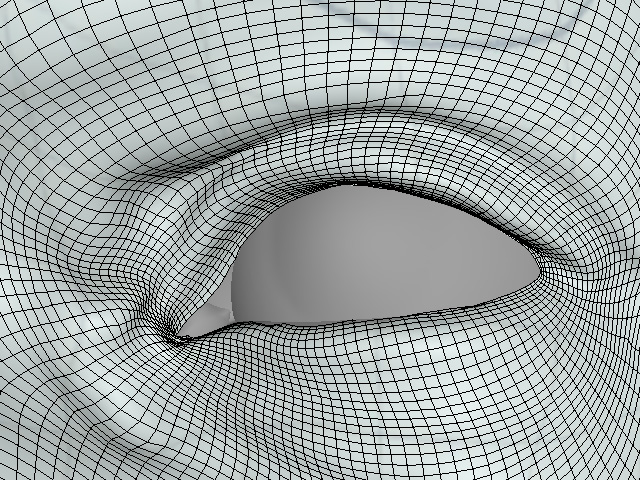
Correcting Recessed Areas Around the Eyelids
- Select the Smooth brush and use a small brush radius to work around the recessed area.
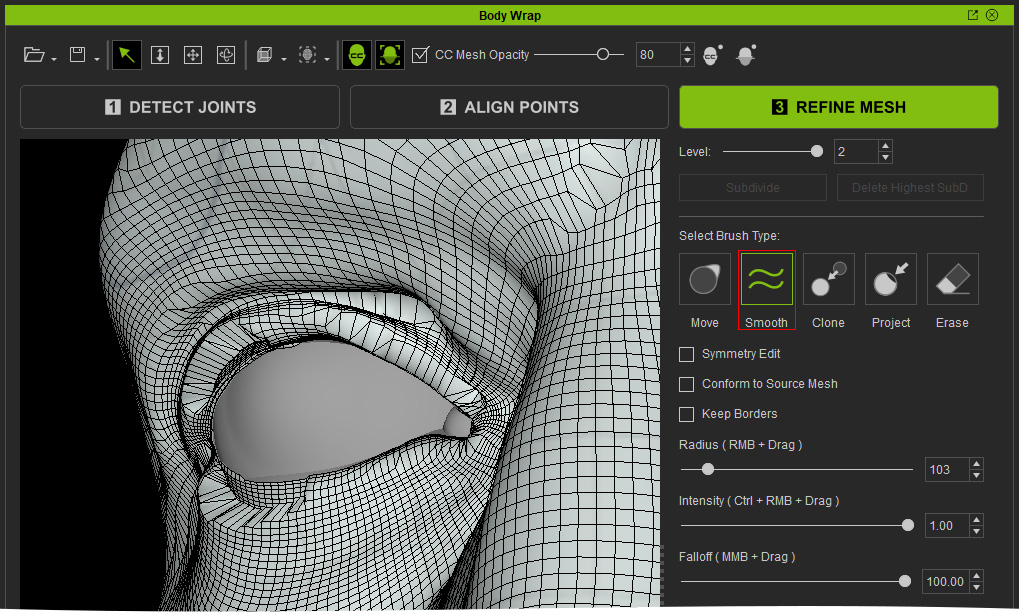
- Enable Conform to Source Mesh.
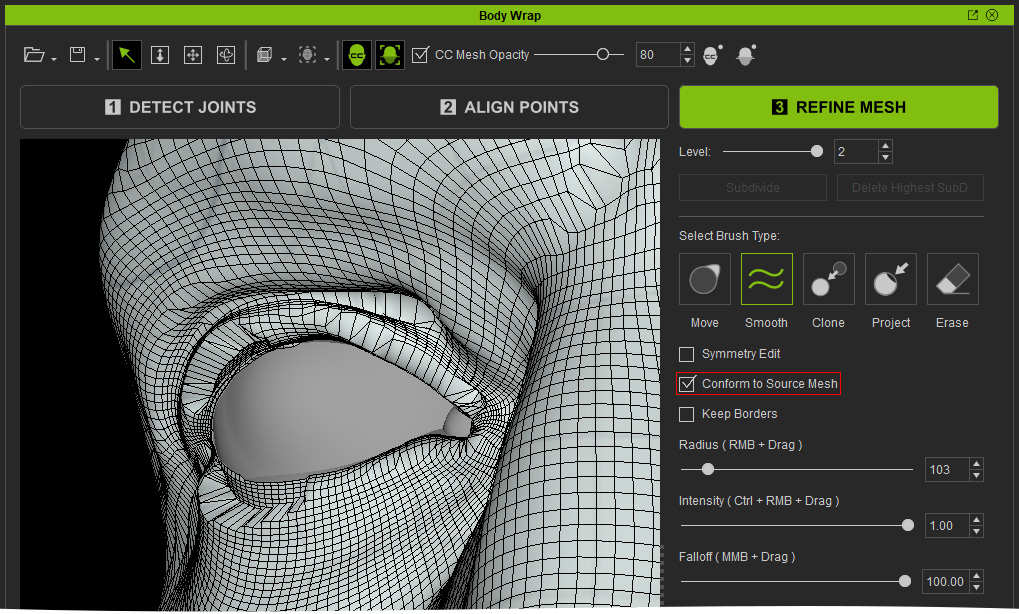
- Brush over the upper and lower eyelids to smooth and redistribute the vertices while conforming the surface to the imported character model.
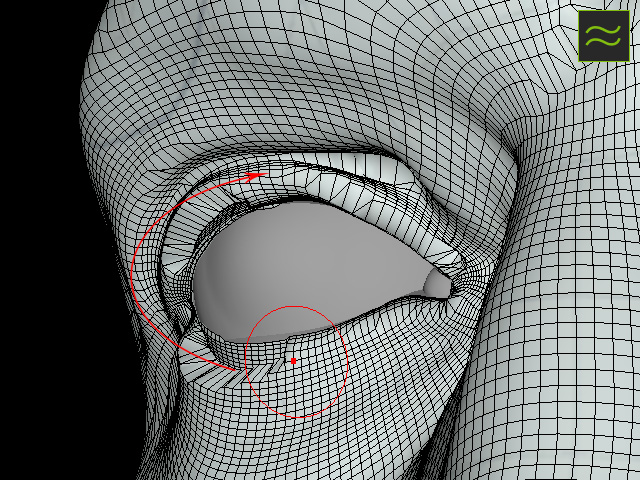
- Continue brushing until the recessed areas are filled and the eyelid surfaces are properly conformed.
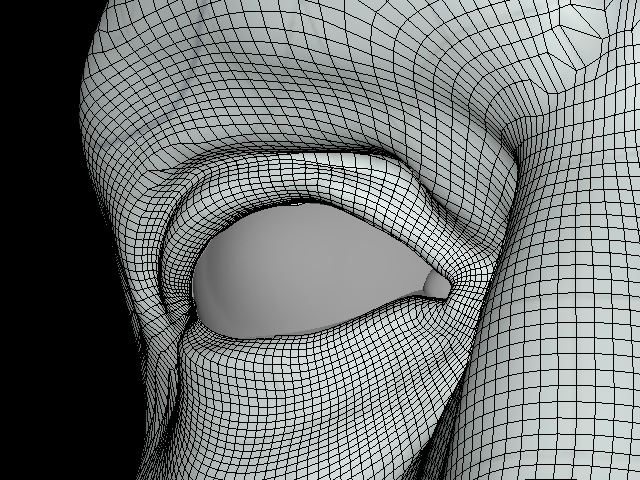
Notice that not only does this allow recessed areas of the CC5 HD surface that are not conformed to align with the imported character model, but it also creates a cleaner, more refined wireframe distribution. - Repeat the same steps for any other parts with the same issues.
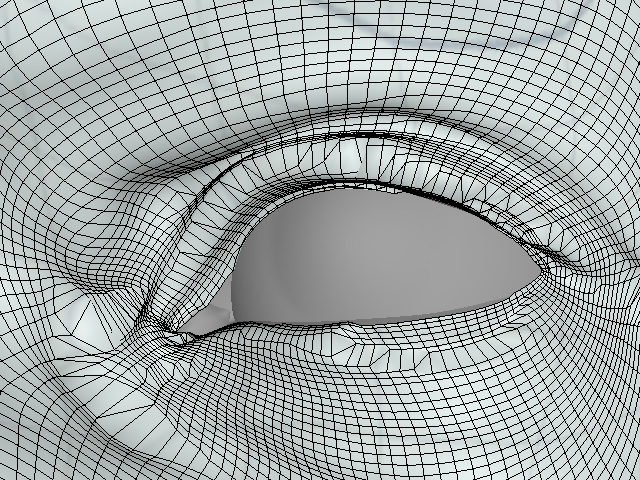
Before
After
