Body Movements from the Library
The easiest way to have a character move is to apply templates from the Content Manager.
To do this, simply go to the Animation tab in the Content Manager.
Templates Containing Body Motions
You may apply body motions from the templates found in the library list:
-
Motion
-
Perform
-
Action Menu
-
Select a character.
-
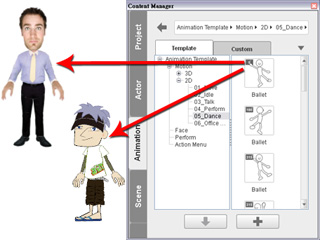
Double-click on the desired template (or drag and drop the template onto the character) from the Motion or Perform library.
-
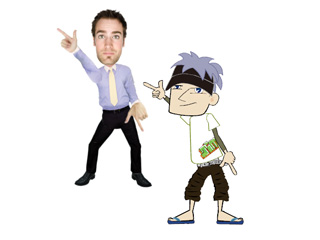
The character will then act out the animation.
|
Note:
|
-
The Motion content library is divided into two main categories:
3D Motions (dimensional) and 2D Motions (flat).
Please refer to the
Using Character Motions
section to distinguish the various thumbnails of these motions.
-
Each template, in the Perform libraries, contains Motion and Face (voice and expression) data. Applying a template of this type
will have the character perform and speak with expressions on its face.
-
To use the Action Menu templates, please refer to the
Utilizing the Action Menu for Body Motion section for more information.
|
Looping Motion Clips
If you wish to loop a motion, but do not want to open the timeline, then you may use the method below:
-
Select a character.
-
Go to the Motion or Perform content folders in the Animation tab of the Content Manager.
-
Apply the desired template. The character then starts to act the motion.
-
Wait until the play back auto-stops, then apply the same template again.
-
Repeat Step 3 and 4 to loop the motion.