Colors
Color provides the settings for both Eye Color and Skin Color.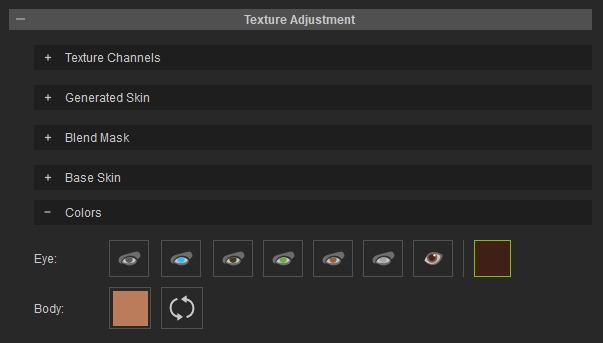
Eye Color
Although Headshot tries its best to collect the eye color value from the loaded image and reproduce the color onto the character’s eye, it is not always visually correct.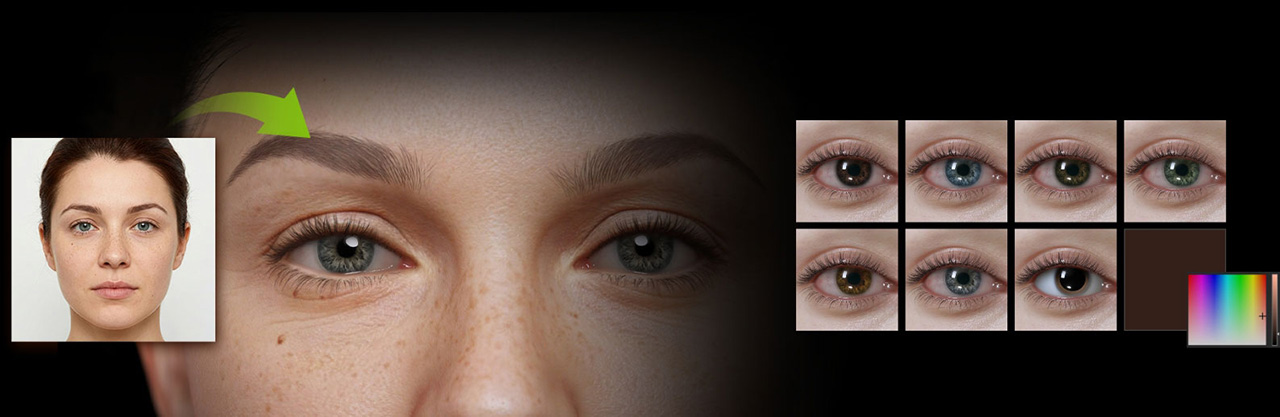
If you would like to change the eye color after the head has been generated, Eye Color will be the easiest tool to use. Simply click on one of the icons to change the eyes to its corresponding color.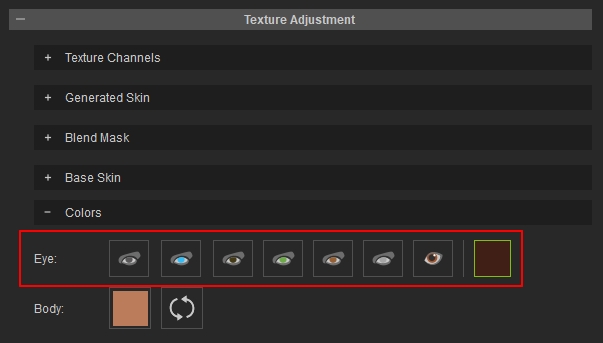
Click the rightmost button to launch the color picker panel, to pick a custom color for the iris.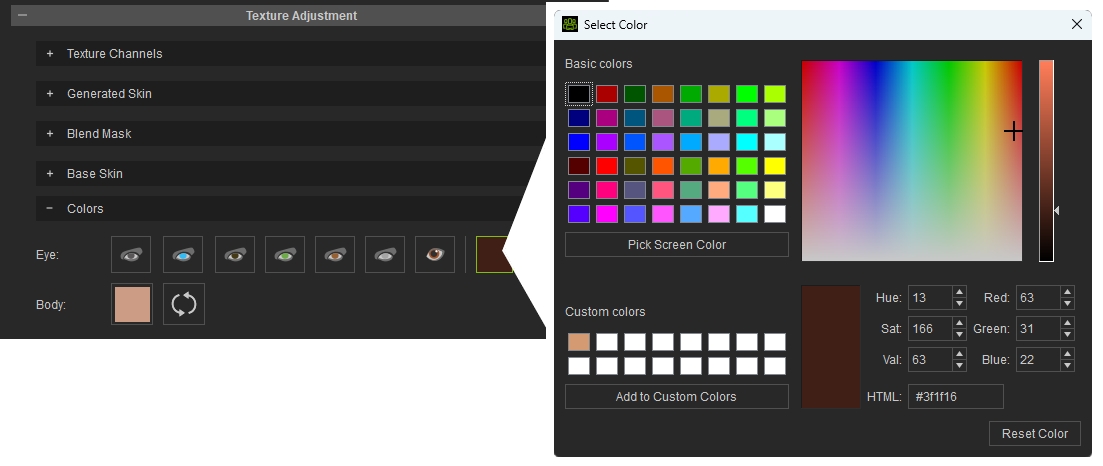
Body Skin Color
Body Skin Color is a straight forward function for you to change the color of head and body skin.
Headshot 3 can automatically match the body’s skin tone to the generated 3D head, ensuring a consistent overall appearance. The resulting color can then be refined or resampled directly from the scene for further customization.
- Click the Color box to open the color palette.
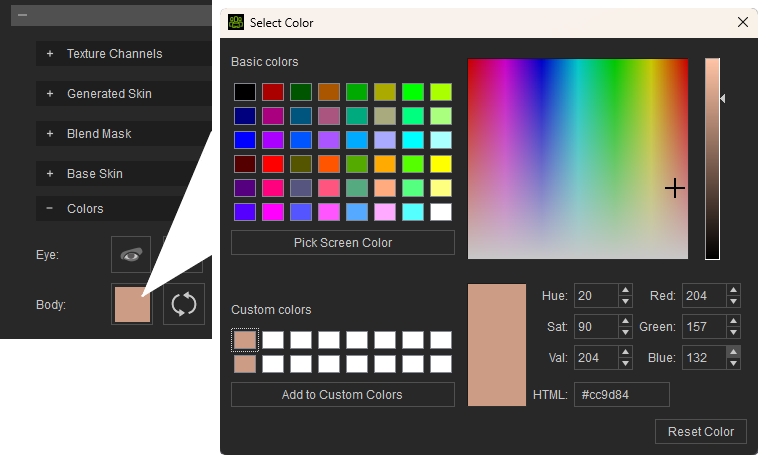
- When adjusting color with the color spectrum, hold down the left mouse button and move across the spectrum to preview colors in the preview zone below. Once released, the selected texture is baked directly to the character’s body, allowing colors to be checked before updating the final result.

- Use the Pick Screen Color button to precisely sample any color from the screen.

- The button on the right reset the body skin color to default value.

How Skin Color works: The color selected in the color picker is applied to the masked (black) areas of the Blend Mask in Skin Settings, and it also adjusts the skin tone of the body to ensure a seamless blend between the head and body. This helps maintain consistent coloration across the entire character.
For more details on mask behavior, refer to the page Theory for Skin Settings.
