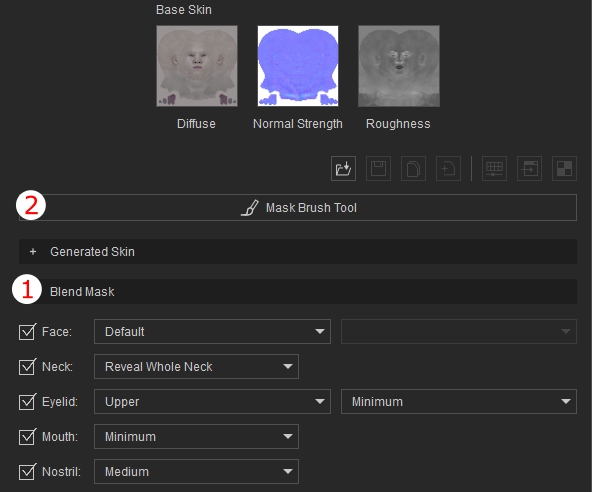
Using Mask Brush Tool
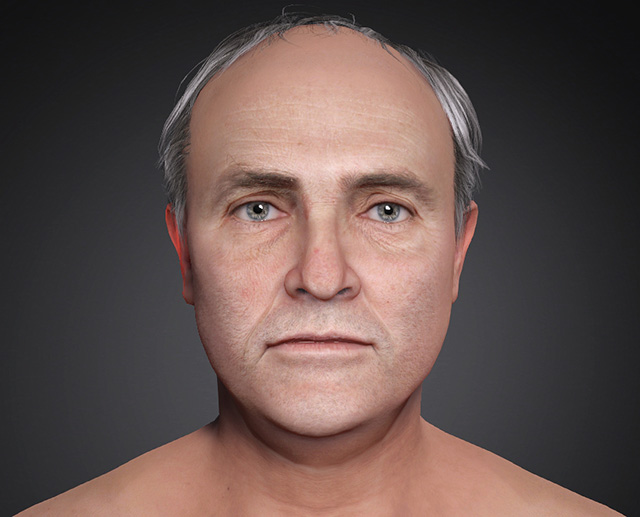
You can use the Mask Brush Tool to create custom blend masks by painting directly on the character’s head in the viewport. It allows you to quickly apply modification to the blend mask, repairing texture issues.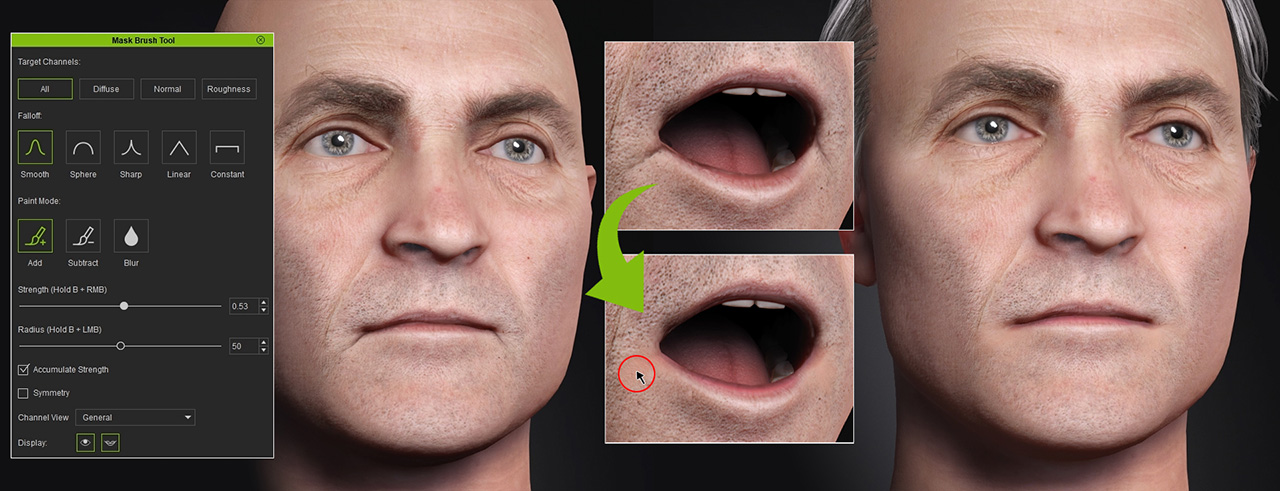
- Go to Face Camera View (Hotkey: J) for spotting the blemishes easily.
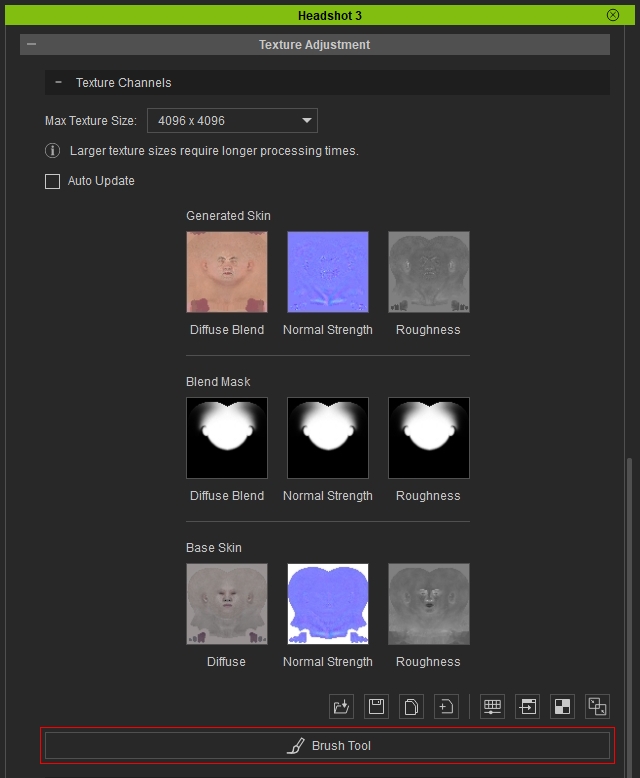
- Inside the Headshot 3 Panel, Go to Texture Adjustment > Textures Channels > Brush Tool.
- The Mask Brush Tool Panel contains multiple configurations for easier painting.
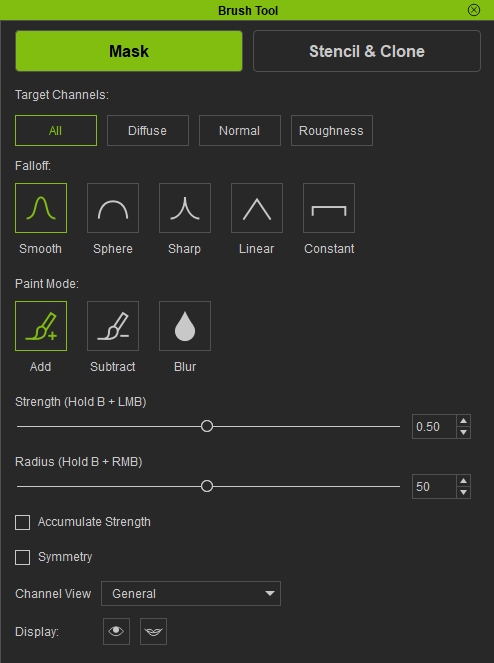
 Brush Shortcuts:
There are shortcuts to change the Brush’s settings with ease.
- B + Left Mouse Drag — Adjust brush Strength
- B + Right Mouse Drag — Adjust brush Radius
- Hold Ctrl to temporarily switch between Add and Erase.
- Hold Shift to temporarily activate Blur mode for smoothing mask edges.
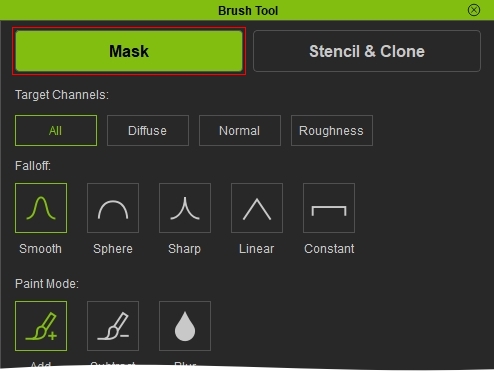
- Make sure you are currently in Mask mode.
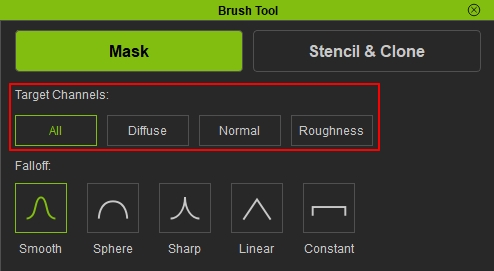
- Choose the Target Channel you want to paint on, it is set to ALL by default.
 Note:
Note:For characters with defects isolated to a specific texture layer, such as misplaced normal details, switch the Target Channel to Normal and use the Mask Brush to paint corrections on the affected areas without altering other texture layers.
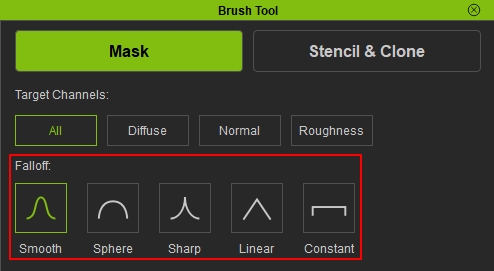
- Adjust the brush falloff settings based on your preference, there are 5 brush types in total each with their unique brush stroke. For more details, please refer to Brush Falloff.
- Open the mouth with the Mouth open/close toggle, for easier observation and avoid missing spots.
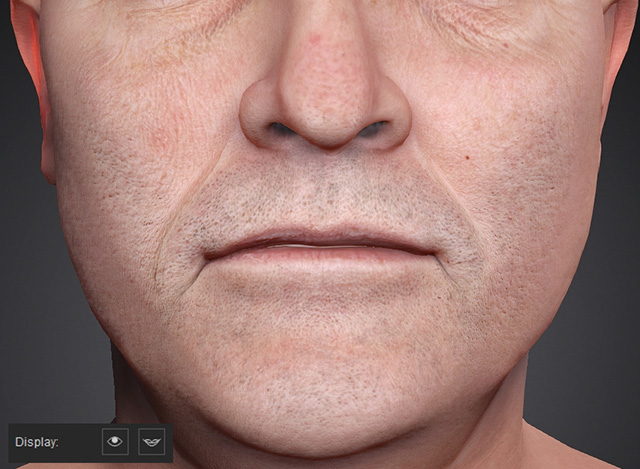
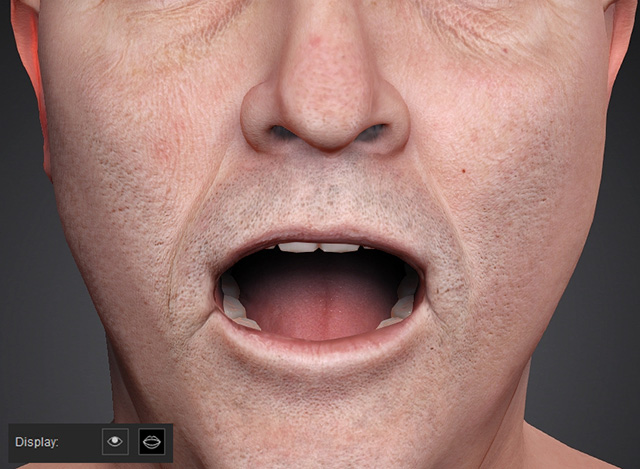
- Make sure the Paint Mode is on Add, paint directly on the model to add mask area on the blend mask.
- Switch Render Mode to view mask channels and verify the mask’s shape and blending quality.
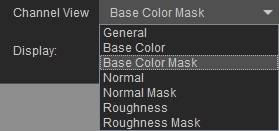
- Close the panel to exit Mask Brush Tool mode. The system automatically applies the changes back to the character in the viewport.
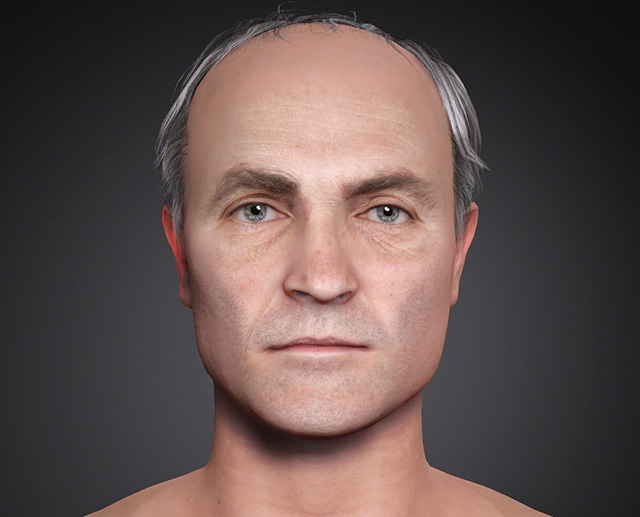 Note:
Note:After Modifying the mask with Mask Brush Tool, it automatically converts the mask state to Custom. Therefore it is recommended to finish creating the mask in the blend mask section before using the Mask Brush Tool to customize.