Applying Prop Blueprint
Although unlimited number of props can be imported into Unreal, these props are not capable of being animated through the Live Link plug-in and iClone animation system. However, iClone Live Link plug-in provides blueprints for driving props with streamed animations from iClone.
- In Unreal, apply a prop to the level.

- Select the Skeletal Mesh (marked in pink) of this prop in the Content Browser.

 Unable to find Skeletal Mesh?
Sometimes the embedded props in Unreal project are only static (marked in light blue), which lacks of the Skeletal Mesh and can not be animated by the props in iClone as sources. In this case, follow the steps below to create the skeletal meshes of these props.
- Select the Static Mesh from the Content Browser.

- Right-click on the item and execute the Asset Actions > Export... command.
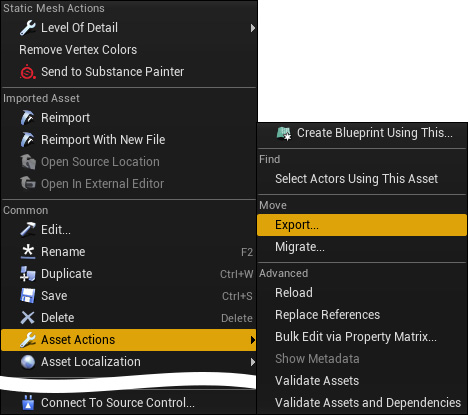
- Give another name of the prop and follow the settings as shown in the following image for the FBX Export Options panel.

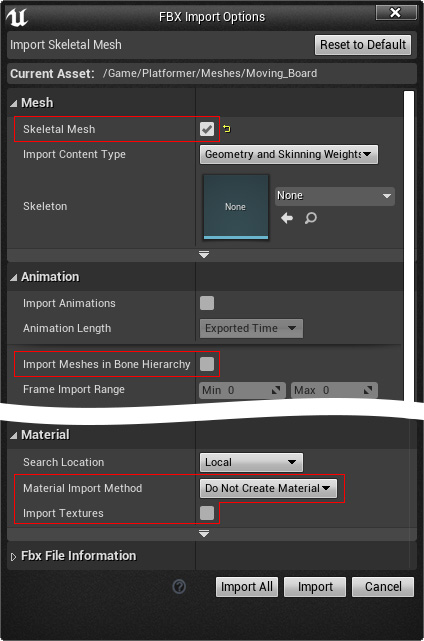
- Drag and drop the FBX file back into the Content Browser. Follow the settings as shown in the following image for the FBX Import Options panel; click the Import button.
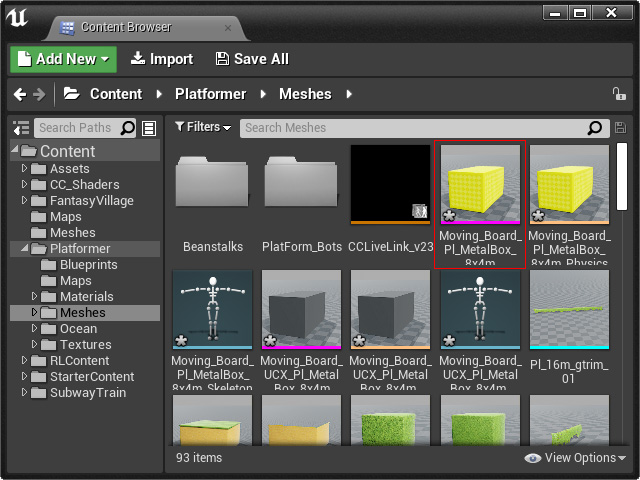
- You will see the Skeletal Mesh of the same prop in the Content Browser.
Optionally delete the unnecessary assets simultaneously auto-generated if you want to.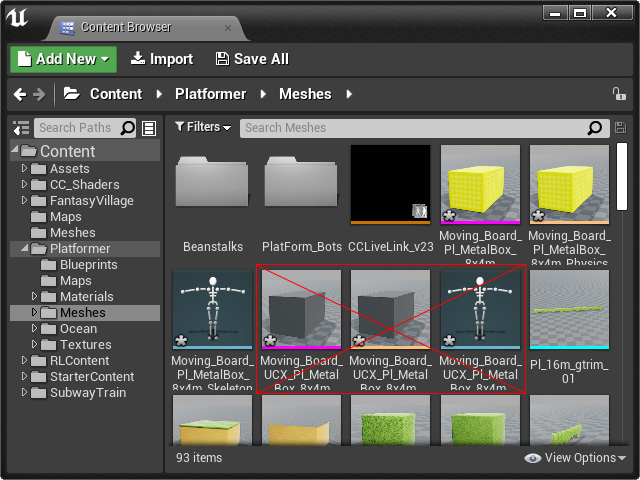
- Select the Static Mesh from the Content Browser.
- Apply the prop (Skeletal Mesh) to the level and transform it to the same look as the original one and make sure it is selected.
- Click the iClone Live Link button in the toolbar and choose the Apply Blueprint to Selected Prop(s) command.

This step assigns the ability to the Unreal Prop for receiving streamed animations from iClone. - In iClone, apply a prop in iClone for transformation (the shape does not matter).

- Open the Live Link plug-in panel, switch to the Link mode and make sure the leftmost circle of the prop is activated and press down the Active Link button to connect iClone
with Unreal.

- Open the Detail panel. Set the prop's Subject Name in the Live Link section to the prop name in the previous step. Keep in mind that the Subject Name must be identical to the one you find in the Live Link panel instead of the one in iClone because the name can be modified occasionally and listed in the Subject Name
section.

Now the light is ready to be driven by the prop in iClone. - Start to animate the prop with features provided by iClone. As you see the prop assigned with the same name in Unreal will be animated as well.
-
Playback and observe on the animation result in Unreal
.
