Saving and Loading Templates
When you have created different MD sets with same character behaviors, you can load a saved graph template for the sets.
Note that the setup of the loaded template will be removed. You must complete the settings manually. If you want to keep the setups, then use the Copy / Paste Node method.
Saving Template
- Build a MP Set with MP node graph completely setup.
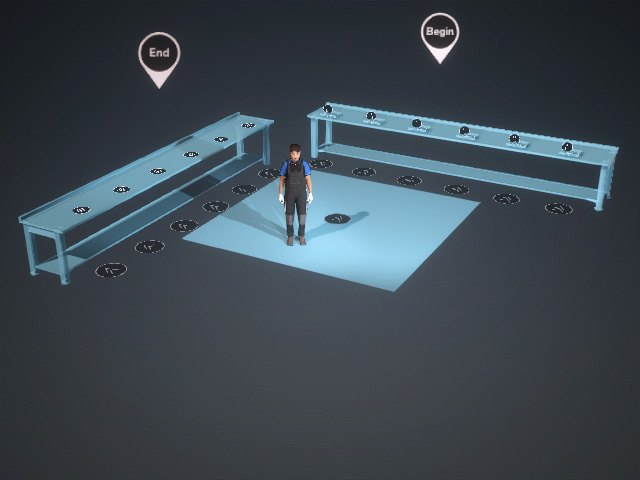
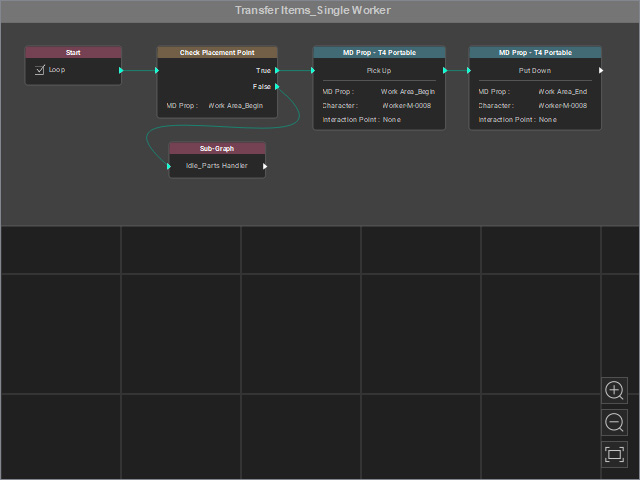
MP Props and character in a project
Well structured Motion Planning graph.
- Select all nodes (or select the group).
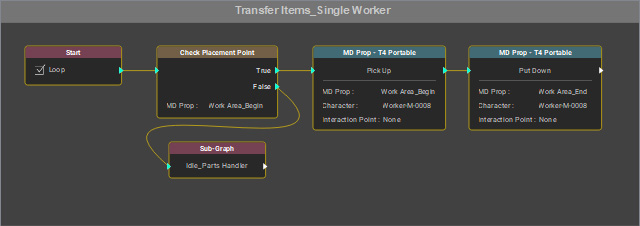
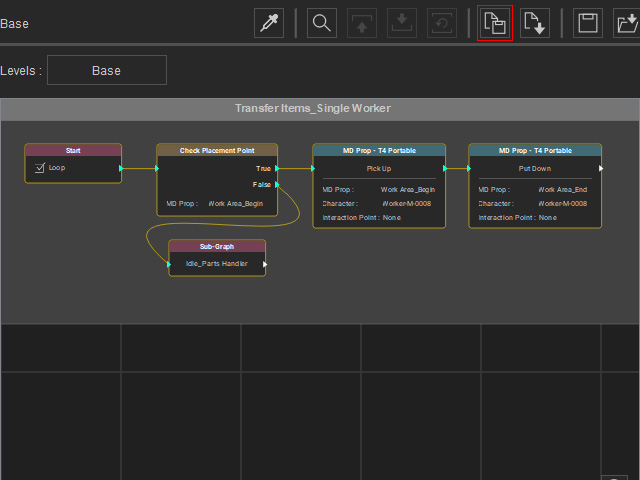
- Save the motion planning graph as a template file using two methods:
- MP Node Graph panel: Click the Save Template button.
- Right-click: Right-click one of the selected nodes and choose Save Template from the pop-up menu.
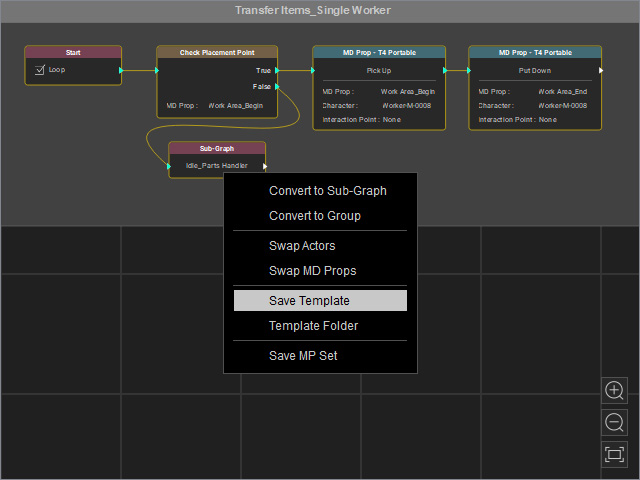
- MP Node Graph panel: Click the Save Template button.
- Name the template file and click the Save button in the Save Template dialog box.
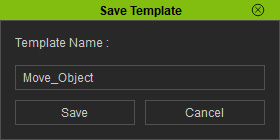
 Finding the Saved Template
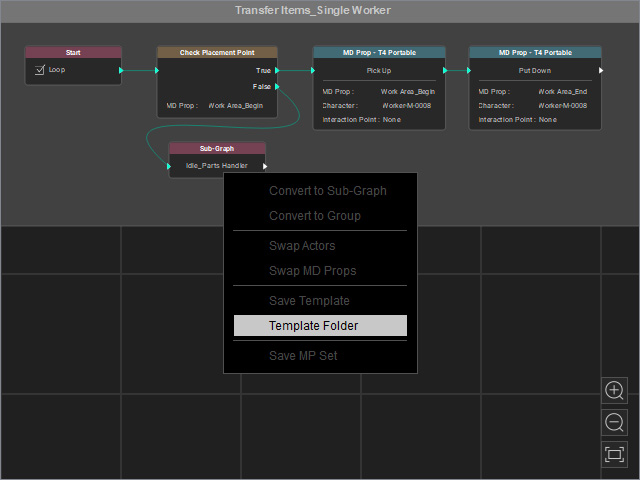
To find the saved template, you can right-click on either node in the graph and choose the Template Folder command from the context menu.
Loading Template
- Select the collection that contains the MD props and character. Duplicate it (Ctrl + Shift + D).
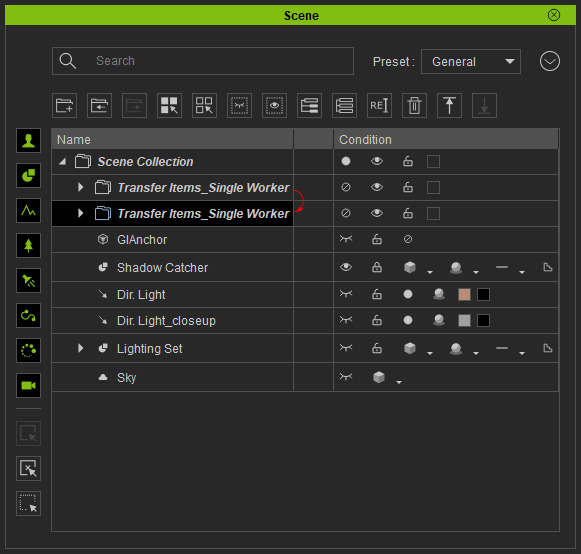
- Select the entities in the collection and relocate them.
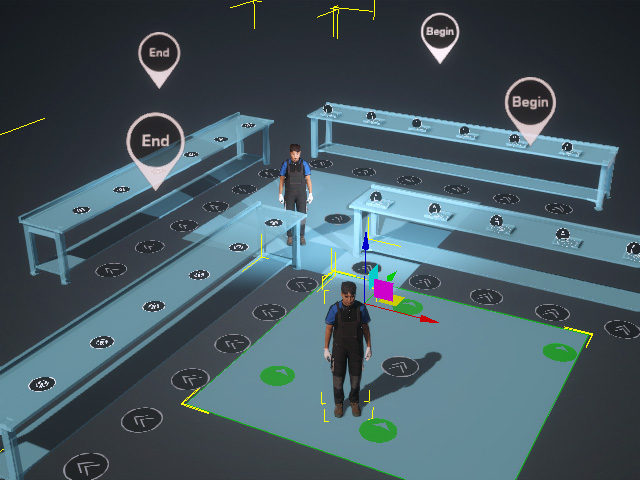
If you start Go MD mode, the duplicated character will only idle due to the lack of a motion planning graph. - Load the previously saved template.
- MP Node Graph panel: Click the Load Template button.

Choose the previously saved template (*.json) and click the Open button.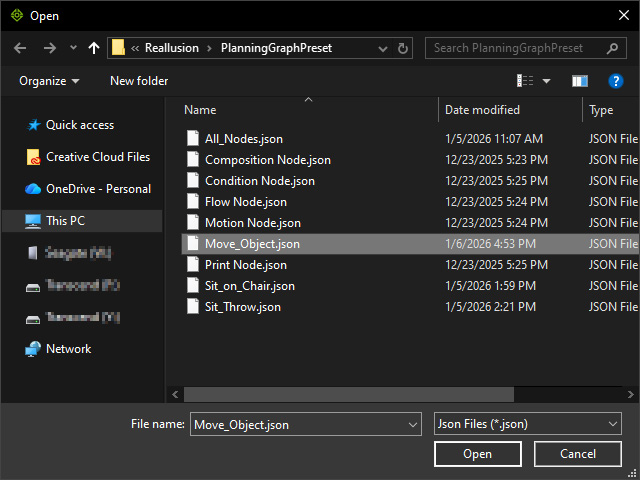
- Right-click: Right-click on the space of the viewport and choose the Graph Template > [saved template name] item.
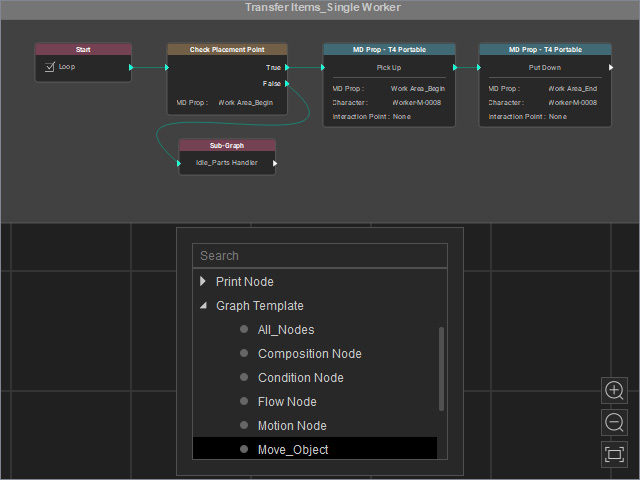
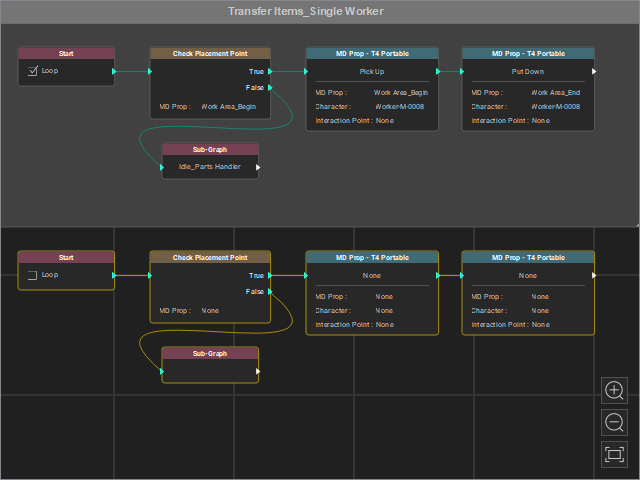
Notice that the nodes in the template are not completely setup (MD Prop: None, Character: None.) You can use the Search Graph feature to find out the nodes.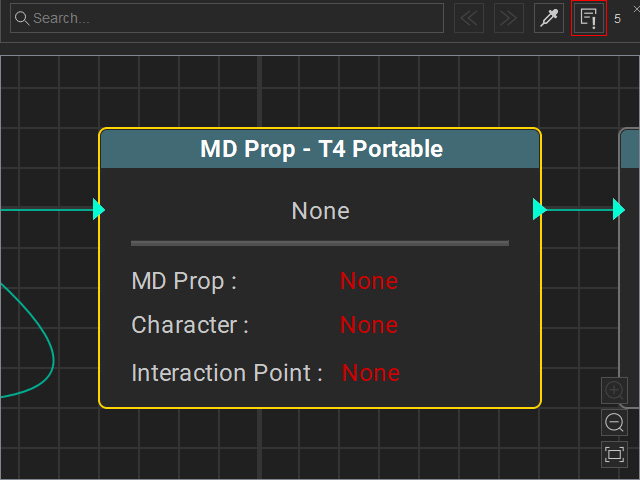
- MP Node Graph panel: Click the Load Template button.
- Make sure all nodes in the loaded template are selected and click the Swap Actors on the Attribute page.
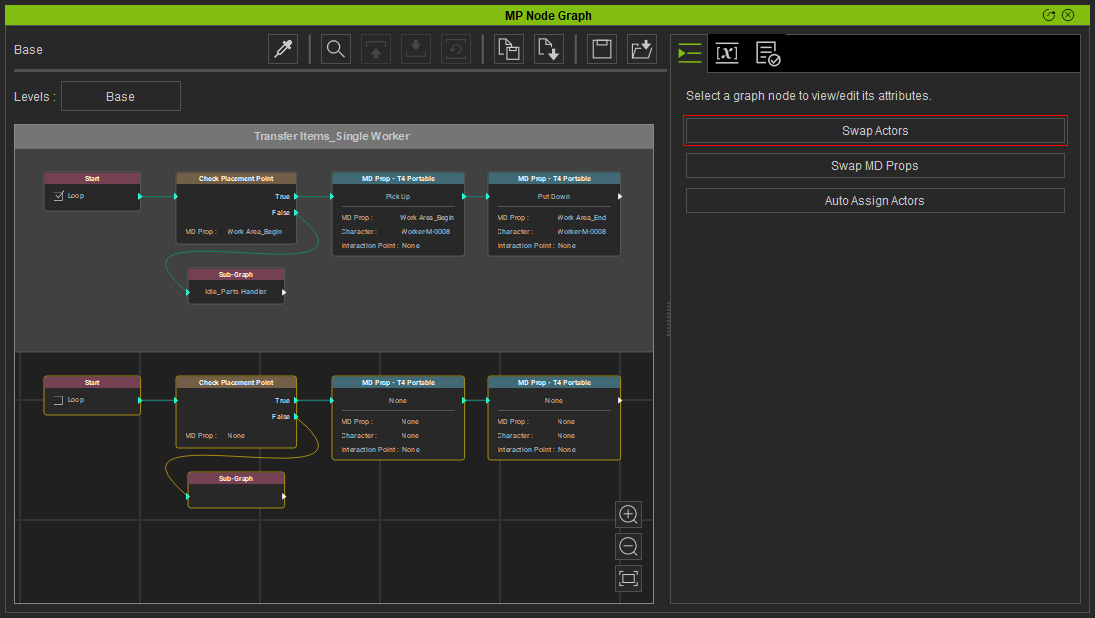
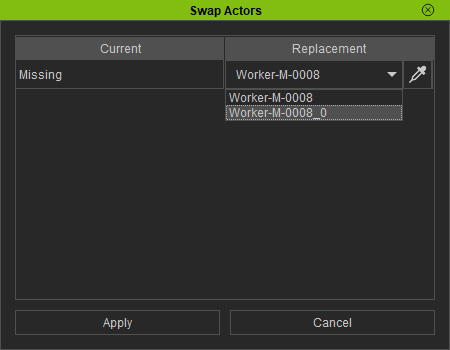
- Pick the duplicated character to replace the currently missing item.
- Drop-down list: Use the drop-down list to pick the desired character, click the Apply button.
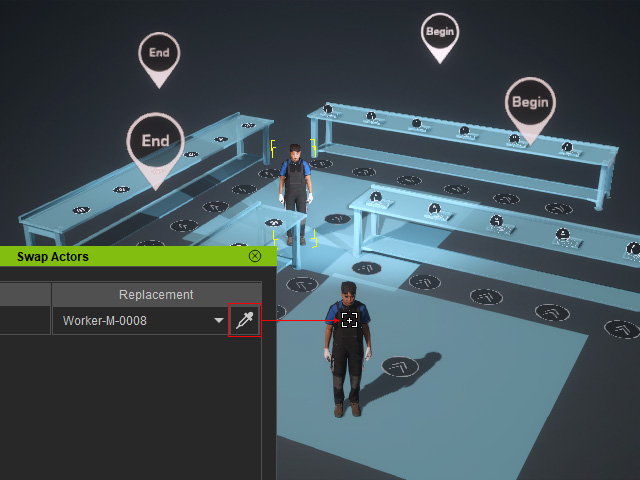
- Dropper: Click the dropper button and click on the desired character from the 3D viewport, then click the Apply button.
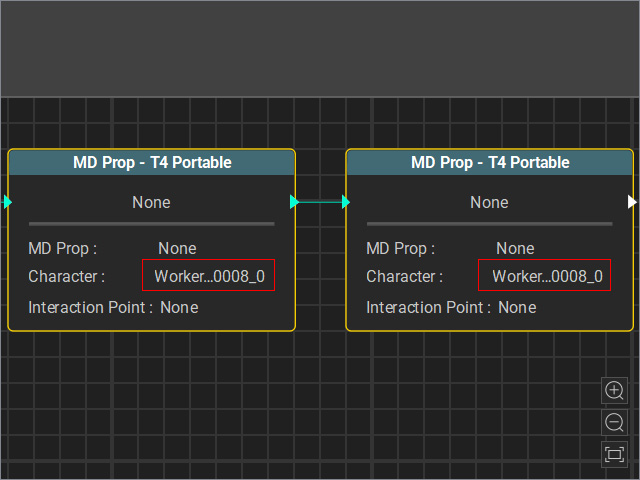
- Drop-down list: Use the drop-down list to pick the desired character, click the Apply button.
- Select the nodes using the same MD Props (you can refer to the original graph).
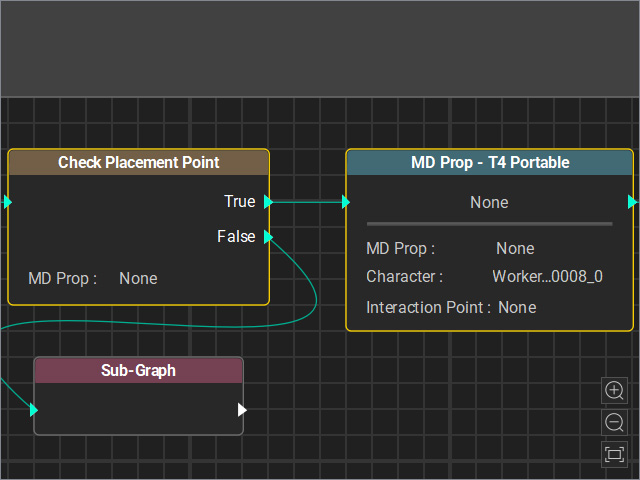
- Click the Swap MD Props button.
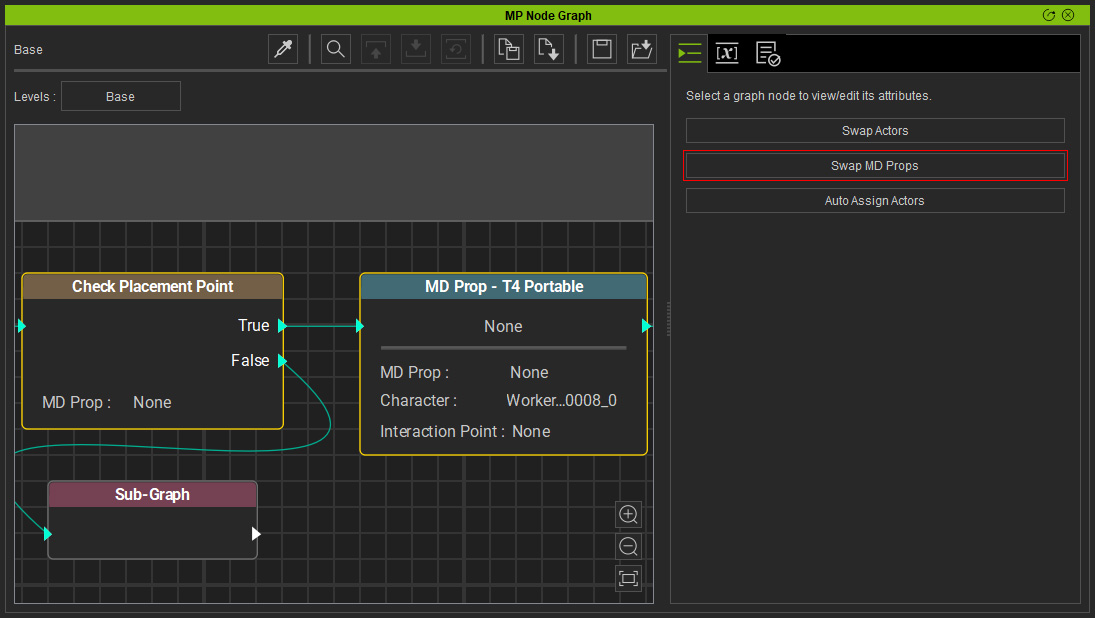
- Pick the duplicated MD Props to replace the currently missing item (you can refer to the original motion planning graph).
- Drop-down list: Use the drop-down list to pick the desired MD prop, click the Apply button.
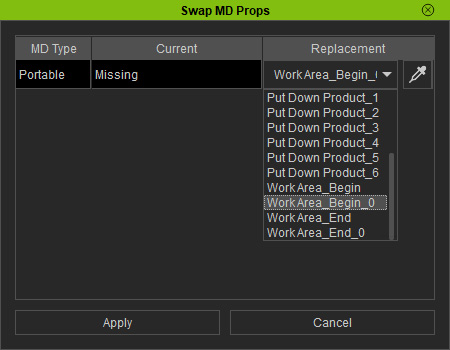
- Dropper: Click the dropper button and click on the desired MD prop from the 3D viewport, then click the Apply button.
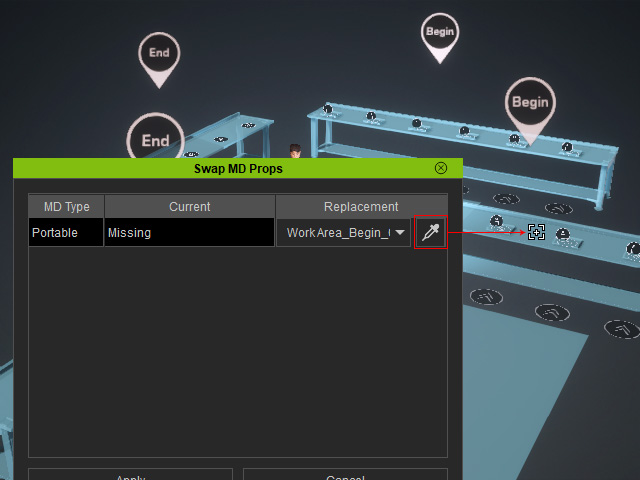
- Drop-down list: Use the drop-down list to pick the desired MD prop, click the Apply button.
- Pick the duplicated MD Props to replace the currently missing item (you can refer to the original motion planning graph).
- Drop-down list: Use the drop-down list to pick the desired MD prop.
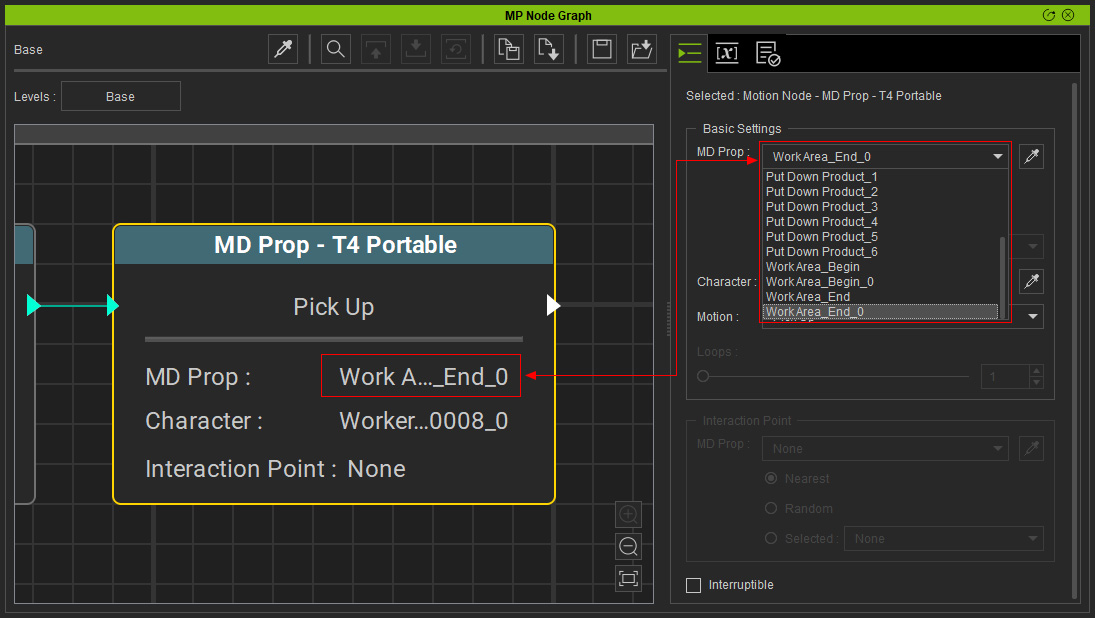
- Dropper: Click the dropper button and click on the desired MD prop from the 3D viewport.
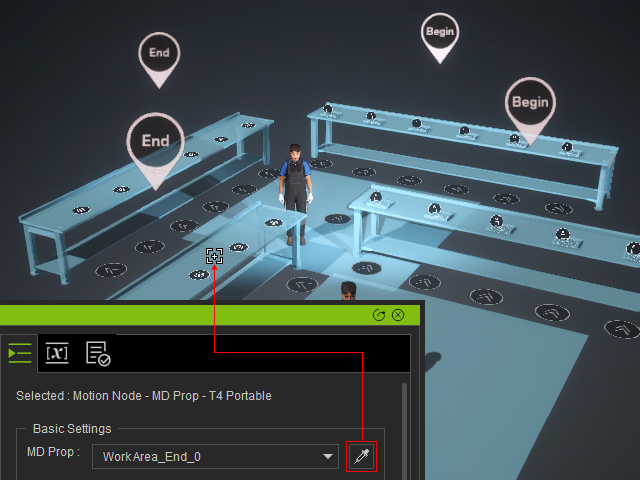
- Drop-down list: Use the drop-down list to pick the desired MD prop.
- Adjust the Motion of the node to Put Down.
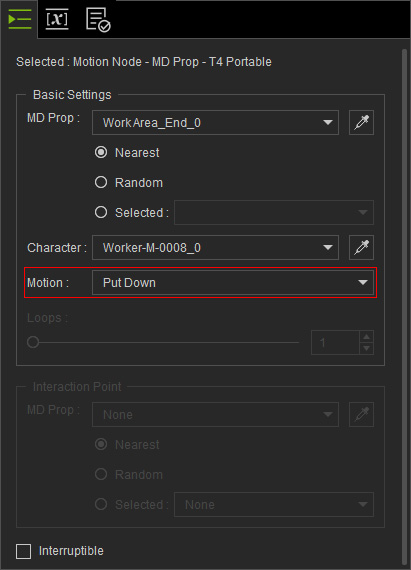
- Double-click to open the Sub-Graph.
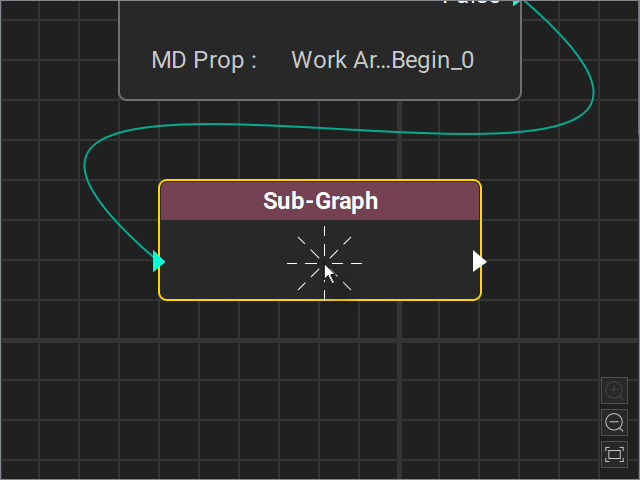
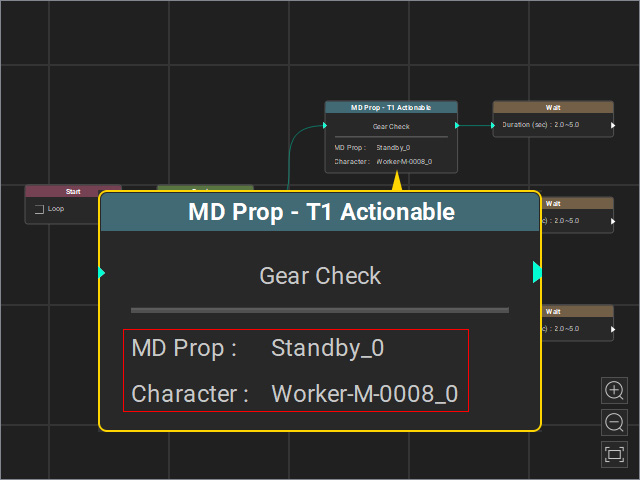
- Repeat the same steps to designate the characters and MD props to the nodes.
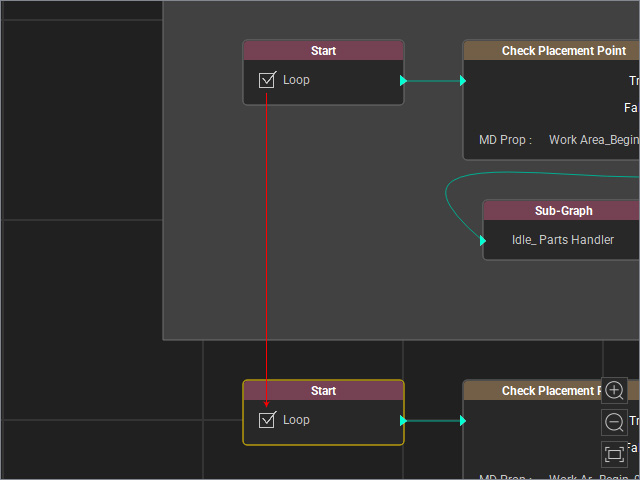
- Refer to the original graph to determine whether the duplicated motion planning graph needs to loop.
- Start the Go MD mode to play the Motion Planning graph.
- To unsynchronize the characters’ motions, adjust the start and end nodes of the original or duplicated graph.
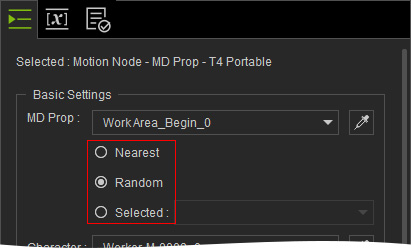
- Start the Go MD mode to play the Motion Planning graph again.
