Using String Nodes
The String Node can be used to record specific text in the Log Output list, or display that text in the 3D scene using a particle-effect text emitter.
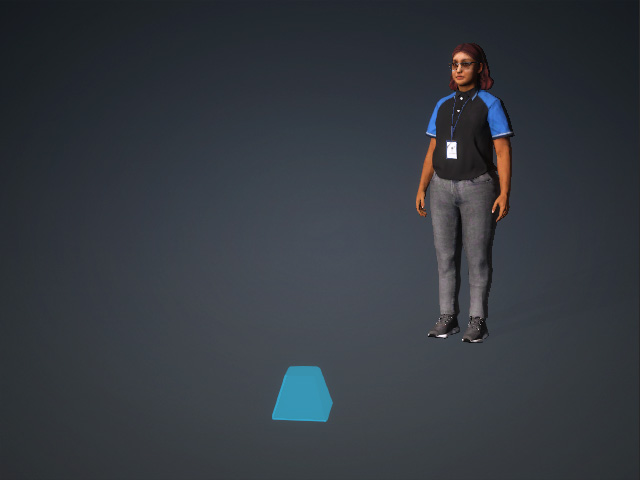
- Create a project with a character and a particle-effect text emitter.
- Open the MP Node Graph panel. Right-click on the viewport space and choose Print Node > String.
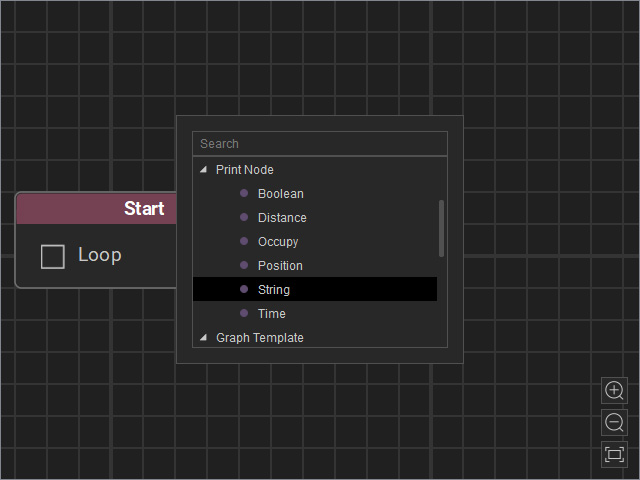
A new String node will be inserted on view.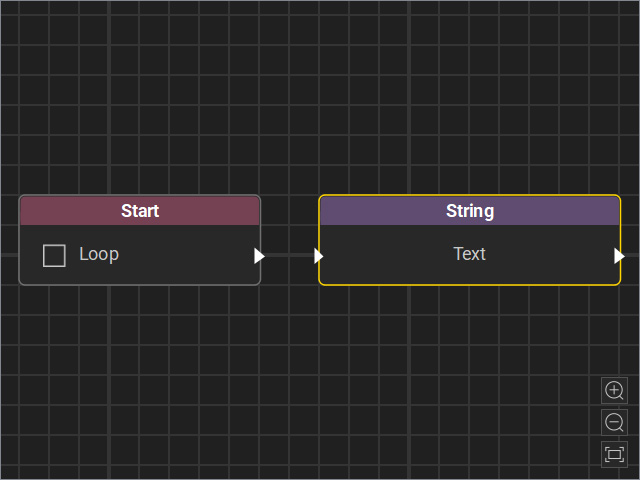
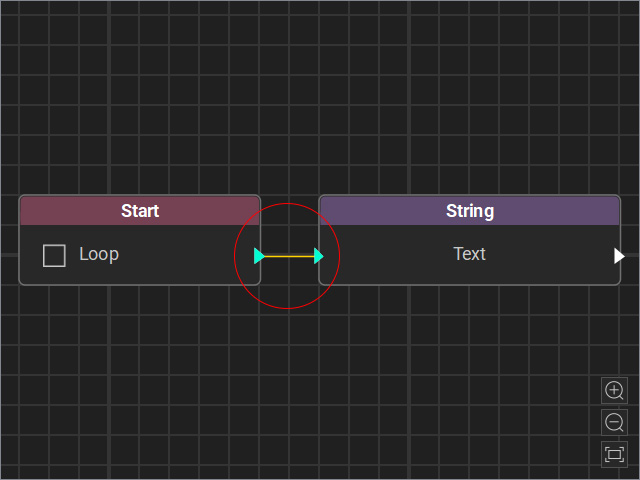
- Drag a flow line from the Start node’s output and connect it to the String node’s input.
- Select the node and adjust the settings in the Attributes page.
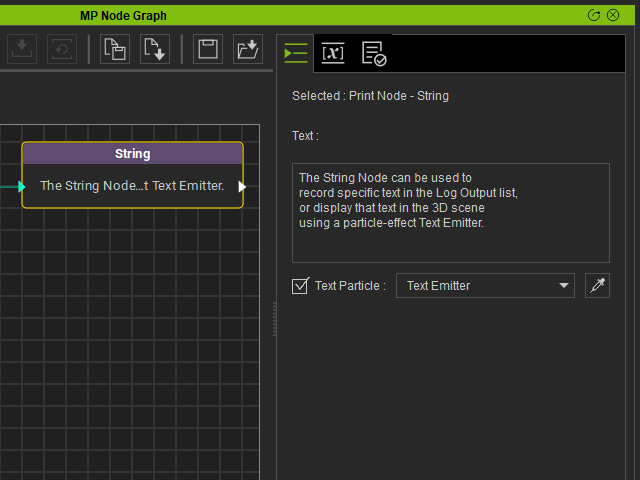
- Text: Type in the desired string in the field.
- Text Particle: If you want to use a particle emitter to display the string, enable this checkbox, then select the emitter on stage using the drop-down list or the dropper tool.
- Start the Go MD Mode to view the animation results.
- You can switch to the Log page to view the Log Output obtained by the Node. The emitter also displays the string from this list.
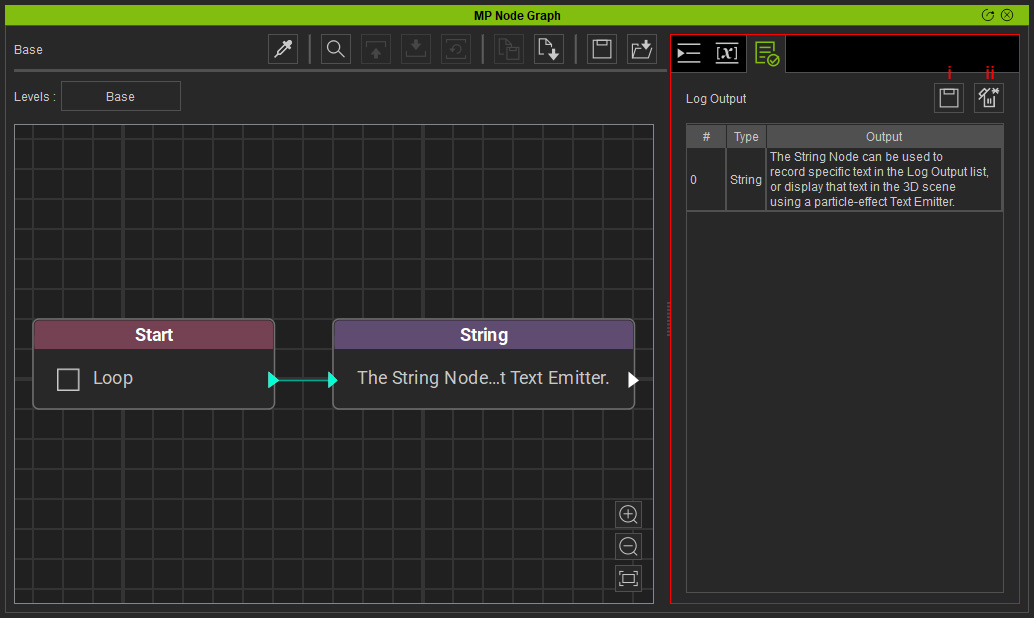
- Save Log: Save the log as a file (*.txt).
- Clear Log: Clear the data in the Log Output list.
