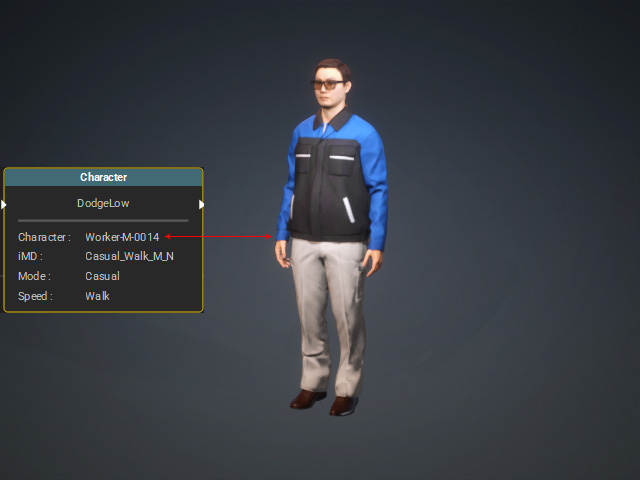
Associating Objects in 3D Viewport with MP Nodes
Before purchasing the Motion Planning Plugin, the MP Node Graph can only be used to view nodes hierarchy. After purchasing, the full features of the MP Node Graph panel become available.
Pick from Scene
Use the Pick from Scene tool on the MP Node Graph panel to select an object (prop, MD Prop, or character) and automatically associate it with its corresponding MP node.
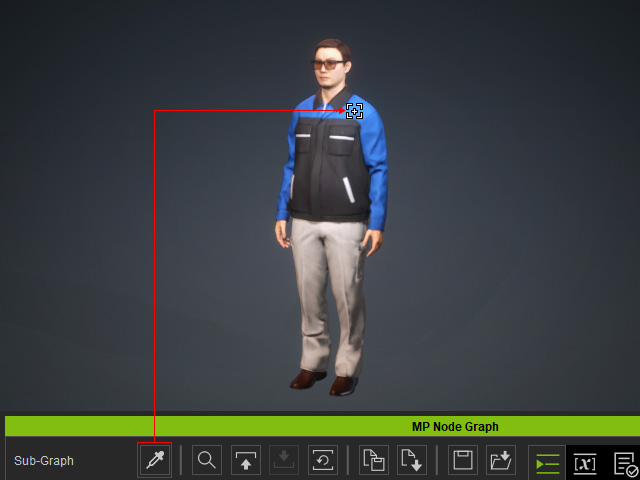 | 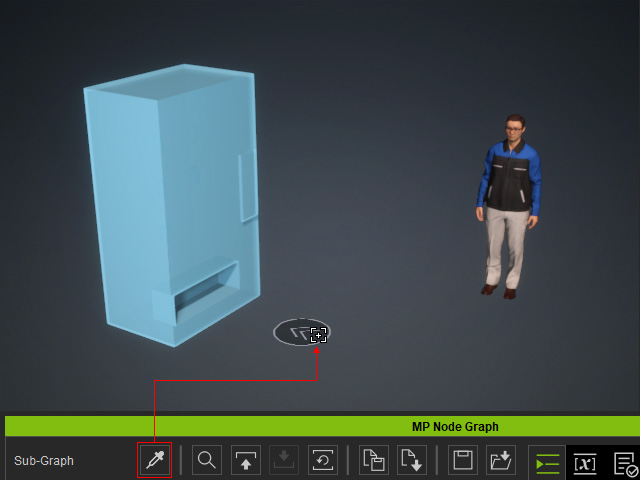 |
Pick Character from Scene | Pick MD Prop from Scene (click on the position point - disk with two arrows) |
There are two scenarios of using this tool (take character as an example):
- If no MP node is selected: Pick the object in the 3D Viewport to add its node to the MP Node Graph viewport.
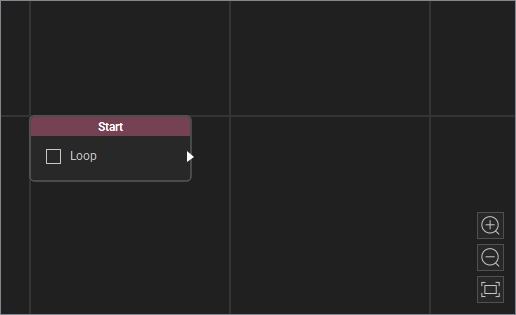
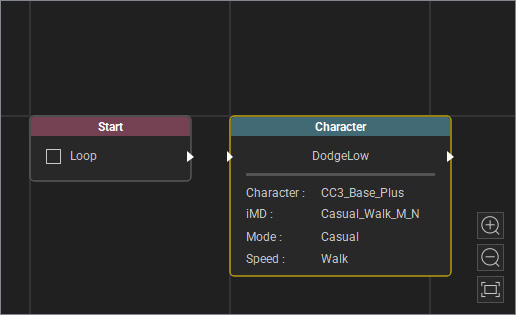
Before
After
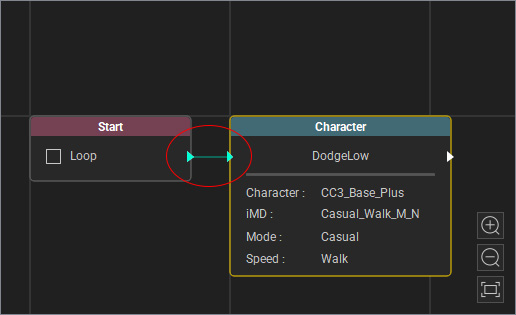
- If an MP node is already selected: Pick the object in the 3D Viewport to add its node to the MP Node Graph viewport as a downstream node of the selected one.
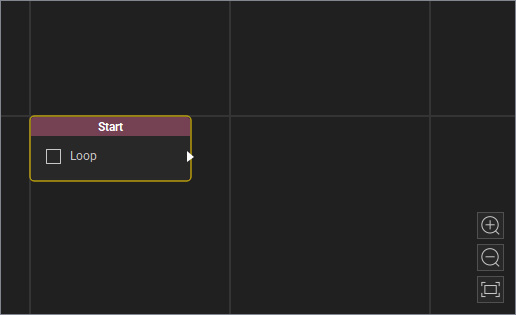
Before
After
Manually Associating Objects and MP Nodes
In addition to the Pick from Scene method, you can manually add MP nodes using the right-click menu and then associate the nodes with objects (characters, props, or MD props) via the drop-down list or dropper tool.
- Prepare an object in 3D viewport (character, for example).
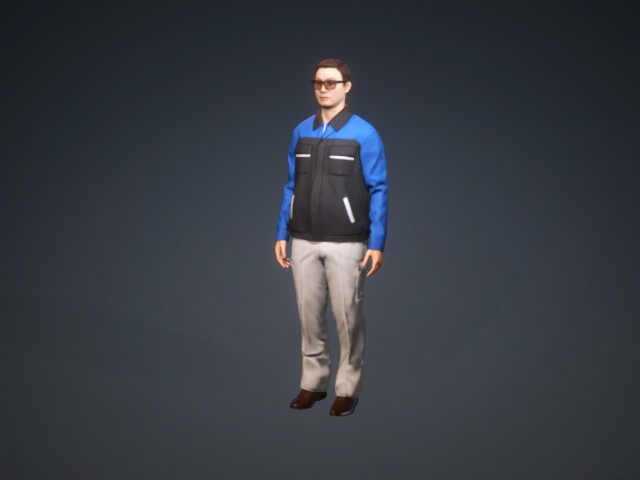
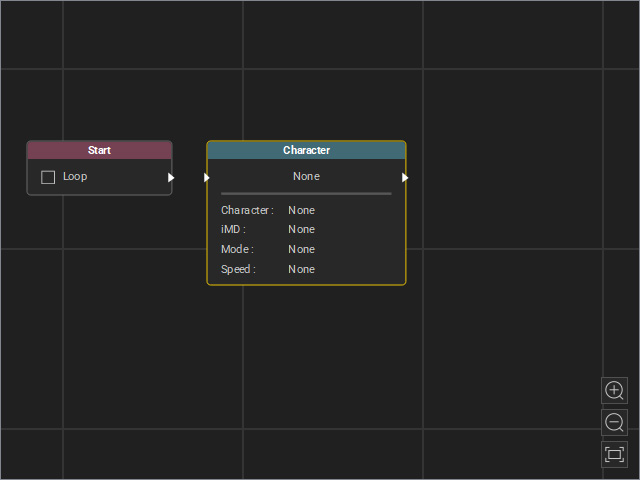
- Right-click on the MP Node Graph panel's viewport and choose desired node (Motion Node > Character, for example).
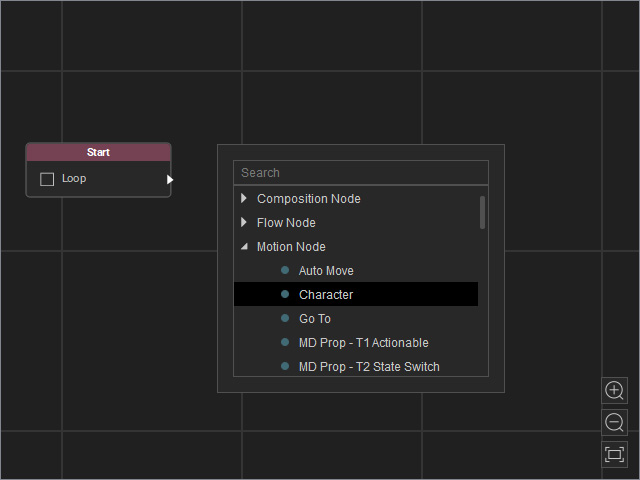
Before
After
- Make sure the node is selected, on the Attribute page, set the object to the one in step 1.
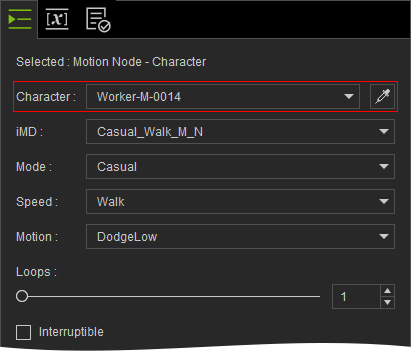
The node and the object is associated and the node can drives the object to perform.