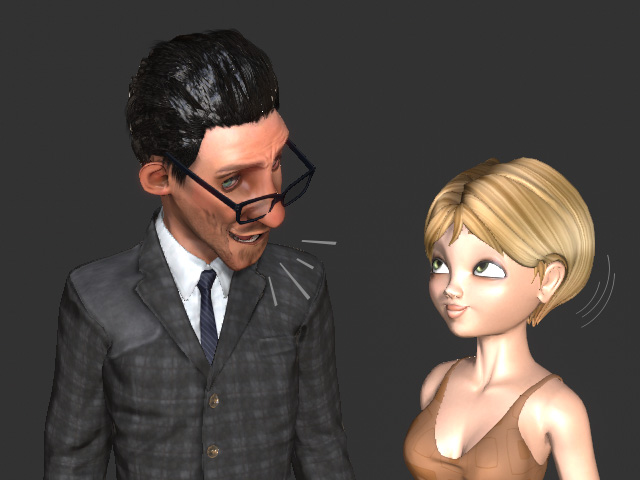
Controlling Multiple Characters (New for v1.01)
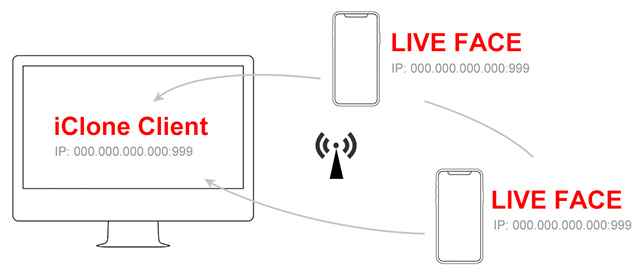
With the flexibility of Motion LIVE plugin, not only can you control multiple characters with one iPhone for facial mocap, but you can also connect with multiple iPhones to drive multiple characters’ faces, making complex live interaction possible.
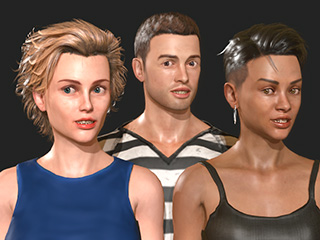 |  |
One actor controls multiple characters with one iPhone. | Multiple actors control multiple characters with multiple iPhones. |
 One Actor Controlling Multiple Characters with One iPhone
You can have the actor control multiple characters simultaneously with Motion LIVE in order to have these characters perform the same facial expressions.
- Launch the LIVE FACE App on the iPhone, and make sure the iPhone is capable of detecting and capturing actors' facial expressions.
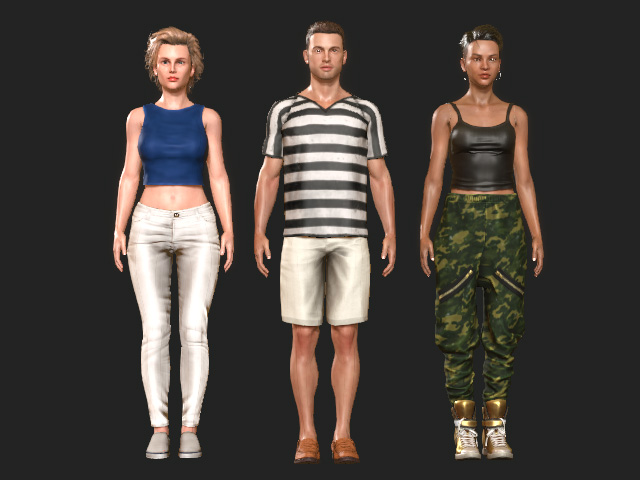
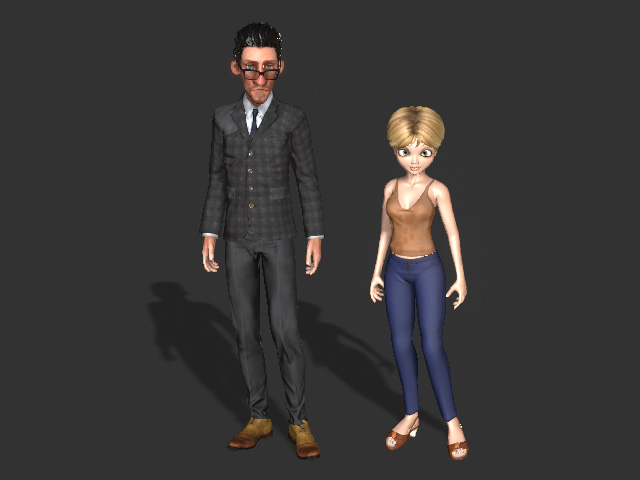
- Apply multiple characters in iClone.
-
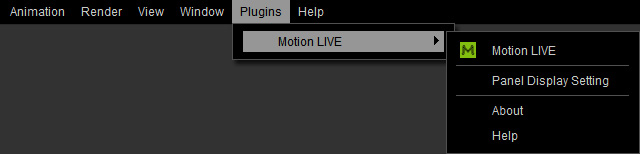
Go to Plugins >> Motion LIVE >> Motion LIVE.
The Motion LIVE panel will show.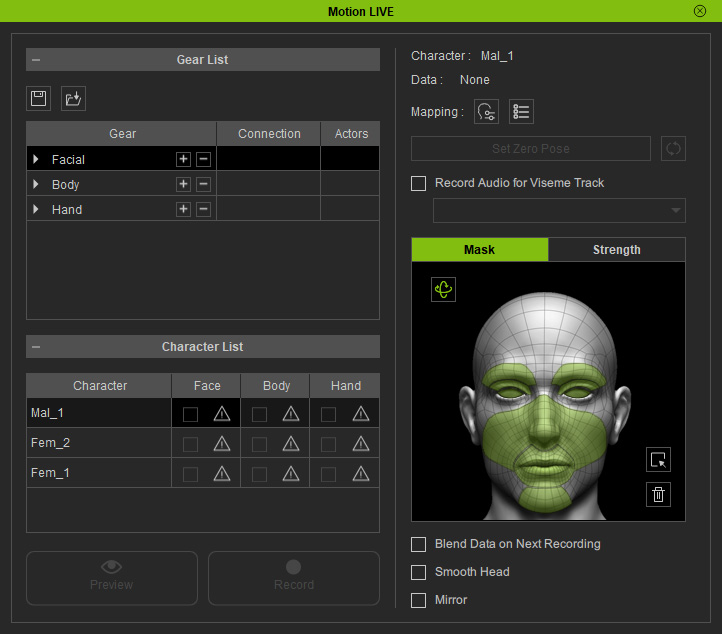
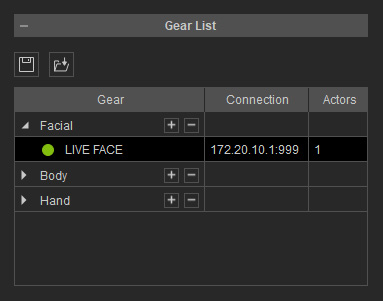
- Follow the standard steps (Facial Expression Capture) to connect the gear or device to the plug-in.
- In the Character List, click the Exclamation button in the Face column for one of the characters you want to control with the device.
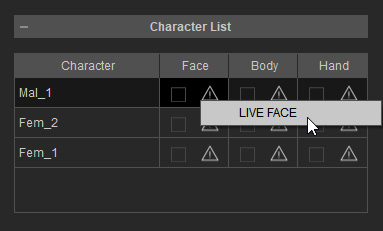
- Select the existing device from the list. You will see the icon of the product shown in the cell.
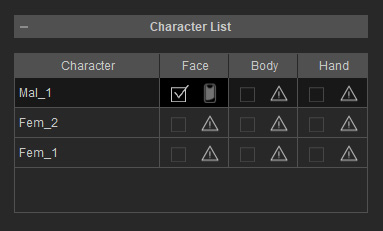
- Repeat step 6 and 7 for the other characters. Then the characters are all controlled by the same device.
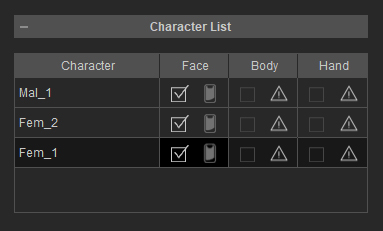
- Click the Preview
 button, and press the Space Bar to preview.
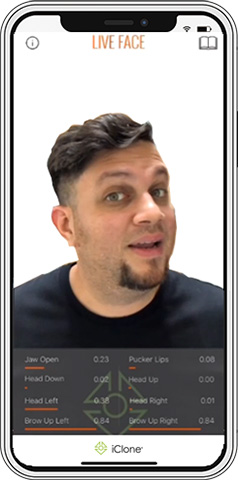
As you see one actor can now control multiple characters at the same time.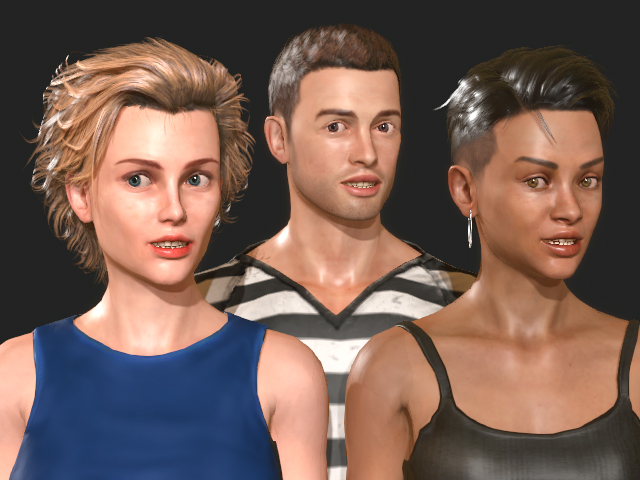
- Click the Record
 button and press the Space Bar to start recording.
Multiple Actors Controlling Multiple Characters with Multiple iPhones
You can have different actors to control multiple characters simultaneously with Motion LIVE in order that these characters can interact with each other while recording.
- Launch the LIVE FACE App on multiple iPhones in the same domain, and make sure each iPhone is capable of detecting and capturing the actor's facial expressions.
- Apply multiple characters in iClone.
-
Go to Plugins >> Motion LIVE >> Motion LIVE.
The Motion LIVE panel will show.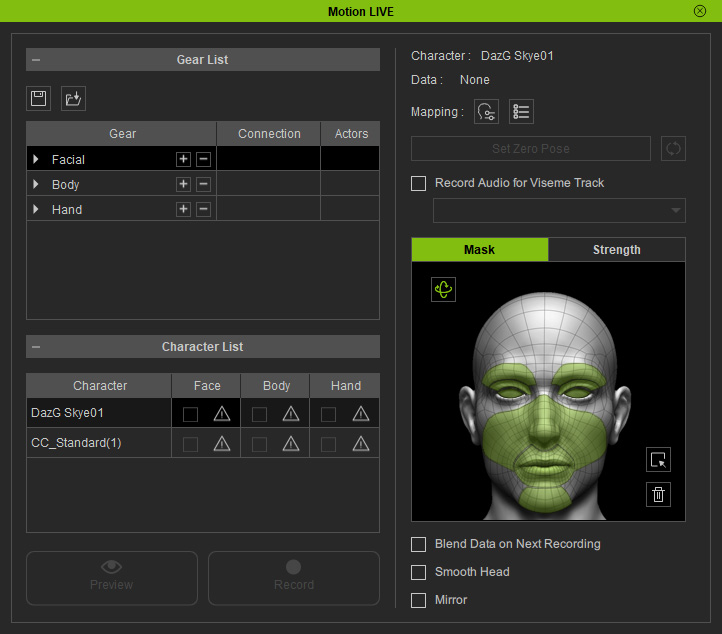
- Follow the standard steps (Facial Expression Capture) to connect the gear or device to the plug-in.
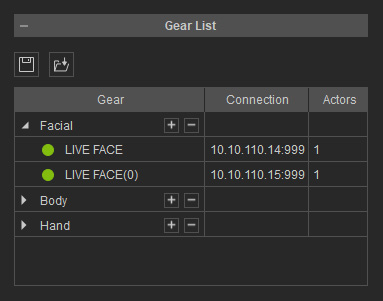
- In the Character List, click the Exclamation button in the Face column for one of the characters you want to control with the device.
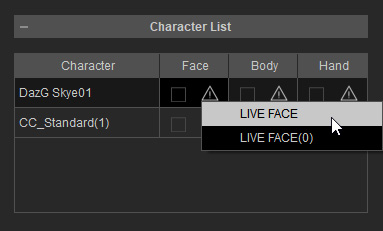
- Repeat the same steps but select the different gear for the other character.
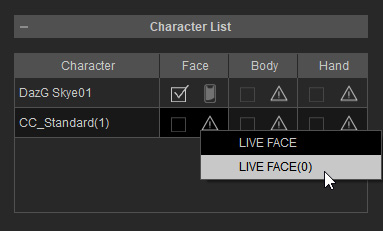
Now the picked gears are able to control the two characters.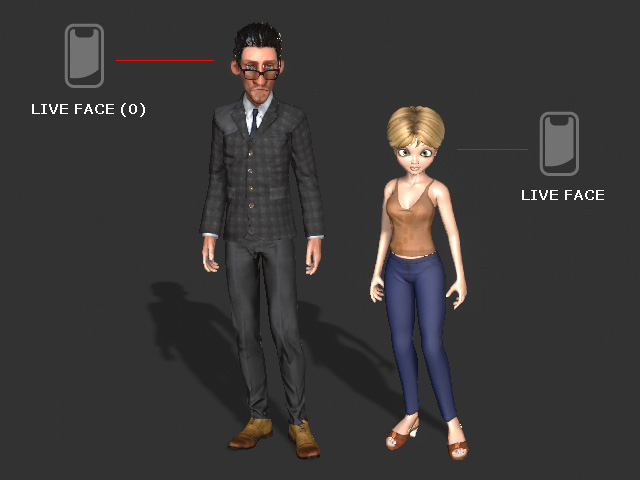
- Now the characters are individually controlled by different gears and they are ready for previewing and recording.