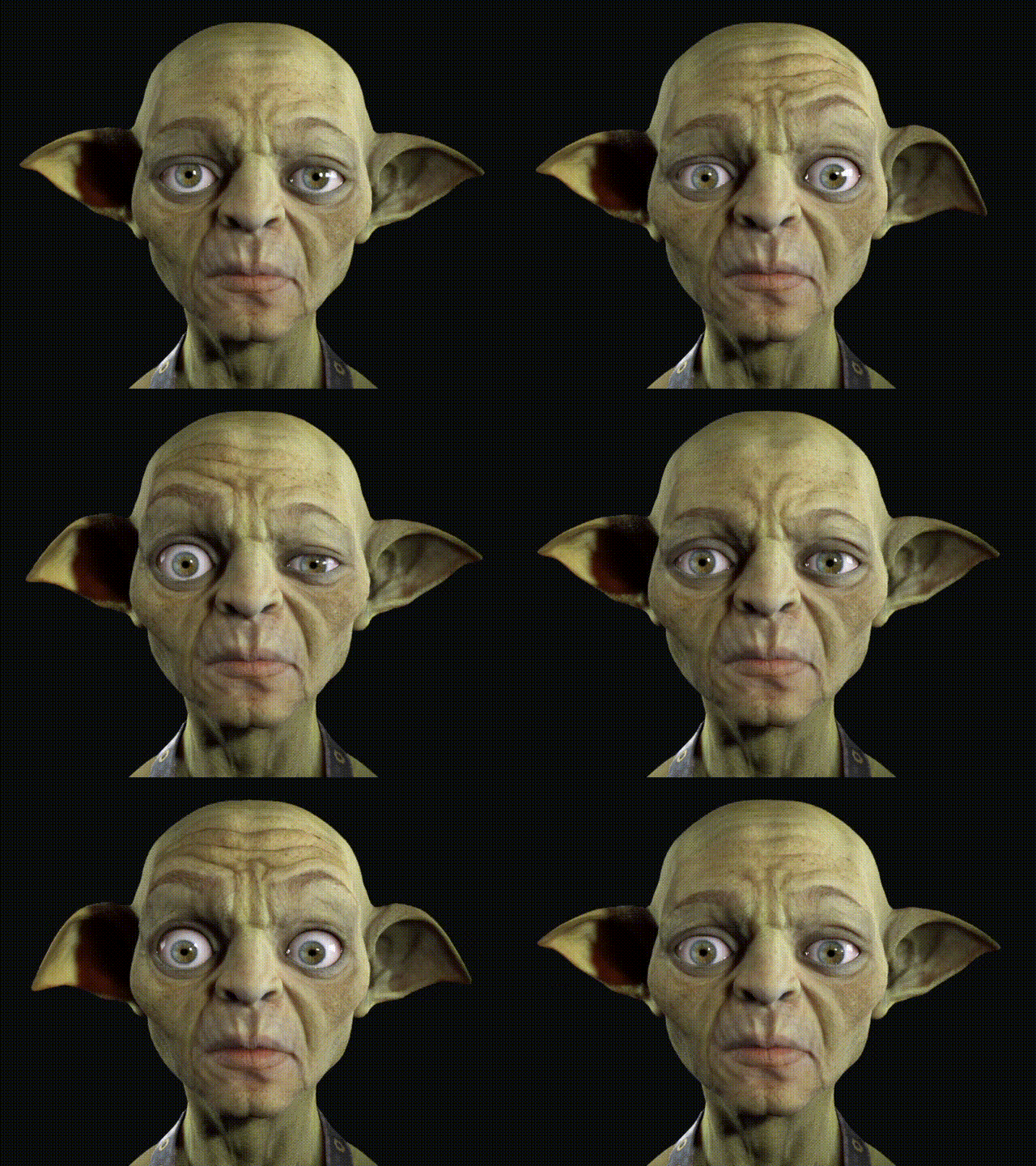
Copying and Pasting Curves
Because left and right facial expressions are edited separately, copying and pasting curves allows you to quickly apply the same response settings to the opposite side of the face, helping maintain symmetrical facial motion.
- Continue from the previous example with the same character and Expression Curves.
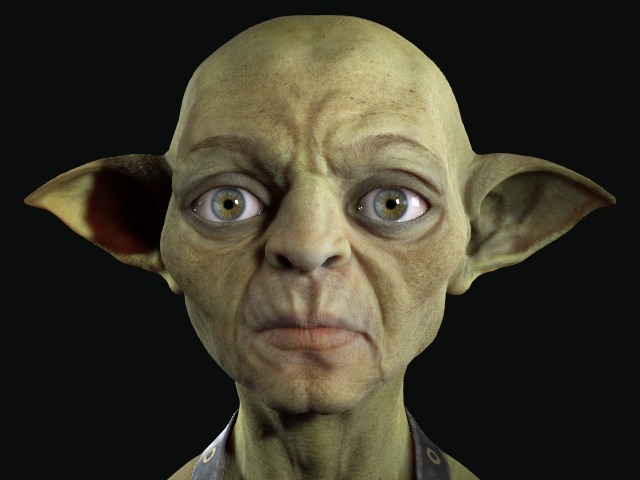
- In the previous example, Brow_Raise_In_L was configured to drive earDown_L and earUp2_L. To create the same response on the opposite side of the face, copy the curve settings to the corresponding right-side expressions.

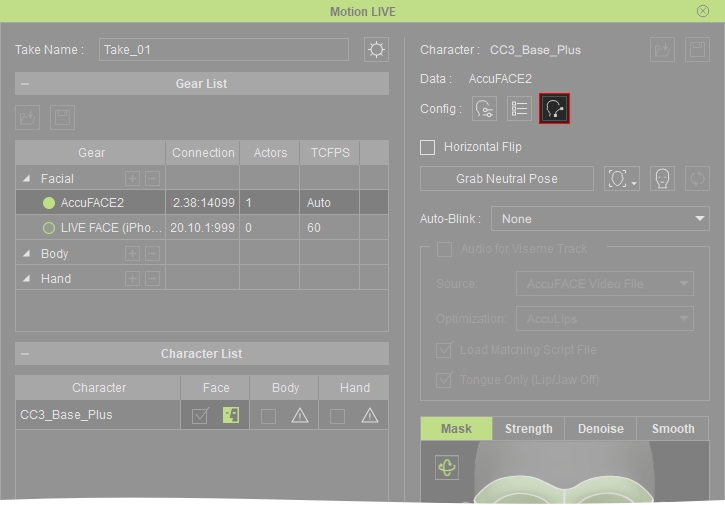
- Open the Expression Curves from the MotionLIVE Panel.
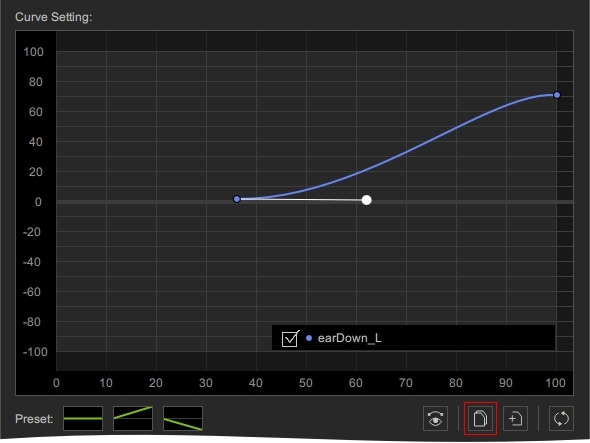
- Under Driver Expression and Driven Expression, select the curve you want to copy. In this example, select Brow_Raise_In_L, > earDown_L.
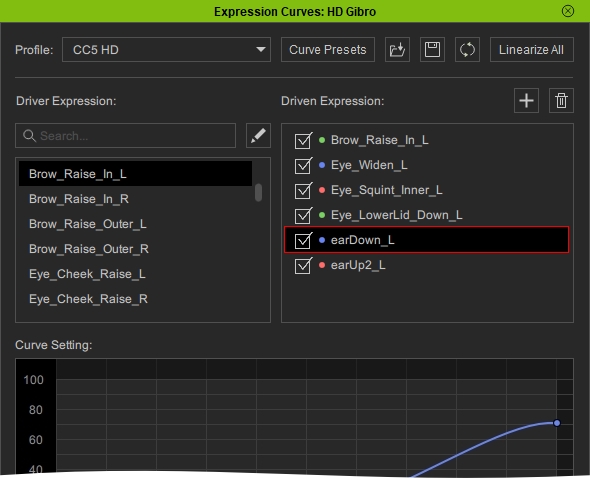
- Click the Copy button to copy all curve points and tangent settings from the selected curve.
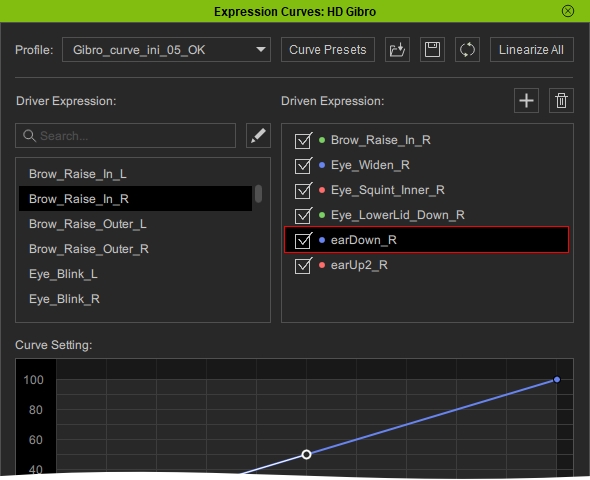
- Select the destination curve under Driver Expression and Driven Expression. In this example, select Brow_Raise_In_R > earDown_R.
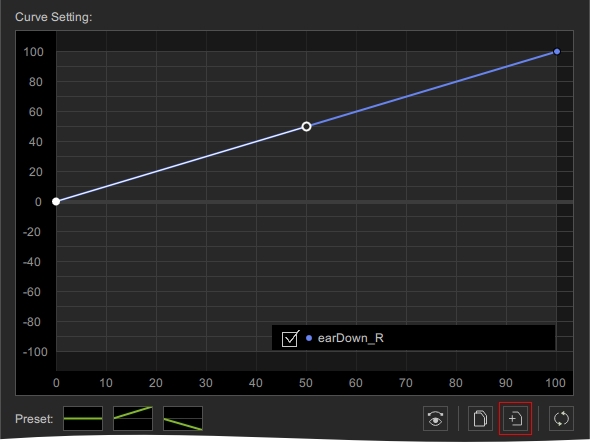
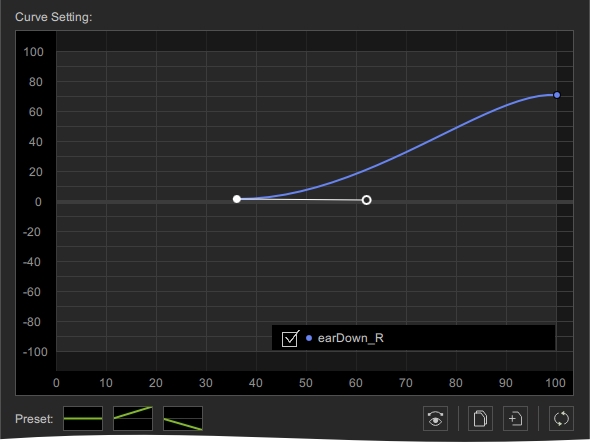
- Click the Paste button to apply the copied curve settings to the selected destination curve.
- Repeat the process for the earUp2 expressions by copying Brow_Raise_In_L > earUp2_L and pasting to Brow_Raise_In_R > earUp2_R.
- Click Preview to confirm that both ears now respond consistently when raising the eyebrows.