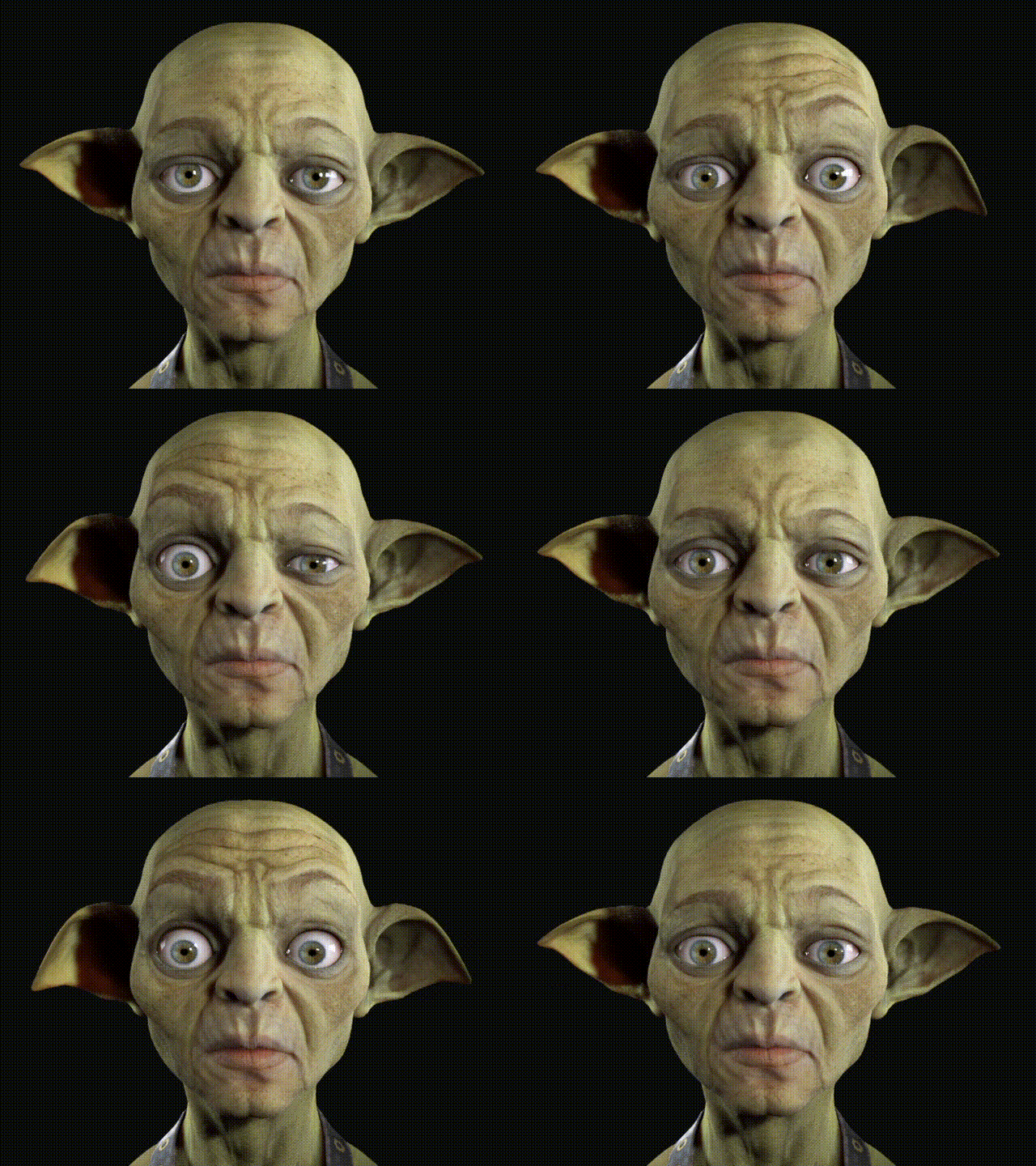
Creating Dynamic Facial Motions
In addition to adjusting facial responsiveness with Expression Curves, you can create more dynamic facial performances by driving multiple facial expressions with a single Driver Expression.
- Prepare a character in the viewport and connect it to MotionLIVE. In this example, the Gibro character is used.
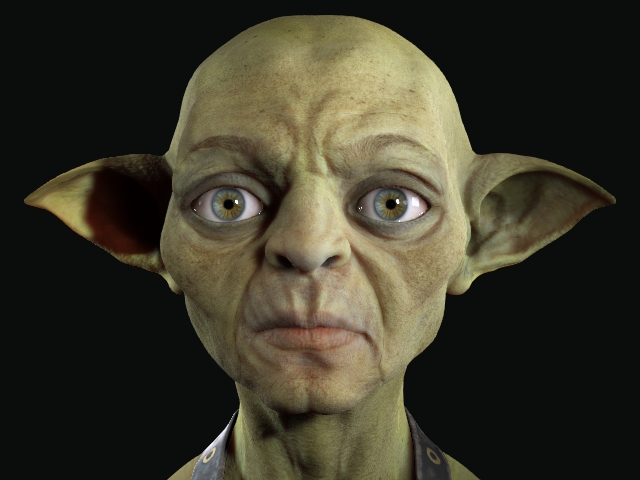
- Click Preview to begin streaming facial mocap. In this example, the ears remain static when the eyebrows are raised, making the expression appear less lively.
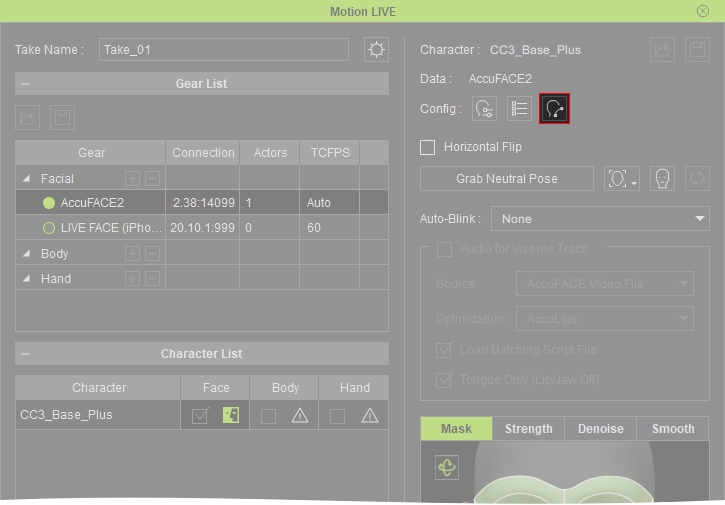
- Open the Expression Curves panel from MotionLIVE.
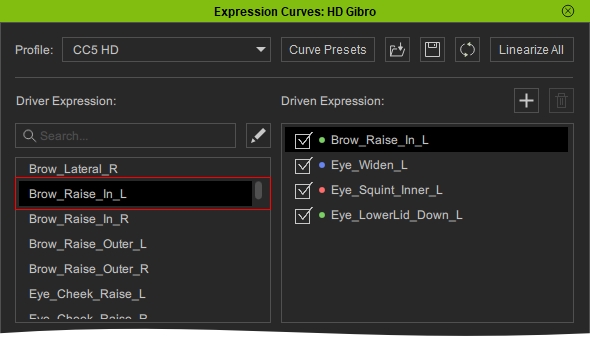
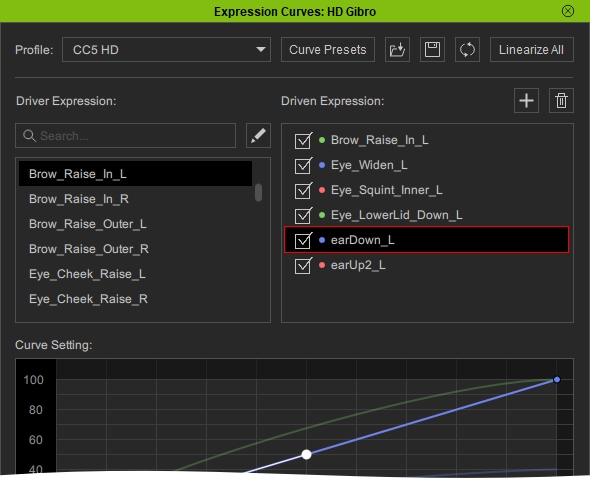
- Under Driver Expression, select Brow_Raise In_L.
 Note:
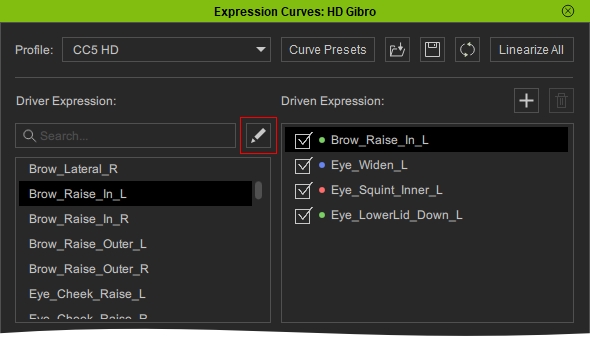
Note:If the desired Driver Expression is not listed, click Add/Edit next to the search bar to add it.
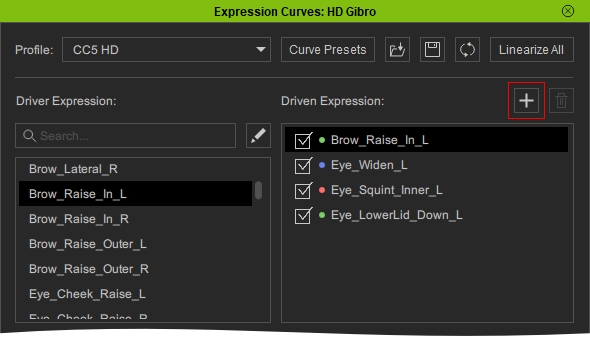
- Click Add/Edit above the Driven Expression list.
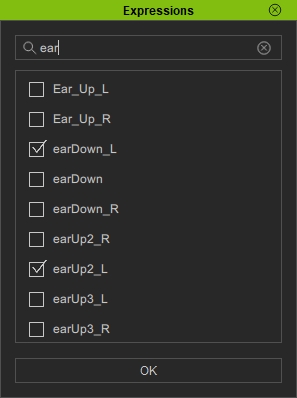
- Select the expressions that will be driven by the selected Driver Expression. In this example, add earDown_L and earUp2_L.
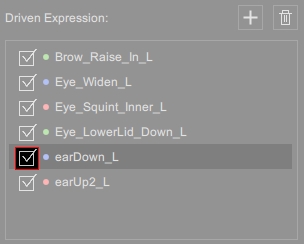
- Select the Driven Expression you want to control the reactiveness to the Driver Expression. In this case, earDown_L.
 Note:
Note:Enable the checkbox beside each Driven Expression to include it in the curve mapping preview.
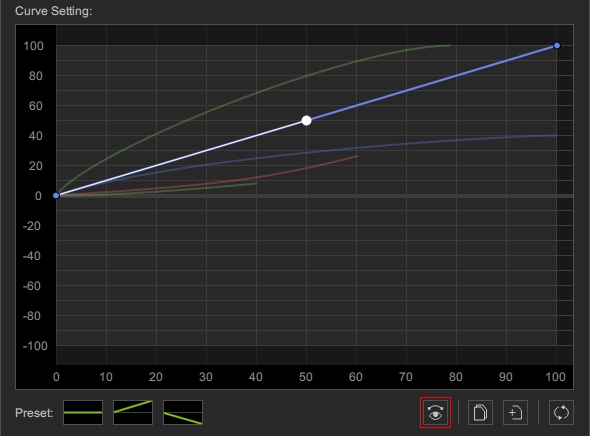
- By default, newly added Driven Expressions use a linear response curve. Click Isolate Curves to hide the other curves and focus on editing the selected ones.
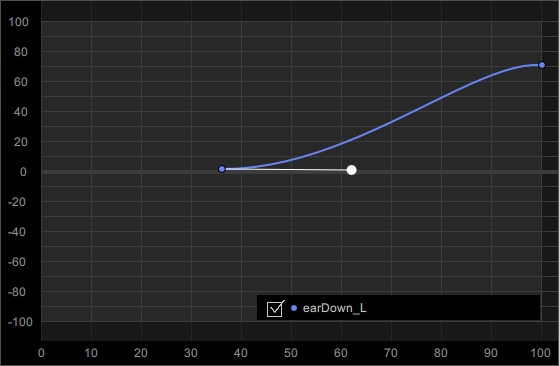
- Adjust the curves in Curve Settings to control when and how strongly each Driven Expression responds to the Driver Expression.
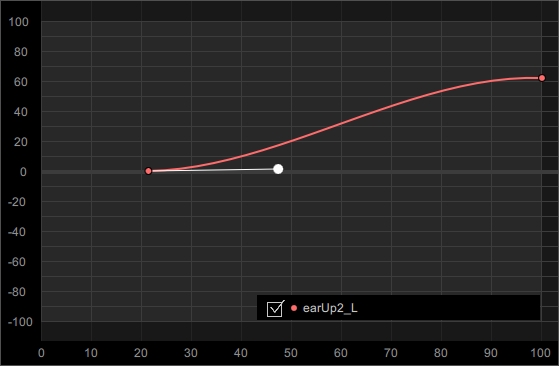
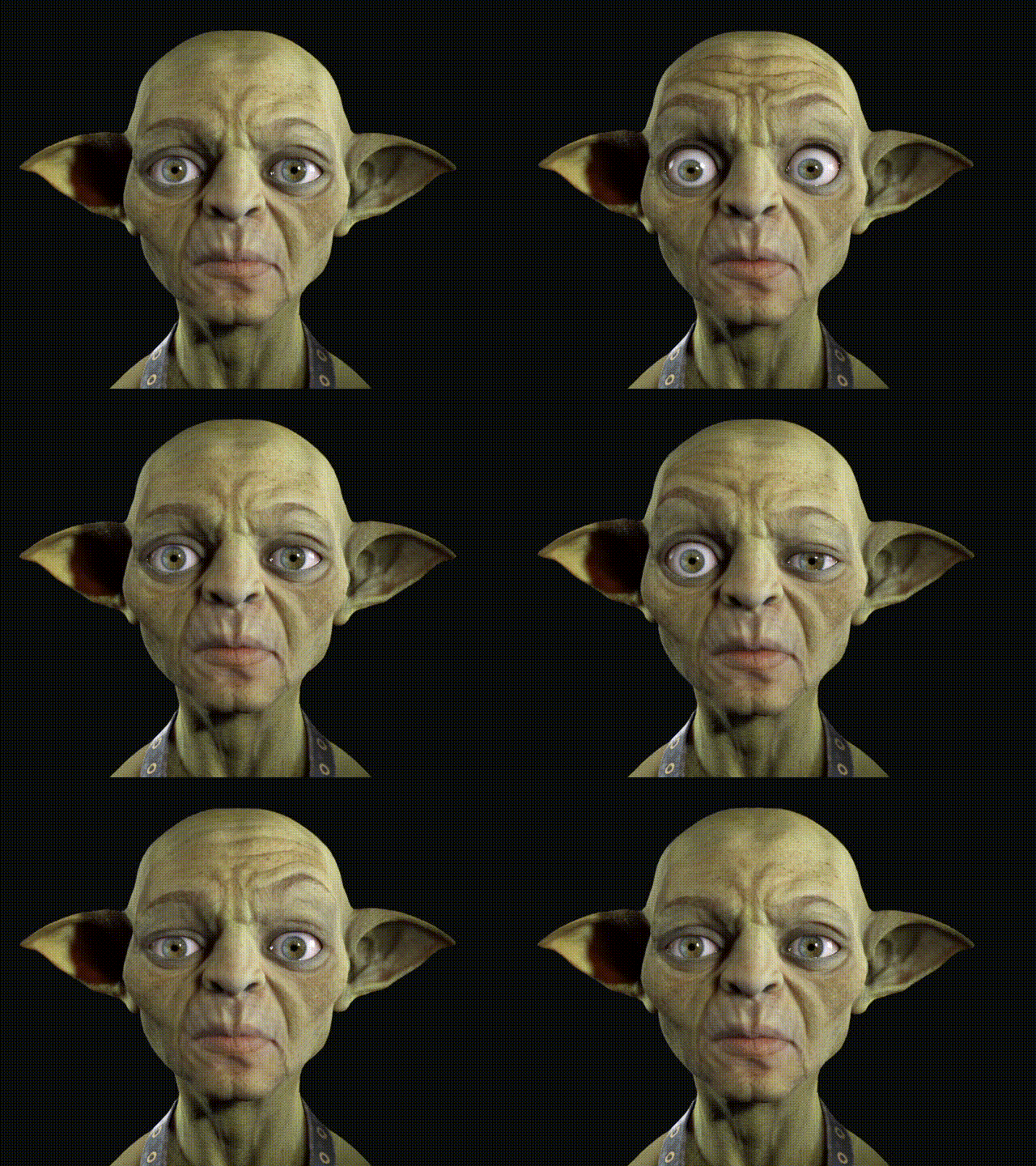
- Click Preview to observe the updated facial animation.
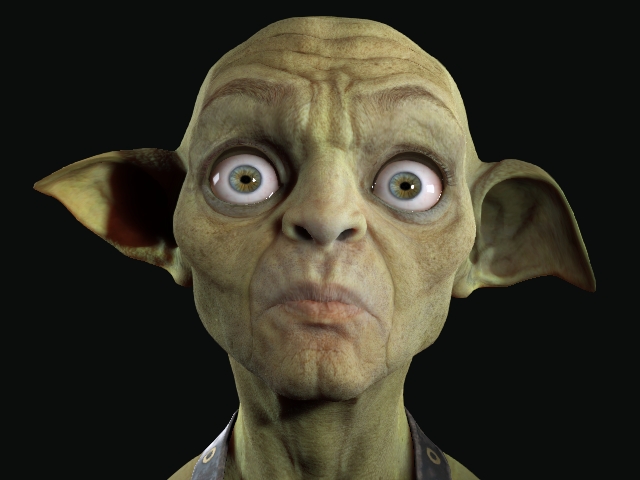
- Once satisfied, copy and paste the curves to the opposite side of the face to maintain symmetrical behavior.