Multi-Language Support with AccuLips
AccuLips uses the Roman alphabet to analyze phonetic information and generate accurate lip and tongue movements for your character. For languages that use different writing systems, convert the text into Romanized characters before using AccuLips to ensure proper recognition and animation results. AI translation tools are recommended to assist with accurate Romanization.
- Once you’ve linked AccuFACE with Motion LIVE and calibrated your expressions, you can begin recording with AccuLips enabled.
- After the recording is completed, open the Timeline by clicking this icon.

- In the Timeline, right click the Viseme section and a drop-down menu will appear.
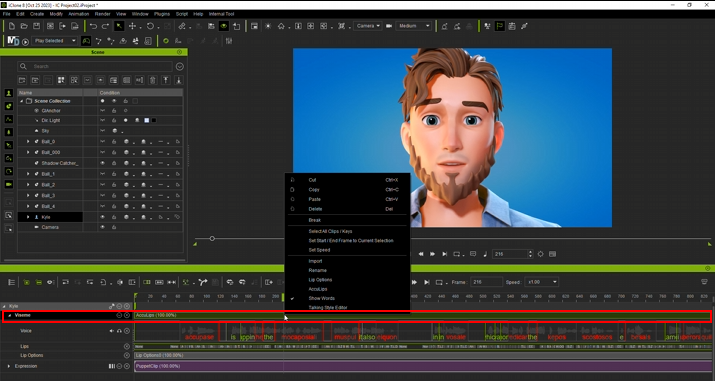
In the drop-down menu, click AccuLips.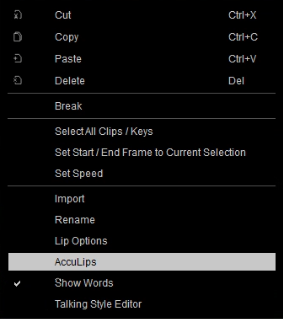
- The AccuLips window will appear.
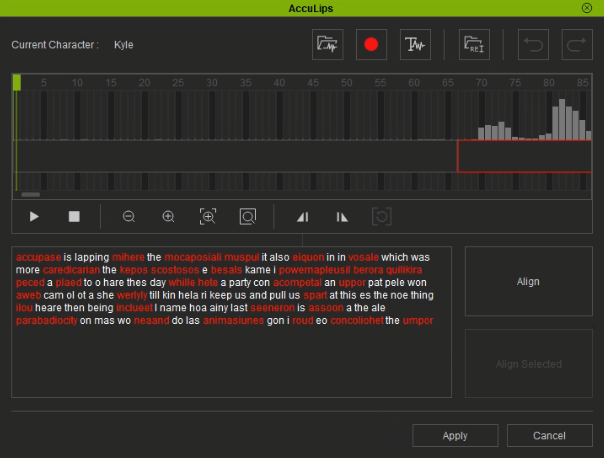
- Open your script text document for this recording and replace the auto-generated text by pasting your script into the AccuLips text box.
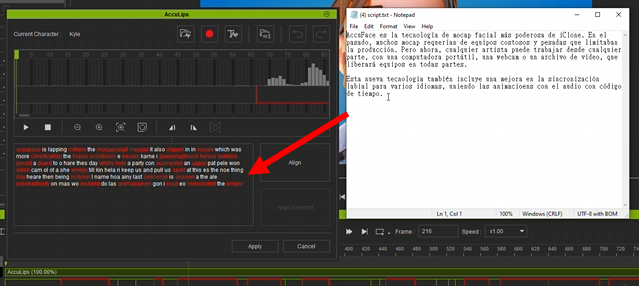
- Initiate the alignment process for your audio and text by clicking the Align button.
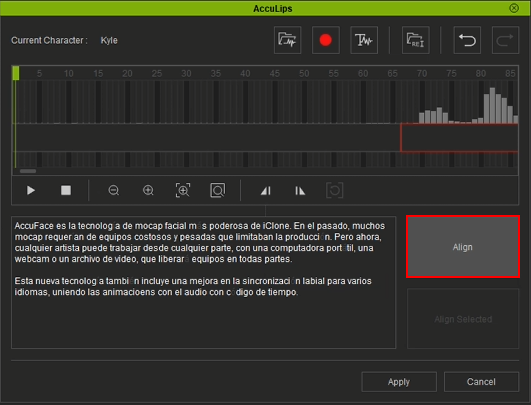
- After the alignment process is completed, adjust the text wherever it does not align.
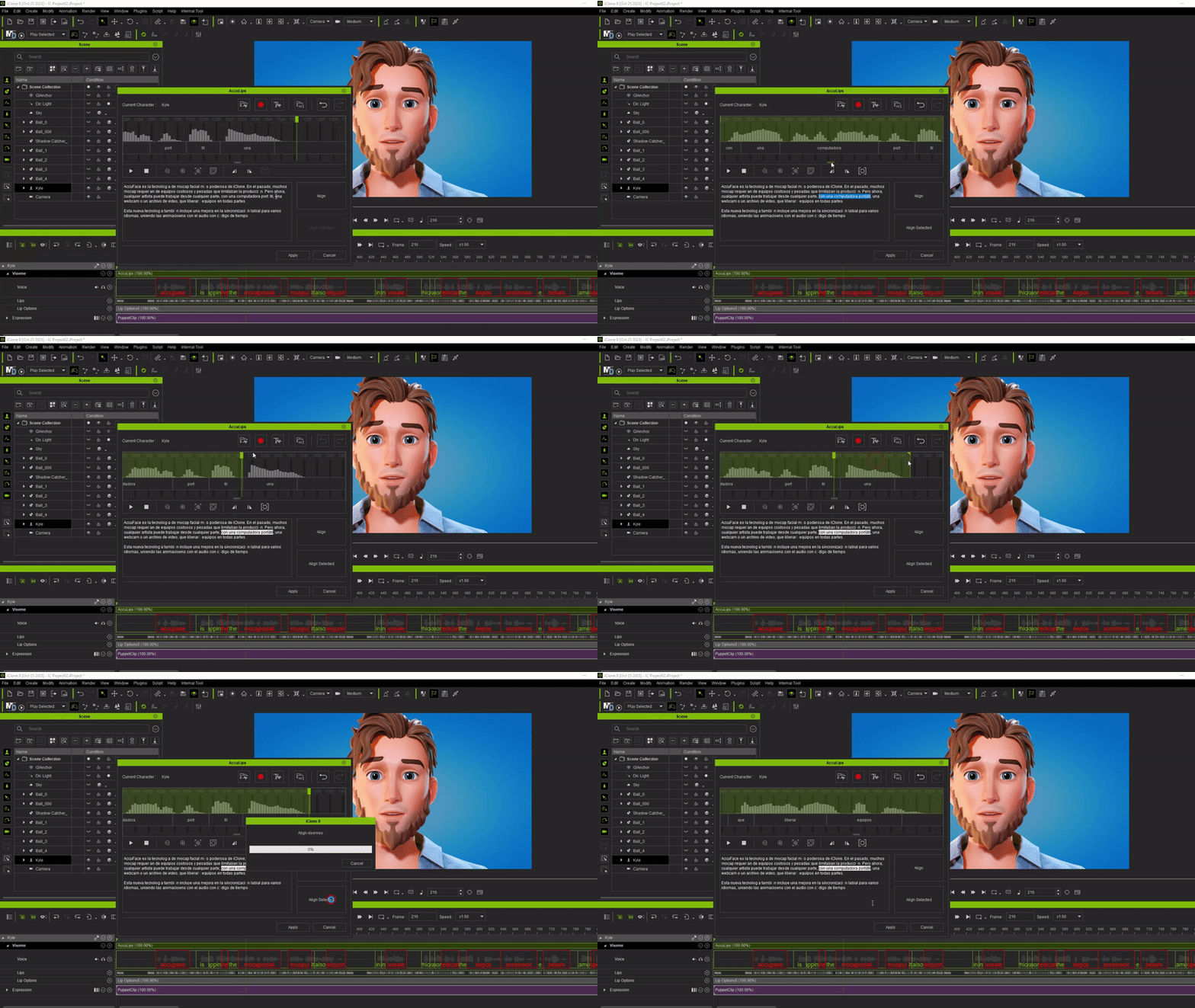
- After the adjustments are complete, click the Apply button to complete the editing.
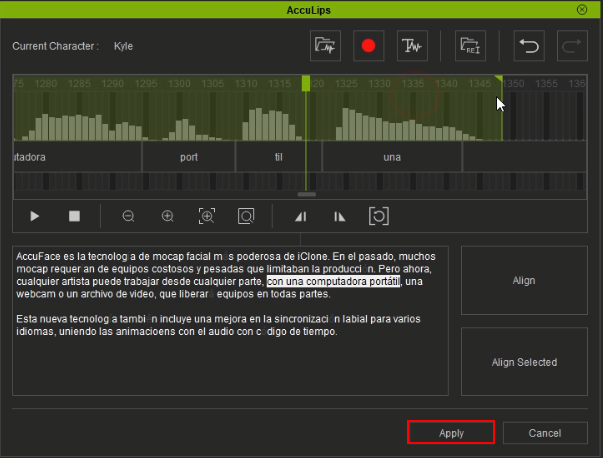
- Your character can now speak in a different language with accurate visemes.
