Importing Omniverse Stage to iClone as Reference (New for iClone V.8.3)
If you want to use the stage created in Omniverse as reference for creating iClone animation and motions, you can utilize the Import USD feature provided by the Omniverse plugin. You can follow the steps below to minimize the size of the USD files and optimize performance in iClone.
- Apply some assets onto the stage within Omniverse USD Composer.

- Select the meshes that you want imported into iClone from the
Stage panel.

- Execute Edit > Select > Select Invert to
select all the unnecessary items.

- Deactivate the eye icons to hide all unnecessary objects.

- Save the project using File > Save Flattened As....
This step guarantees that the zipped content (in *.USDZ format) can
be accurately imported into iClone.

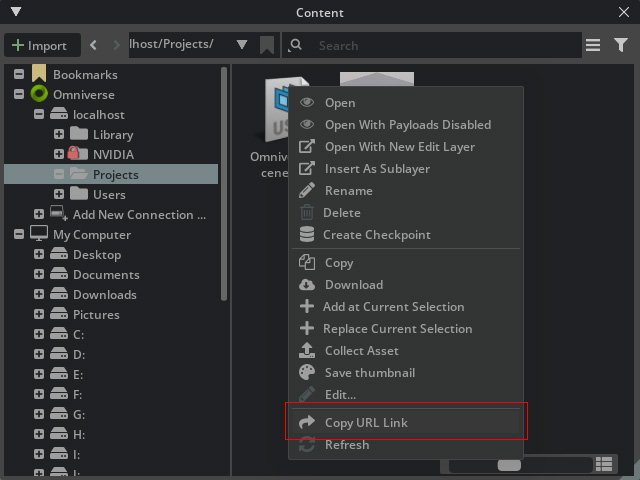
- Right click on the USD file in the Content
browser. Choose the Copy URL Link command.
- Apply the USD file in Omniverse.
- In iClone, create a new project and execute the Plugins > Omniverse > Import USD command.

- Activate the check box of the contents for importing (in this case,
"Prop" only). Paste the URL link to the Omniverse Server URL field. Click the
Import button.

- As you can see, the stage created in Omniverse will be imported (textures are deliberately removed for better performance).

- Connect iClone and Omniverse. See here.
- In Omniverse USD Composer, set the camera perspective to
"Preview_Camera".
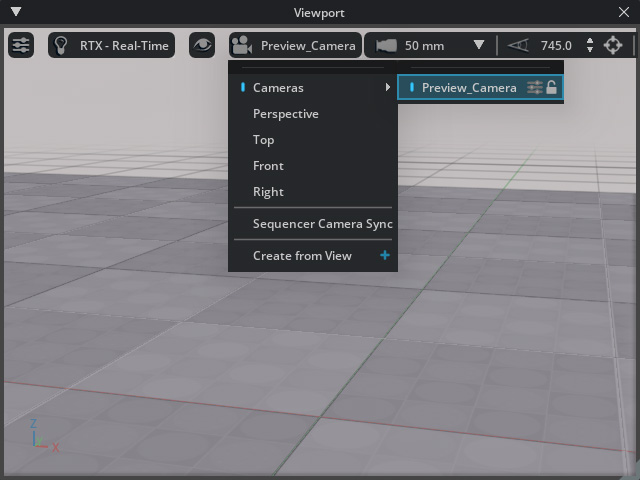
This step ensures the camera view is identical in iClone and Omniverse USD Composer. Keep in mind that only the iClone camera can be synced.
