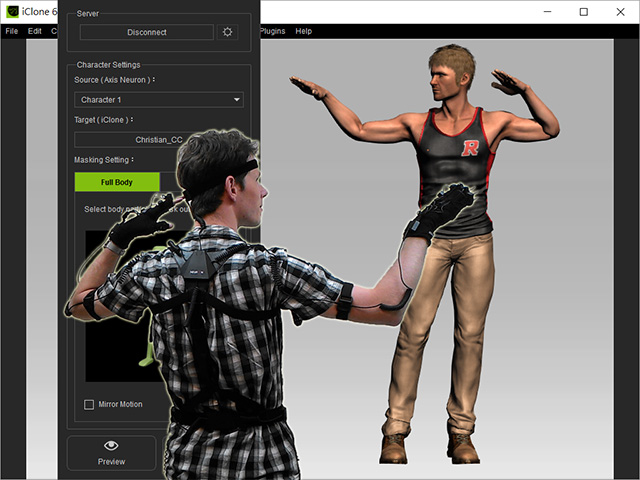
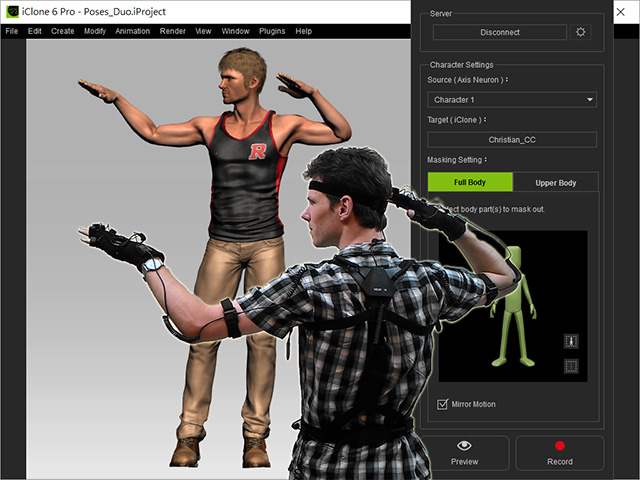
Make sure that the performer has worn the Perception Neuron correctly.
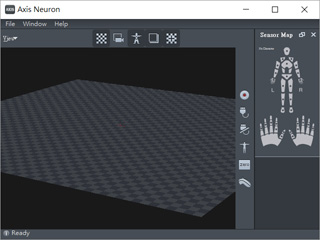
Start the Axis Neuron standalone
application. You can
download and install the application from the Noitom
(the manufacture of Perception Neuron) Official
Web Site.
Click the Connect button.
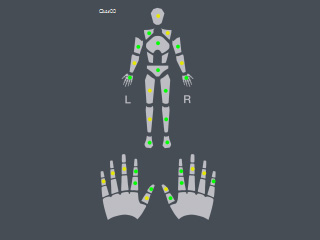
You will see the panel as shown below, click the Connect button to connect the Perception Neuron (the device)
to Axis Neuron (the application):
Make sure that the lights on the right side of the application are activated in green, yellow
or at least red. If any
of the light is in grey, then check the device to make sure it is worn
correctly.
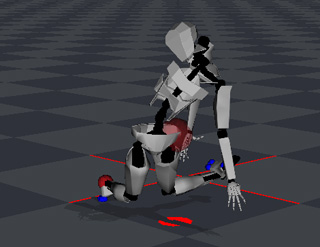
In the Preview window, you will see that the dummy is not
constructed correctly.
Before the Axis Neuron receives correct data from the
Perception Neuron, you will need to click the Calibration button to start the calibration procedure.
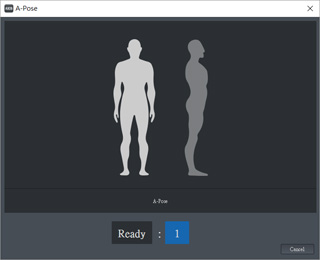
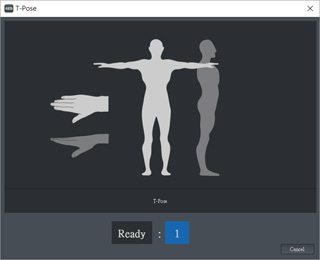
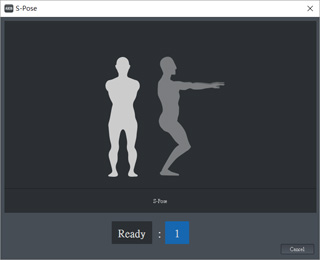
Axis Neuron will direct you to do four poses for calibration.
Click the Next button to start to calibrate.
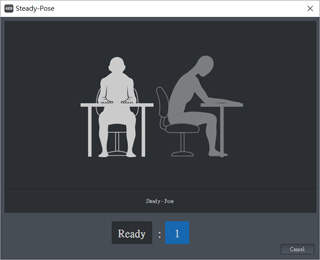
Have the performer hold the poses on the screen for each phase of the
calibration and wait until Axis Neuron finishes the
countdowns.
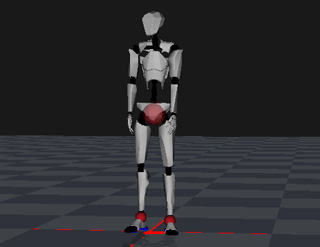
Now the dummy in the Preview window stands up and your motions can be correctly received from the
Axis Neuron.
Step 2. Receiving Data by Perception Neuron Console - Solo
If you have installed Perception Neuron Console Plug-in - Solo onto your iClone,
then please read this section for receiving data from Axis Neuron.
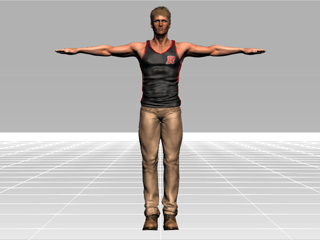
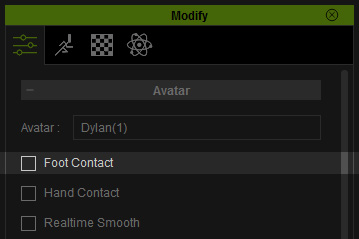
Apply and select a character in iClone. It is highly recommended that you Deactivate the Foot Contact
feature of the character in order to get the best foot motions from the
Perception Neuron Console.
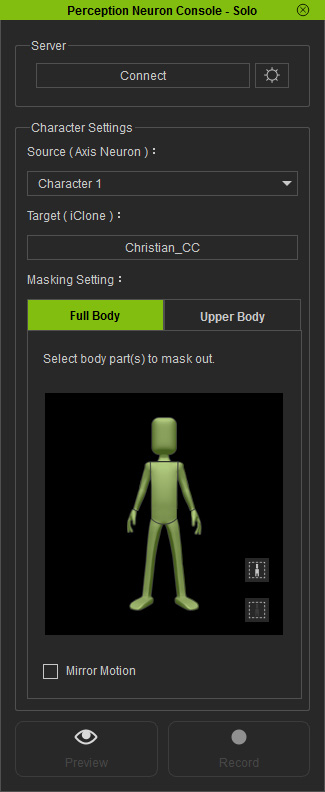
Execute the command Plugins >> Perception Neuron >> Perception Neuron Solo
to open the Perception Neuron Console panel.
Click the Connect button so that iClone connects
to the plug-in and starts receiving motion data from it.
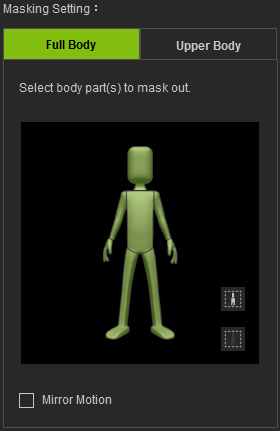
From the dummy panel, select the body parts that you intend to capture motions from. Please refer to the
Multi-layer Capturing section for more information.
Click the Preview button, and press the Space Bar to
preview your real human motions on the virtual
character (Shortcut: Space bar).
Click the Record button and press the Space Bar to
start recording.
Using the Perception Neuron Plug-ins with Mirror Mode
By default, the character's body parts use the motion input from your body to move. Therefore, when the character is facing you
and you move your right hand, the character will also moves its right hand, which can sometimes be confusing,
especially when you need to interact with the props inside of the scene. For this you can work with the Mirror function.
Mirror = Off
Activate the Mirror box and then you may control the character as if using a mirror.
 button.
You will see the panel as shown below, click the Connect button to connect the Perception Neuron (the device)
to Axis Neuron (the application):
button.
You will see the panel as shown below, click the Connect button to connect the Perception Neuron (the device)
to Axis Neuron (the application):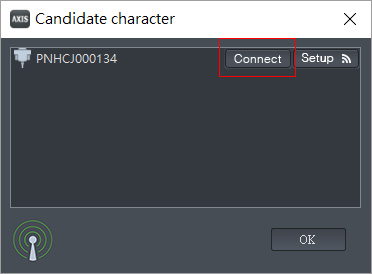
 button to start the calibration procedure.
Axis Neuron will direct you to do four poses for calibration.
button to start the calibration procedure.
Axis Neuron will direct you to do four poses for calibration.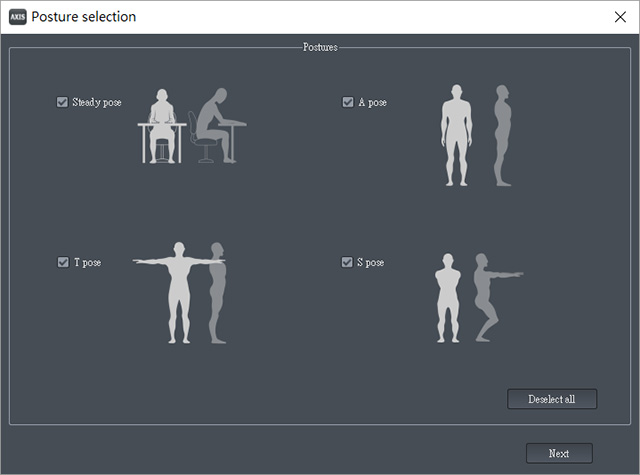
 button so that iClone connects
to the plug-in and starts receiving motion data from it.
button so that iClone connects
to the plug-in and starts receiving motion data from it.
 button, and press the Space Bar to
preview your real human motions on the virtual
character (Shortcut: Space bar).
button, and press the Space Bar to
preview your real human motions on the virtual
character (Shortcut: Space bar).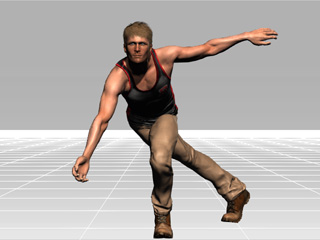
 button and press the Space Bar to
start recording.
button and press the Space Bar to
start recording.