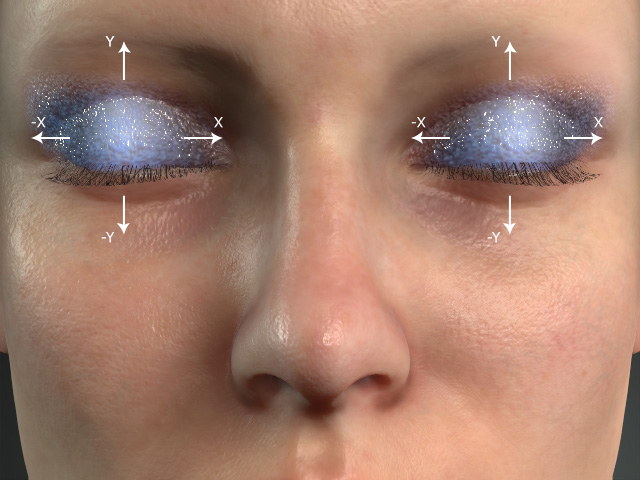
Settings in Appearance Editor - Eyeshadow
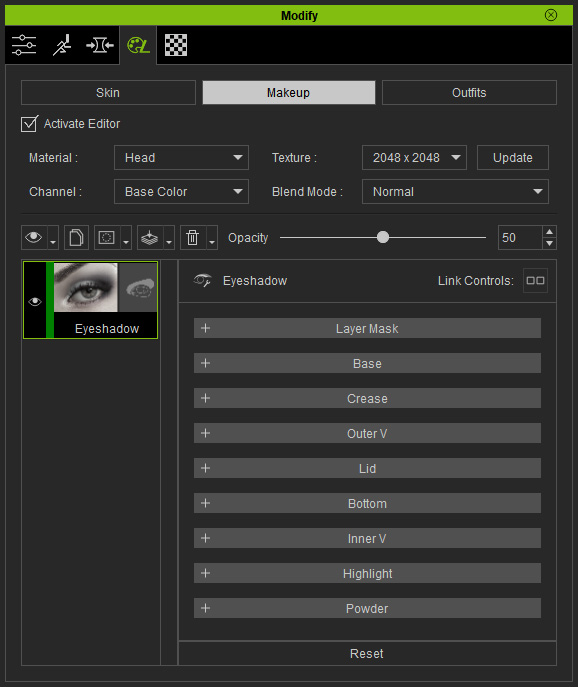
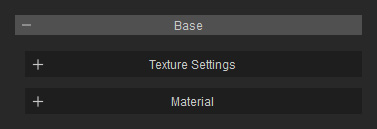
The sections and the regions that they map to are described in the following illustration.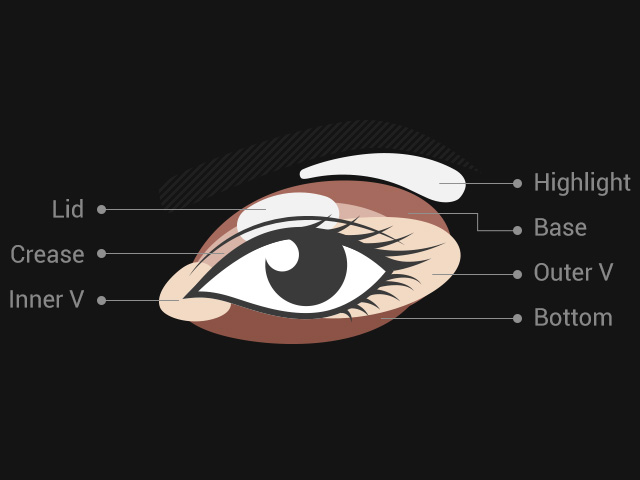
 Layer Mask
Contains the mask for the entire layer to take effect. The textures in this section can be edited if you have purchased and installed SkinGen Plugin.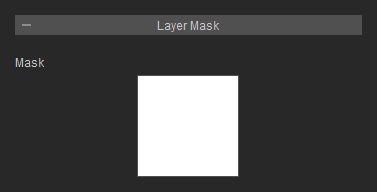
Refer to the Layer Mask section for more information.
Base, Crease, Outer V, Lid, Bottom and Inner V sections
Texture Settings
This subsection contains a channel to determine the range for this template effect around the eyes. The texture in this section can be edited if you have purchased and installed SkinGen Plugin.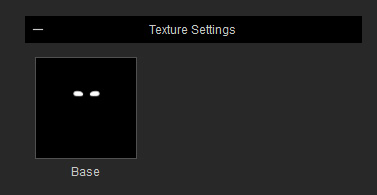
The mask defines the areas on the face mesh for applying the effects.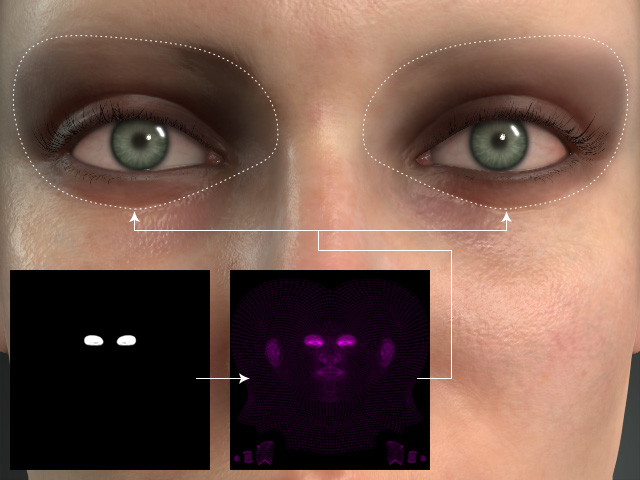
Material
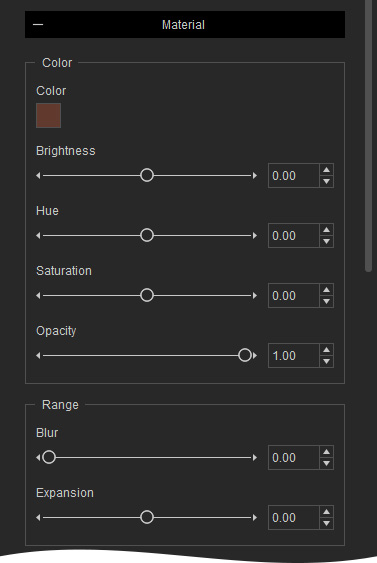
Color
- Color
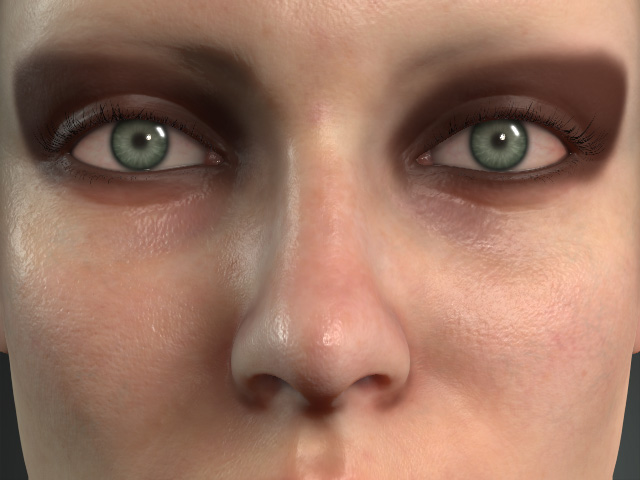
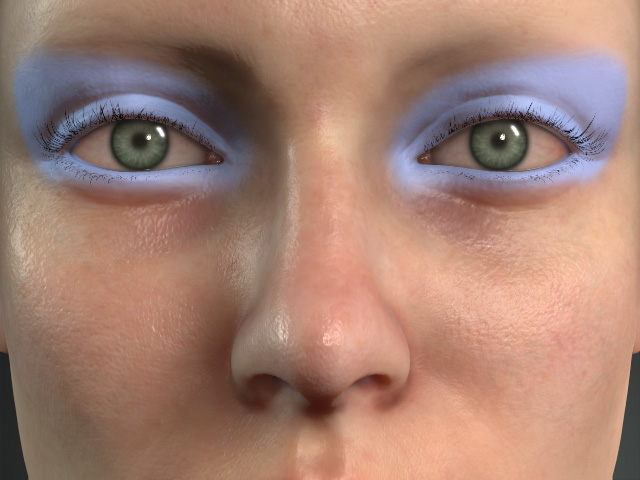
Color = #613A2E
Brightness = 0.00
Hue = 0.00
Saturation = 0.00
Color = #AA55FF (purple)
Brightness = 0.10
Hue = -0.10
Saturation = -0.60
- Opacity
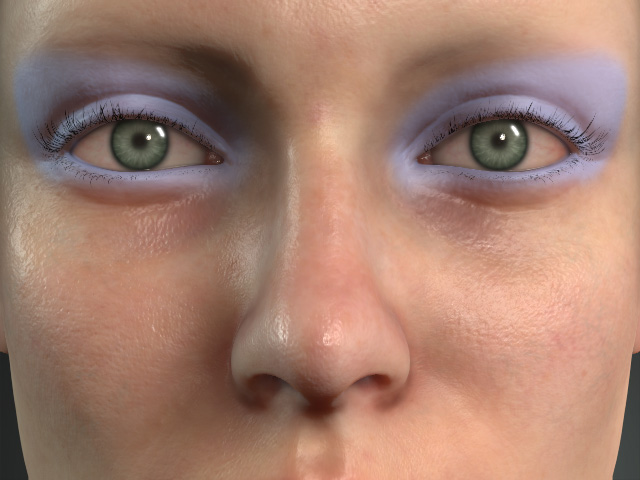
Opacity = 1.00
Opacity = 0.70
Range
The settings in this group are used for adjusting the Range texture.
- Expansion
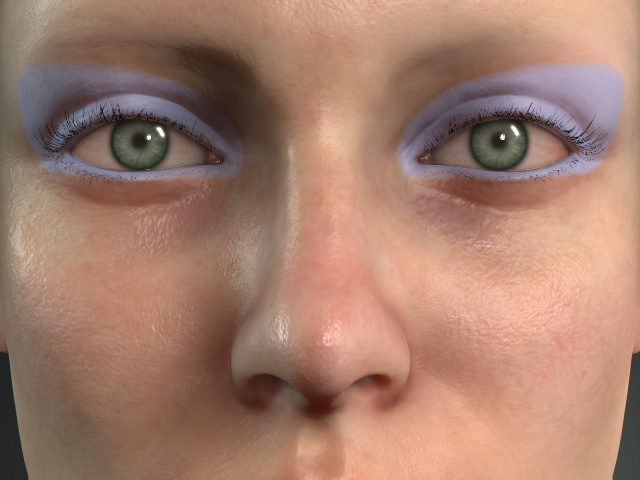
Expansion = 0.00
Expansion = -1.00
- Blur
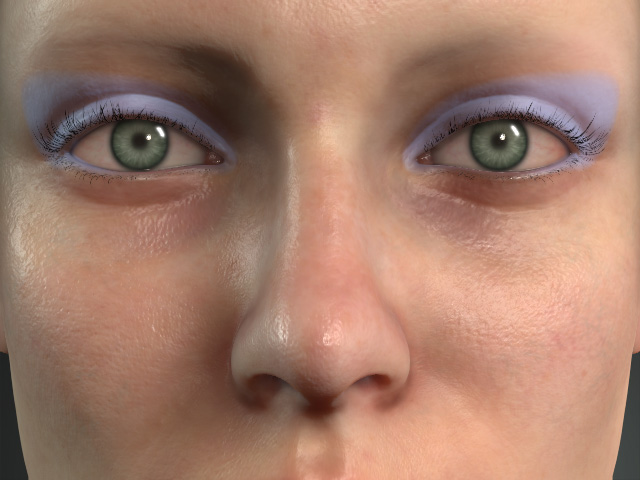
Blur = 0.00
Blur = 0.20
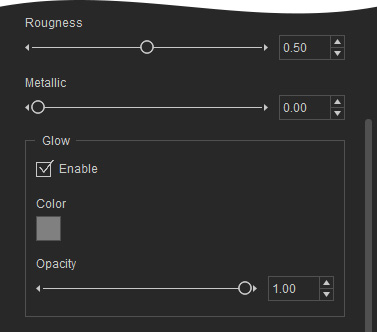
Roughness and Metallic
You can adjust the smoothness and reflectivity of the foundation.
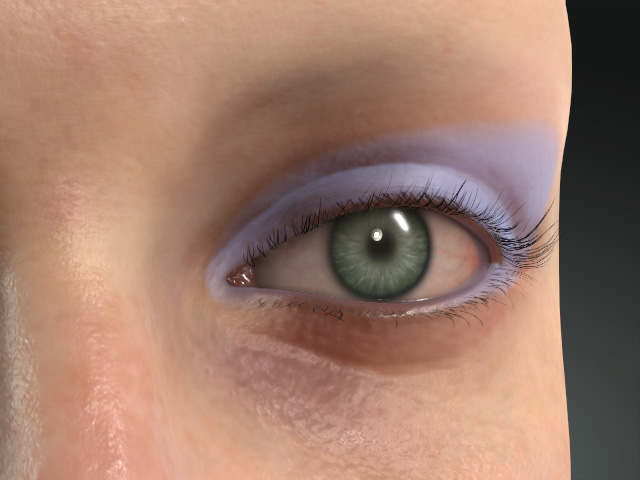
|
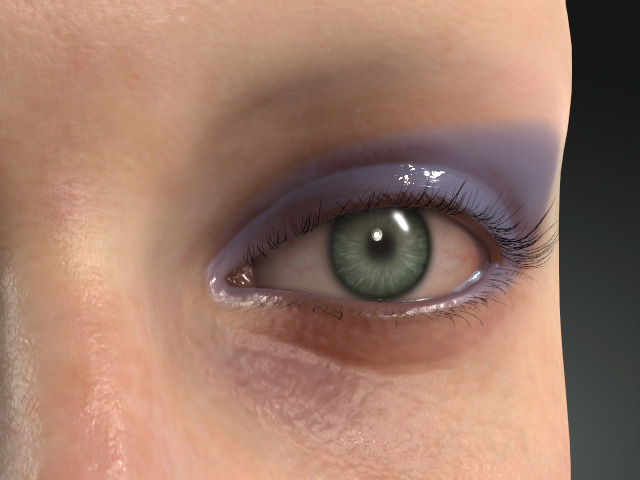
|
|
Roughness = 0.50 Metallic = 0.00 |
Roughness = 0.00 Metallic = 0.50 |
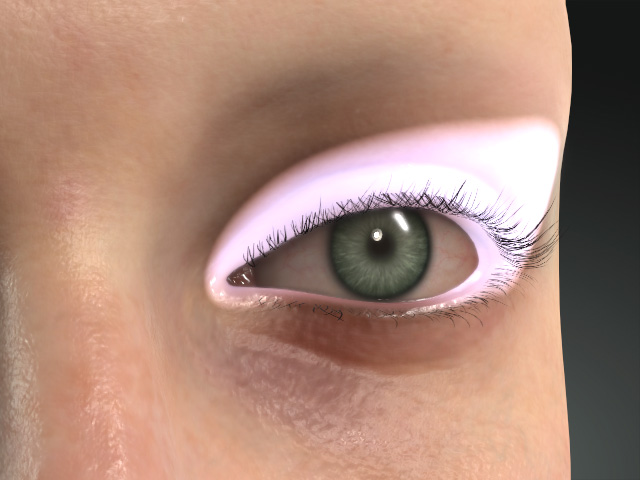
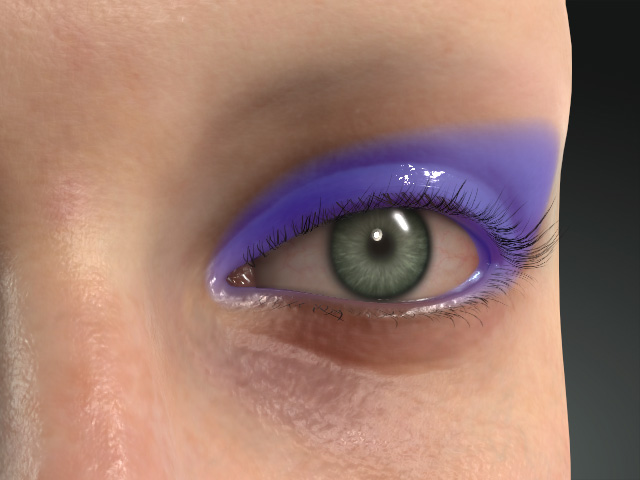
Glow
You can create glowing effect on the eyeshadow.
|
|
|
Color = #808080 Opacity = 1.00 |
Color = #000033 Opacity = 0.50 |
Highlight
The Highlight subsection contains setting for adding highlight to the eyeshadow to make the character's eyes stand out.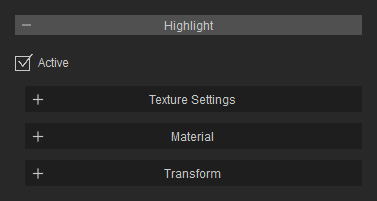
Texture Settings
This subsection contains a channel for determine the range for adding highlights on the eyeshadow makeup. The texture in this section can be edited if you have purchased and installed SkinGen Plugin.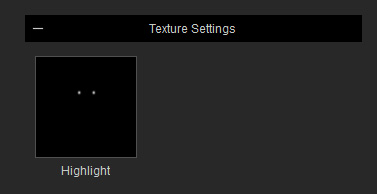
The mask defines the areas on the face mesh for applying the eyeshadow highlights.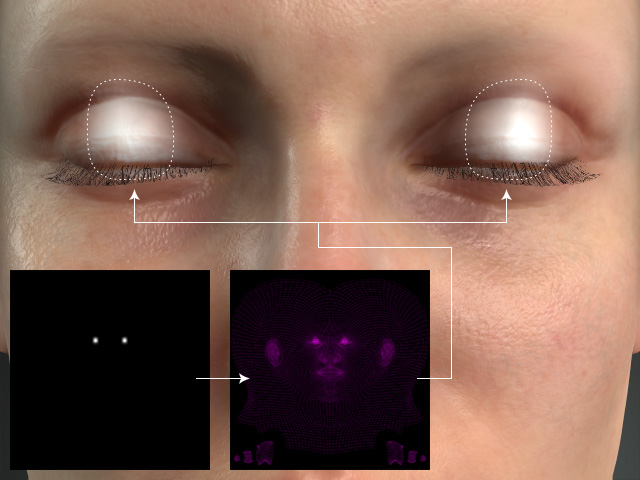
Material
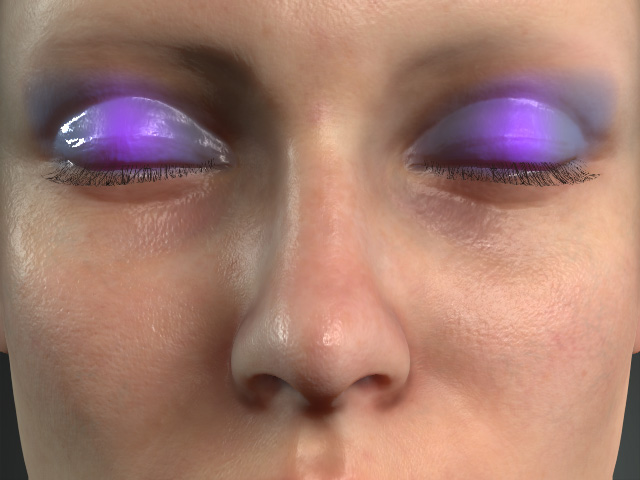
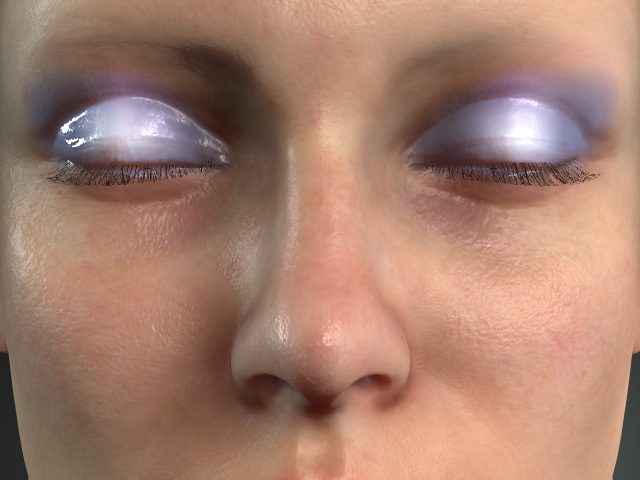
The settings in the Material subsection are almost the same as the ones described in the previous section. The only difference is that in the Color group, you can determine the color blending method through the items in the Blend Mode drop-down list.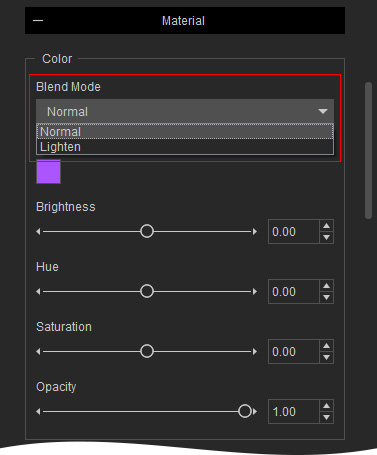
|
|
|
Color = #AA55FF (purple) Blend Mode = Normal |
Blend Mode = Lighten |
Transform
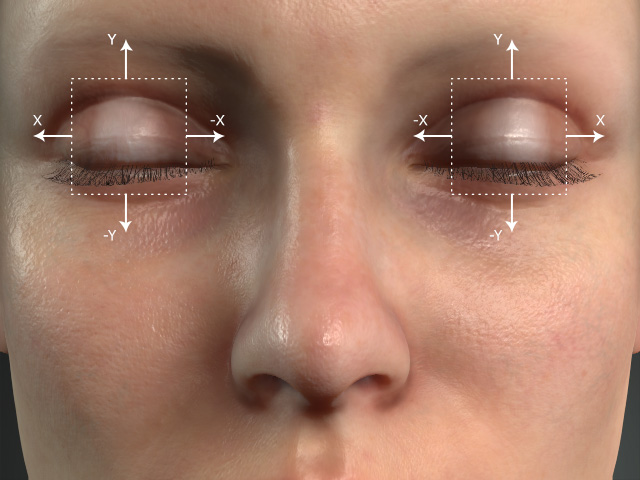
The settings in the Transform subsection can be used to relocate the highlight areas.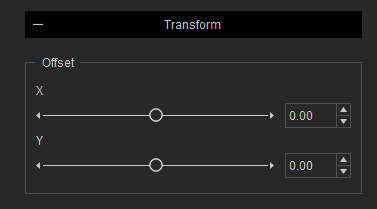
Powder
The Powder section contains three subsections with settings for applying powder for the eye makeup.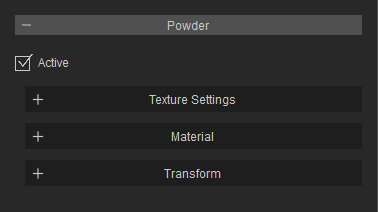
Texture Settings
There are two drop-down list and two channels to determine the sprinkling range and the pattern of the powder. The textures in this section can be edited if you have purchased and installed the SkinGen Plugin.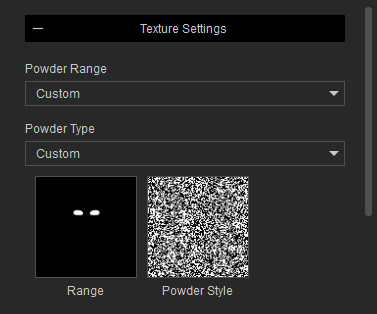
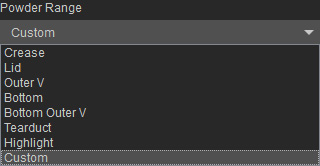
- Powder Range: The powder drop-down list can be used to determine to where you want to sprinkle the powder. The Range will be determined by the texture in the specified section.
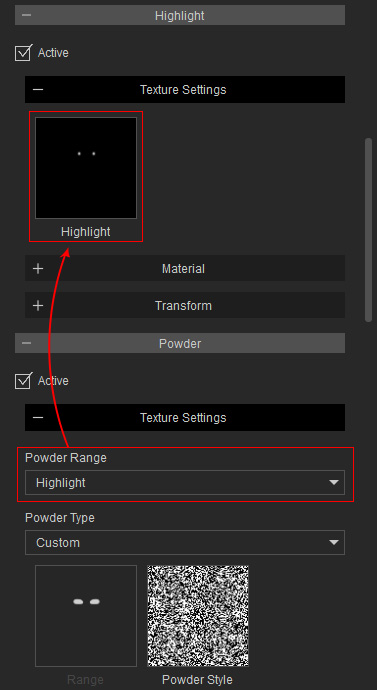
- Crease to Highlight: The Range texture is defined by the Range texture in the specified section.
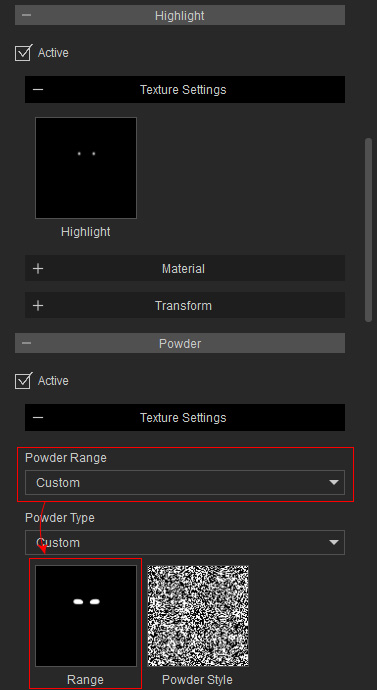
- Custom: The Range texture in this section will be taken as the range.
- Crease to Highlight: The Range texture is defined by the Range texture in the specified section.
- Powder Type: You can use this drop-down list to determine the pattern type for the powder.
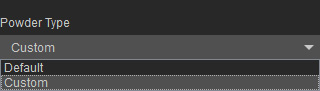
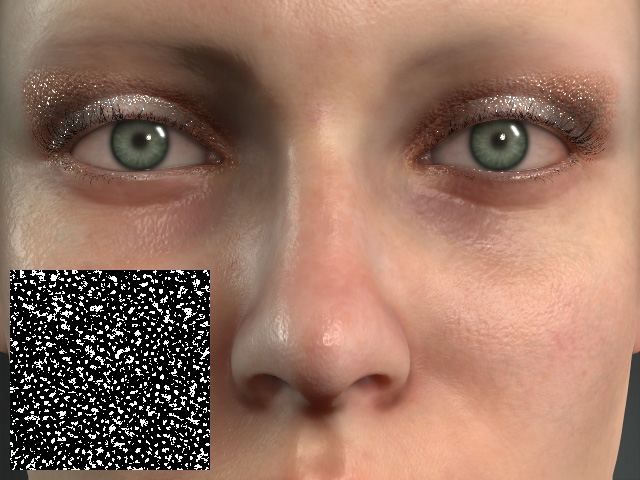
If you choose the Custom from the list, then the pattern is determined by the texture in the Powder Style channel.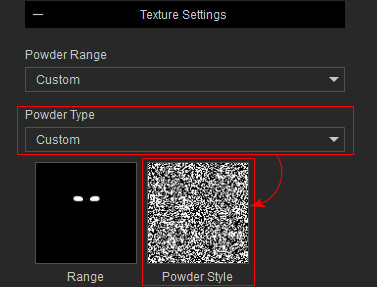
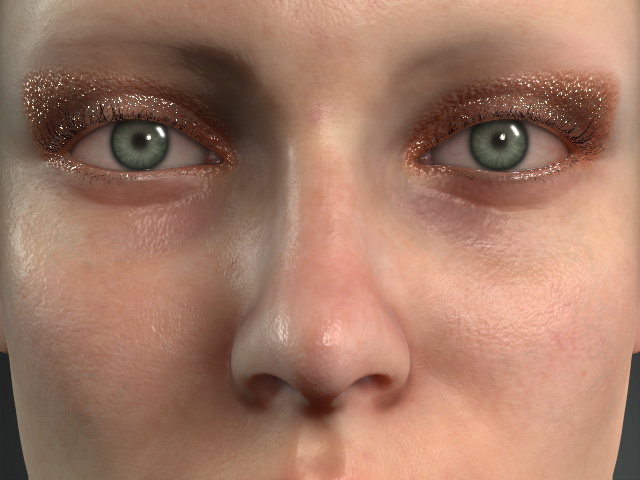
Powder Type = Default
Powder Type = Custom
Material
Color
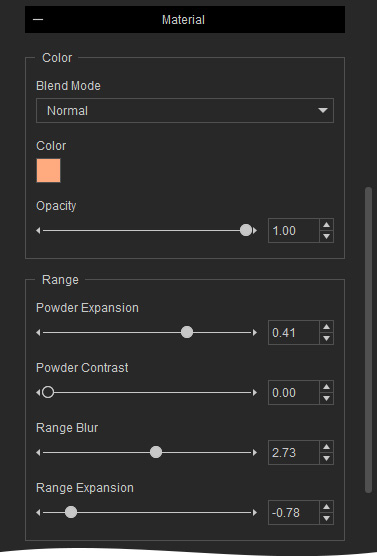
The settings in this group can be used to dye color onto the powder and the blending method to the layers underneath.
- Blend Mode: You can determine the color blending method through the items in the Blend Mode drop-down list.
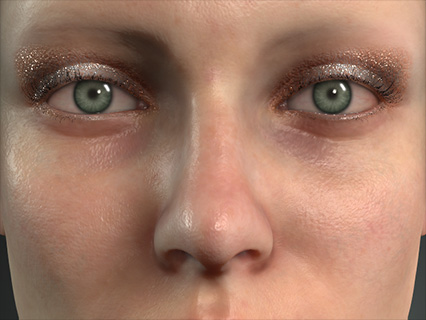
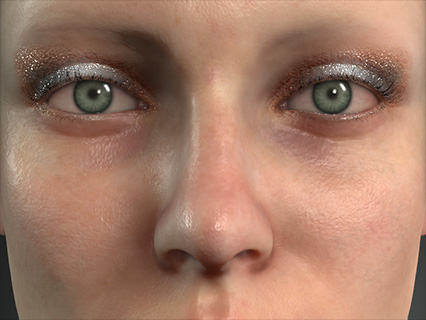
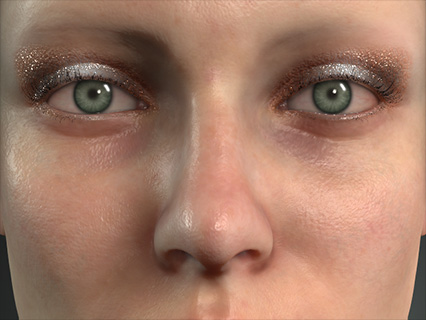
Blend Mode = Normal
Blend Mode = Lighten
Blend Mode = Overlay
- Color and Opacity
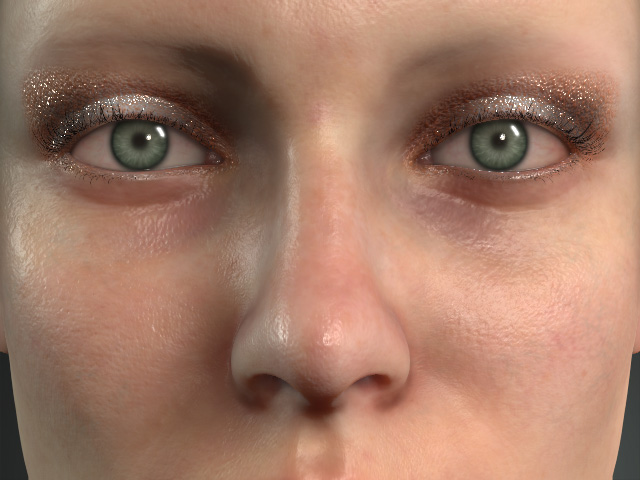
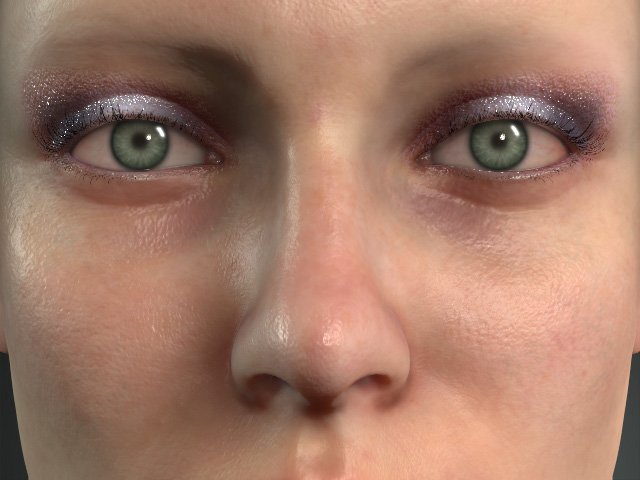
Color = #FFAA7F
Opacity = 1.00
Color = #AA00FF
Opacity = 0.20
Range
The settings in this group can be used to adjust the range texture for showing the powder.
- Powder Expansion: Each grain of the powder become smaller.
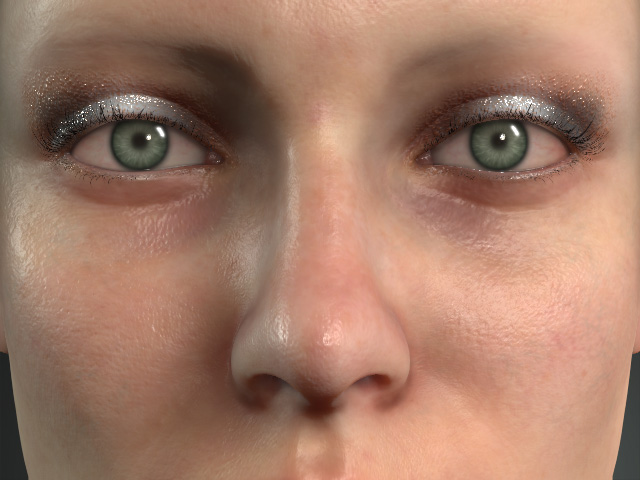
Powder Expansion = 0.40
Powder Expansion = -0.50
- Powder Contrast: This setting sharpens the edge of each grain of the powder.
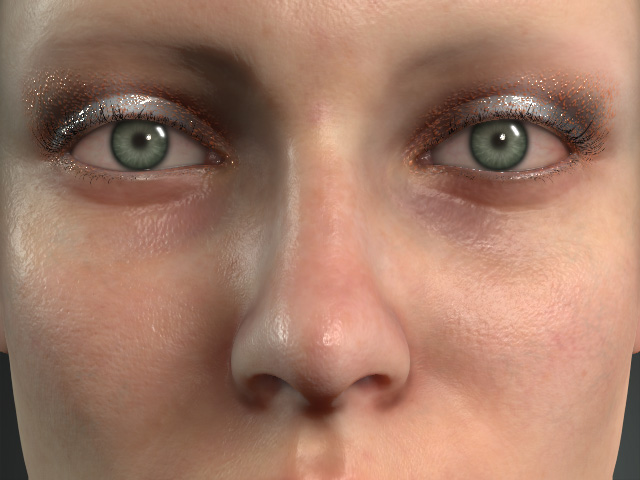
Powder Contrast = 0.00
Powder Contrast = 1.00
- Range Expansion: This setting expands or shrinks the range for sprinkling the powder.
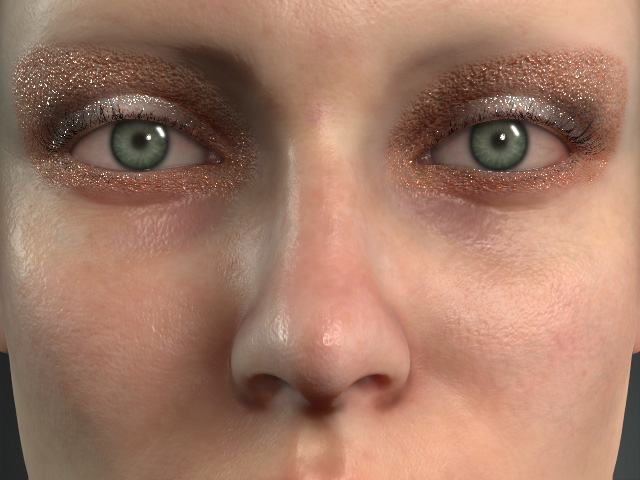
Range Expansion = -0.80
Range Expansion = 0.50
- Range Blur: This setting blurs out the edge of the powder range.
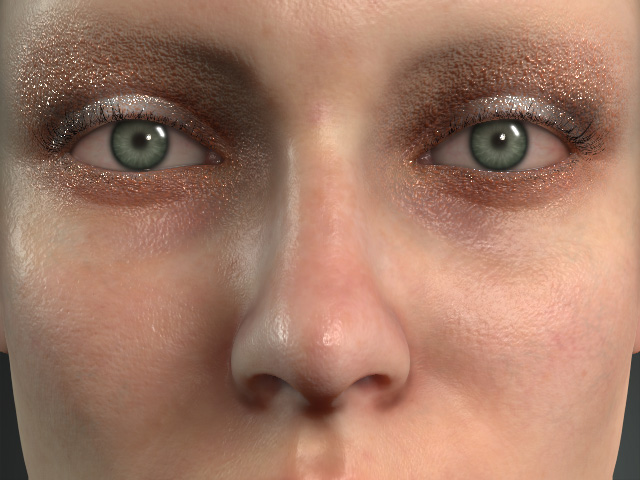
Range Blur = 0.25
Range Blur = 1.00
Normal
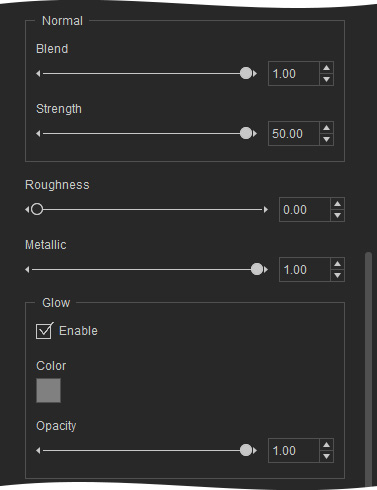
The settings in this group can be used to adjust the bumpiness of the powder.
- Blend: This setting sets the blending level of the normal effect.
- Strength: The bump strength of the powder.
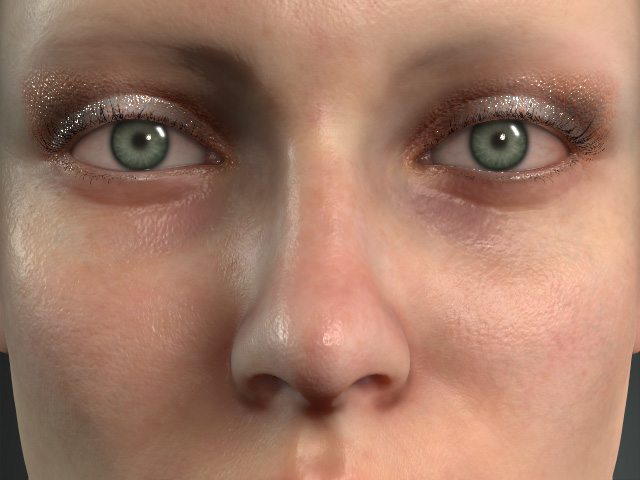
Blend = 1.00
Strength = 50.00
Strength = 0.50
Roughness and Metallic
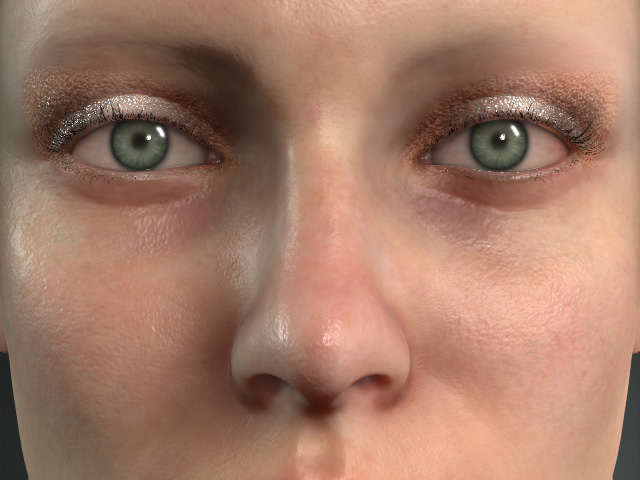
The settings in this group can be used to adjust the smoothness and reflectivity of the noise.
|
|
|
Roughness = 0.50 Metallic = 0.00 |
Roughness = 0.00 Metallic = 1.00 |
Glow
The settings in this group can be used to add glow to the powdering.
- Color
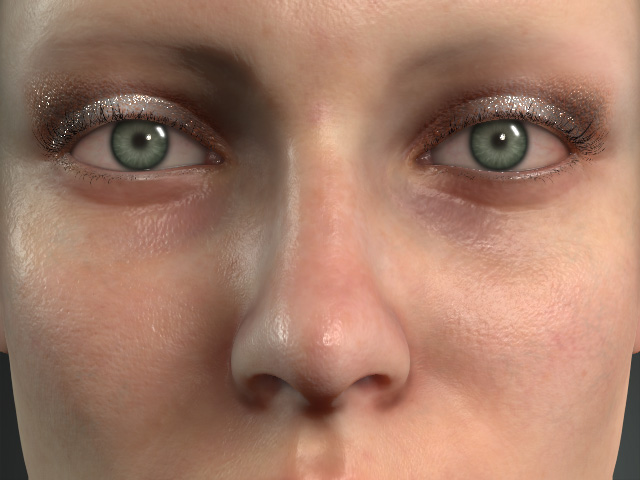
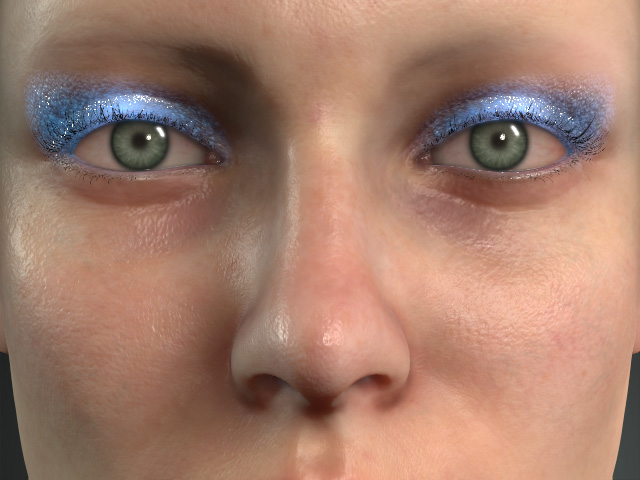
Enable = Off
Enable = On
Color = #812900
- Opacity
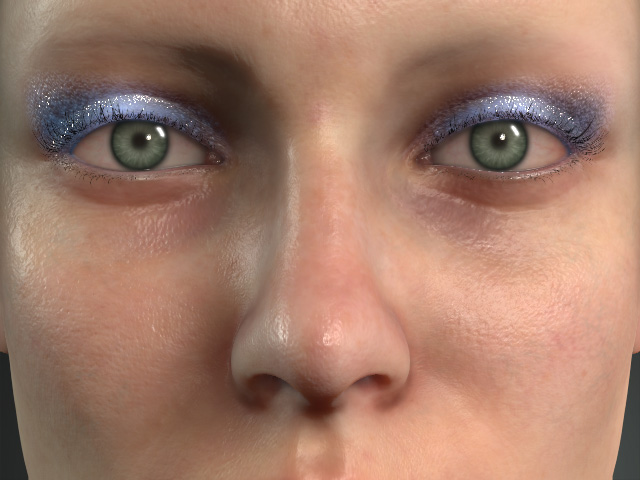
Opacity = 1.00
Opacity = 0.50
Transform
The settings in the Transform subsection can be used to scale or relocate the powder.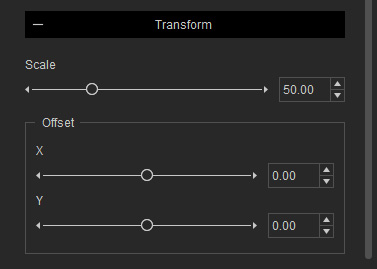
- Scale: You can use this slider to determine the size of each grain of the powder.
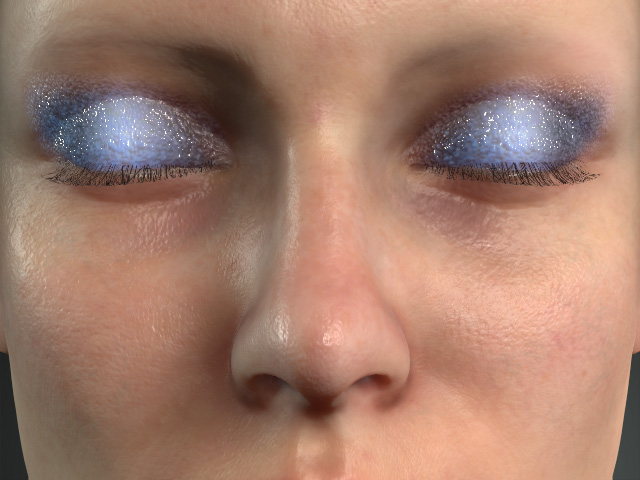
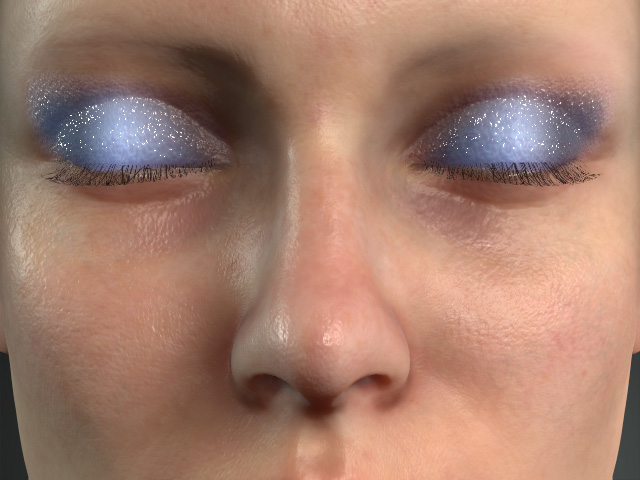
Scale = 50.00
Scale = 10.00
- Offset: The powder within the range can be relocated by the X and Y sliders.