Using Liquid Tool
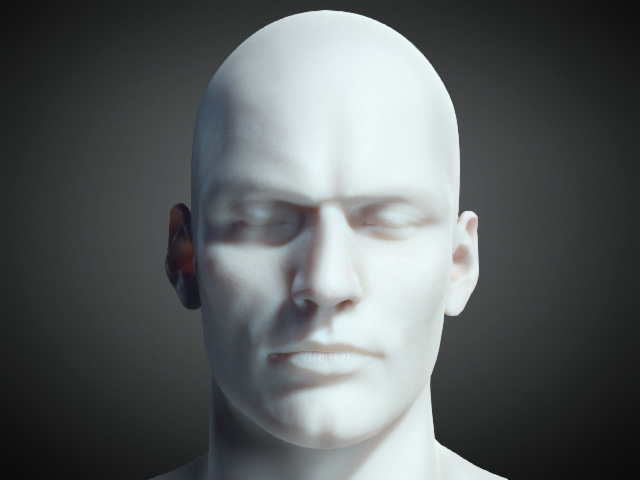
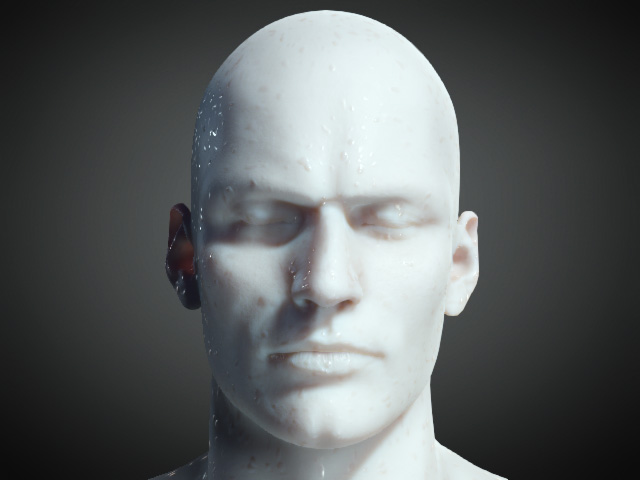
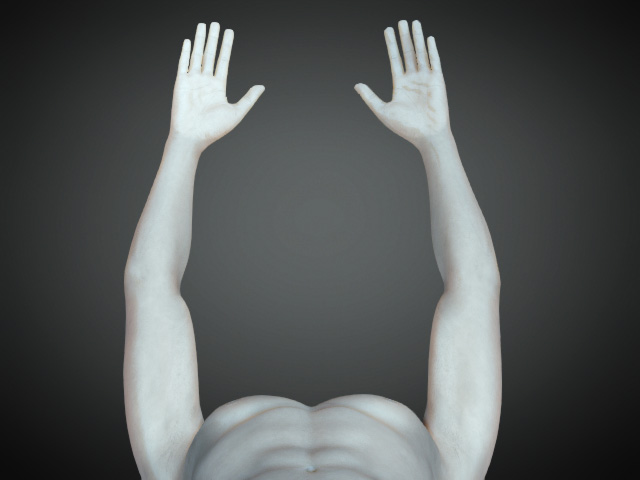
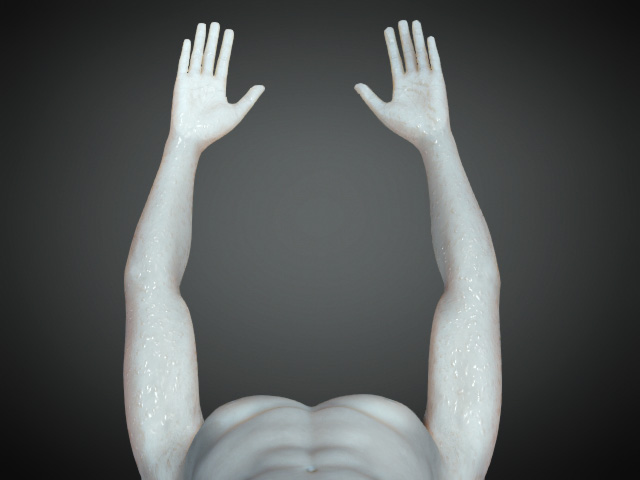
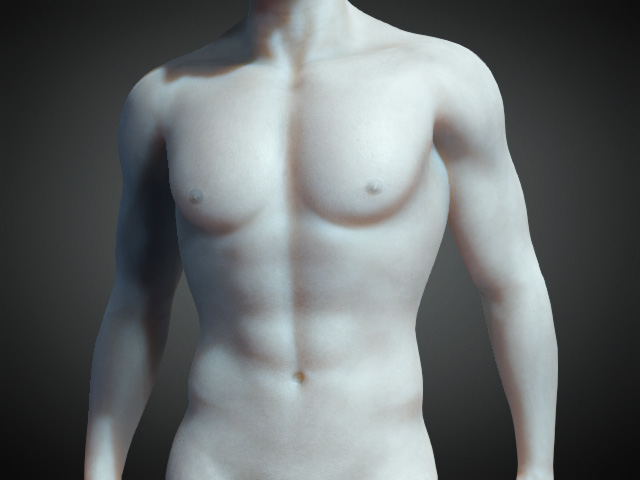
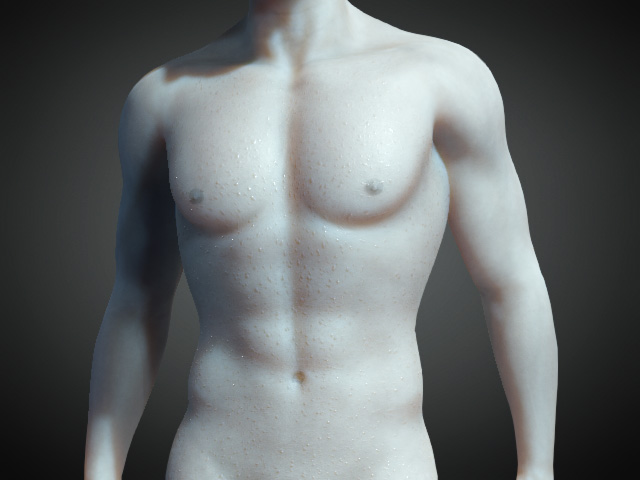
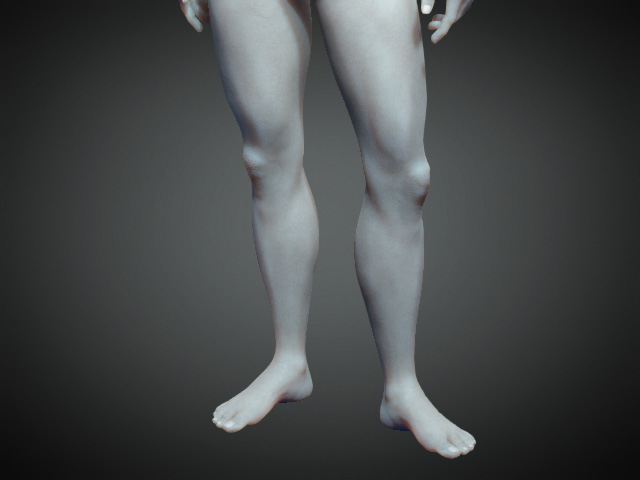
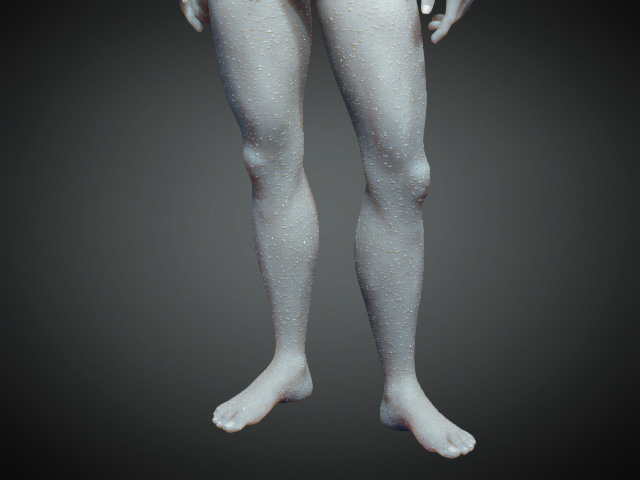
After you apply the Liquid tool, the liquid covers on the skin materials.
|
Material |
Before |
After |
|
Head |
|
|
|
Arm |
|
|
|
Body |
|
|
|
Leg |
|
|
The user interface for the Appearance Editor resembles the
following illustration: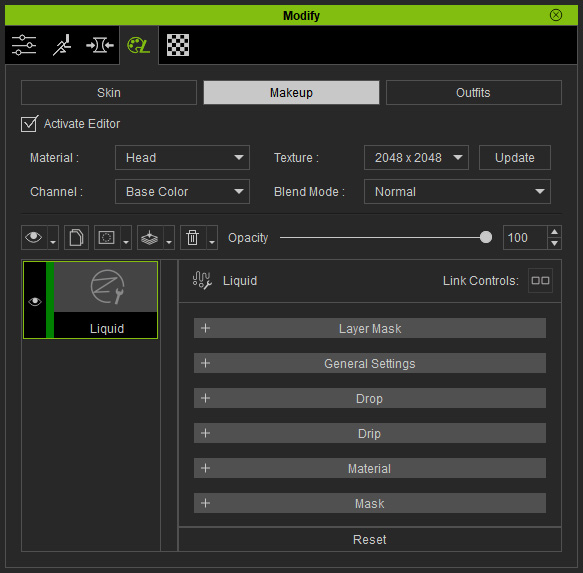
 Layer Mask
It contains the mask for the entire layer to take effect.
Refer to the Layer Mask section for more information.
General Settings
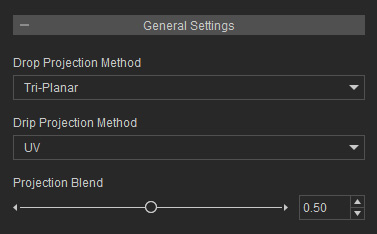
- Drop and Drip projection Method: Refer to the Morph, Resource Map and Projection Methods section for more information.
- Projection Blend:
Because the pattern texture is blended onto the skin by box projection, there will be seams between the front and sides.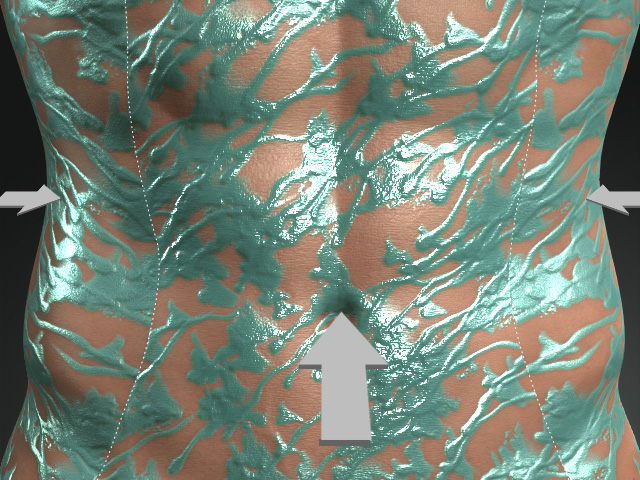
By increasing the Projection Blend value, you can blur out the seams.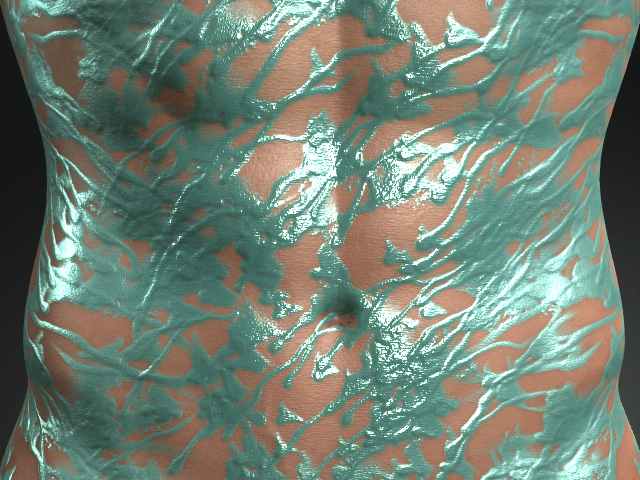
Drop
Texture Settings
This subsection contains a channel for loading a mask to define the shape of the drops.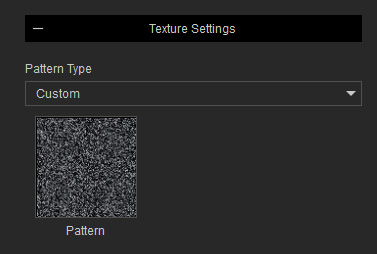
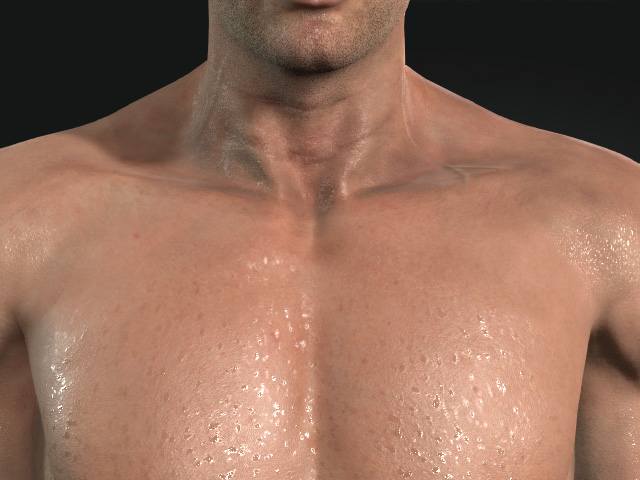
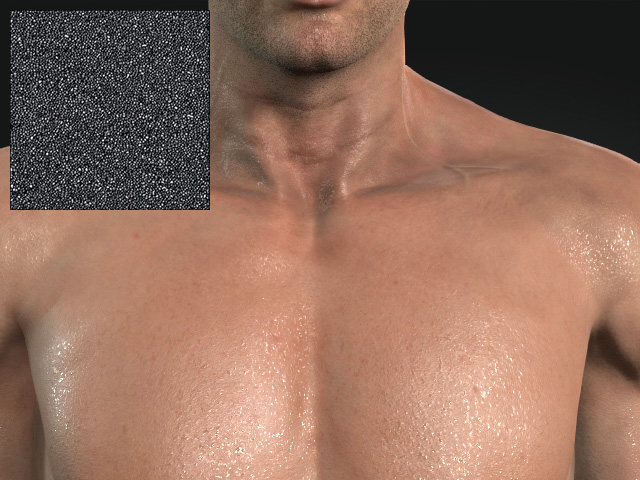
Use the Pattern Type drop-down list (Default, Custom) to define the shape of the drops by means of the Pattern texture.
|
|
|
Default drop texture |
Customdrop texture |
The textures in this section can be edited if you have purchased and installed the SkinGen Plugin.
Transform
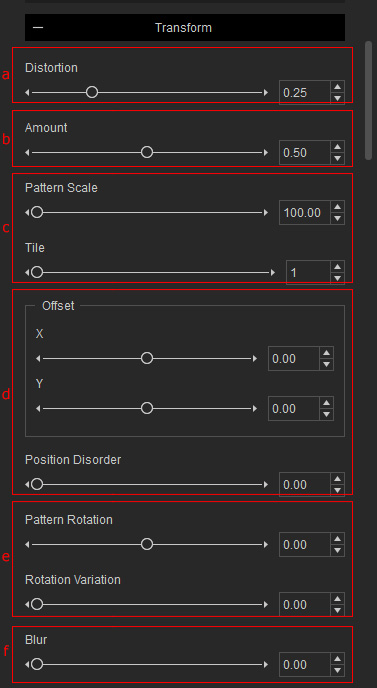
- Distortion (for Default texture only): This setting distorts the shape of each drop.
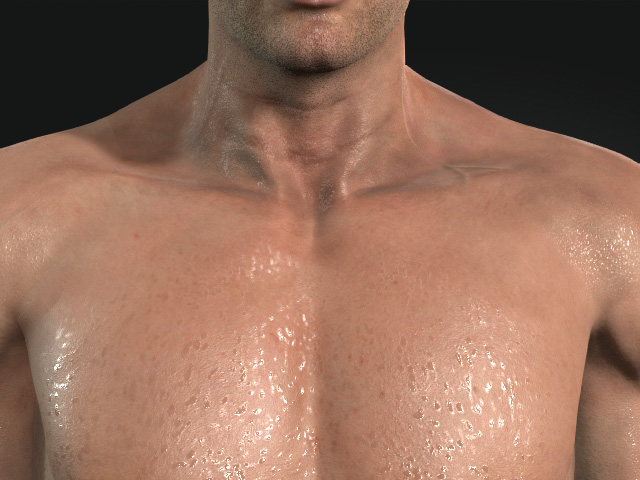
Distortion = 0.25
Distortion = 1.00
- Amount: Use this setting to determine the wet region caused by the number of the drops in same size.
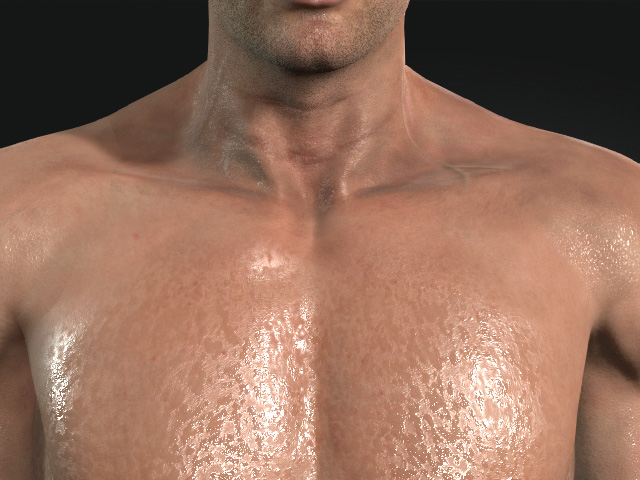
Amount = 0.37
Amount = 0.50
- Pattern Scale and Tile: The Pattern Scale determines the size for the drops while the Tile set the repeating times for adding drops which also influences the size of the drops.
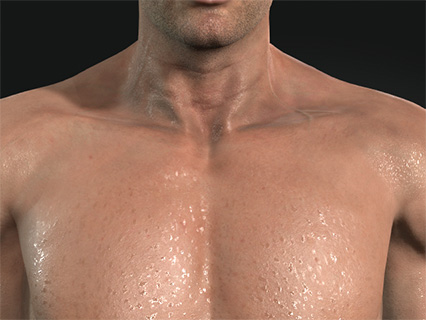
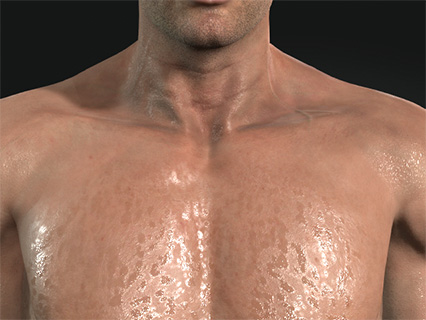
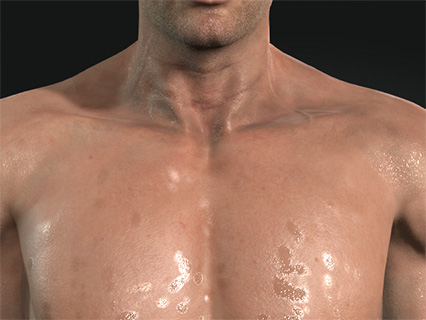
Pattern Scale = 250.00
Tile = 3
Pattern Scale = 500.00
Tile = 1
- Offset and Position Disorder: You can use the X, Y values to locate each drop and randomly move them with the Position Disorder value.
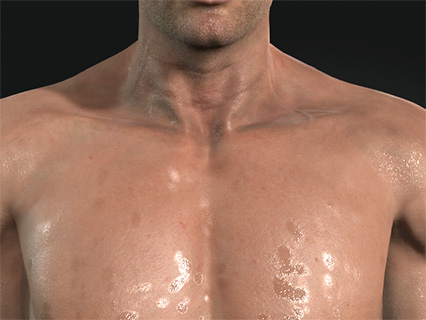
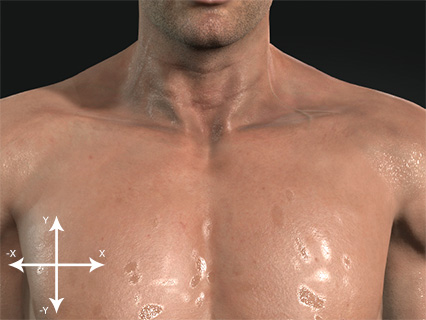
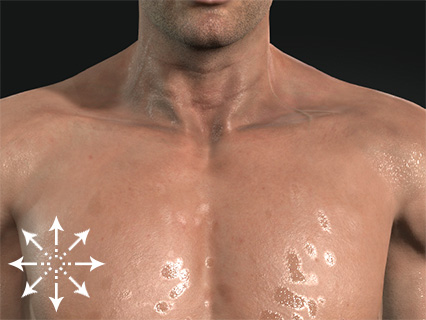
X, Y = 0.00, 0.00
Position Disorder = 0.00
X, Y = 4.00, 0.00
Position Disorder = 1.00
- Orientation: The Pattern Rotation rotates the acne patches in the same direction, clockwise or counterclockwise, while the Rotation Variation rotates the individual patches in random direction.
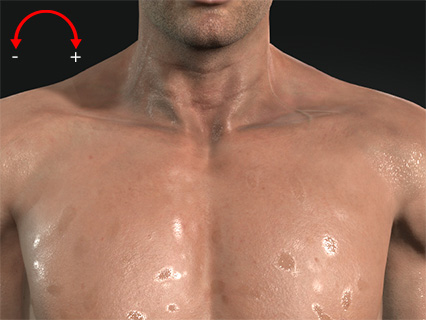
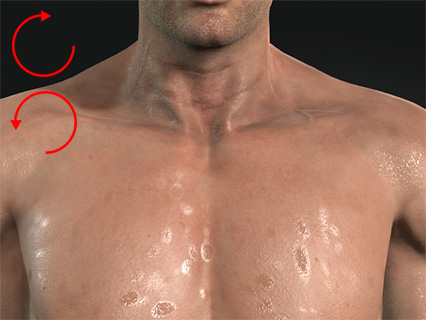
Pattern Rotation = 0.00
Rotation Variation = 0.00
Pattern Rotation = 0.15
Rotation Variation = 0.50
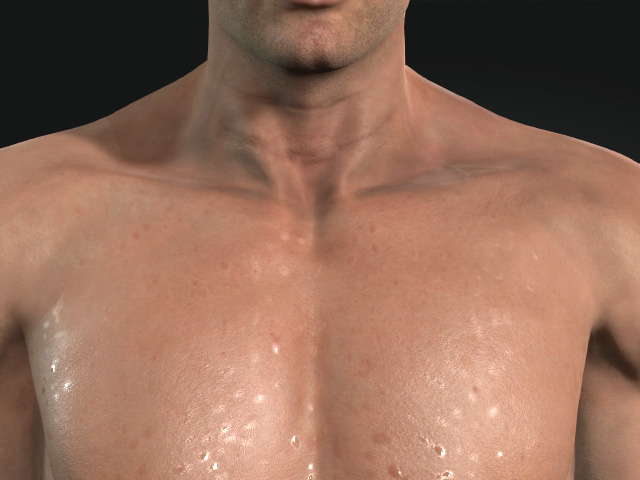
- Blur: This setting blurs each drop for creating drying water stains on the skin.
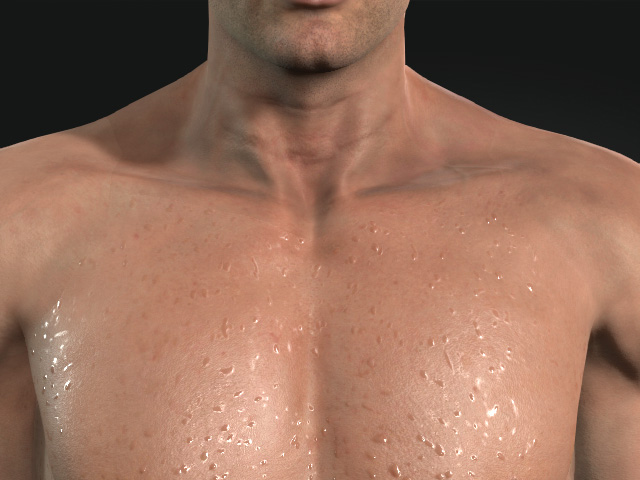
Blur = 0.00
Blur = 1.50
Drip
The Drip subsections contains almost identical settings as in the Drop subsection. Refer to the previous section for more information.
Different Settings from Drop Section
Texture Settings
This subsection contains a channel for loading a mask to define the shape of the drips.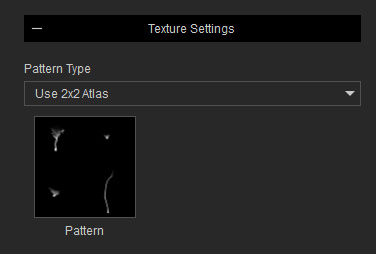
Use the Pattern Type drop-down list (Default, Use 2x2 Atlas) to define the shape of the drips by means of the Pattern texture. System randomly extracts one of the four elements in the texture to tile on the skin.
|
|
|
Default drip texture |
Customdrip texture |
The textures in this section can be edited if you have purchased and installed the SkinGen Plugin.
Transform
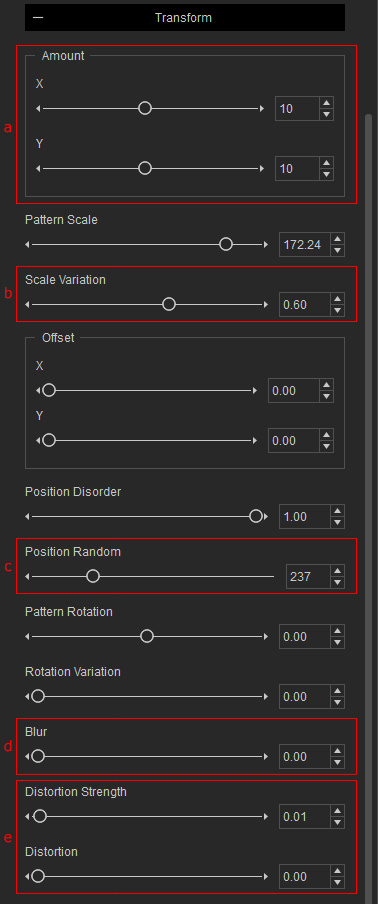
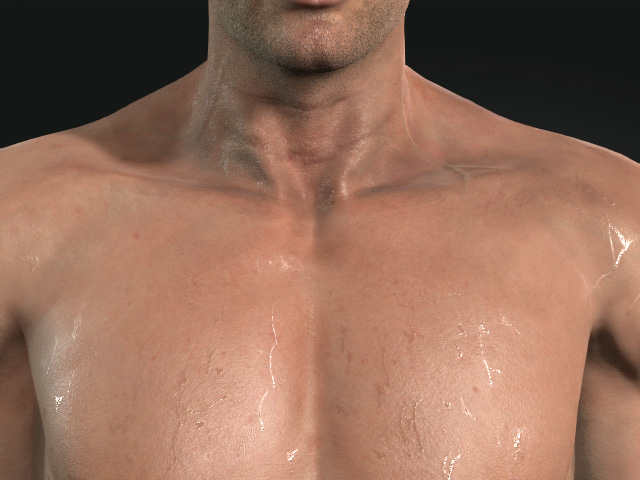
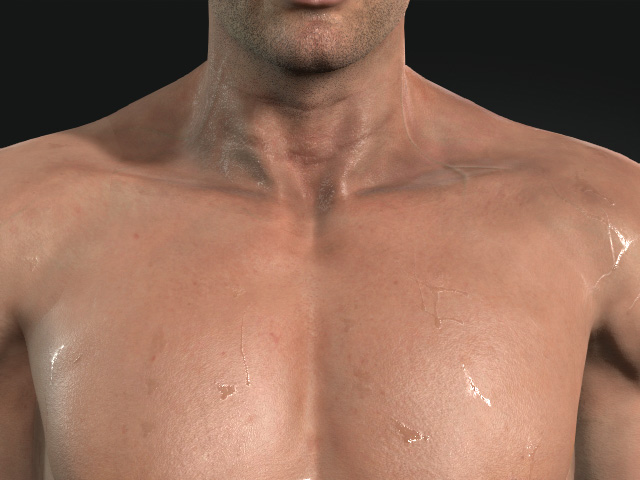
- Amount: Use this setting to determine the amount on the X or Y axis.
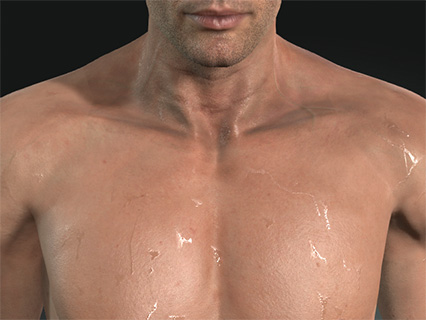
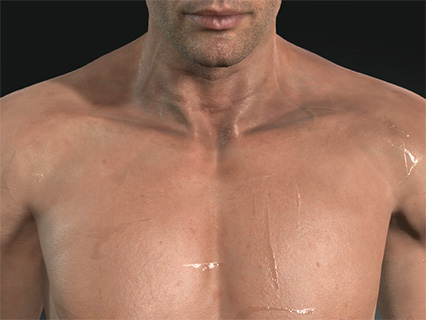
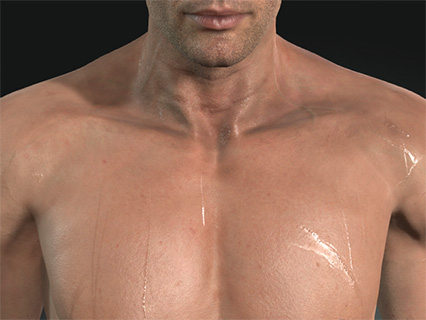
X, Y = 10, 10
X, Y = 2, 10
X, Y = 10, 1
- Scale Variation: This setting differs each drip's size.
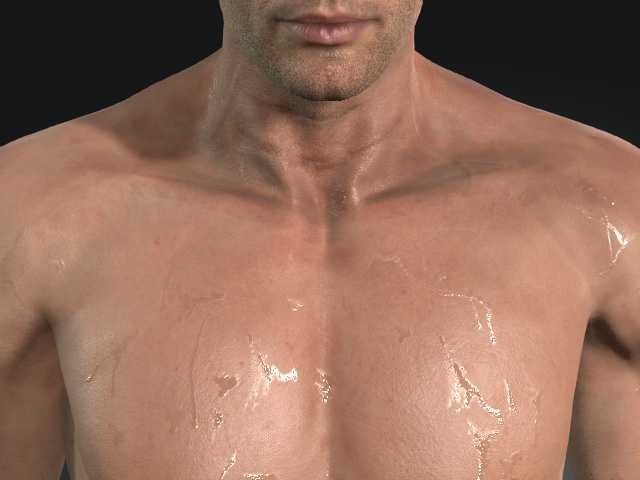
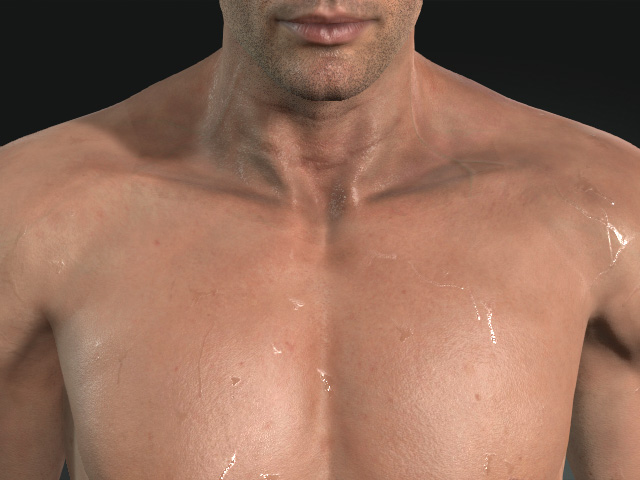
Scale Variation = 0.00
Drips of the original size are defined by the mask texture.
Scale Variation = 1.00
Drips' sizes are individually altered.
- Position Random: This setting randomly relocates each drip.
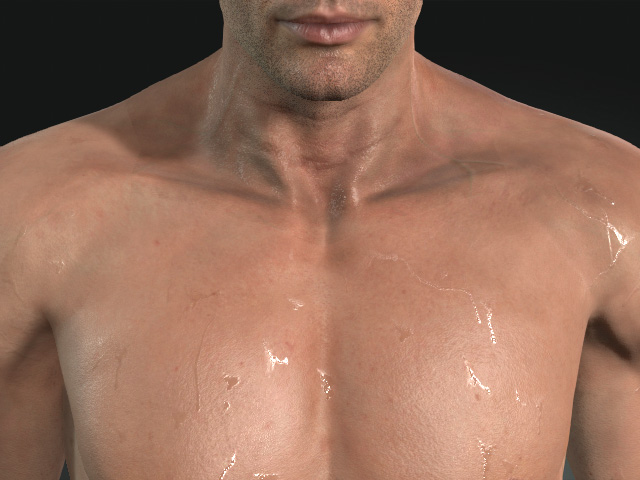
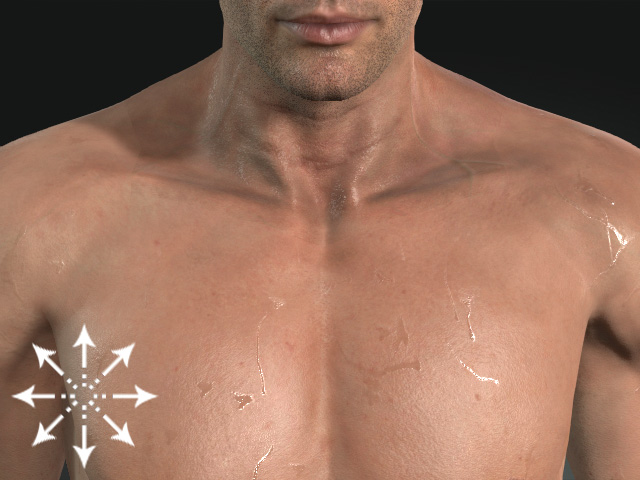
Position Random = 0
Position Random = 999
- Blur: This setting blurs each drip for creating drying water stains on the skin.
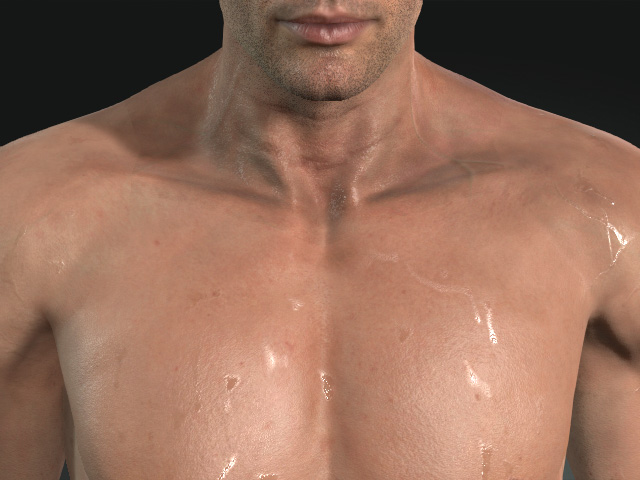
Blur = 0.00
Blur = 1.00
- Distortion Strength and Distortion: The Distortion Strength determine the maximum effect for distortion, while the Distortion value distorts each drip. The Distortion can be enabled when the Distortion Strength is not 0.00.
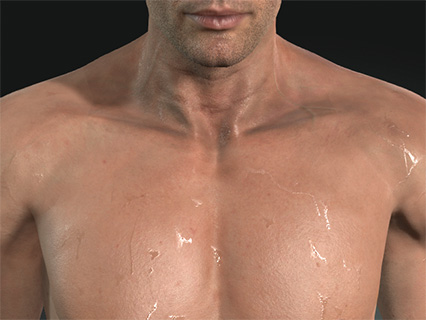
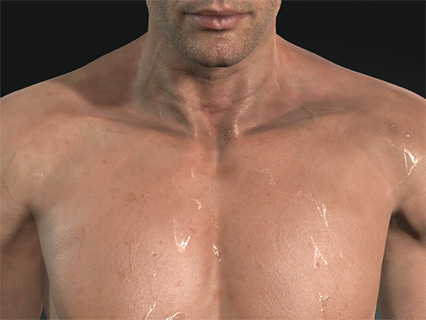
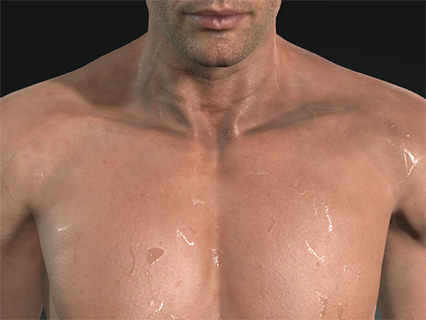
Distortion Strength = 0.01
Distortion = 0.00
Distortion Strength = 0.15
Distortion = 0.50
Mask
For the entire acne effect, you can still use one more mask to cutoff the final result with the settings in the Mask section.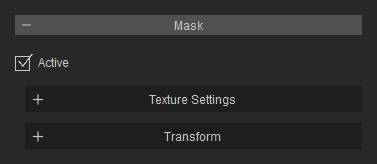
- Texture Settings:
This texture is used to cut off the unnecessary part of the entire drop and drip effects on the entire skin.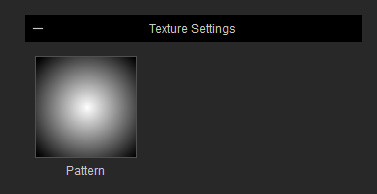
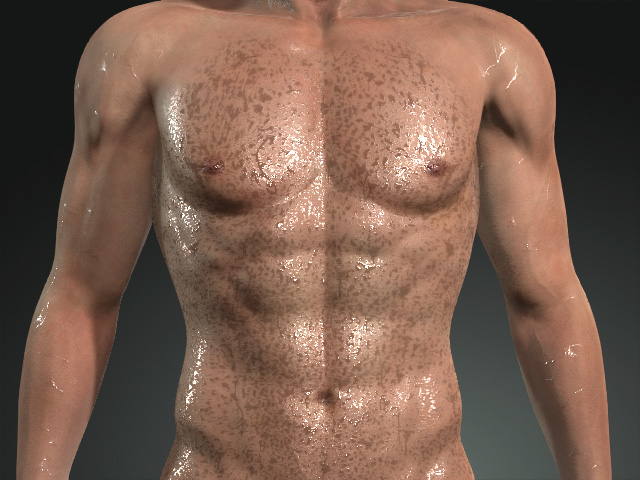
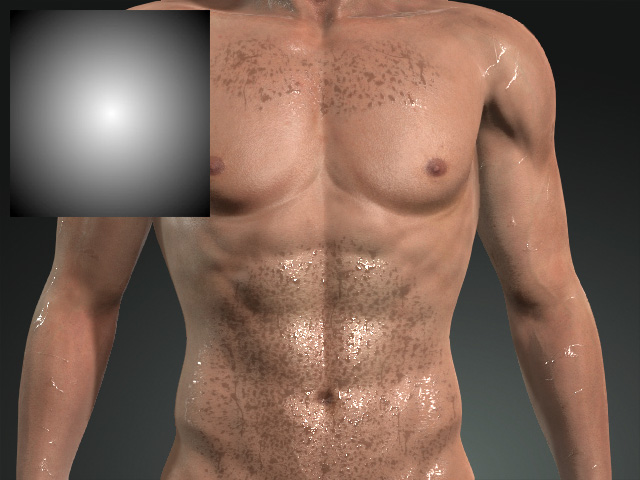
Mask Pattern = No Texture
Mask Pattern = Custom Texture
- Transform:
You can use the transform settings to adjust the size, position and the orientation of the mask.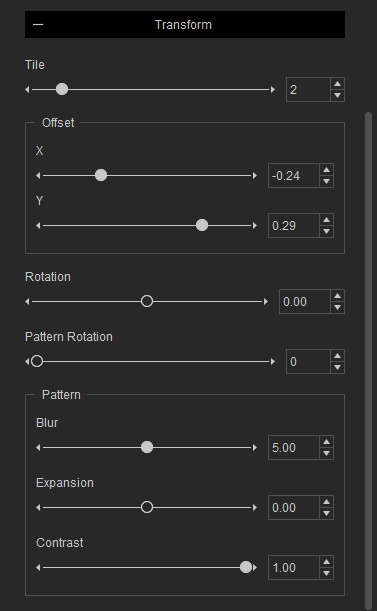
- Tile: This setting can be used to determine the repeating time of the mask.
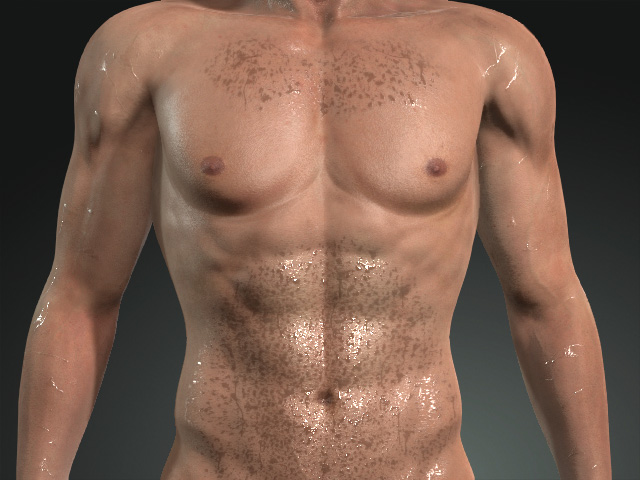
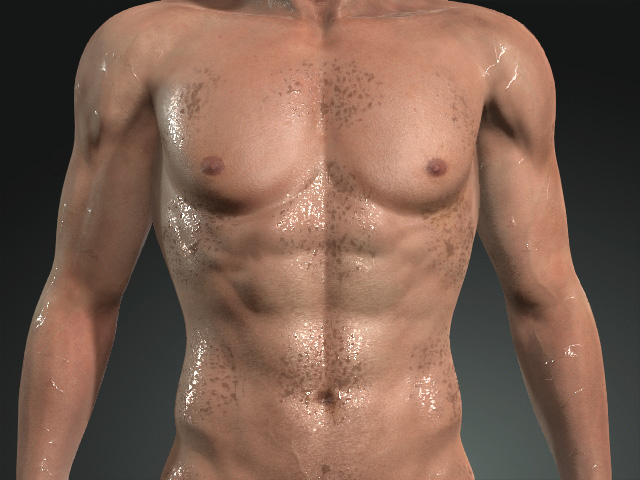
Tile = 2
Tile = 6
- Offset: You can re-locate the mask with the X, Y values.
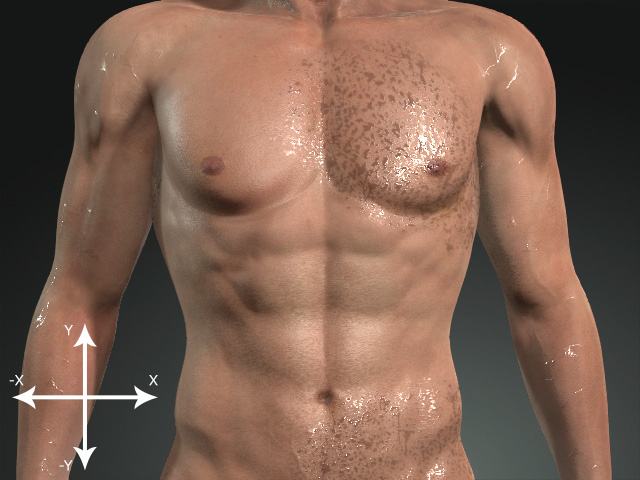
X, Y = -0.24, 0.29
X, Y = 0.50, 0.00
- Rotation and Pattern Rotation: These settings can be used to rotate the mask.
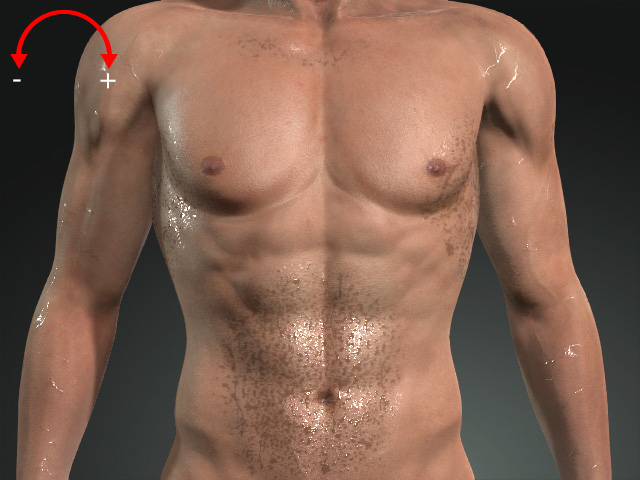
Rotation = 0.00
Pattern Rotation = 0
Rotation = 0.13
Pattern Rotation = 0
- Pattern Settings: In this group, the settings are used to adjust the blurriness, expansion and contrast.Blur
This setting can be used to blur the entire range mask texture.
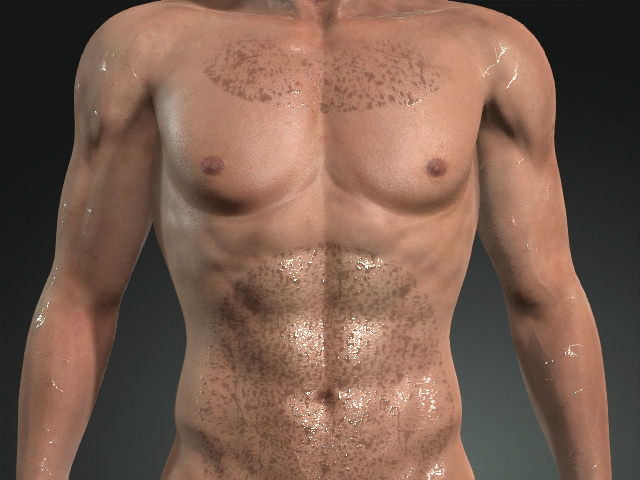
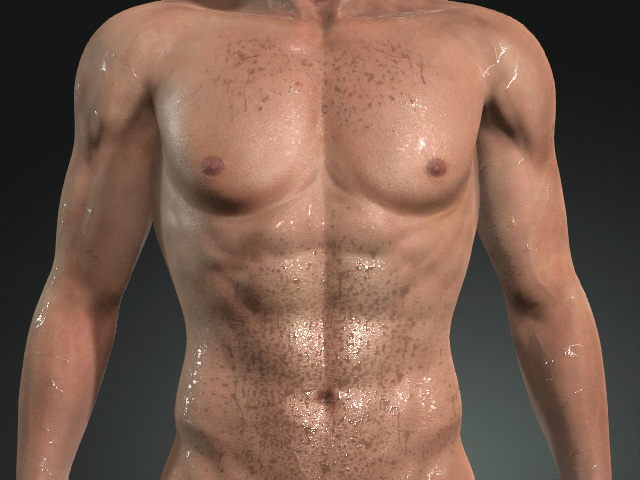
Blur = 0.00
Blur = 20.00
ExpansionThis settings can be used to expand the unmasked area.
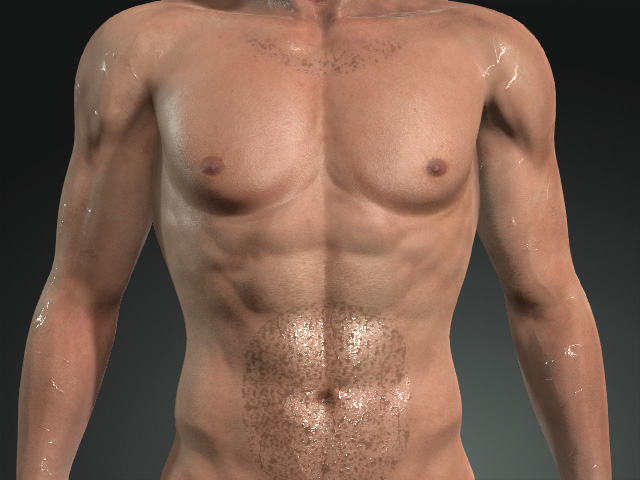
Expansion = 0.00
Expansion = -0.40
ContrastYou can sharpen or blur the edges of the mask with this setting.
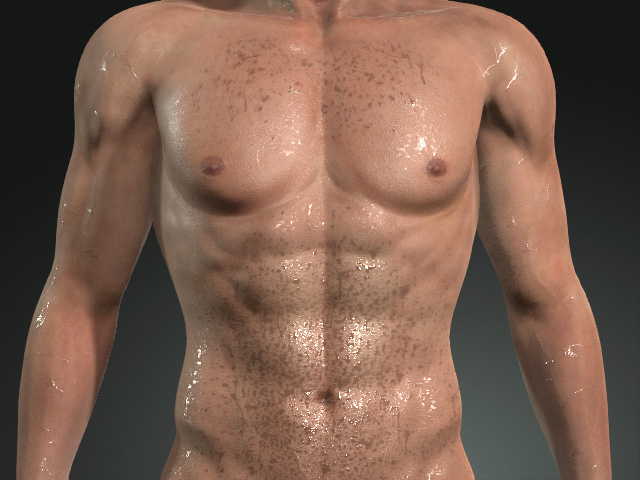
Contrast = 1.00
Contrast = 0.50
- Tile: This setting can be used to determine the repeating time of the mask.
Material
You can use the settings in this section to change the color, transparency, thickness, reflectivity, glowing, and micro normal of the liquid.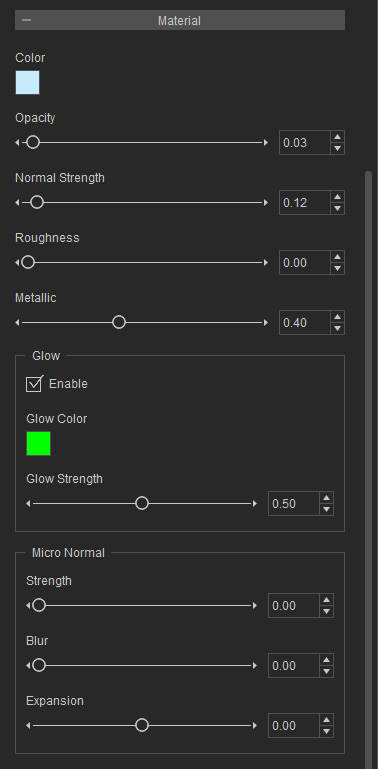
- Color and Opacity: Change the color and opacity of the liquid.
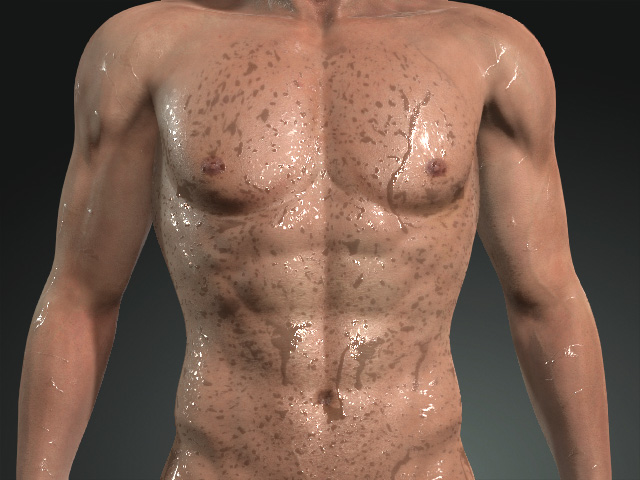
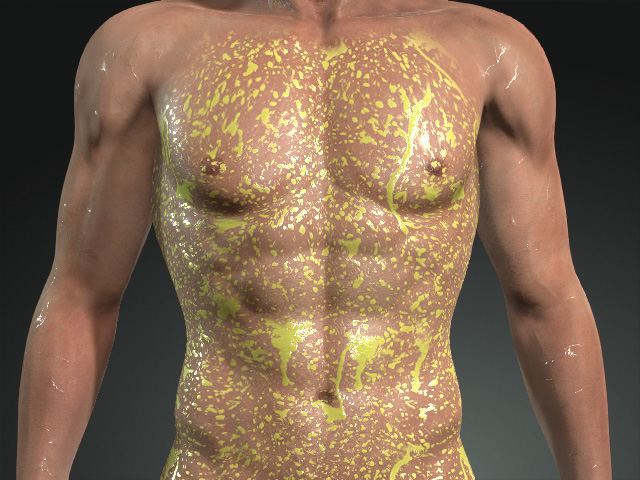
Color = #C7EBFD (light blue)
Opacity = 0.03
Color = #FFFF7F (light yellow)
Opacity = 1.00
- Normal Strength: You can use this setting to change the surface tension (stickiness) of the liquid.
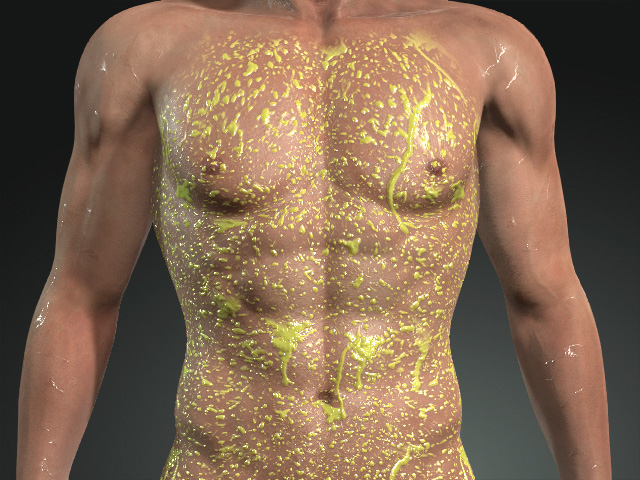
Normal Strength = 0.12
Normal Strength = 0.50
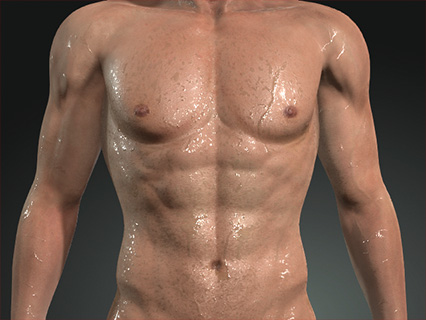
- Roughness and Metallic: Determine the reflectivity of the liquid.
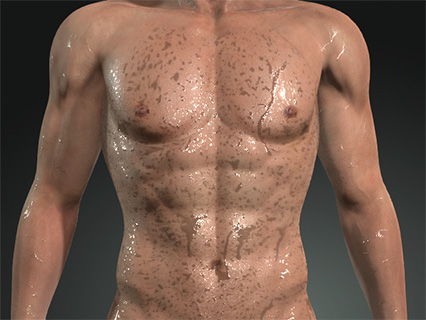
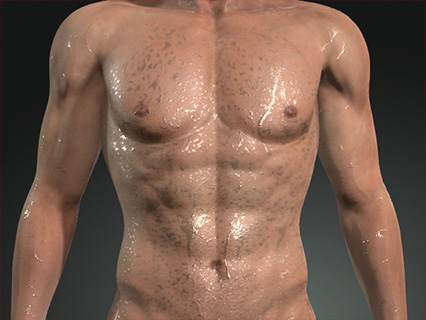
Roughness = 0.00
Metallic = 0.40
Roughness = 0.20
Metallic = 0.00
- Glow: This setting can be used to create florescent liquid.
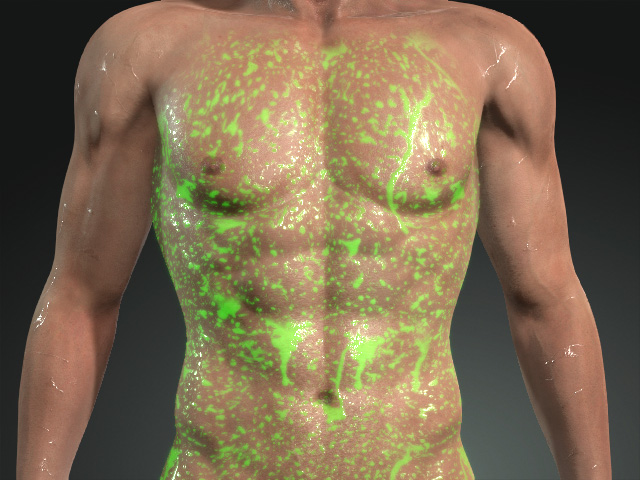
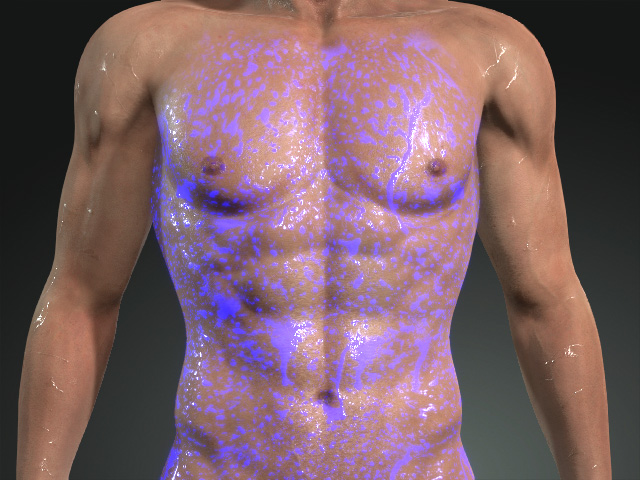
Glow Color = #00FF00 (Green)
Glow Strength = 0.50
Glow Color = #0000FF (Blue)
Glow Strength = 1.00
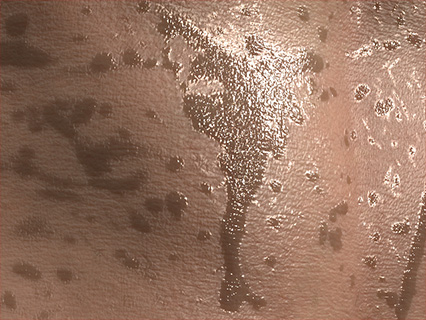
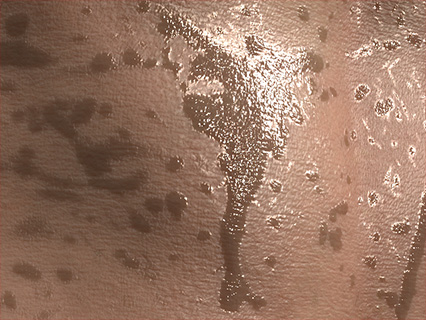
- Micro Normal
Strength and Blur
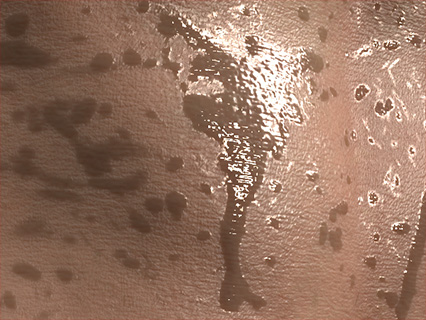
Strength = 0.00
Blur = 0.00
Strength = 1.00
Blur = 0.00
Strength = 0.50
Blur = 10.00
Expansion
This setting can be used to expand or shrink the mask for showing the micro normal effect.
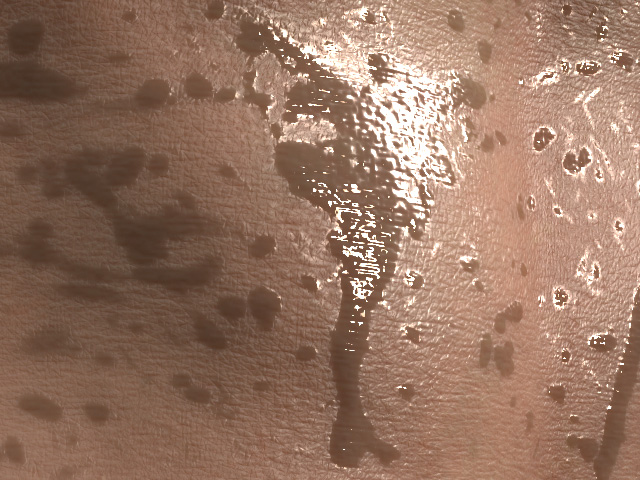
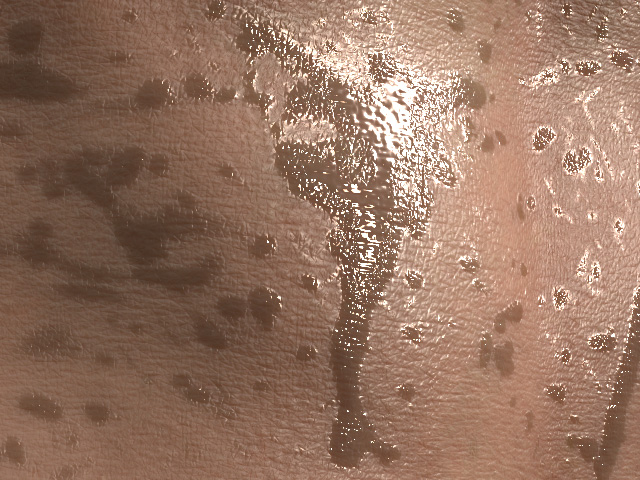
Expansion = 0.00
ExpansionMicro Normal = -0.10
