Generating Multiple Target Views
The settings in the Multi-View sections allow you to generate Target Views from three angles: Left, Right, and Back, based on the Target Front View generated earlier. Then the multiple target views will be used to generate 3D meshes.
Generating the Target Front View
The Front View must be generated first. AI uses the provided Reference Image and/orPrompt Text to generate the front-view design of the object.
 Note:
Note:
The Front View has the greatest influence on the generated 3D mesh. Make sure it accurately represents the desired design before generating the other views.
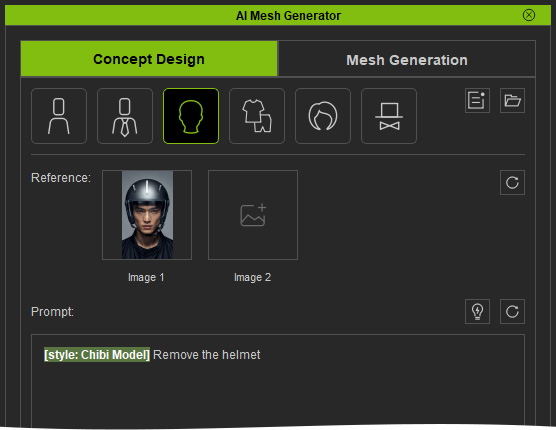
- Provide a Reference Image and/or enter Prompt Text describing the object.
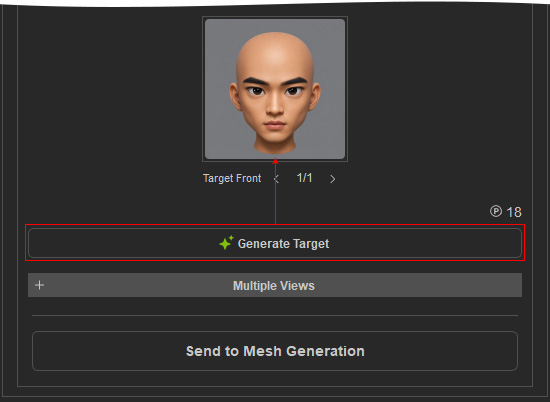
- Click Generate Target to generate a Target Front view.
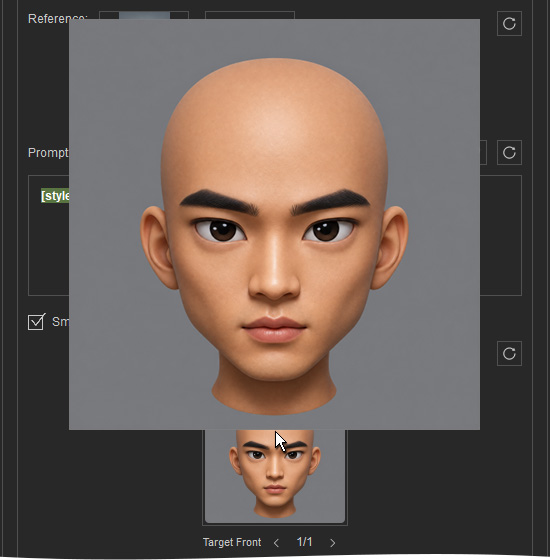
- Hover over the Target Front slot to preview the generated image.
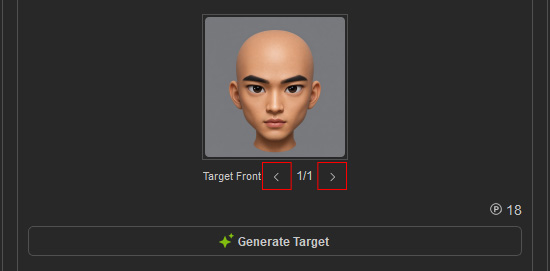
- Use the left and right arrows below the Target Front slot to browse through the generated images.
 Note:
Note:The number between the arrows indicates the current image and the total number of generated images. For example, 2/5 indicates that the second of five generated images is currently displayed.
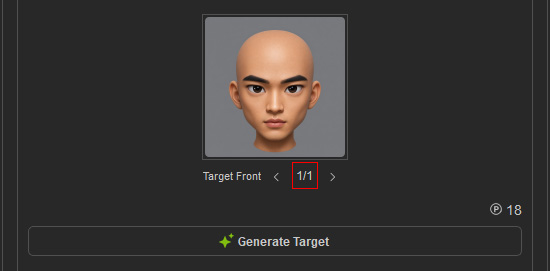
- Continue generating and reviewing images until you find a satisfactory front view.
Generating Multiple Target Views
After selecting a satisfactory Target Front image, click Generate Target Views to generate the remaining three views.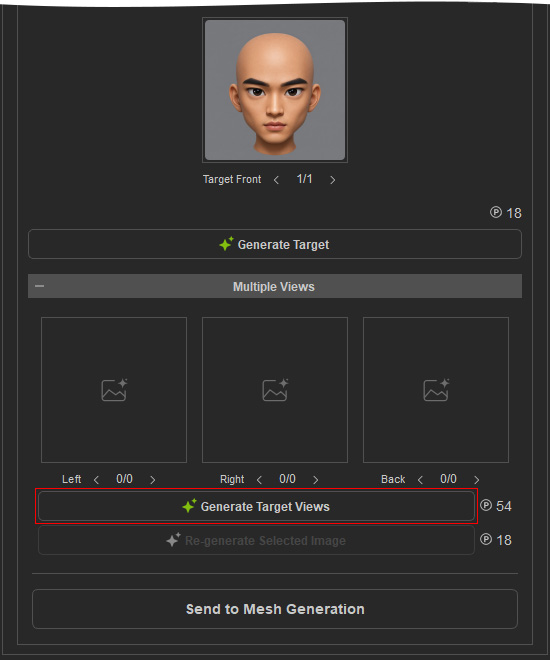
The AI uses the selected front view as the reference to generate the Left, Right, and Back Target Views. The generated images are displayed in their corresponding view slots.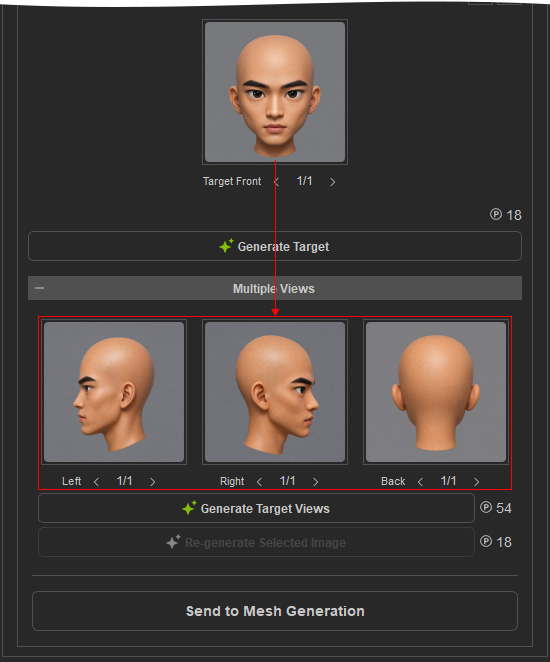
Each view slot can contain multiple generated images. Use the left and right arrows below each slot to browse through the generated images and select the desired result.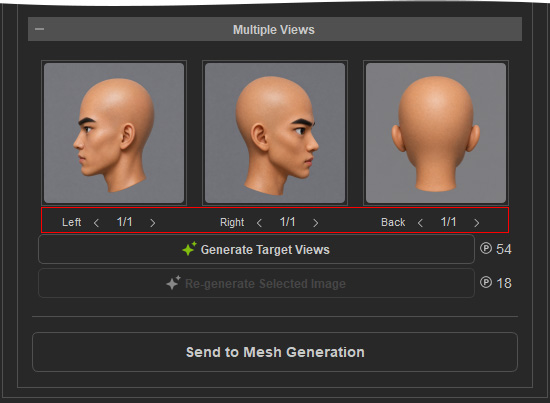
Regenerating an Individual View
If a generated view is unsatisfactory or contains incorrect details, you can regenerate that view without affecting the other views.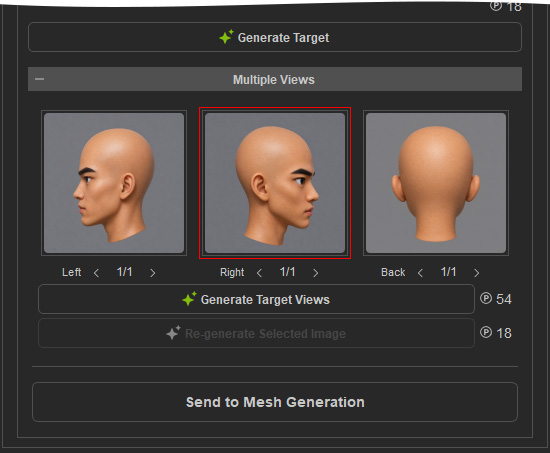
- Select the view slot containing the unsatisfactory image.
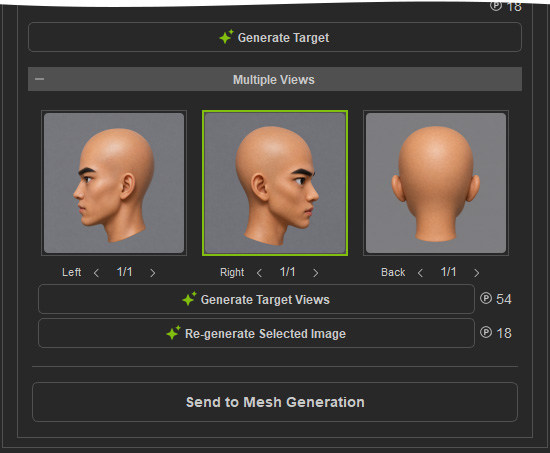
- Click Re-generate Selected Image.
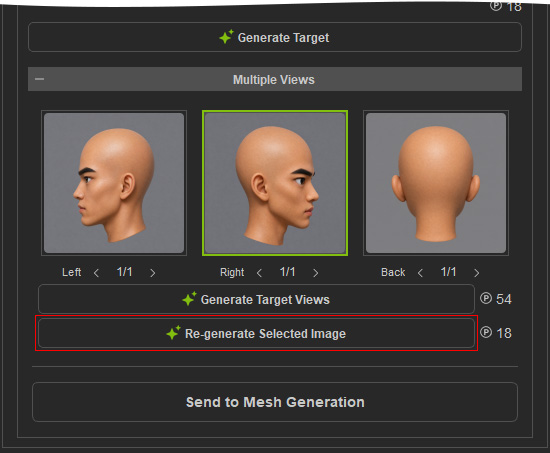
- Hover over the slot to preview the newly generated image.
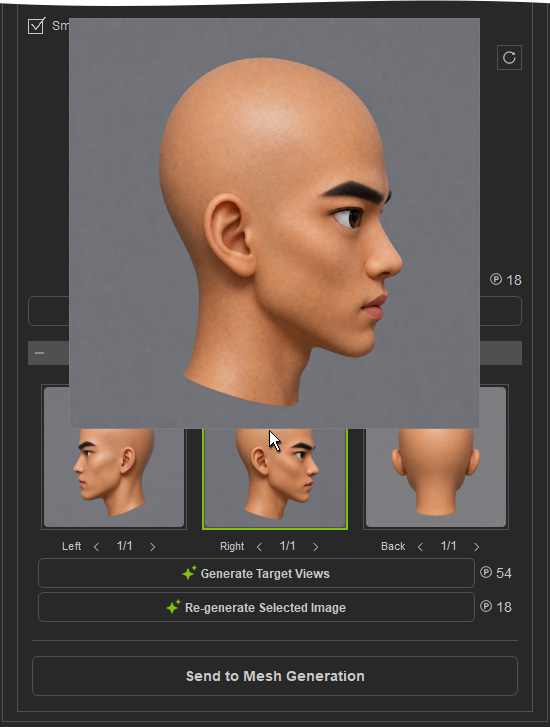
- Use the navigation arrows to review the generated images and select the desired result.
- Repeat the process as needed until the view meets your requirements.
This allows you to refine individual views while keeping satisfactory images in the other view slots unchanged.
Using the Generated Views for 3D Generation
After all desired views have been generated and refined, click Use Generated Image(s) as Final Preview to send the selected views to the 3D generation workflow.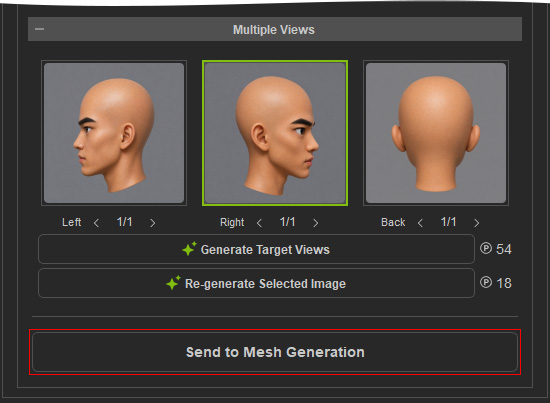
The Front View serves as the primary reference, while the Left, Right, and Back views provide additional information to help the AI construct the object's geometry and appearance consistently from different angles.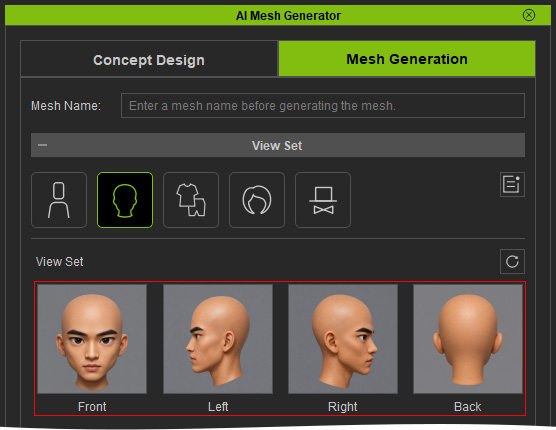
Warning
A generated image must be available in the Front slot before Use Generated Image(s) as Final Preview can be activated. The Left, Right, and Back slots do not need to contain images. However, providing additional views is recommended because they provide supplementary information that can help improve the accuracy of the generated 3D mesh.
