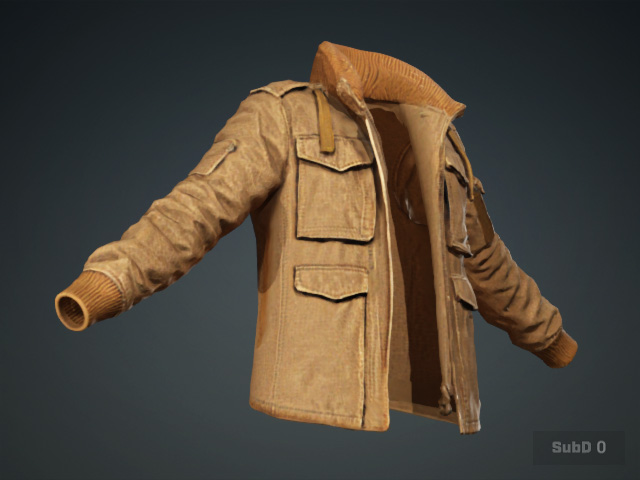
Opening AI-Generated Clothing with Edit Mesh
AI Mesh Generator generates closed mesh models. Use Edit Mesh to remove unwanted faces from clothing openings, creating more realistic garments while reducing unnecessary polygons. Note that the same workflow applies to closed clothing areas (e.g., collars, pant legs, shoe/glove openings). Unnecessary faces may also be removed.
Example: Opening the Sleeves of a Top
- Create a cloth mesh model with AI Mesh Generator.
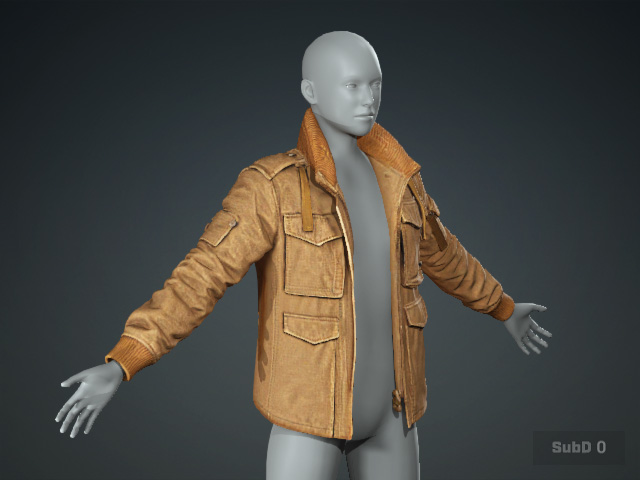
- Hide the character for better visibility of the cloth.
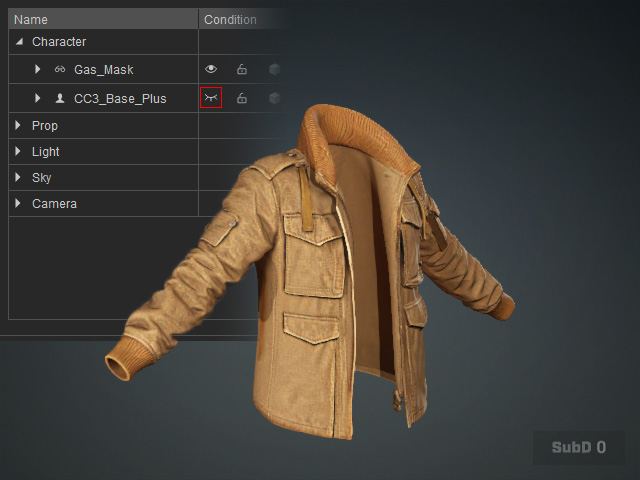
- Select the generated clothing mesh.
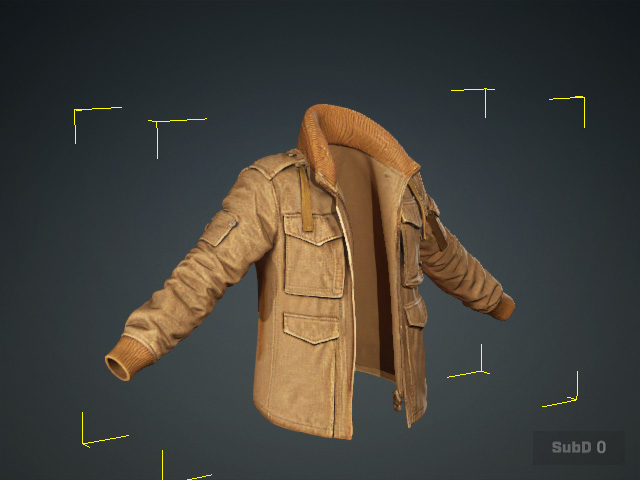
- Enter Edit Mesh mode.
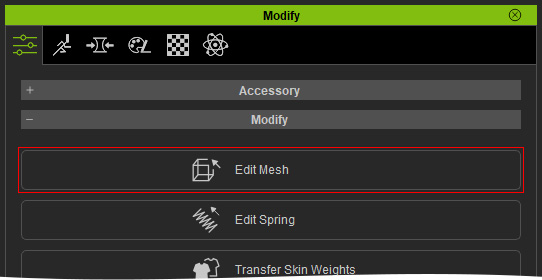
- Move the camera to focus on the clothing opening, such as one of the sleeves in this example.
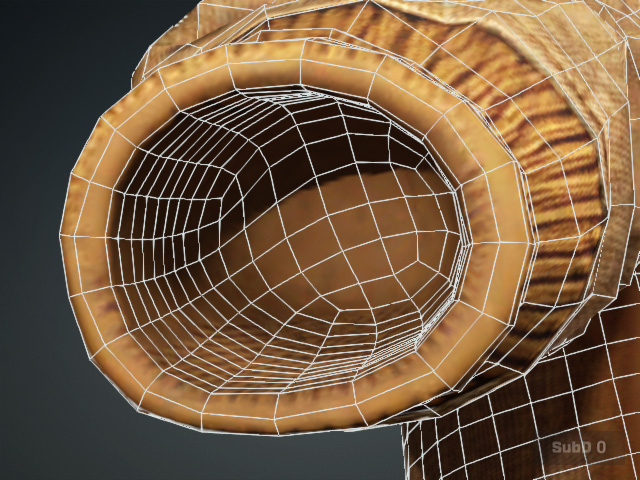
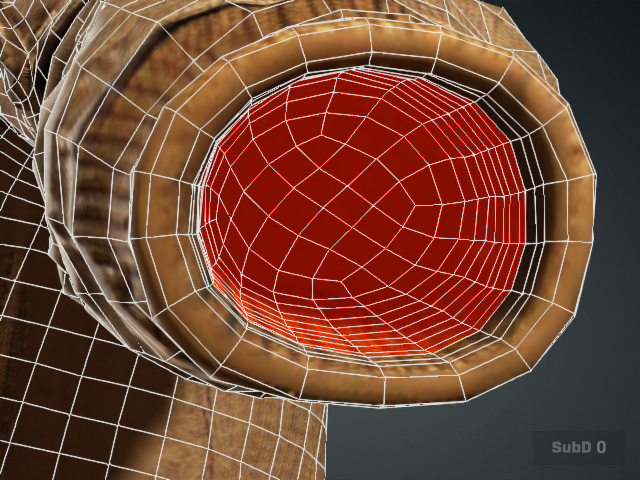
As you can see, the AI-generated mesh has closed faces inside the sleeve, forming a bag-like structure. - Use Select Face to select a loop of faces on the bag's wall.
See [Selecting Faces] for more information.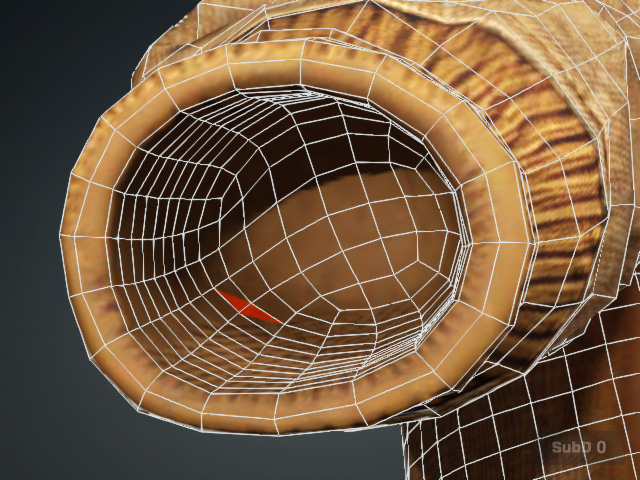
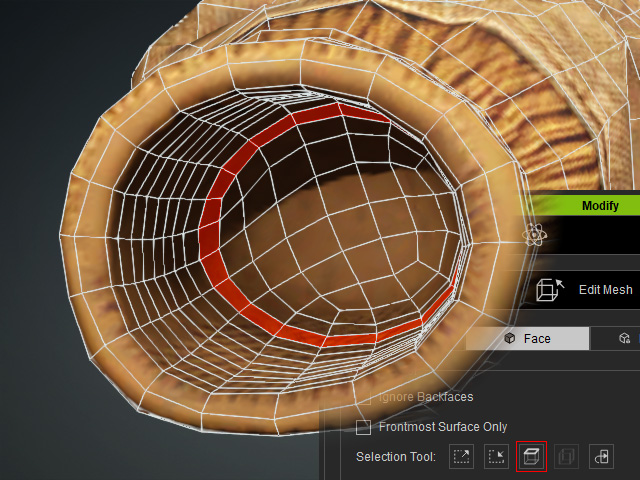
Before
After
- Expand the selection by clicking the Grow Selection button.
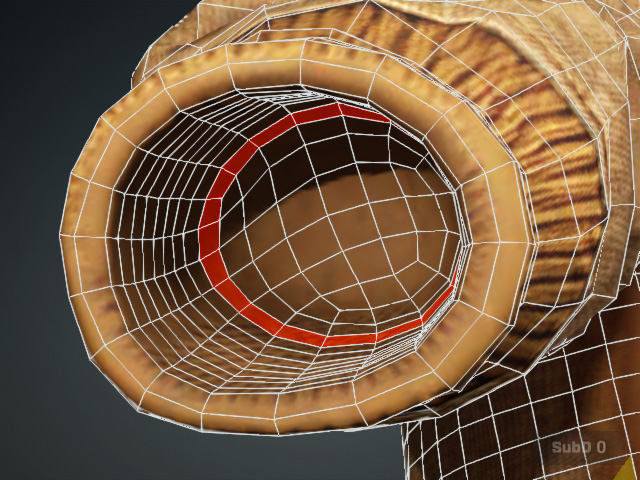
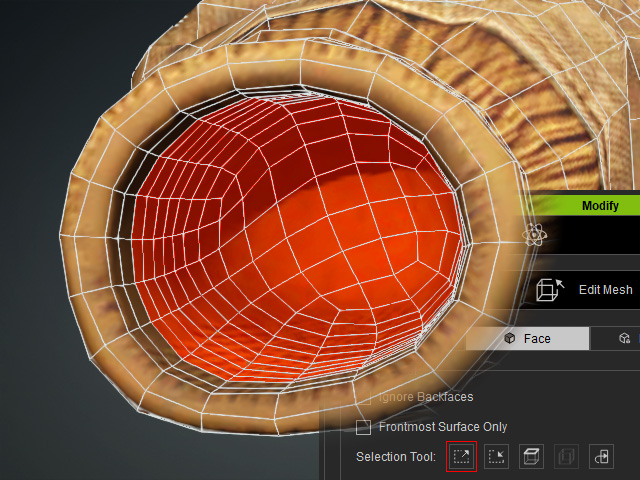
Before
After
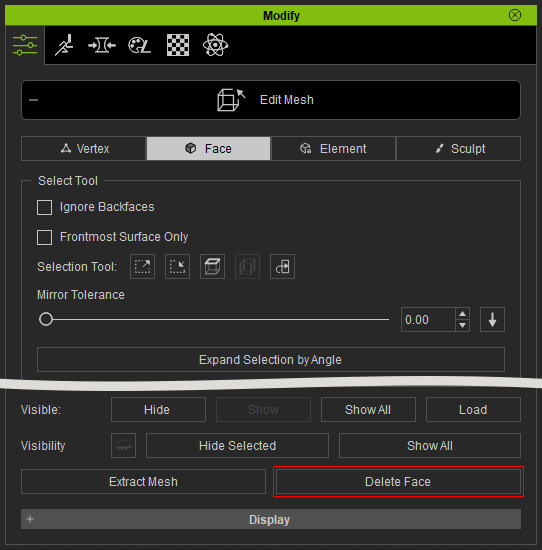
- Use Delete Face to remove the selected faces.
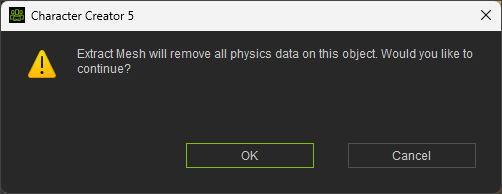
- Click the OK button to continue.
Check the sleeve openings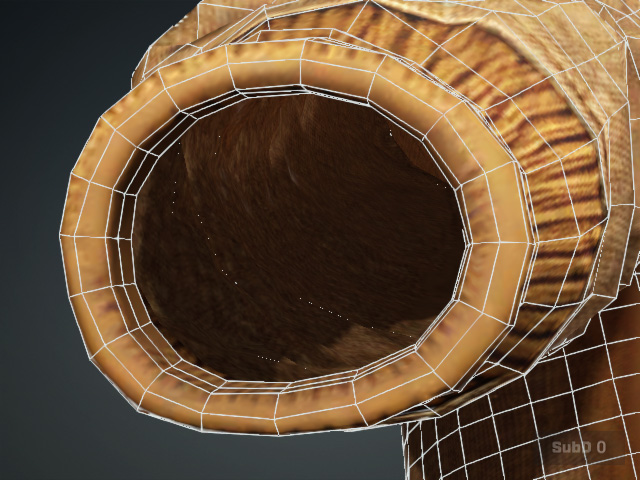
- Continue removing unnecessary faces from the inner layer or other clothing openings as needed.
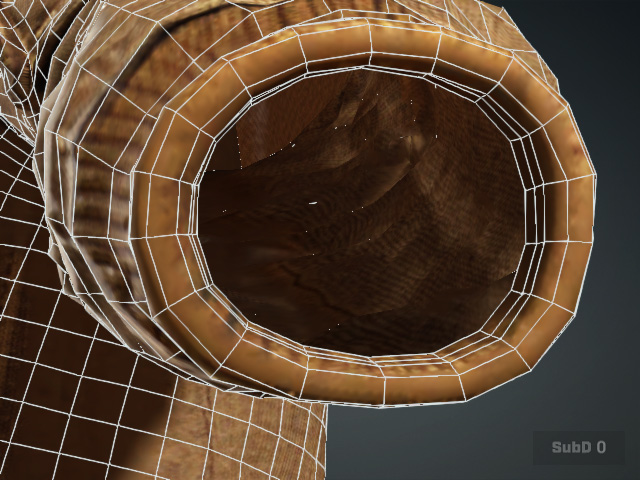
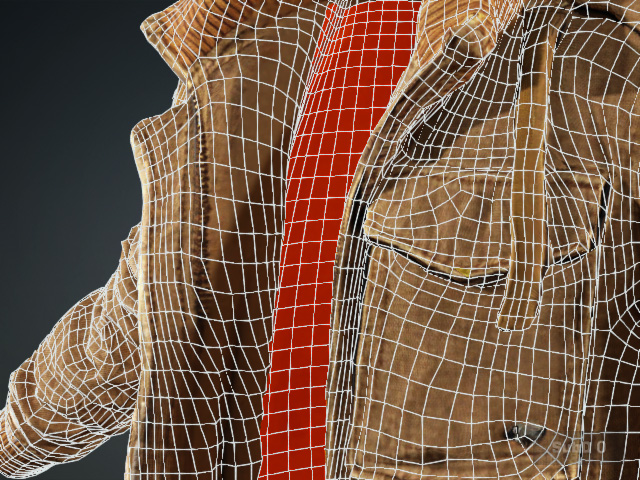
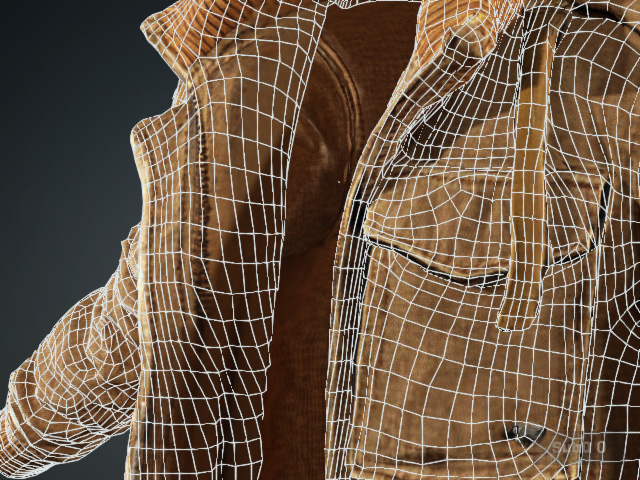
- Exit the Edit Mesh mode. The garment is now ready for Transfer Skin Weight.