Generating 3D Meshes from Single View Image
Follow these steps to quickly generate a 3D character mesh from AI-generated Single view reference image.
Step 1: Generate Character View
- Launch AI Mesh Generator panel.
- Choose the workflow for generating Concept Design view (in this example, Single View).
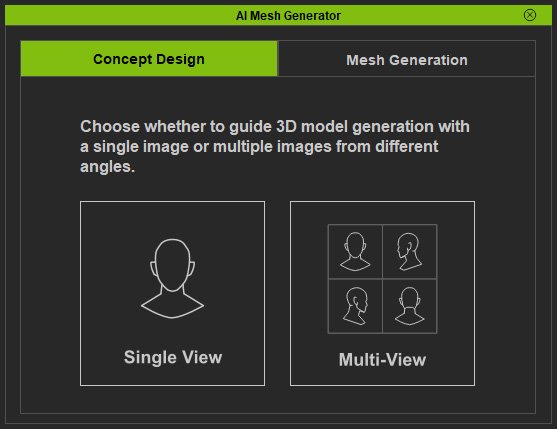
- Single View: Start the Concept Design by using only the front view image as the Mesh Generation source.
- Multi-View: Start the Concept Design by using four view images (front, right, left, back) as the Mesh Generation sources via the AI Studio.
- Set Mesh Type (for example, Full Design).
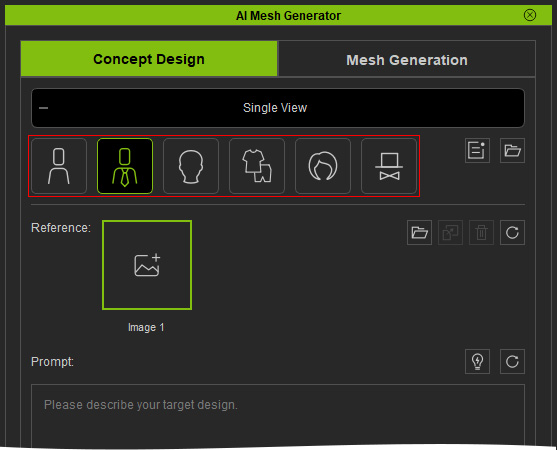
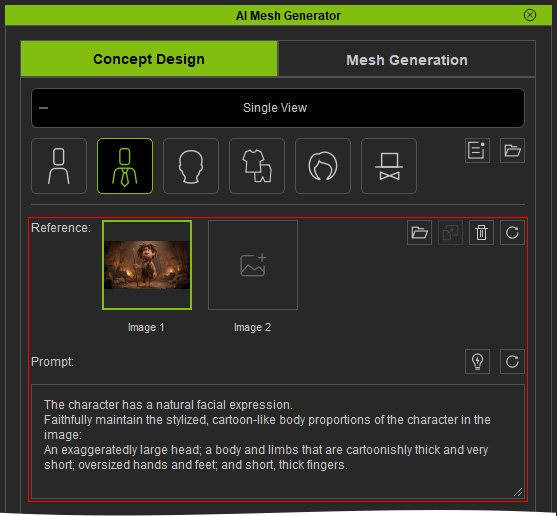
** For Clothes: Select the appropriate Part before setting up the View Set. - Provide a Reference Image and/or Prompt Text (Preset).
- Click Generate Target and select a satisfactory Target Front image (Left / Right arrow buttons).
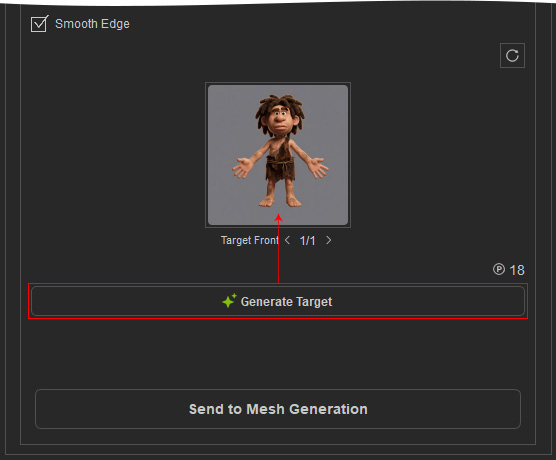
- When the view is ready, click the Send to Mesh Generation button.
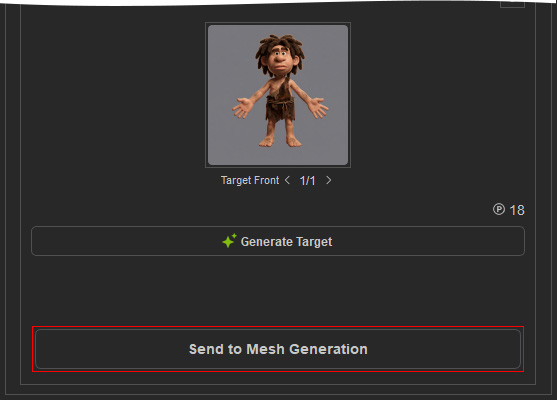
Step 2: Set Up the View Set
- Enter the name of the generated mesh in the Mesh Name field.
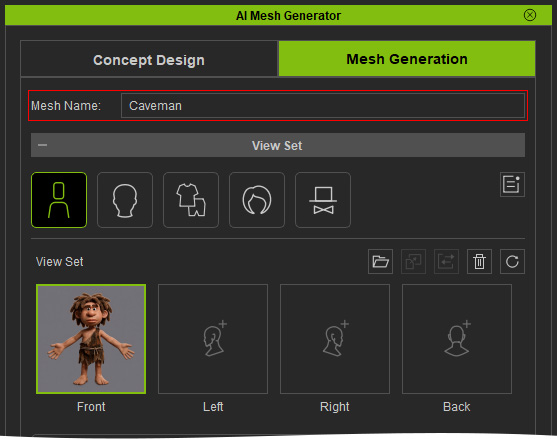
- The generated image (step 5) is transferred to the View Set > Front slot in the Mesh Generation page.
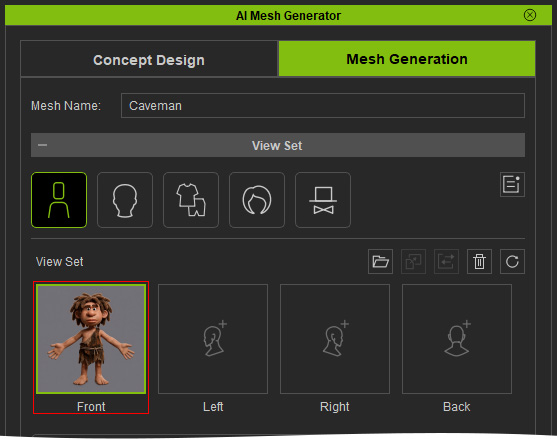
** Make sure the Front View is available. The Left, Right, and Back views are optional but can improve the accuracy of the generated mesh.
See Setting Up the View Set and Generating Multi-View Reference Images for details. - Make sure that the Mesh Type setting matches the one selected in the Concept Design tab.
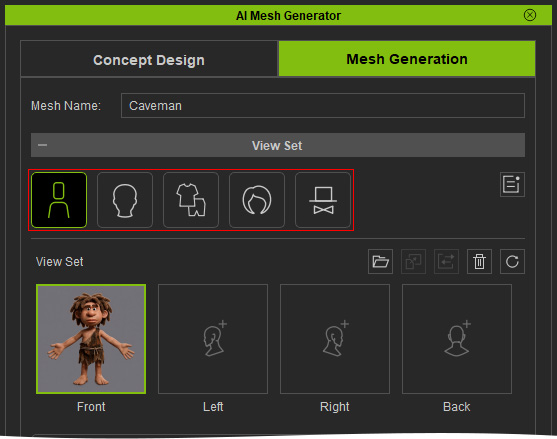
Step 3: Set the Mesh Resolution
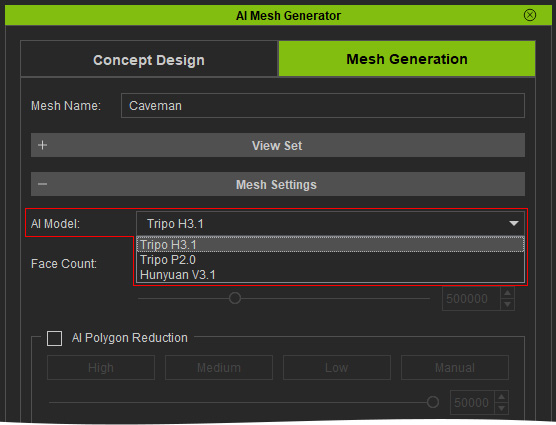
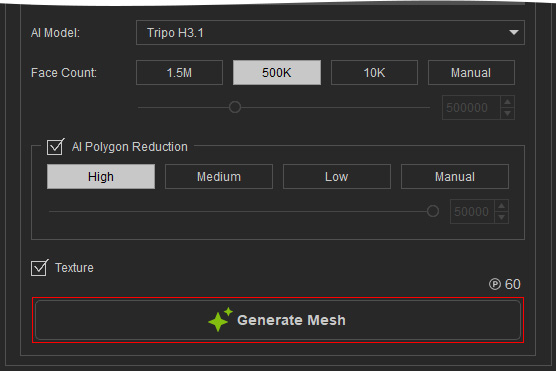
- Choose the desired AI Model.
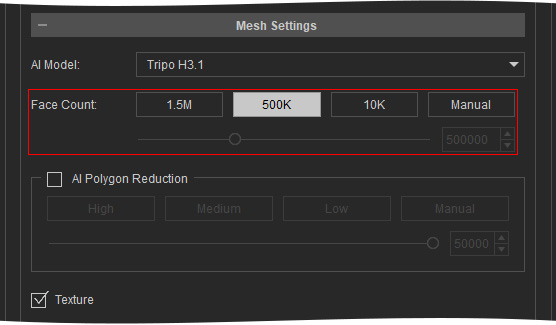
- Set the desired Face Count to control the number of triangular faces generated for the mesh.
- Enable AI Polygon Reduction if you want the generated mesh to be converted into a quad-based mesh, then select the desired setting.
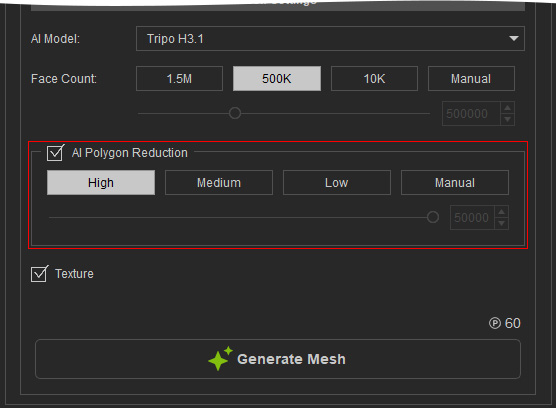
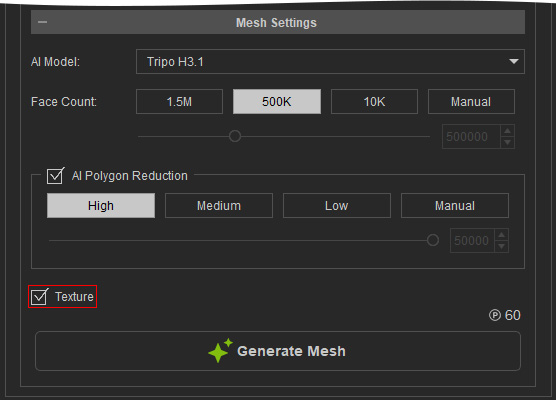
See Setting Mesh Face Count and AI Polygon Reduction for details. - Activate the Texture checkbox to bake the textures onto the generated mesh model.
Step 4: Generate the Character Mesh
- Click Generate Mesh to submit the mesh generation task.
- A new task is added to the Task Queue > Mesh Generation page, and the AI begins generating the 3D mesh.
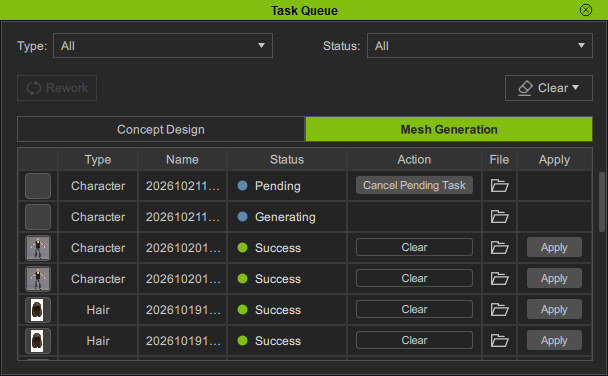
If two tasks are listed in the queue, one is a triangular mesh generated by Face Count, and the other is a quad mesh generated from that triangular mesh using AI Polygon Reduction. - When the task is complete, the Apply button becomes available. Click Apply to proceed with the post-generation actions.
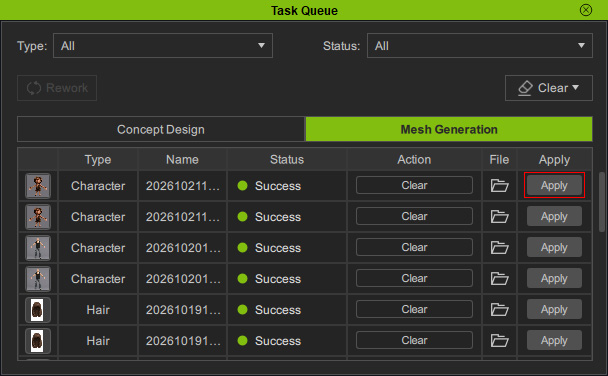
See Actions After Mesh Generation for details. - If the Rigging Options panel appears, select the desired procedure and click Apply.
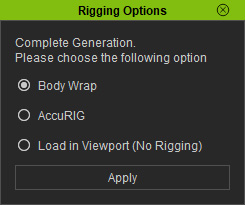
- Once completed, the AI-generated mesh can be converted into the selected mesh type.
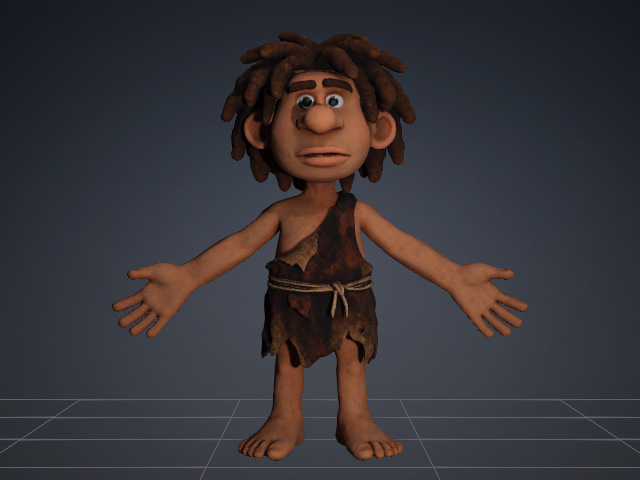
Quick Workflow
Concept Design → Single View → Generate Front View → Refine View if Needed → Send to Mesh Generation → Mesh Generation → Check View Set → Set Face Count / AI Polygon Reduction → Generate Character Mesh
