Setting Up the View Set
The View Set section provides the design references used by AI to generate a 3D mesh. Select a Mesh Type, specify the Part when generating clothes or hair, and provide images for the object's Front, Left, Right, and Back views.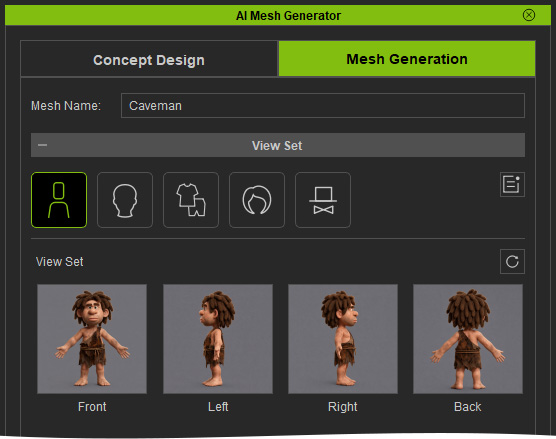
These images serve as the design blueprint for the generated 3D mesh.
Selecting the Mesh Type
Select the Mesh Type button to specify the type of 3D mesh you want to generate. The available options are Character, Head, Clothes, Hair and Prop / Accessory.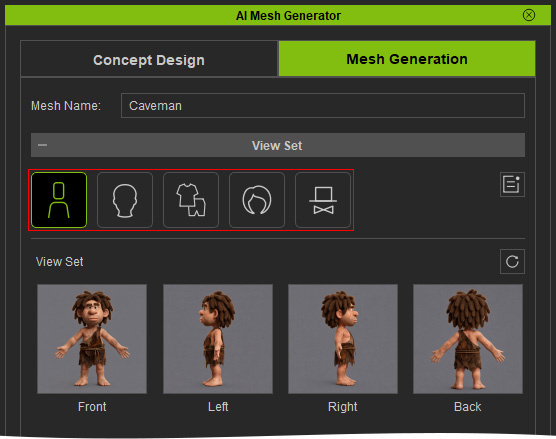
When Clothes mesh type is selected, the Part options become available. Use these options to specify the part or clothing type to be generated.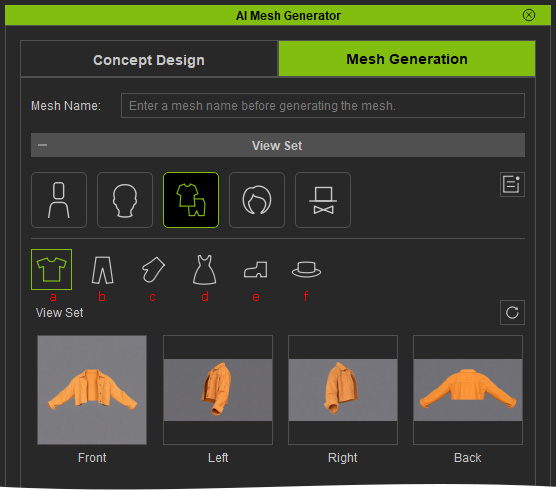
The available parts are:
- Top / Upper – Generates an upper-body garment, such as a shirt or jacket.
- Pants / Lower – Generates a lower-body garment, such as pants or a skirt.
- Gloves – Generates hand-related clothing or accessories, such as gloves.
- Dress / One-piece – Generates a one-piece garment, such as a dress.
- Shoes – Generates footwear.
- Hat – Generates a hat or other headwear.
Providing View Set Images
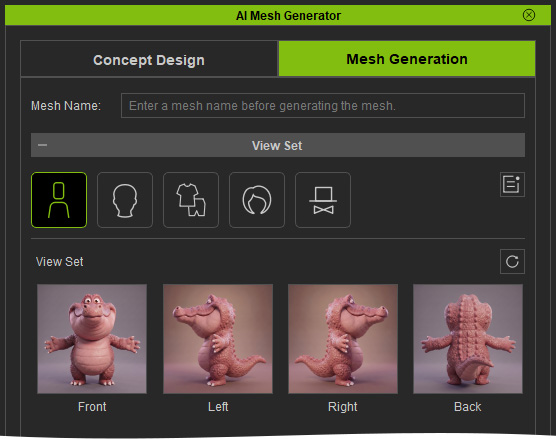
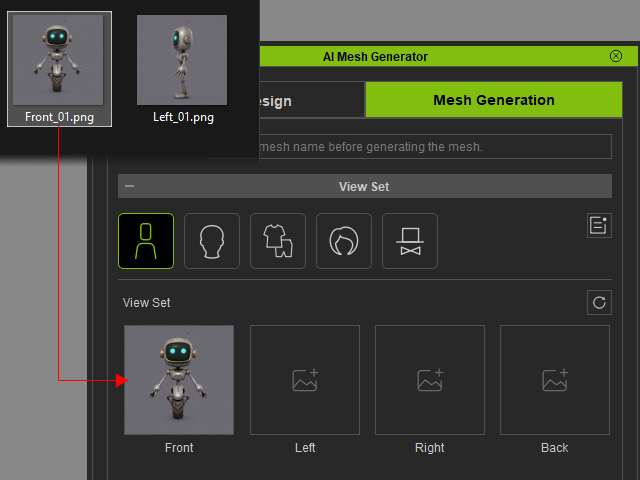
The View Set provides four image slots for different views of the object:
Front, Left, Right and Back views.
The Front View is required for 3D mesh generation. The other three views are optional, but providing them can give the AI additional information and help generate a more accurate 3D mesh.
If a Left, Right, or Back View is not provided, the AI ignores the empty slot and generates the mesh primarily from the Front View.
Adding Images to the View Set
There are several ways to provide images for the four view slots.
- Loading Images from Photos or an Image Library
You can use photographs or images purchased from an image library as the design references.- Obtain images of the object.
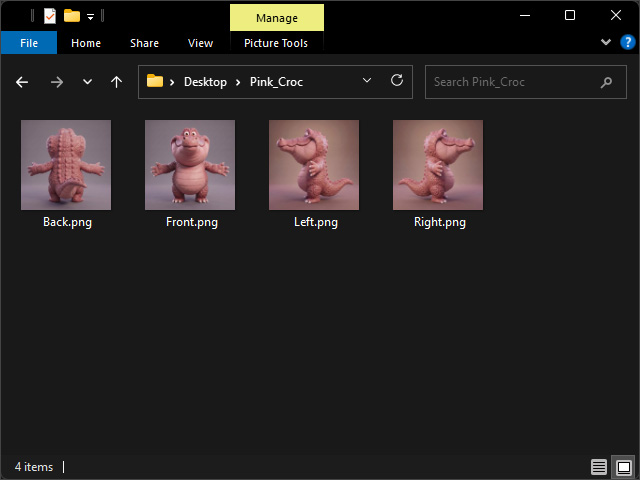
- Click the corresponding image slot in the Viewset.
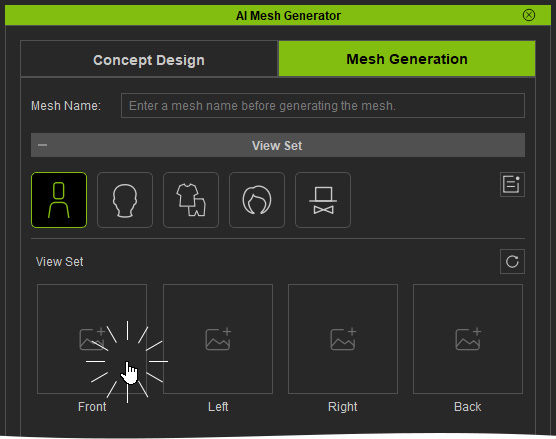
- Select the image and click the Open button to load the image.
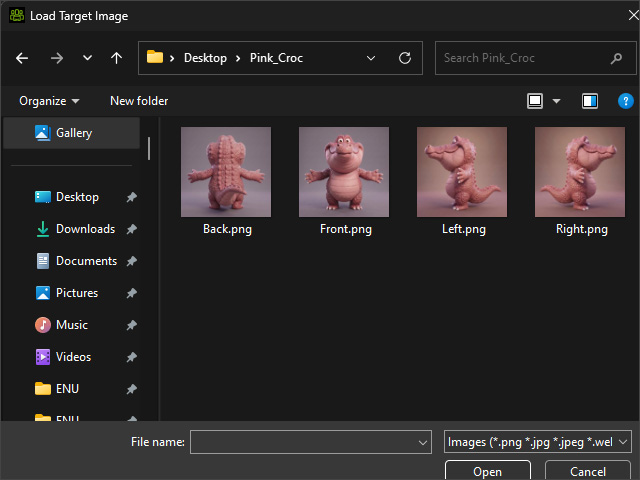
The slot will be filled with the image.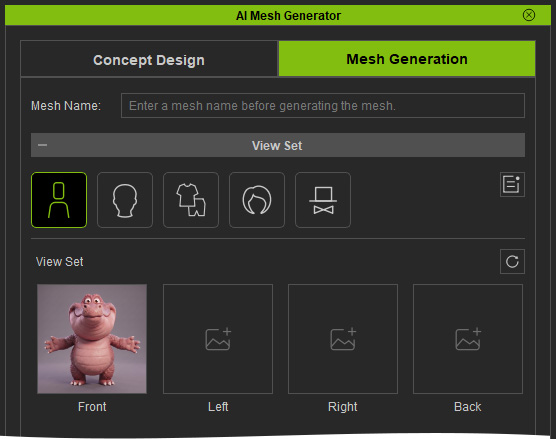
- Repeat the process for the available views.
- Obtain images of the object.
- Using Images Generated in Concept Design
You can also use the multi-view images generated in the Concept Design page.- Generate the Front (required), Left, Right, and Back (optional) views in Concept Design.
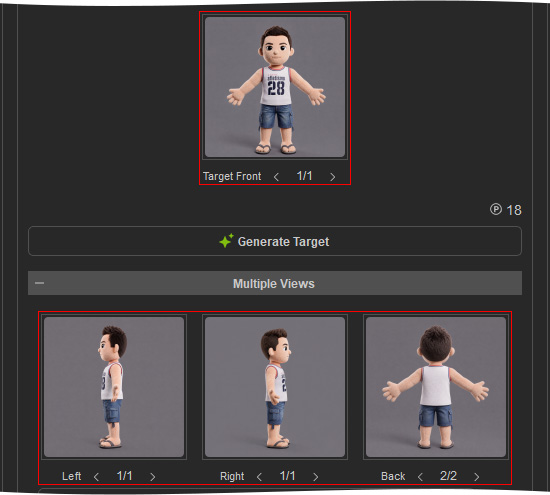
Refine the generated views until they meet your requirements. - Click Send to Mesh Generation.
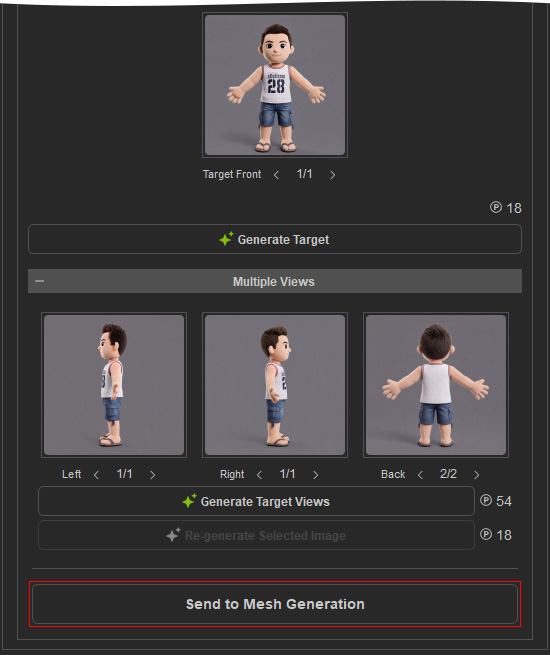
- The generated Target Views are automatically transferred to the View Set slots in the Mesh Generation page.
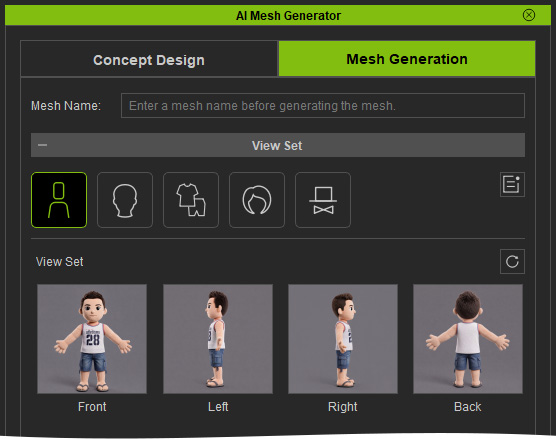
- Generate the Front (required), Left, Right, and Back (optional) views in Concept Design.
- Using Images from Image Tasks
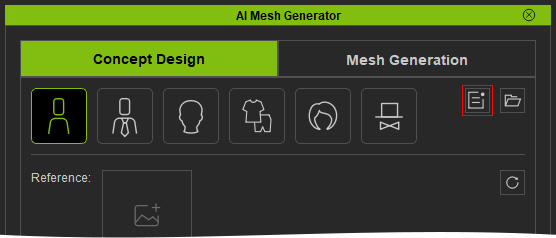
Previously generated AI images can also be reused from the Task Queue.- Open the Task Queue panel by clicking the Open Task Queue button of the AI Mesh Generator panel.
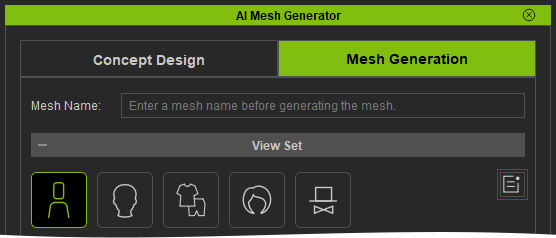
Concept Design page
Mesh Generation page
- Switch to the Image Tasks tab in the Mesh Task Queue panel.
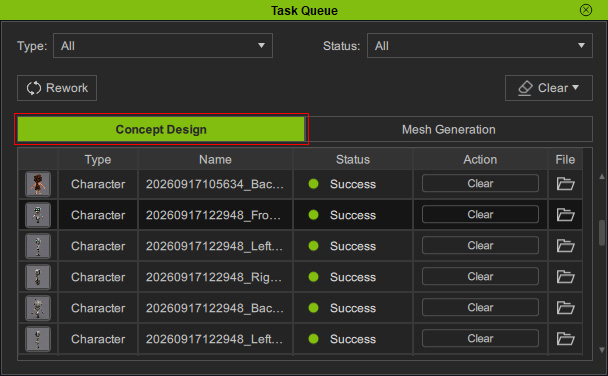
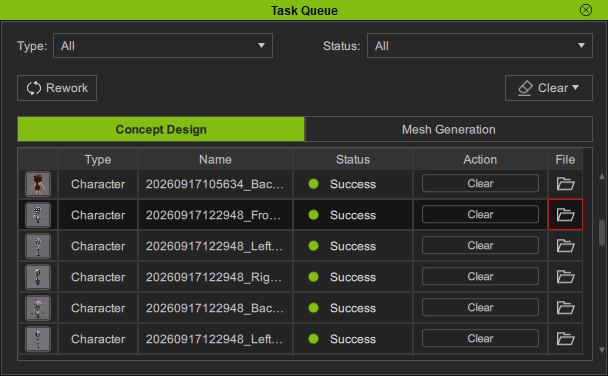
- Click the Find File button of the desired item on the list.
- Select the previously generated image you want to use.
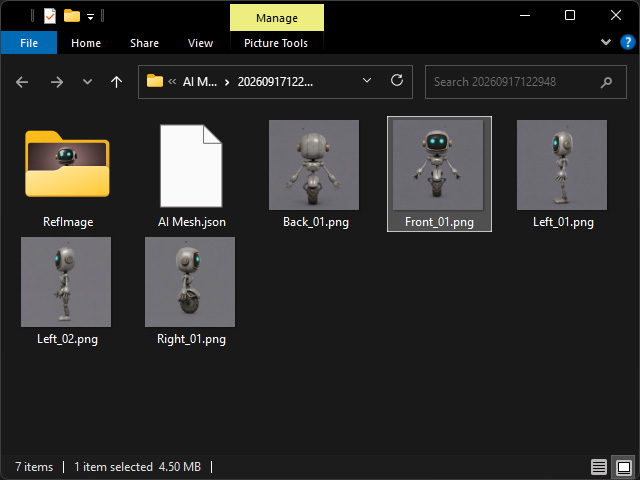
- Drag the image into the corresponding View Set slot, or click the slot and select the image.
- Open the Task Queue panel by clicking the Open Task Queue button of the AI Mesh Generator panel.
