Generating 3D Meshes from Multi-View Image
This Quick Guide walks you through using AI Studio to generate four-view reference images and importing them into AI Mesh Generator to create a 3D mesh.
Step 1: Open AI Studio
- Launch AI Mesh Generator panel.
- Choose the workflow for generating Concept Design views (in this example, Multi-View).
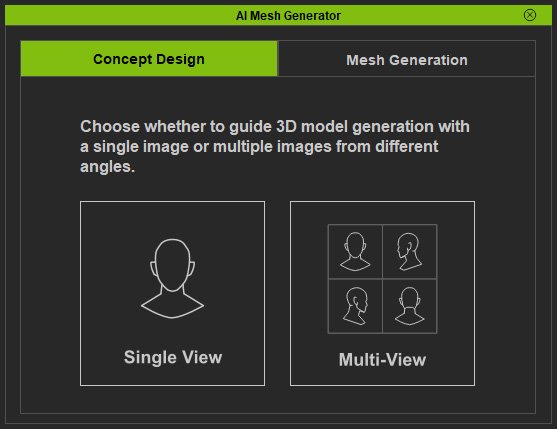
- Single View: Start the Concept Design by using only the front view image as the Mesh Generation source.
- Multi-View: Start the Concept Design by using four view images (front, right, left, back) as the Mesh Generation sources via the AI Studio.
- In the information panel, click Open AI Studio.
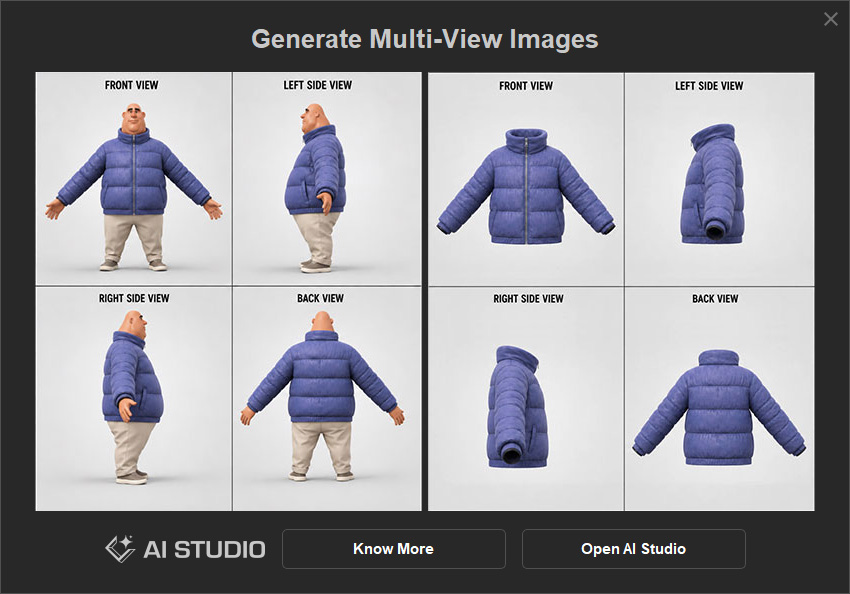
Step 2: Select a Template
- AI Studio will go to Templates > Custom Tools automatically.
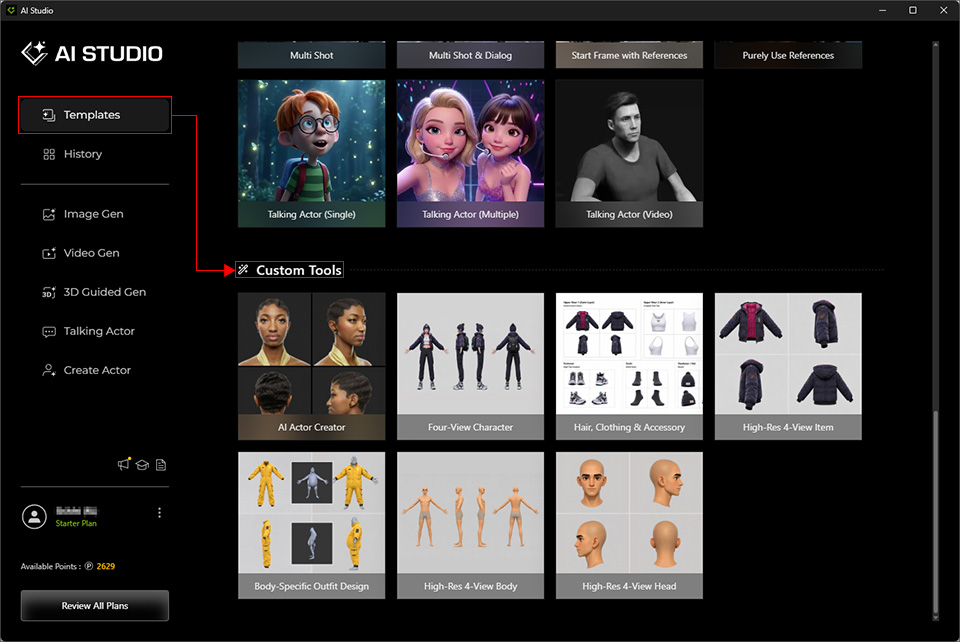
- Select one of the six AI Mesh Generator templates: Four-View Character, Hair, Clothing & Accessory, High-Res 4-View Item, Body-Specific Outfit Design, High-Res 4-View Body and High-Res 4-View Head.
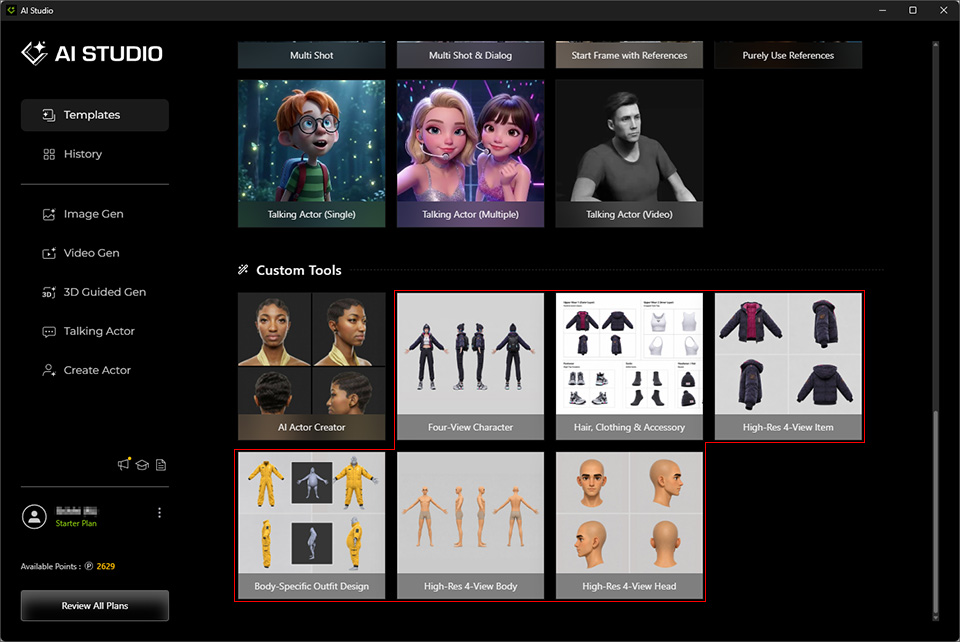
** This guide uses "Four-View Character" as an example. Click the template to open it.
Step 3: Copy from AI Studio and Paste to Mesh Generation
- After the template opens, AI Studio automatically goes to Image Gen > Edit > Custom (under the Operation section).
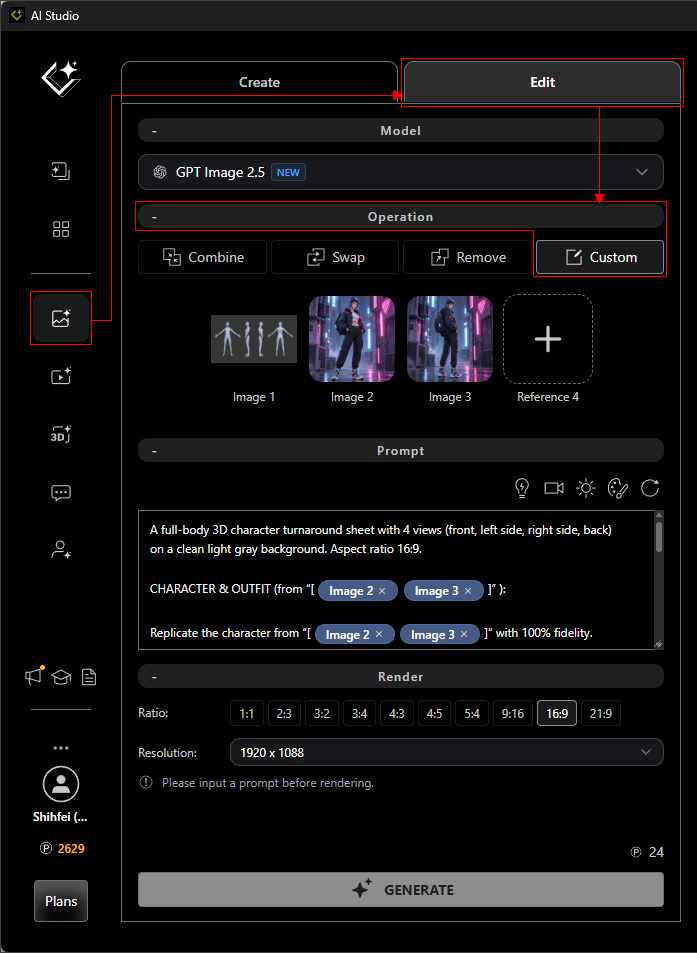
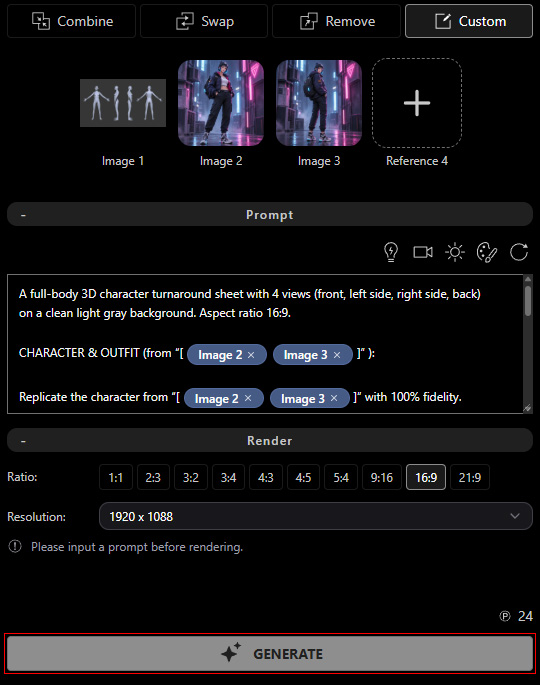
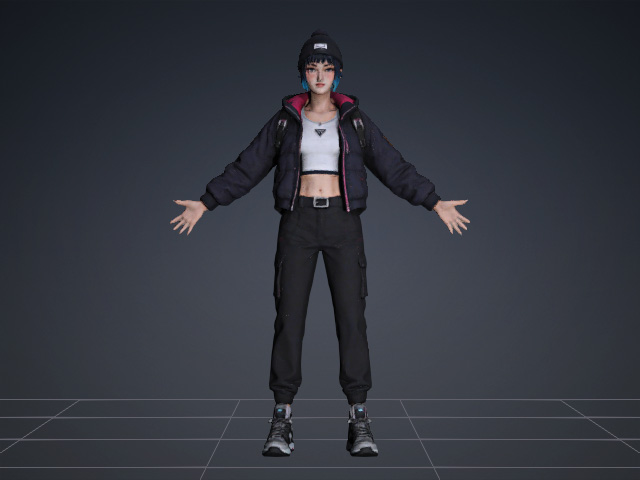
- Configure the reference images and click GENERATE to generate a four-view character image. If you are not satisfied with the result, click GENERATE again to generate another image.
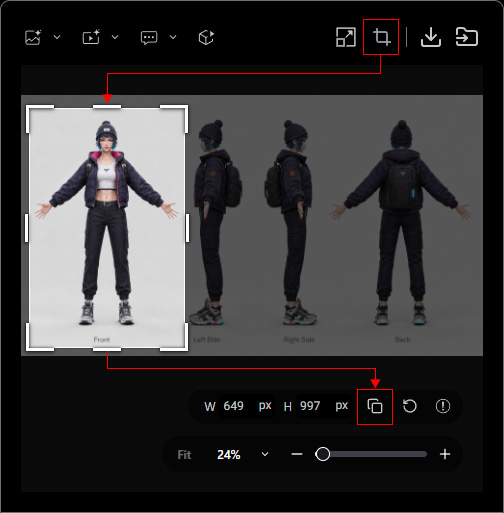
- Click Copy below the selection, or press Ctrl + C, to copy the selected view to the system clipboard.
- Open AI Mesh Generator and go to the Mesh Generation page. Enter the Mesh Name.
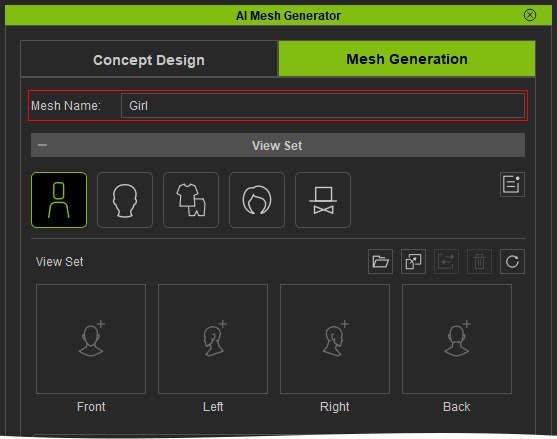
- Make sure that the Mesh Type setting matches the one copied in the AI Studio.
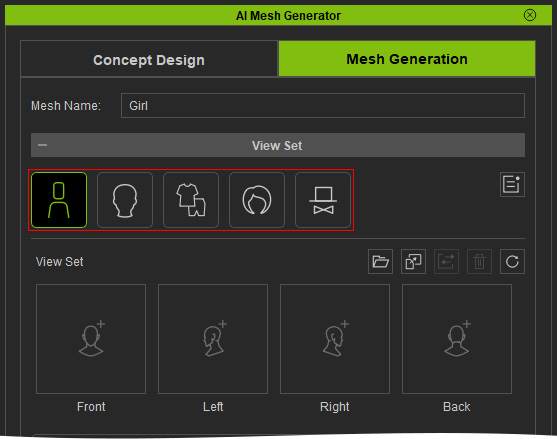
- Under View Set, select the slot corresponding to the one in step 12 (Front, Left, Right, or Back).
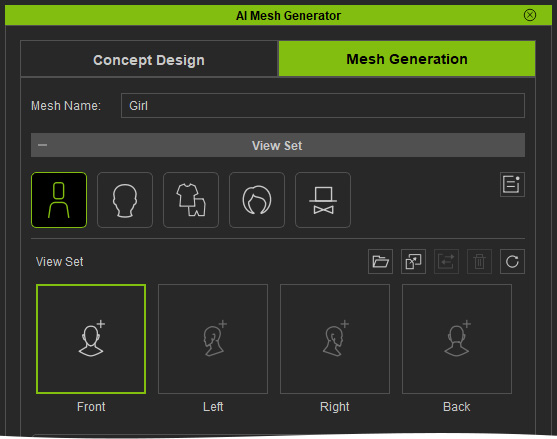
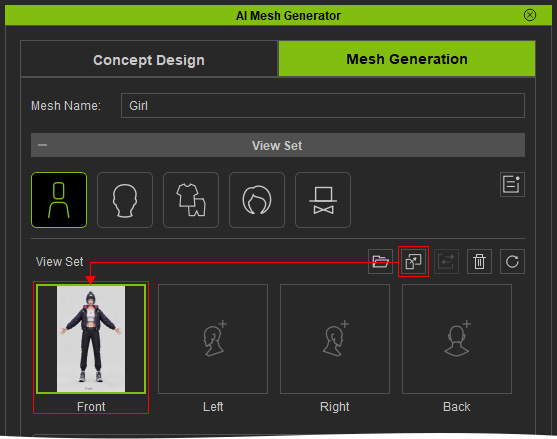
- Click Paste image from clipboard, or press Ctrl + V, to paste the copied view.
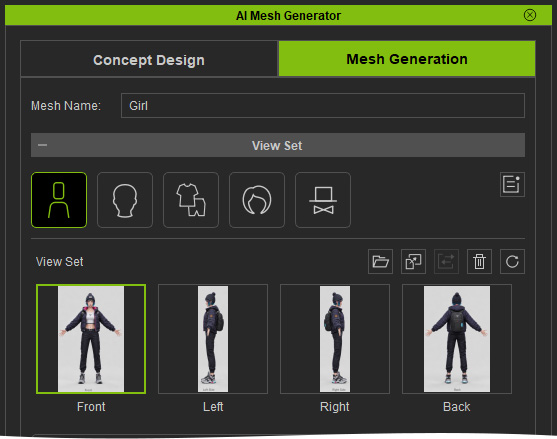
- Repeat for the remaining views. A Front view is required; the other views are optional.
Step 4: Set the Mesh Resolution
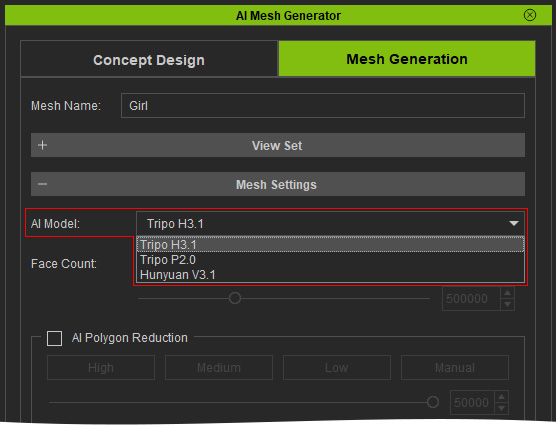
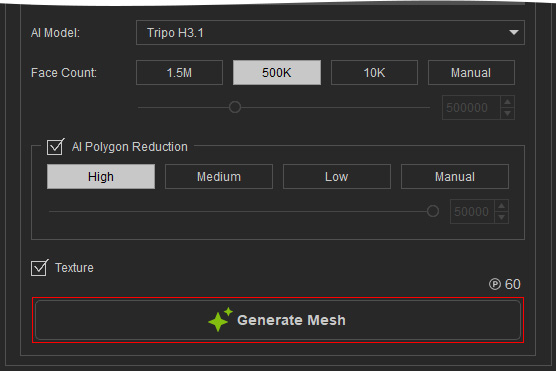
- Choose the desired AI Model.
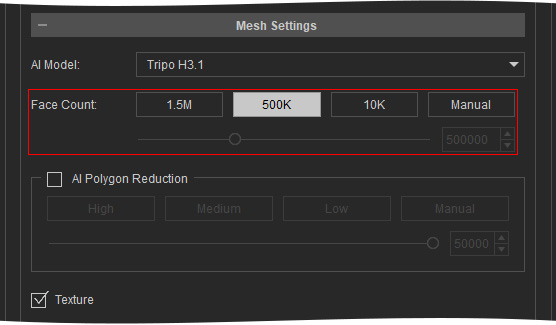
- Set the desired Face Count to control the number of triangular faces generated for the mesh.
- Enable AI Polygon Reduction if you want the generated mesh to be converted into a quad-based mesh, then select the desired setting.
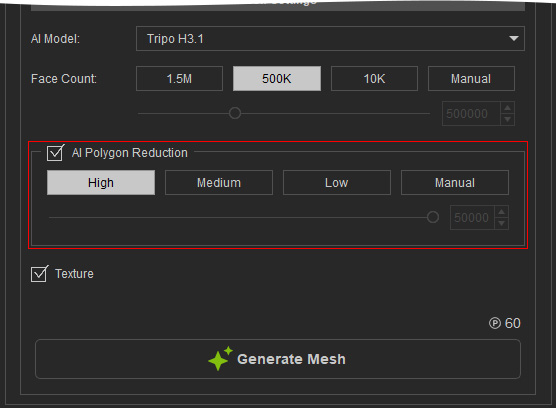
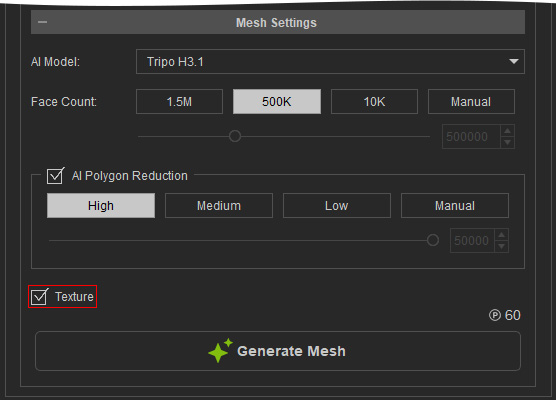
See Setting Mesh Face Count and AI Polygon Reduction for details. - Activate the Texture checkbox to bake the textures onto the generated mesh model.
Step 5: Generate the Character Mesh
- Click Generate Mesh to submit the mesh generation task.
- A new task is added to the Task Queue > Mesh Generation page, and the AI begins generating the 3D mesh.
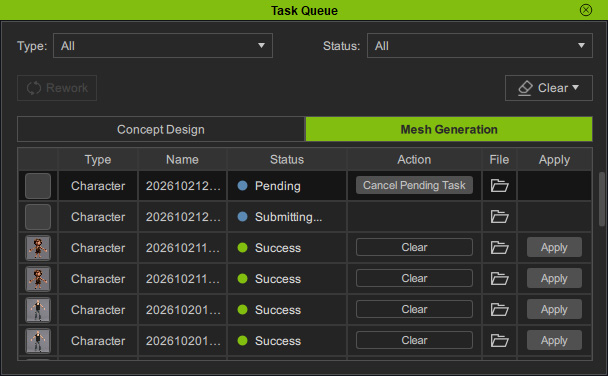
If two tasks are listed in the queue, one is a triangular mesh generated by Face Count, and the other is a quad mesh generated from that triangular mesh using AI Polygon Reduction. - When the task is complete, the Apply button becomes available. Click Apply to proceed with the post-generation actions.
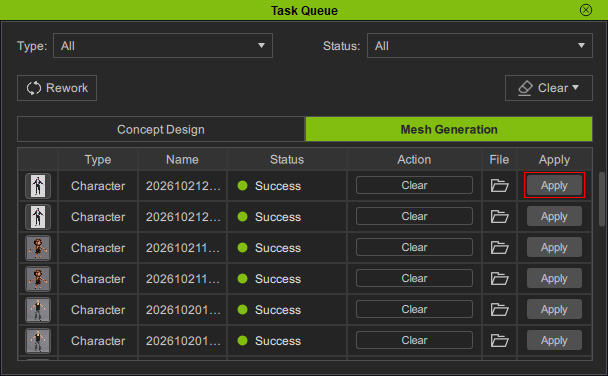
See Actions After Mesh Generation for details. - If the Rigging Options panel appears, select the desired procedure and click Apply.
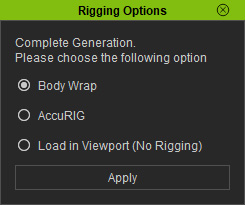
- Once completed, the AI-generated mesh can be converted into the selected mesh type.
Quick Workflow
Concept Design → Multi-View → Open AI Studio → Generate Four Views → (Optional) Upscale Image → Copy View → Mesh Generation → Paste Views into View Set Slots → Set Face Count / AI Polygon Reduction → Generate Character Mesh
