Capturing Cloth Thumbnails
When opening a legacy project file (created prior to CC5.2), the character's clothing will appear as schematic icons in the Cloth Layer Settings panel to indicate their respective categories. By using the built-in Thumbnail Capture feature, you can replace these schematics with actual screenshots of the items for easier identification later.
-
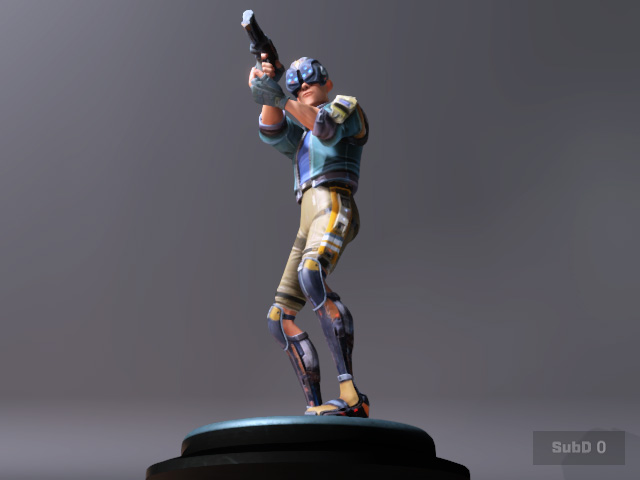
Open a project saved in CC 5.1 or an earlier version.
-
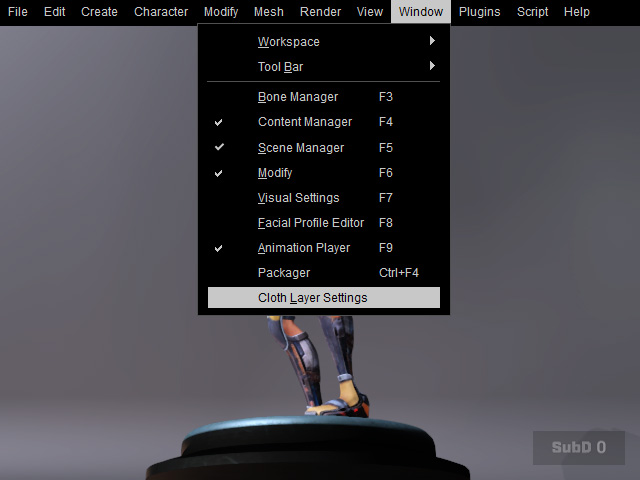
Execute Windows >> Cloth Layer Settings command to
launch the panel.
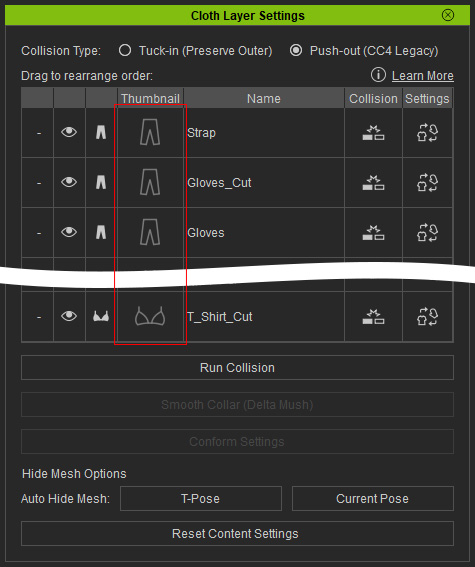
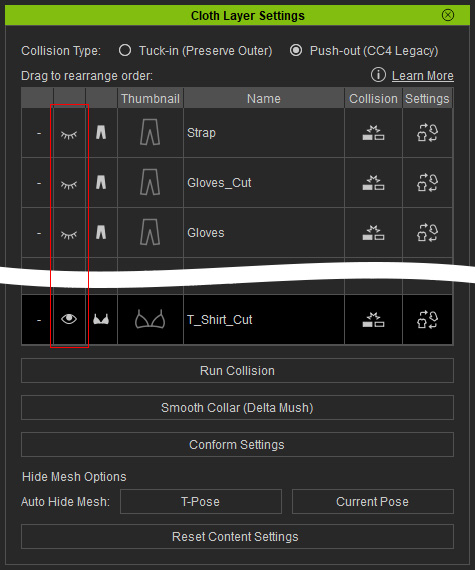
- As you can see, the clothing thumbnails in the Cloth Layer Settings panel are schematic icons.
* Note: You can optionally save the current camera view before proceeding. -
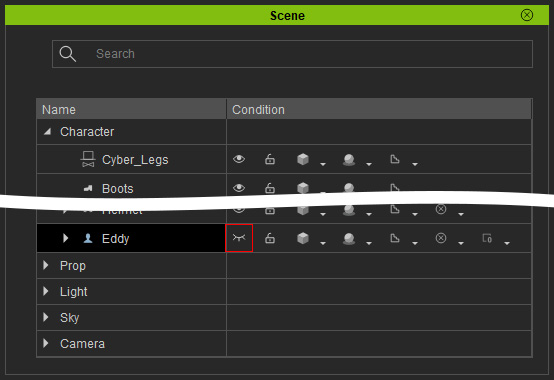
In the Scene Manager, hide the character.
- In the Cloth Layer Settings panel, select and show only one clothing item, and hide all other garments.
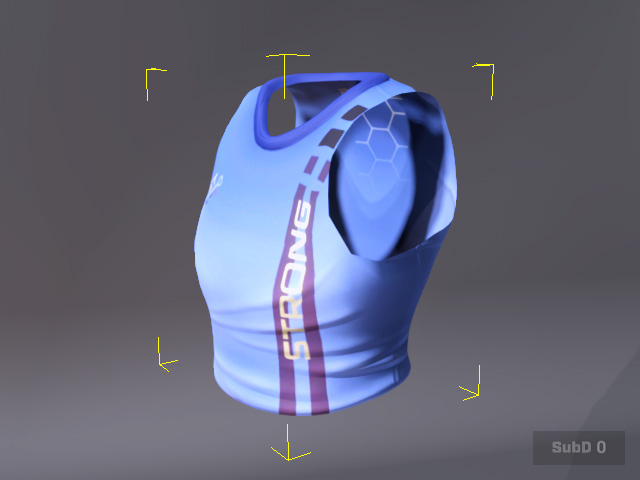
- Adjust the camera to display the visible garment in the desired close-up view.
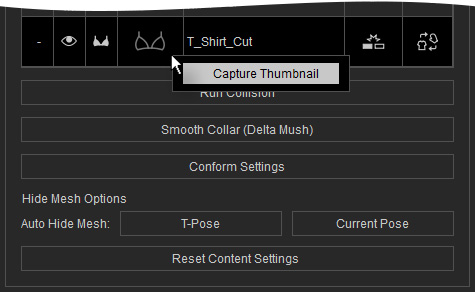
- Right-click the thumbnail cell of the clothing layer and choose Capture Thumbnail from the context menu.
As you can see, the current viewport view is captured and used as the thumbnail for the selected clothing layer.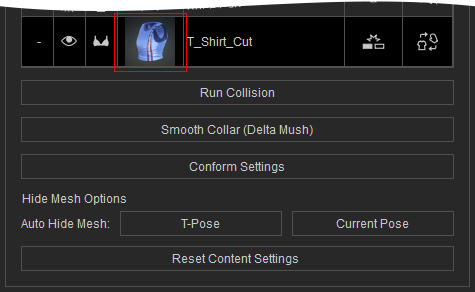
- Repeat the same steps until the thumbnails for all clothing items have been captured and updated.
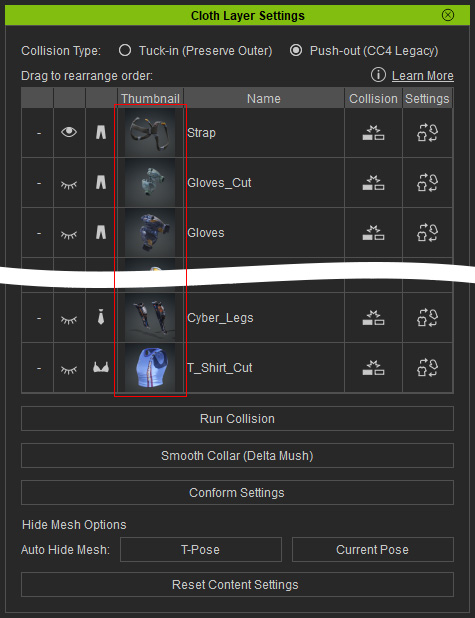
- Save the project to preserve the captured thumbnails.
* Note that the captured thumbnails are saved only with the project. Saving the character or clothing items separately does not preserve them.
