Timecoding Reallusion Motion Files
Reallusion motion formats, including *.rlMotion, *.iMotion, *.iMotionPlus and *.iTalk, can carry timecode data.
Timecoding iClone Templates
There are several ways to embed timecode data into iClone templates.
- Right-click on the clip and perform Save Motion Clip:
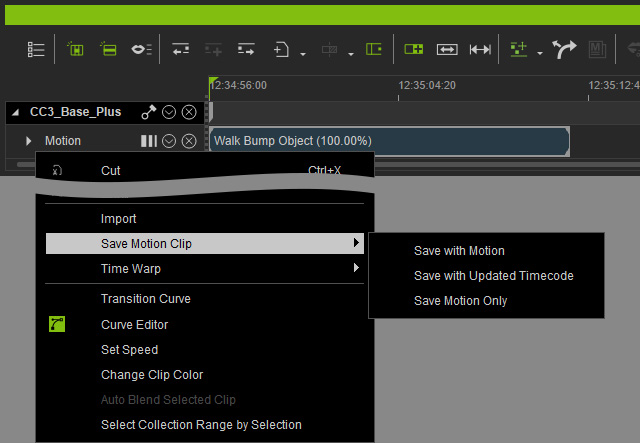
- Save with Motion: Save the clip as rlMotion or iMotion formats and leave the clip timecode settings intact.
- Save with Updated Timecode: Save the clip as rlMotion or iMotion format with custom timecode set in step 4.
- Save Motion Only: Save the clip as rlMotion or iMotion formats without timecode data.
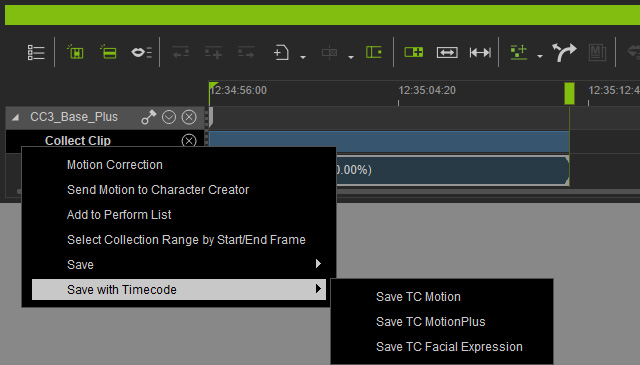
- Export the motion via Collect Clip > Save with Timecode.
- Choose any timecode-enabled format: rlMotion, iMotion, iMotionPlus or iTalk.
- You can include the timecode into the motion file when you click the Save button in the Smart Content Manager.
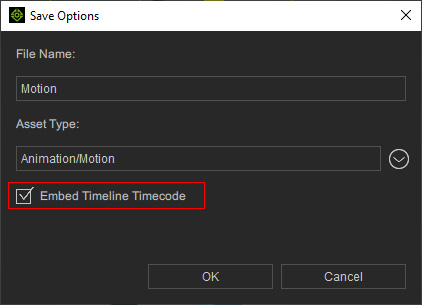
**The length of the saved motion file will be identical to the project length, not the original clip length.
Verifying Motion Files Containing Timecode Data
- Right click on a motion file and choose Content Info from the context menu.
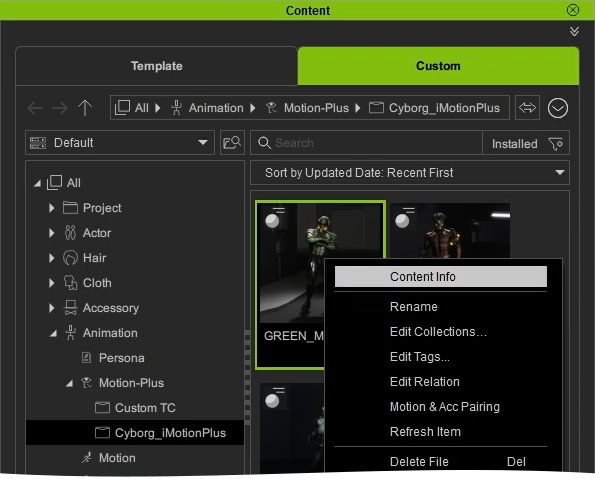
- The Content Information panel will include data for the timecode and fps.
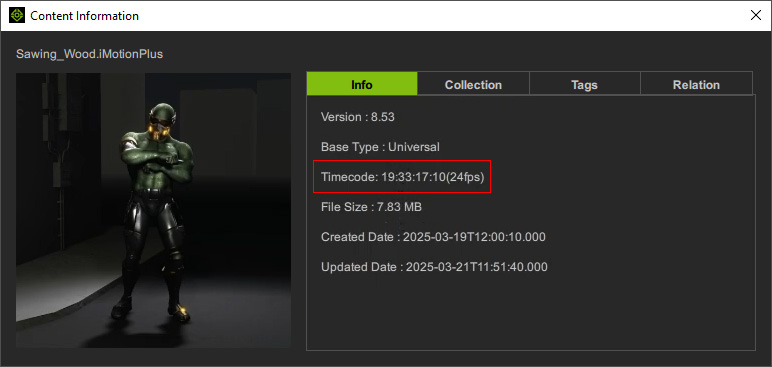
With a complete absence of timecode data, the timecode field will be omitted.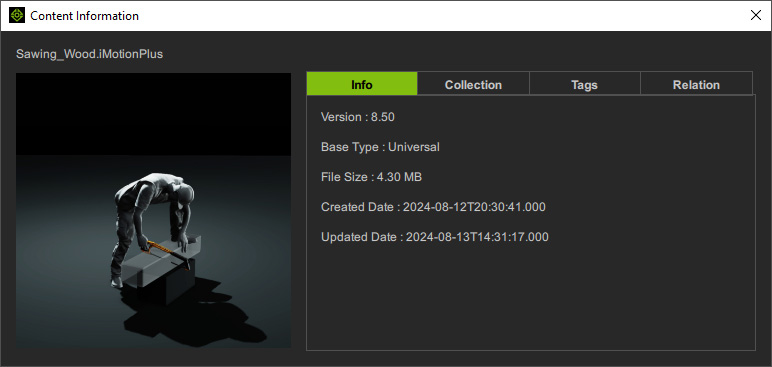
For more information on creating timecoded animation, visit Exporting Motions with Custom Timecode.
