Motion Live

See also: Motion Live Online Manual and Mocapping Clips with Timecode section

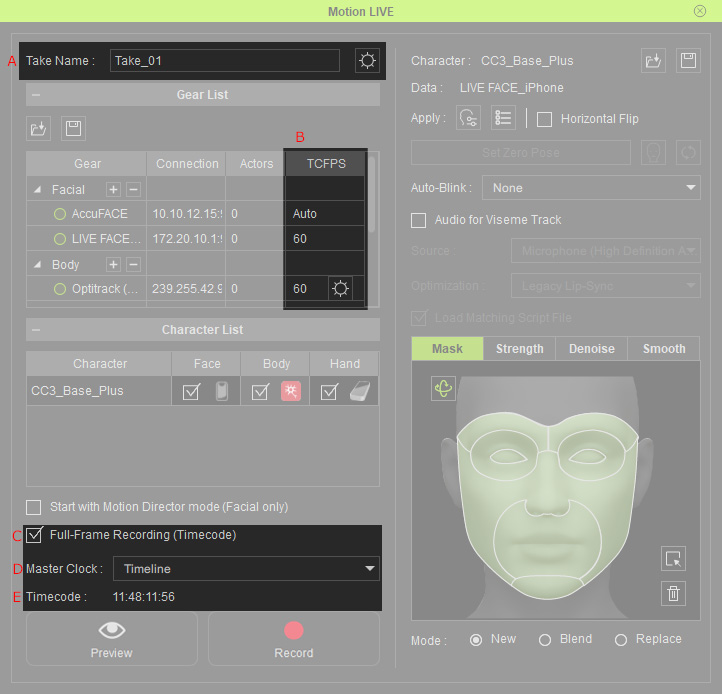
A

Take Name

  • Sets the name of the current recording.
  • Click the Motion Live settings button to adjust the advanced settings.
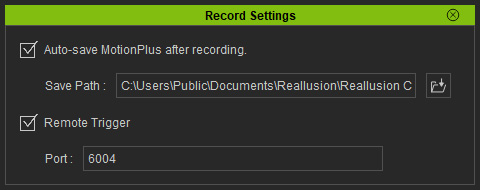
    • Auto-save MotionPlus after recording:
      Automatically save the mocapped facial expressions, body movements and hand gestures to MotionPlus file with timecode included.
      The directory for saving the MotionPlus file can be customized.
    • Remote Trigger:
      Set the port to the same as the one of the source capturing device for preview or recording by the devices.

B

TCFPS

The fps on the individual capture devices.

  • You can type in desired number to synchronizing with the FPS of the mocap devices.

    Adjustments only need to be done for Vicon, OptiTrack and Live Face profiles. Others will be kept as Auto.
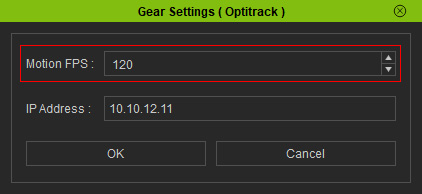
  • Notice that the gear button is the advanced settings for Optitrack body mocap profile.
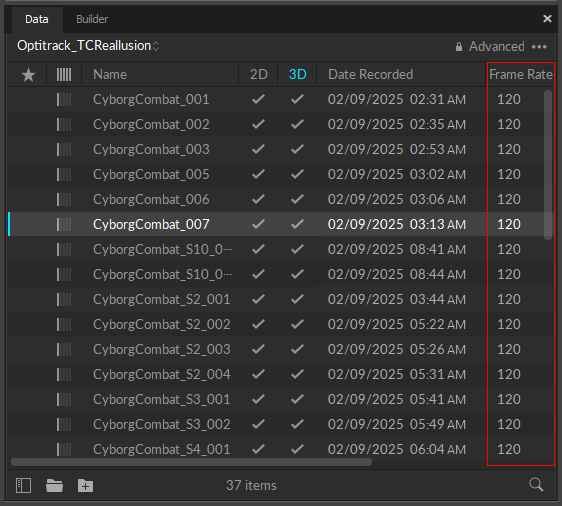
    • Find the Frame Rate in OptiTrack.
    • Open the Gear Settings (OptiTrack) panel and enter the value into Motion FPS.

C

Full-Frame Recording (Timecode)

  • Records the animation without skipping frames, regardless of the you computer's performance. Enabling this option helps synchronize the animation and the facial performances.
  • Timecodes the mocap clips.

D

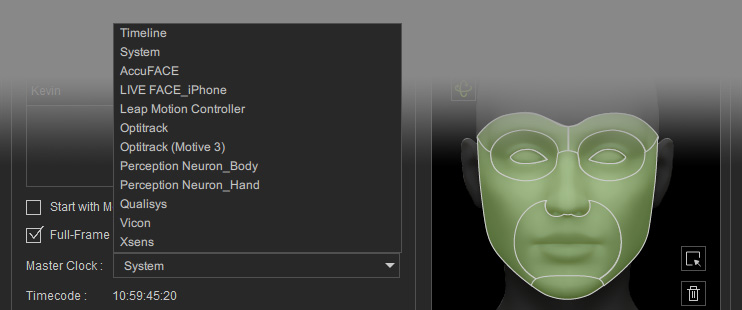
Master Clocks

Determines the timecode source for all captured clips.

  • Timeline: Captured facial expressions, body movements, and hand gestures will include the timecode of the playhead's current position.
  • System: Captured facial expressions, body movements, and hand gestures will use the system time as the timecode.
  • Other Devices: Captured facial expression, body motion and hand gesture clips will include the timecode data from the specified device.

E

Timecode

Displays the timecode of the Master Clock. If the source device does not provide a timecode, then it displays "N/A".