Installing ZBrush Face Tools
The ZBrush Face Tools plugin requires the installation of ZBrush and Character Creator (CC). Follow the instructions below to download and install the plugin.
- If your ZBrush software is currently running, please close it.
- Open the Reallusion hub, and search for the ZBrush Face Tools plugin.
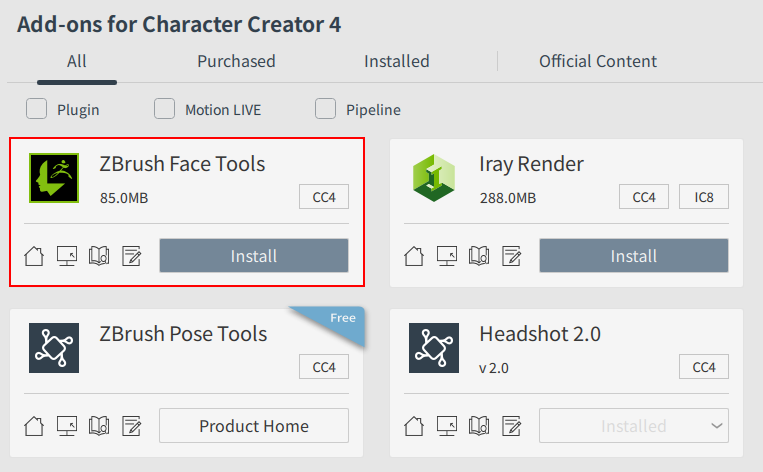
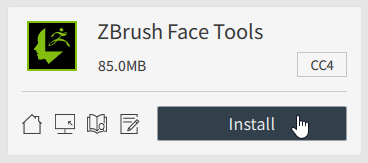
- Click the Install button and the Hub will check if CC is installed. If CC is not installed, you will be prompted to download and install it first.
- Once the installation is complete, launch the CC application.
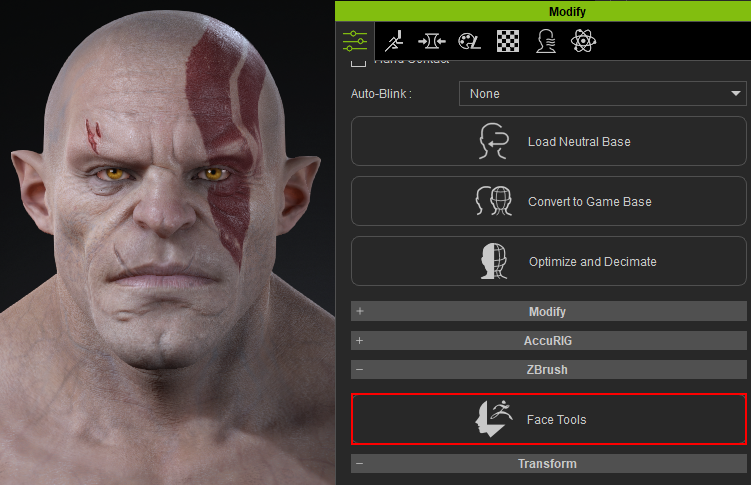
- Select a CC3+ character model, then click the Face Tools button.
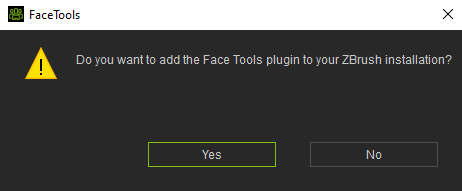
- A pop-up will appear prompting you to install the ZBrush plugin. Click Yes to proceed with the installation.
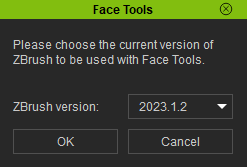
- Another pop-up will appear. Select the ZBrush version to which you want to install the plugin, then click OK.
The ZBrush Face Tools dialog box will appear.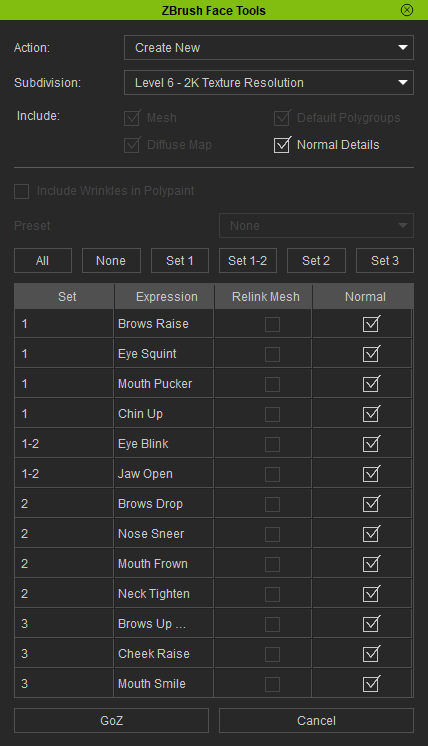
- Configure your settings and click the GoZ button to send your character to ZBrush

