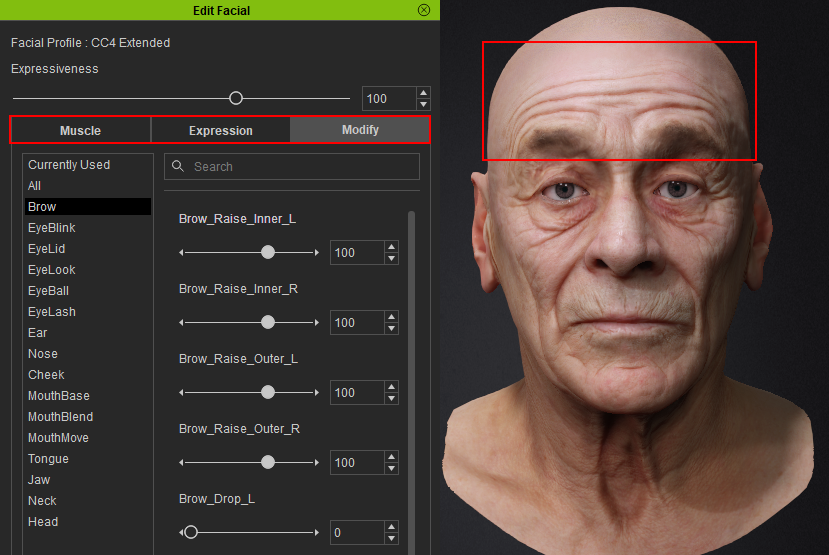
Expressions Polypaint Workflow
This article is a step-by-step guide on projecting your scan model expression diffuse map onto your CC3+ model expression as ZBrush polypaint. Utilizing the scan model’s diffuse map can significantly enhance the expression detail of your CC3+ model in Character Creator (CC).
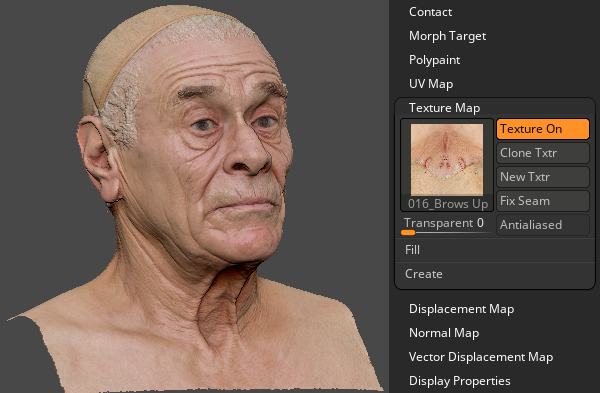
- Once you have completed the scan model expression workflow, proceed to select the expression scan model subtool and import the model’s diffuse map into the Texture Map section.
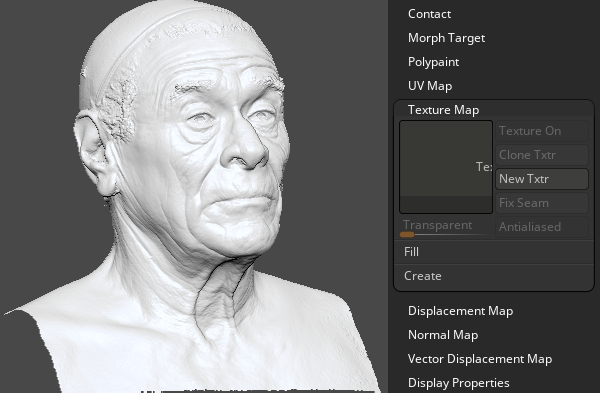
Brow raise scan model without texture map.
Brow raise scan model with texture map.
- Select your CC3+ model and click Apply Mask to reveal the active expression masking areas.
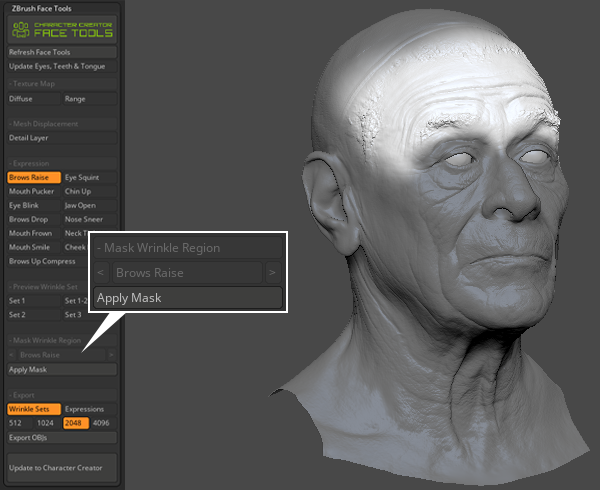
- Use the ‘Paint’ brush to apply a pure color within the masking area.
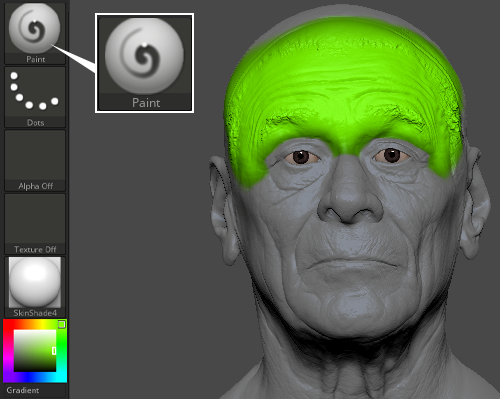
- Switch to the ‘ZProject’ brush, deactivate the Zadd/Zsub, and activate the Rgb button.

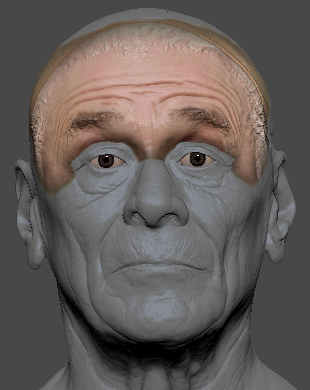
- Use ‘ZProject’ to project the scan diffuse map onto your CC3+ model expression masking area.
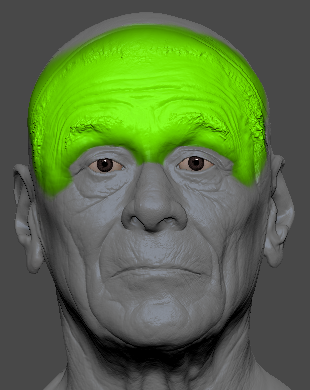
Before polypaint projection.
After polypaint projection.
- Turn off the visibility of the scan model and toggle the expression button to examine the result.
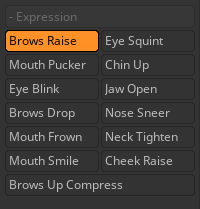
- Repeat the same process from step 1 for the other expressions of your CC3+ model.
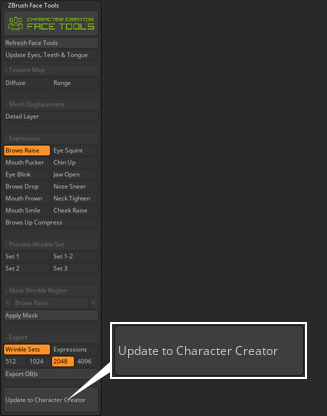
- Once your editing is finalized, click the Update to Character Creator button near the bottom of the ZBrush Face Tools plugin panel.
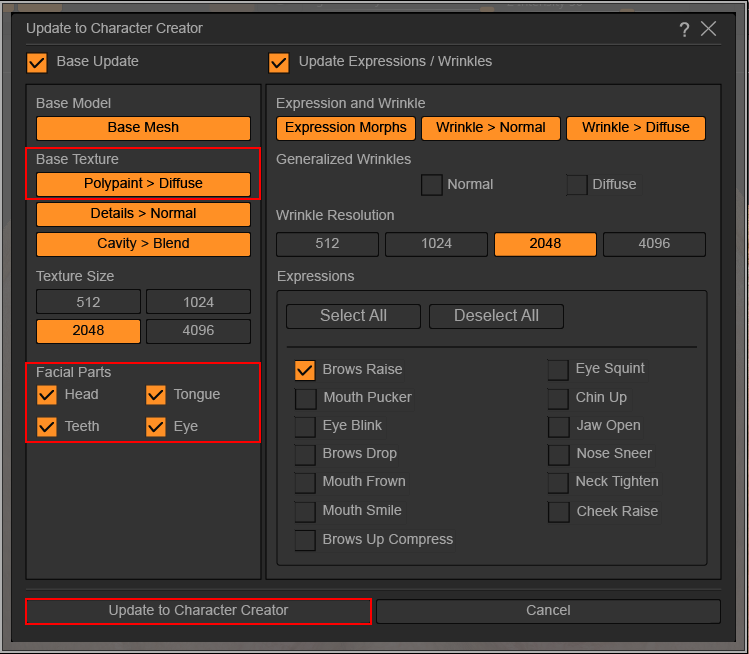
- Update to Character Creator dialog box will emerge. In the Base Texture section make sure to activate Polypaint > Diffuse. Under the Facial Parts mask ensure all parts are selected.
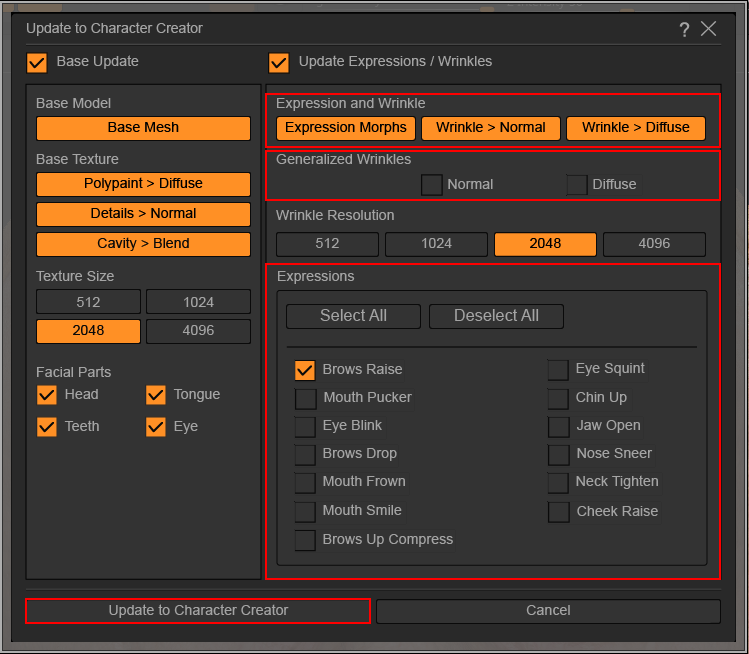
- In Update Expressions / Wrinkles, make sure all options are activated under Expression and Wrinkle, and deactivate both Normal and Diffuse under Generalized Wrinkles. Under Expressions, choose only the expressions you have edited to reduce transfer time, then click Update to Character Creator.
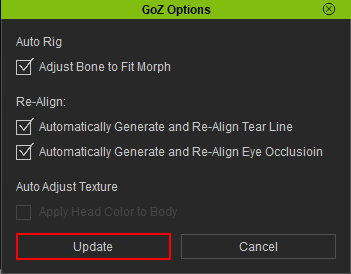
- In CC, use the default settings in GoZ Options Dialog box and click Update.
- Click on Modify > Motion Pose > Motion > Edit Facial.
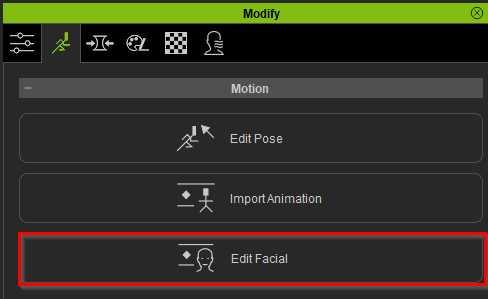
- Within the Edit Facial control panel, navigate to any of the three options in the menu bar to test your character's edited facial expressions to ensure compatibility and identify potential issues.