Expressions Projection Workflow
The scan model expressions workflow uses multiple scan head meshes as the projection source for the Face Tool expressions. Using this projection technique you can create a CC3+ character with precise expression mesh structures and highly detailed expressions akin to the scan model.
 Note:
Note:
Before proceeding with projecting expressions, it is imperative to complete the ‘Scan Model base mesh projection Workflow’ first. Attempting to project expressions without a corresponding base model can lead to inconsistencies in model detail quality and may introduce potential issues in the mesh structure.
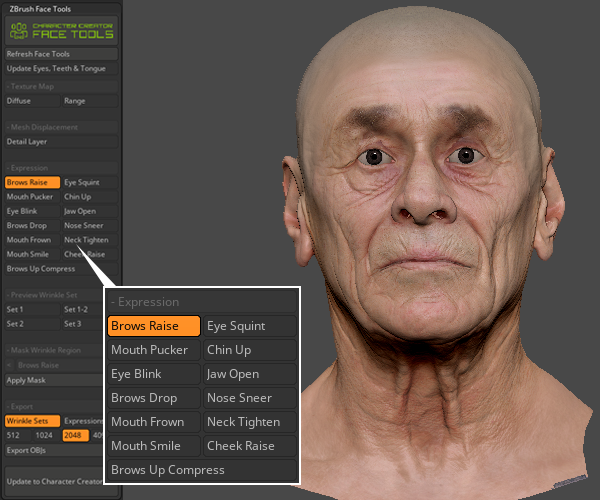
- Upon the completion of the ‘Scan Model base mesh projection Workflow’, go to ZBrush Face Tools, and activate the expression you intend to project.
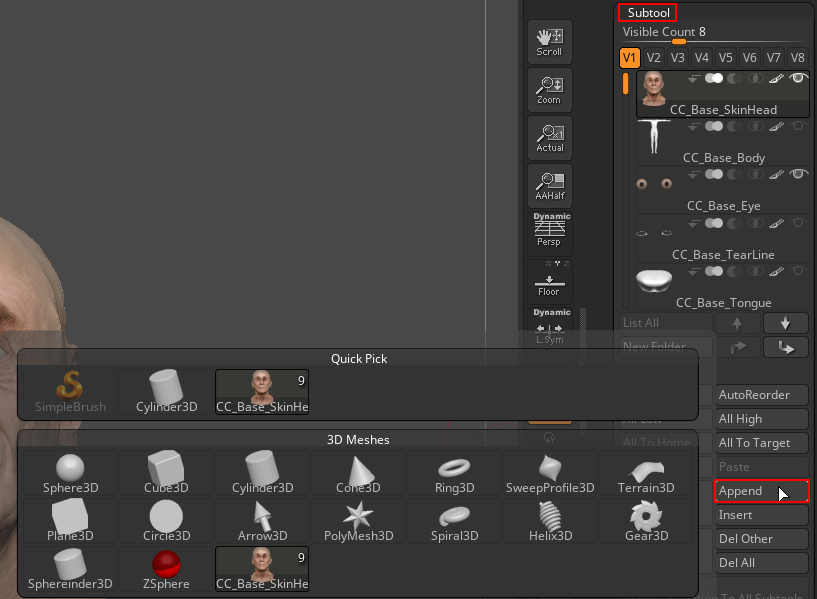
- Open Subtool and click the Append button to append any mesh in ‘3D Meshes’ into your project.
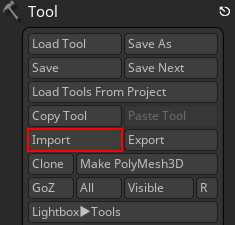
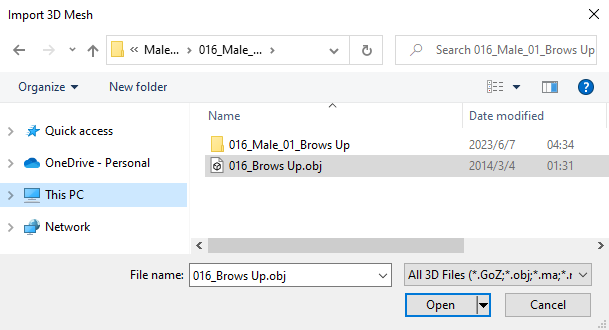
- Select the ‘Cube 3D’ subtool and go to Tool > Import to import your scan model with the corresponding expression in Face Tools into ZBrush.
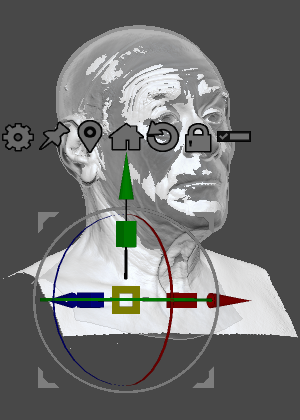
- Align the position and size of the imported scan model with the ‘CC_Base_SkinHead’ subtool using the 3D gizmo.
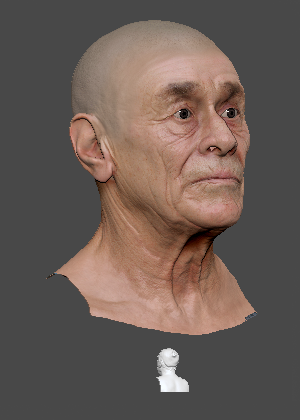
Before modifying the scan model with the 3D gizmo.
After modifying the scan model with the 3D gizmo.
- Mask the undesired mesh artifacts on the scan model within the proximity of your CC3+ model’s active expression.
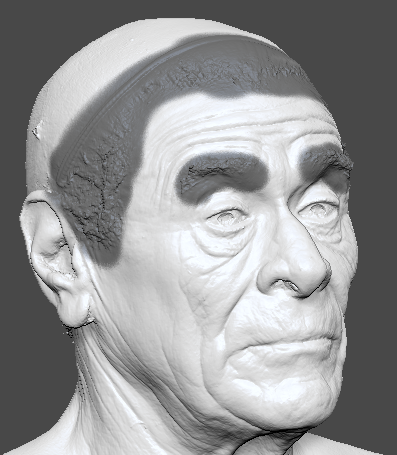
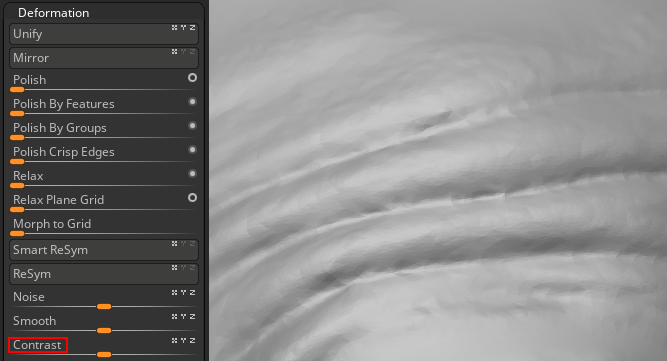
Decrease Deformation > Contrast to a negative value for smoothing and eliminating mesh artifacts.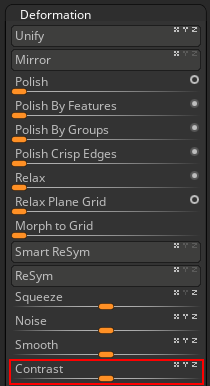
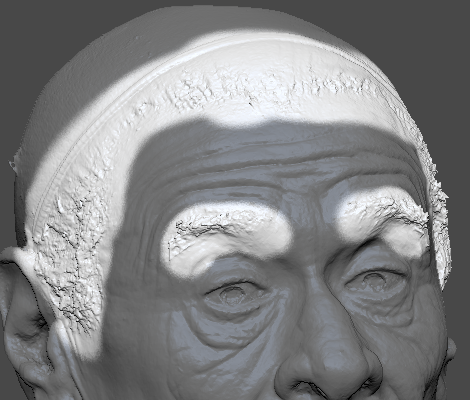
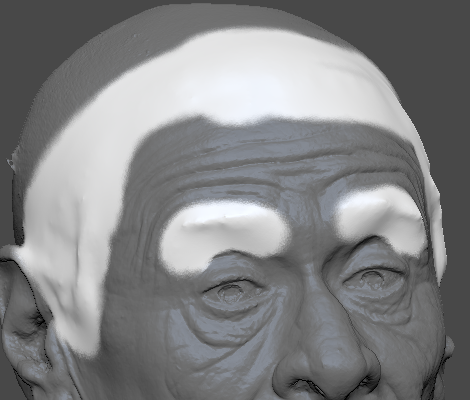
Before adjusting the mesh contrast.
After adjusting the mesh contrast.
Note:
It’s advisable to remove obvious mesh triangulations wherever they may appear.
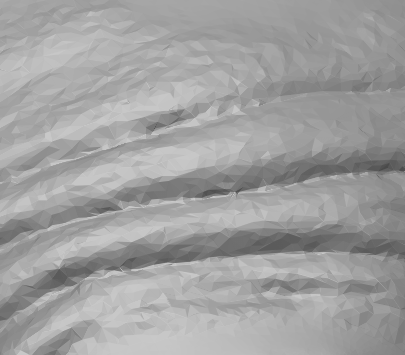
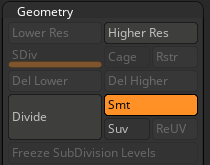
- Click on Geometry > Divide to increase the polycount of the scan model.
- Navigate to Deformation > Contrast and decrease to a negative value to remove the visible triangular polygons.
Switch your ‘CC_Base_SkinHead’ subtool’s SDiv to level 1.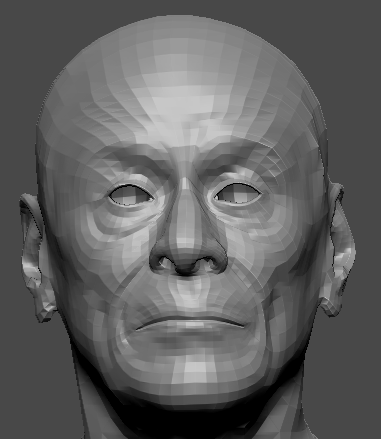
- Click on Geometry > Divide to increase the polycount of the scan model.
- Use the ‘Move’ brush to precisely align the CC3+ mesh structure with the scan model’s shape.
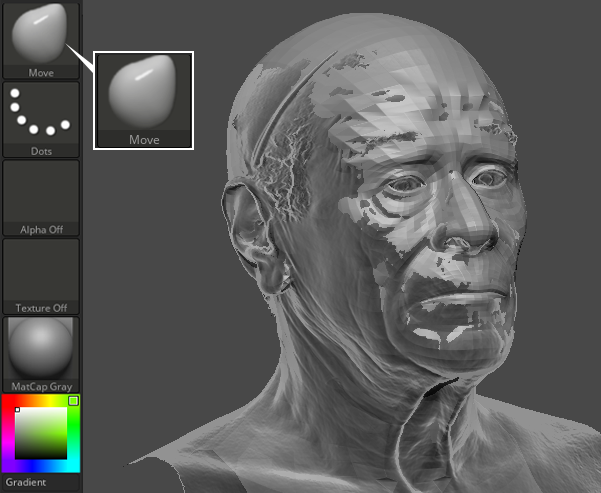
- Click on Mask Wrinkle Region > Apply Mask to reveal the active masking area.
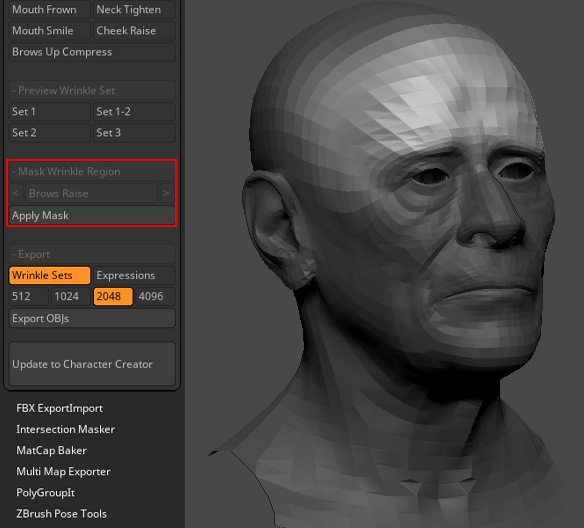
- In the Subtool section hide all the subtools by clicking on the eye icon, leaving only the subtools you intend to project onto visible.
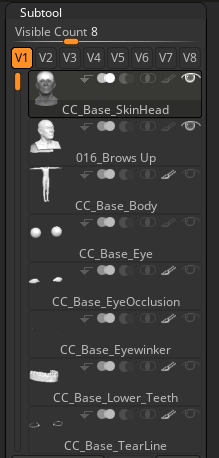
- Use Subtool > Project > ProjectAll to project the scan model detail onto your CC3+ model.
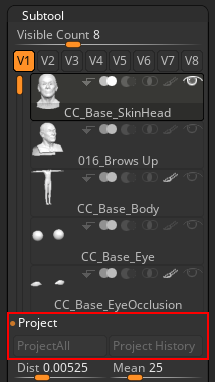
- Once the SDiv level 1’s mesh structure has completed the projection process, you can increase the SDiv level to project additional details onto your CC3+ model.
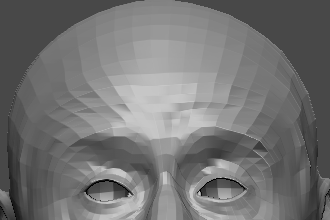
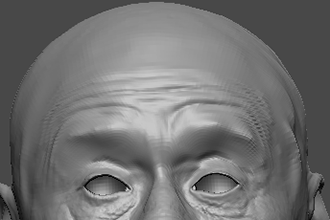
‘CC_Brows Raise’ expression in SDiv 1
‘CC_Brows Raise’ expression in SDiv 3
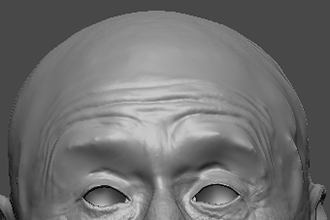
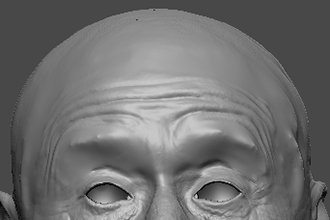
‘CC_Brows Raise’ expression in SDiv 5
‘CC_Brows Raise’ expression in SDiv 7
- Upon completing your mesh expression projection process, you have two options. You can project the scan model’s expression diffuse map onto your CC3+ model, or you can click the Update to Character Creator button to update your current model in Character Creator (CC).
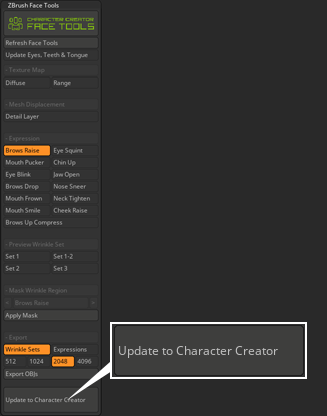
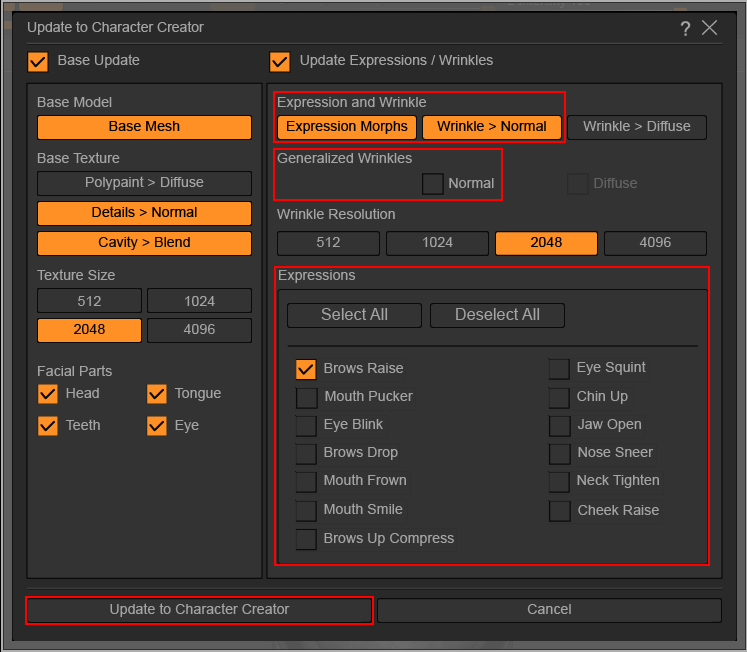
- The Update to Character Creator dialog box will emerge. Under the Facial Parts mask ensure all parts are selected.
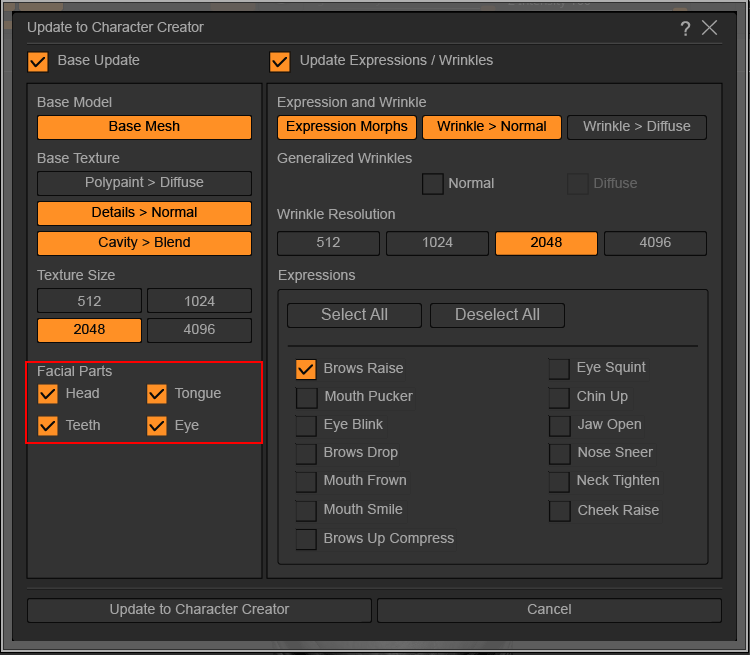
- In Update Expressions / Wrinkles, make sure Expression Morphs and Wrinkle > Normal are activated, and deactivate Normal under Generalized Wrinkles. Under Expressions, choose only the expressions you have edited to reduce transfer time, then click Update to Character Creator.
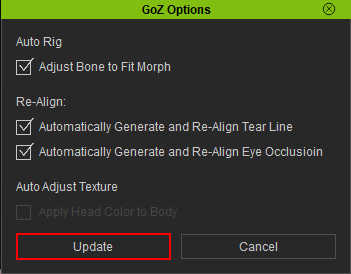
- In CC, use the default settings in GoZ Options Dialog box and click Update.
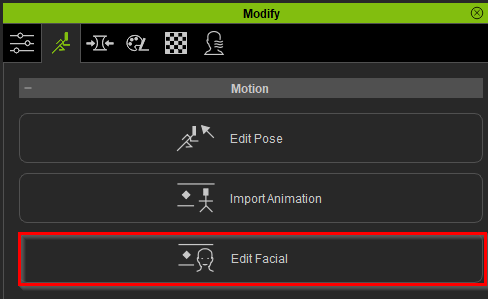
- Click on Modify > Motion Pose > Motion > Edit Facial.
- Within the Edit Facial control panel, navigate to any of the three options in the menu bar to test your character's edited facial expressions to ensure compatibility and identify potential issues.
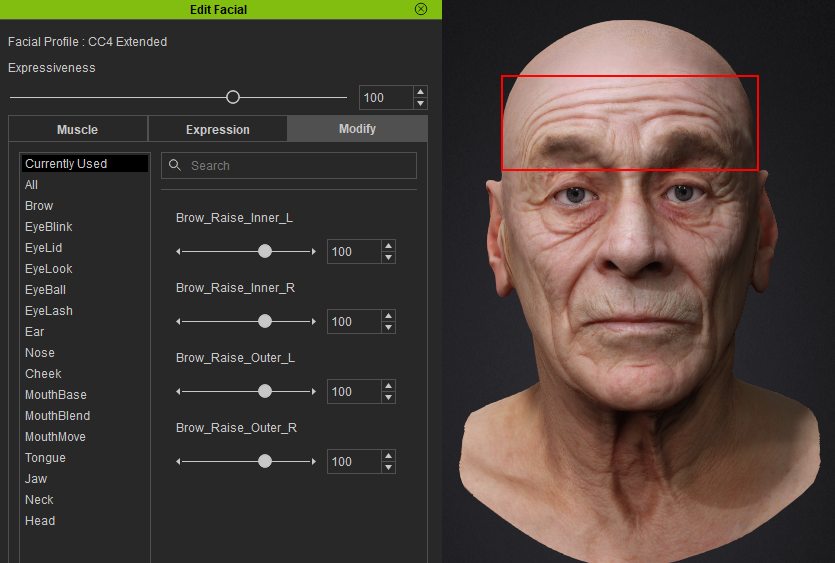
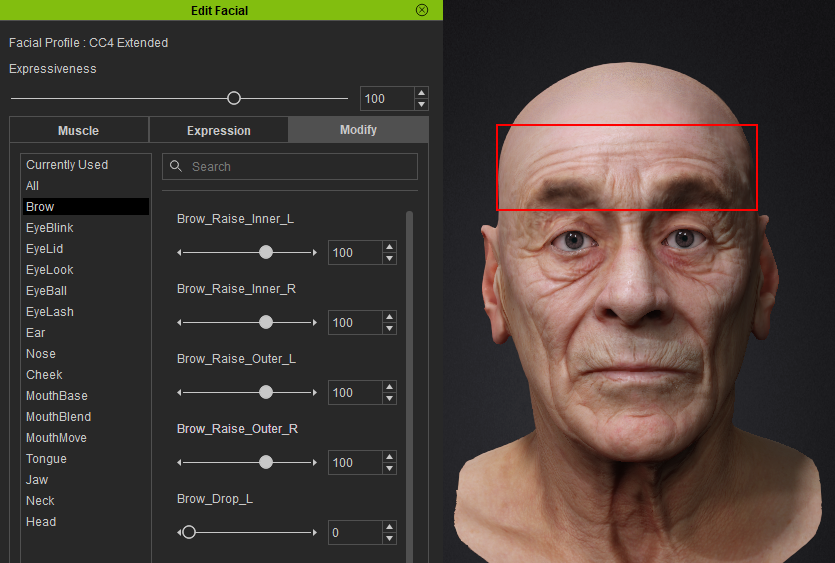
Expression enhanced with scan model projection.
Expression without scan model projection.
