Saving and Deleting Assets (v1.1)
You can save AI-generated media from the AI Render View and History panel, or delete media from the History panel using the ... button on a History item.
Downloading AI-generated Media
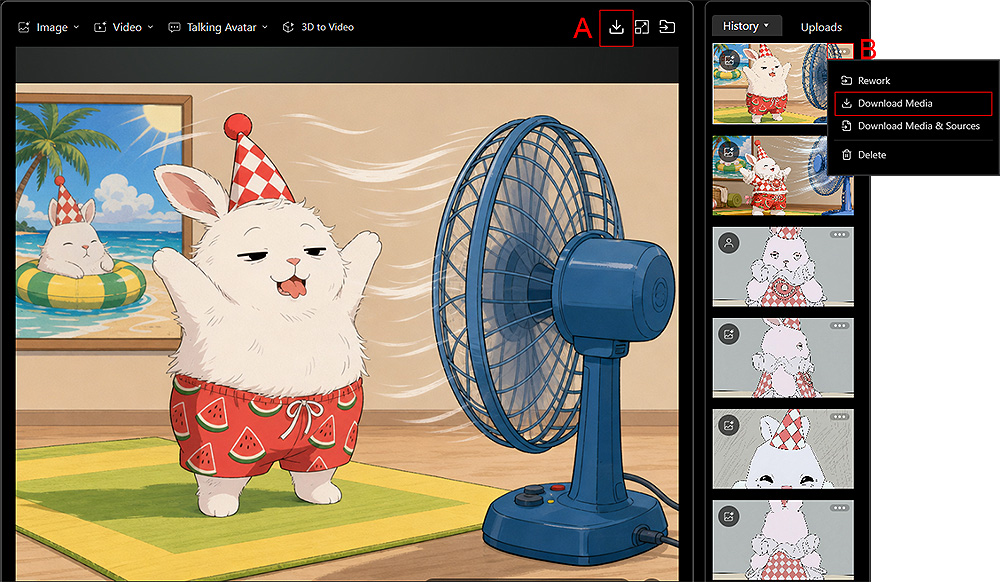
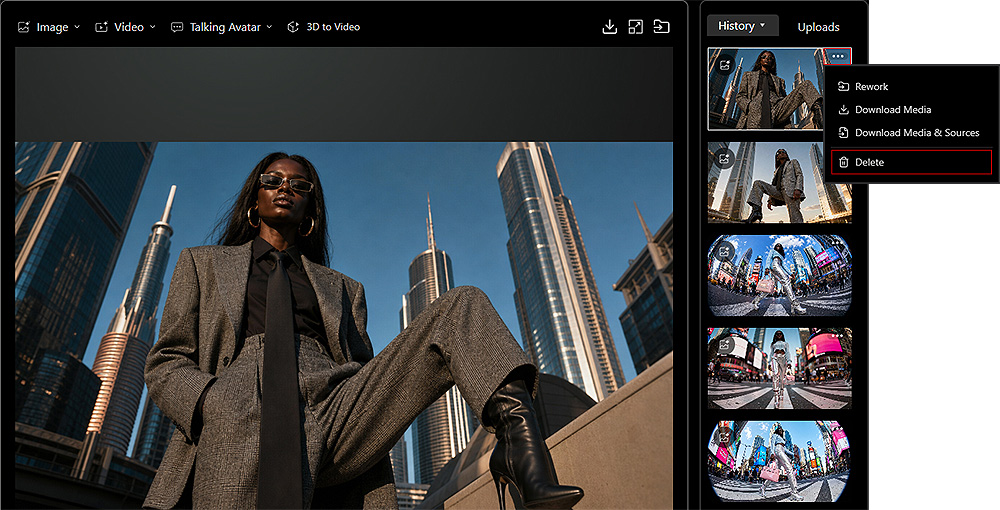
- Download a Single AI-Generated Result: Click the Download Media button in the top-right corner of the AI Render View (A) to download the current AI-generated media.
Alternatively, select a History item, then click the ... button in the top-right corner of its thumbnail and choose Download Media (B).
After the download is complete, you can click the Find File link in the notification at the bottom-right corner of the window to open the download location. The downloaded files are saved to the directory specified in the Account Settings page. Refer to Downloaded File Naming Rules for the naming conventions of each media type.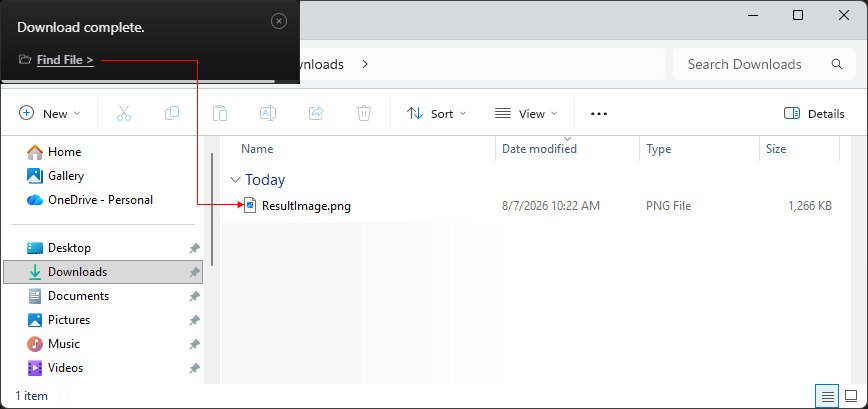
- Download Multiple AI-Generated Results: On the Full History page, turn on Multi-Select in the top-right corner to enter multiple selection mode, then select the History items you want to download.
Alternatively, hold Shift while clicking History items to enter multiple selection mode.

Then, click Download Media at the bottom of the page to download the selected History items.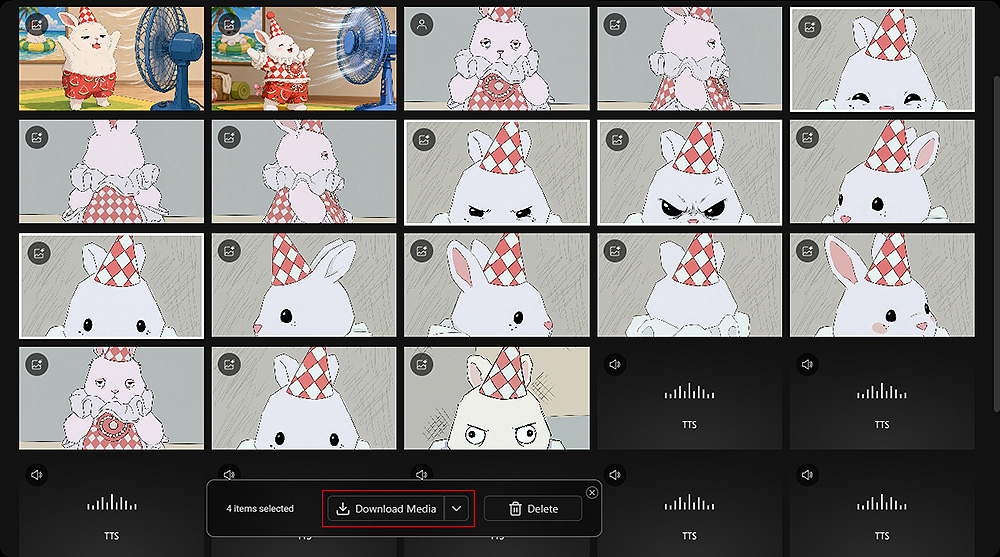
After the download is complete, you can click the Find File link in the notification at the bottom-right corner of the window to open the download location. The downloaded files are saved to the directory specified in the Account Settings page. Refer to Downloaded File Naming Rules for the naming conventions of each media type.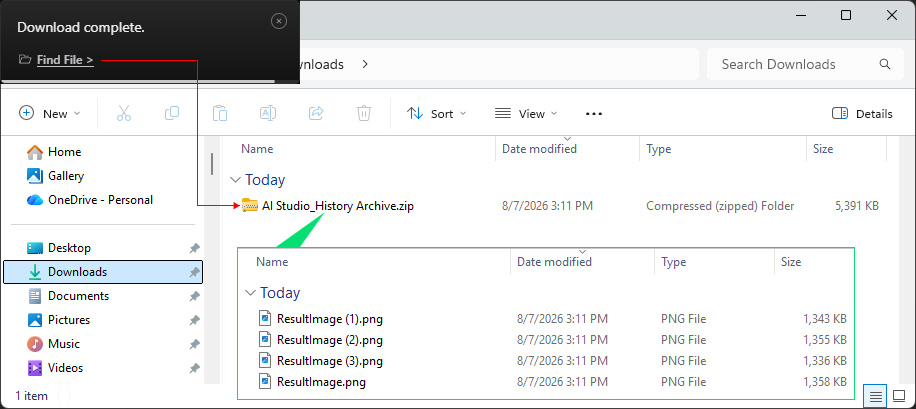
Downloading AI-generated Media with Source Files
- Download a Single AI-Generated Result and Its Source: Select a History item, then click the ... button in the top-right corner of its thumbnail and choose Download Media & Source to download the selected AI-generated result together with the input media, source files, and reference files used in the generation process.
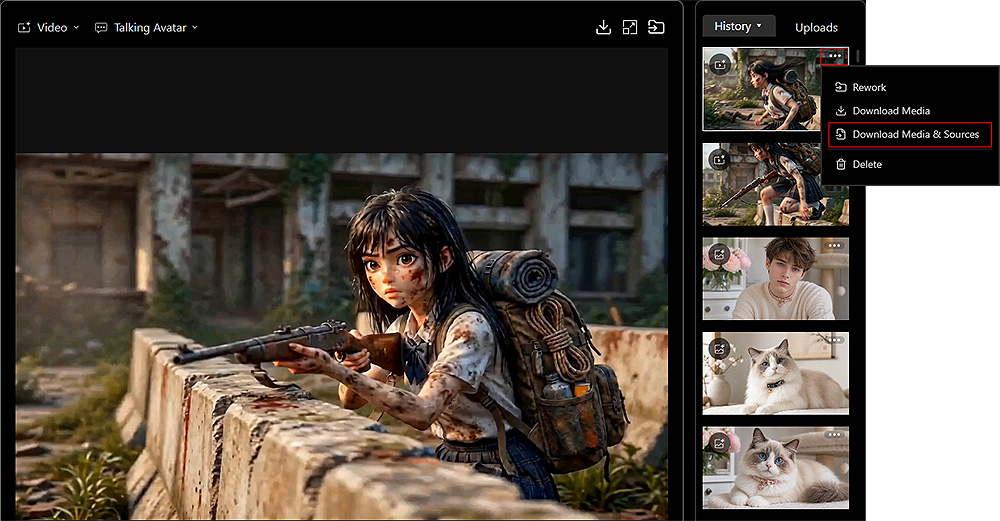
After the download is complete, you can click the Find File link in the notification at the bottom-right corner of the window to open the download location. The downloaded files are saved as a ZIP file in the directory specified on the Account Settings page. After extracting the ZIP file, the AI-generated result and its associated input files are stored in a History folder named with the creation date and time. Refer to Downloaded File Naming Rules for the naming conventions of each media type.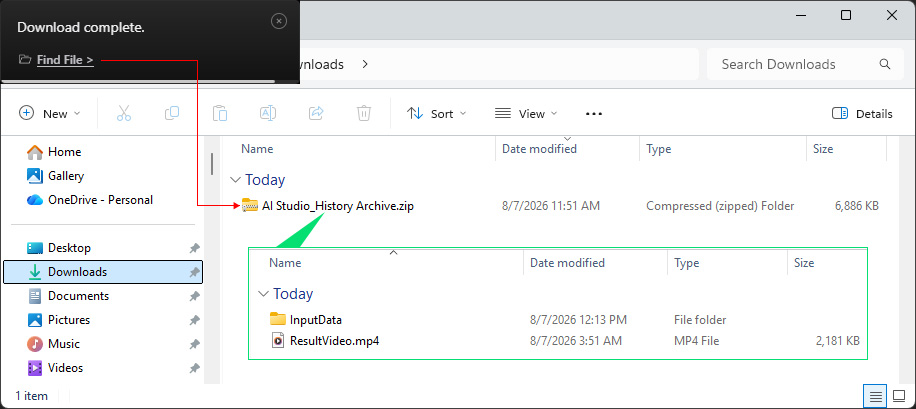
- Download Multiple AI-Generated Results and Their Sources: On the Full History page, turn on Multi-Select in the top-right corner to enter multiple selection mode, then select the History items you want to download.
Alternatively, hold Shift while clicking History items to enter multiple selection mode.
Then, click the arrow next to Download Media and select Download Media & Source from the drop-down list at the bottom of the page to download the selected History items and their associated source files.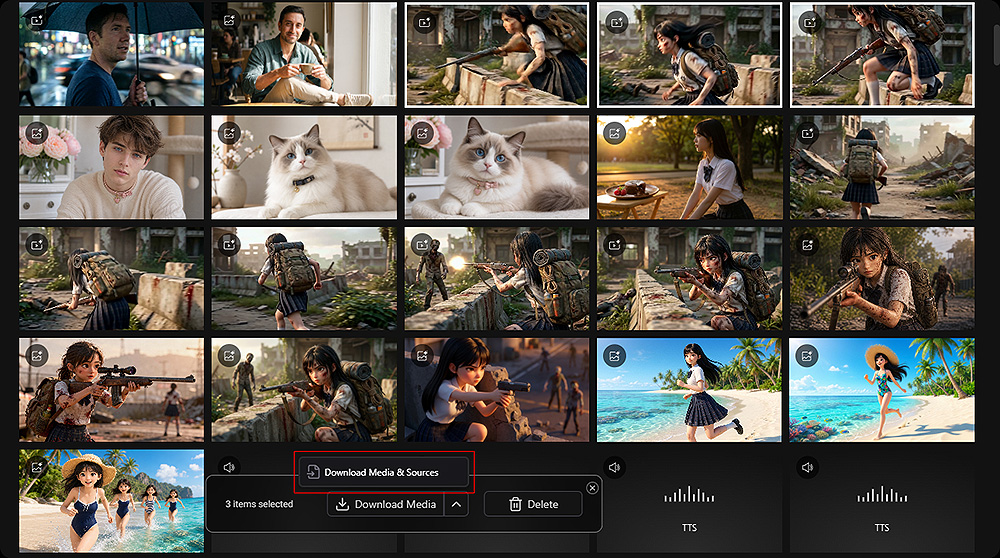
After the download is complete, you can click the Find File link in the notification at the bottom-right corner of the window to open the download location. The downloaded files are saved as a ZIP file in the directory specified on the Account Settings page. After extracting the ZIP file, each AI-generated result and its associated input files are stored in a separate History folder named with the creation date and time. Refer to Downloaded File Naming Rules for the naming conventions of each media type.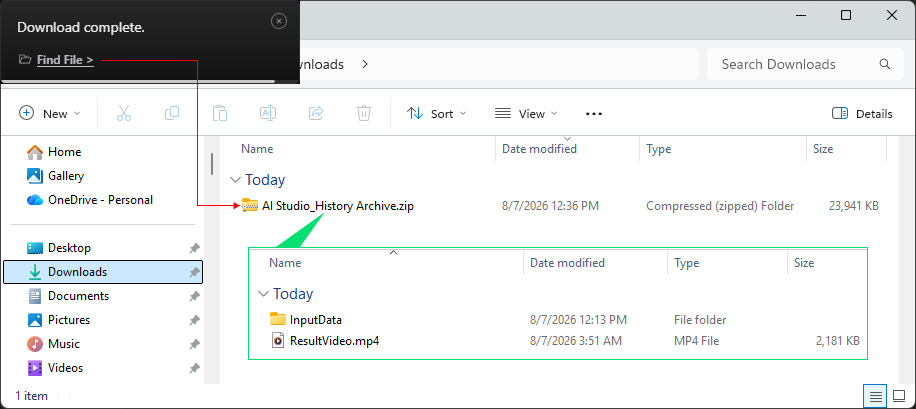
Deleting Media Items
- Delete a Single Item: Select a History item, then click the ... button in the top-right corner of its thumbnail and choose Delete.
- Delete Multiple Items: On the Full History page, turn on Multi-Select in the top-right corner to enter multiple selection mode, then select the History items you want to delete.
Alternatively, hold Shift while clicking History items to enter multiple selection mode.
Then, click Delete at the bottom of the page to delete the selected History items.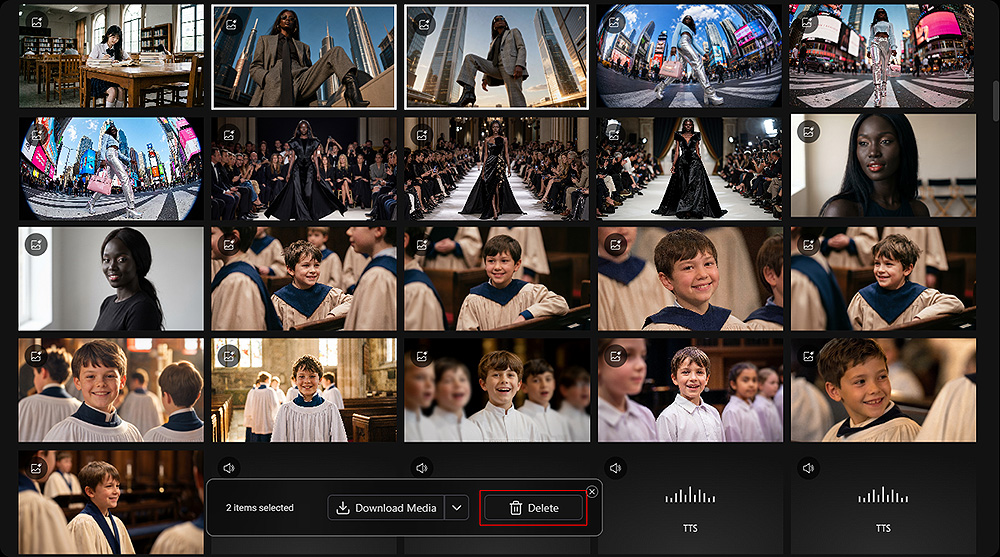
Downloaded File Naming Rules
-
 Result Data
Result Data AI Output AI Tools Image Video Audio Image Gen
Create
ResultImage.png
--
--
Edit
ResultImage.png
--
--
Video Gen
Create
--
ResultVideo.mp4
--
Edit
--
ResultVideo.mp4
--
3D Guided Gen
3D to Image
ResultImage.png
--
--
3D to Video
--
ResultVideo.mp4
--
Talking Actor
Reference Image
--
ResultVideo.mp4
--
Reference Video
--
ResultVideo.mp4
--
Text to Speech
--
--
ResultAudio.wav
Create Actor
Basic
ResultImage.png
--
--
Advanced -
Render Selected ViewResultImage.png
--
--
Advanced -
Render All Views01_Head_Front.png 08_Exp_Anger.png
02_Head_45L.png 09_Exp_Sorrow.png
03_Head_SideL.png 10_Exp_Fun.png
04_Head_Back.png 11_Body_Front.png
05_Head_SideR.png 12_Body_SideL.png
06_Head_45R.png 13_Body_Back.png
07_Exp_Joy.png 14_Body_SideR.png--
--
Upscale
Image
UpscaleImage.png
--
--
Video
--
UpscaleVideo.mp4
--
-
Input Data
Input Data Media Type AI Tools Image Video Audio Reference Image Gen
Create
--
--
--
--
Edit
SourceImage01~14
--
--
SourceImage01~14
Video Gen
Create
StartFrameImage
EndFrameImage--
--
SourceImage01~07
SourceVideo01~03
SourceAudio01~03Edit
SourceImage
SourceVideo
--
--
3D Guided Gen
3D to Image
SourceImage.png
SourceActorImage.png (Assign Actor)--
--
--
3D to Video
SourceImage
SourceVideo.mp4
--
SourceAudio01~03
Talking Actor
Reference Image
SourceImage
--
- Single Talking Actor:
ReferenceAudio (Reference Voice)
SourceAudio.wav (Text to Speech)
SourceAudio.wav (Upload Voice) - Multiple Talking Actors:
ReferenceAudioLeft (Reference Voice)
ReferenceAudioRight (Reference Voice)
SourceAudio01~N.wav (Text to Speech)
SourceAudio01~N.wav (Upload Voice)
SourceAudioMerged.wav (All Voice Integration)
SourceAudioLeft.wav
SourceAudioRight.wav
--
Reference Video
--
SourceVideo
--
Create Actor
Basic
SourceImage01~08
--
--
--
Advanced -
Render Selected ViewSourceImage01~02
--
--
--
Advanced -
Render All Views01_Head_Front 08_Exp_Anger
02_Head_45L 09_Exp_Sorrow
03_Head_SideL 10_Exp_Fun
04_Head_Back 11_Body_Front
05_Head_SideR 12_Body_SideL
06_Head_45R 13_Body_Back
07_Exp_Joy 14_Body_SideR--
--
--
Upscale
Image
SourceImage.png
--
--
--
Video
--
SourceVideo.mp4
--
--
- Single Talking Actor:
